What Was Happening
The owner had been running the laptop almost entirely on mains for the last few months. When they tried to use it untethered for the first time in weeks, it shut down within seconds of the charger being unplugged. Back on charge, Windows reported “Plugged in, not charging” and the battery percentage stayed flat at 0% no matter how long it was left.
A working charger LED but a flat battery is a classic mid-life laptop symptom. The battery and the charger are independent: the charger can still deliver power to the laptop’s mainboard for normal operation while the battery itself has failed to a point where the controller refuses to charge it.
Sound like your problem?
Bring it to our Putney workshop or message us a photo and we will give you a straight answer and a quote before any work starts.
Our Diagnosis
We don’t replace batteries on assumption. The four common causes of “not holding charge” are independent and each gets ruled out in turn:
- Charger output. Tested the supplied PSU under load with a multimeter — voltage and current under spec, brick warming normally, no ripple on the rail. Charger ruled out.
- DC jack and cable. Inspected the barrel jack for the typical wobble that indicates a cracked solder joint on the mainboard. Solid, no flex. The pin was clean and the laptop registered “plugged in” reliably across positions. Jack ruled out.
- Battery controller / EC. Booted with the battery disconnected to confirm the machine ran normally from the charger alone. It did. Reseated the battery connector, cleared the EC by holding power for 30 seconds with no battery and no AC, then reconnected. Same fault. Controller behaviour normal — the firmware was correctly identifying the battery and reporting accurate temperature readings.
- The cell itself. Pulled the battery, measured terminal voltage. Well below the minimum cell voltage the controller will attempt to recharge from. At that point the protection circuit had locked the cell out — a one-way trip on most consumer batteries once they sit fully depleted for long enough.
Root cause: cell failure after extended periods of full discharge while the laptop sat unused on mains. Charger and laptop hardware all healthy.
How We Fixed It
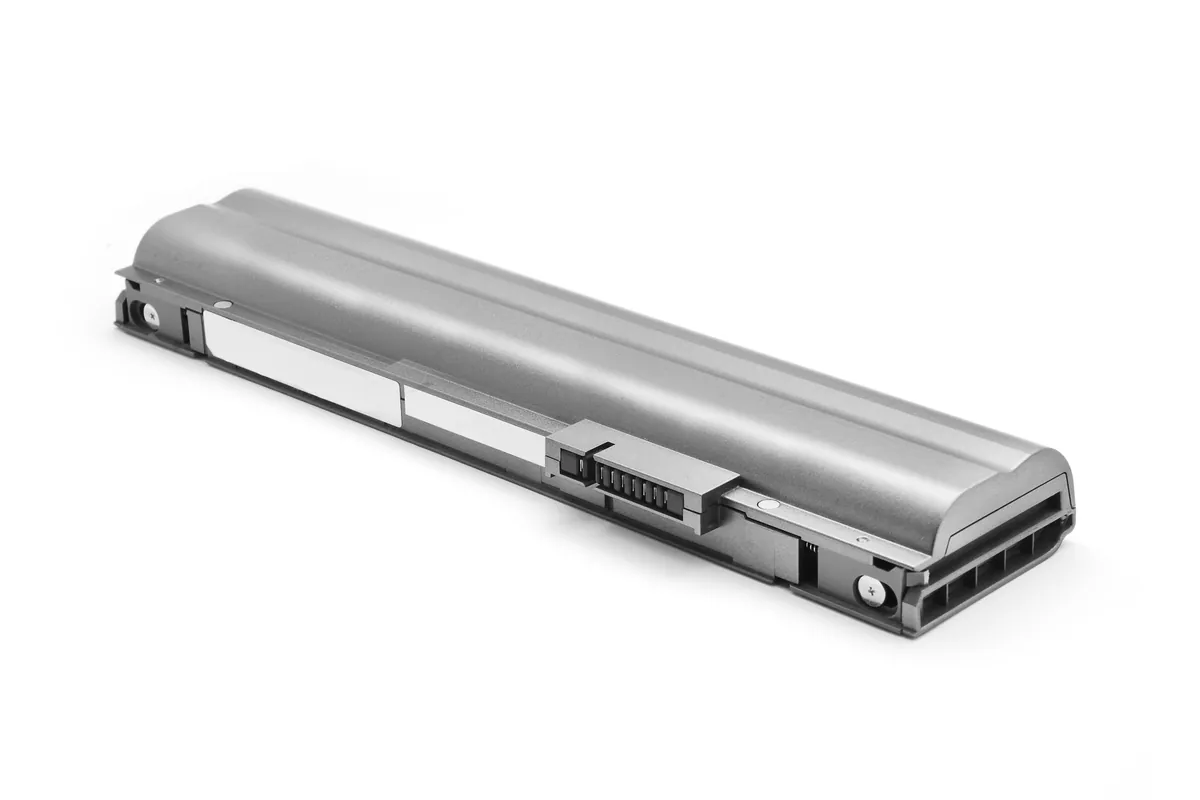
Sourced a replacement battery matched to this Acer model on connector, voltage, capacity and chemistry. Original-equipment-spec where possible, quality aftermarket only when the OEM part isn’t available — and clearly disclosed either way before the work goes ahead.
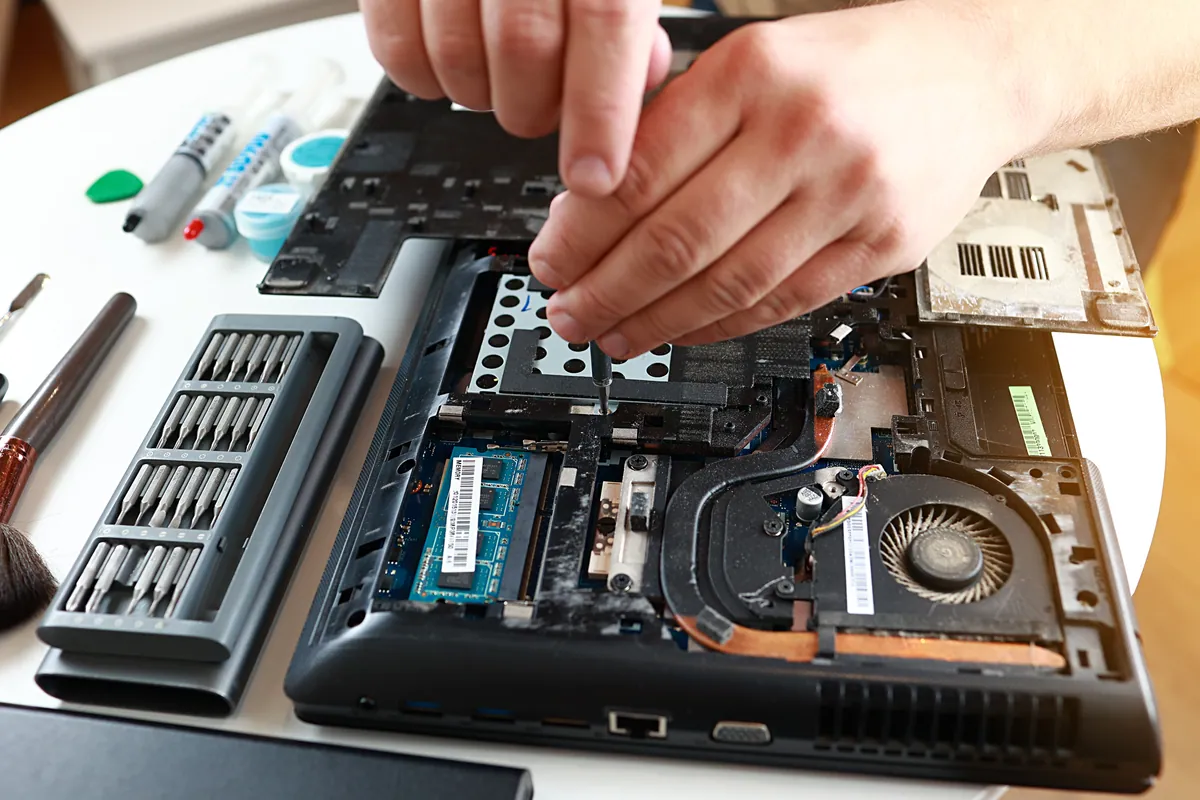
Fitting itself takes minutes on most Acer chassis: undo the base screws, lift the bottom panel, disconnect the existing battery, swap in the replacement, reconnect. The longer part is verification:
- First full charge to 100%, monitored for temperature throughout — a faulty replacement cell would warm unevenly.
- Full controlled discharge to 5% to let the controller learn the real capacity of the new pack rather than relying on the manufacturer’s nominal figure.
- A second full charge to confirm the reported capacity matches the cell’s spec.
- Check Windows battery report (
powercfg /batteryreport) for design capacity vs full charge capacity — these should be near-identical on a brand-new battery.
The whole verification cycle adds a few hours of bench time but it’s the only way to confirm the battery is genuinely good rather than just installed.
The Result
The laptop returned to the customer holding its rated runtime on a full charge and discharging predictably under normal use. We talked them through battery-care basics so the next pack lasts longer.
Why This Happens
Lithium-ion laptop batteries die in three predictable ways:
- Cycle wear. Each full charge–discharge takes a small bite out of the cell’s capacity. After 400–500 full cycles a typical consumer cell has lost 20–30% of its original capacity. Most laptops reach this point in 3–4 years of mixed-use.
- Calendar age. Even unused, lithium-ion degrades through internal chemistry changes. A laptop left on a shelf for two years will lose 10–15% capacity to age alone.
- Deep discharge. This is what got the Acer above. If a li-ion cell is allowed to sit fully discharged for weeks or months, internal voltage drops below the level the protection circuit considers safe to recharge. The pack effectively bricks itself, even if every other component is fine.
The third one is the avoidable one — and it’s the one most home users trigger by leaving a laptop unused for an extended trip or seasonal storage.
How to make a laptop battery last longer
- Don’t store at 0% or 100%. If a laptop is going into storage for more than a month, charge it to roughly 50–60% first. Storing full or empty both accelerate ageing.
- Avoid heat. Heat is the biggest single accelerator of cell degradation. Don’t leave a laptop charging on a duvet, in a hot car, or in direct sun.
- Cycle the battery occasionally even if you live on mains. A full charge–discharge once a month keeps the controller’s calibration accurate. Locked at 100% for weeks at a time isn’t great for the cell either.
- Check the battery report once a year. On Windows,
powercfg /batteryreport. On macOS, About This Mac → System Report → Power. If full-charge capacity has dropped below 70% of design capacity, plan for a replacement.
Local Help in Putney SW15
Laptops that intermittently misbehave are best diagnosed before the symptom hardens into an outright failure.
We cover the full range of consumer and business laptops at our Putney workshop and tell you honestly which faults are worth fixing and which aren’t.
Book a workshop slot on 020 7610 0500 or via our contact form.