What Was Happening
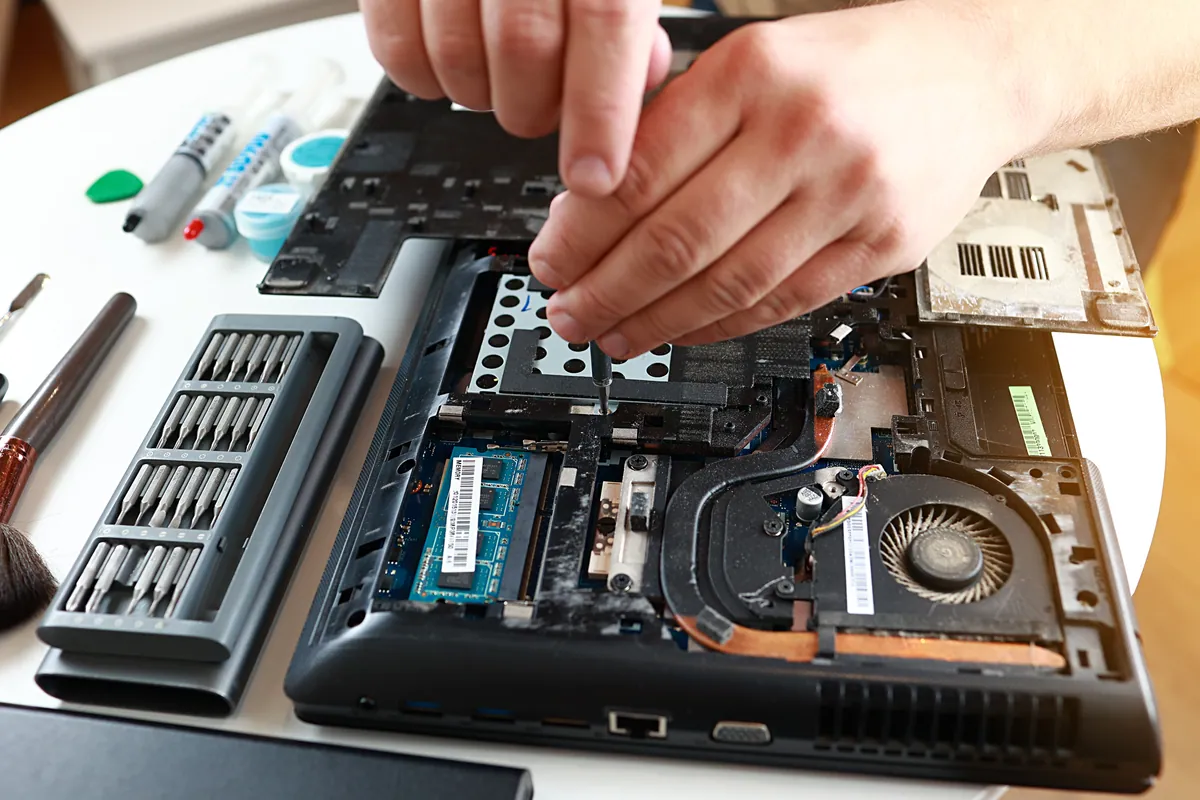
The Asus arrived from a Balham SW12 owner with a frustrating, productivity-killing fault: several keys had stopped working. Not the whole keyboard — enough of it still typed that the laptop seemed fine — but a handful of dead keys is enough to make a machine genuinely unusable for real work, and no amount of pressing harder brings them back. They asked us to diagnose it and quote for the fix.
Dead keys are one of those faults that feel like they should have a quick, cheap fix — surely you just sort out the few that don’t work? The honest answer is usually the opposite of what people expect, and it’s worth explaining why.
Sound like your problem?
Bring it to our Putney workshop or message us a photo and we will give you a straight answer and a quote before any work starts.
Our Diagnosis
- Confirmed the keys were genuinely dead, not stuck. First we checked whether the keys were physically jammed by debris or a lifted keycap — sometimes that’s all it is, and it’s a clean-and-reseat job. Here the keys were electrically dead: pressing them registered nothing.
- Isolated it to the keyboard, not the software. Dead keys can occasionally be a driver or settings issue rather than hardware, so we ruled that out. The problem was the keyboard unit itself, not the machine’s software.
- Made the call: replace, don’t patch. With multiple keys failing on a keyboard that’s a single integrated unit, the reliable answer is to replace the whole keyboard. Trying to revive individual keys on a failing keyboard is a false economy — the fault tends to spread, and you’re back to square one.
How We Fixed It
- Fitted a replacement keyboard. We sourced and installed a new keyboard for the Asus, replacing the failing unit rather than attempting to nurse dead keys back to life.
- Tested every key. A keyboard replacement isn’t done until every single key has been checked, so we worked across the whole layout to confirm the entire keyboard registered correctly.
- Reassembled and verified. With the new keyboard in and tested, we put the machine back together and confirmed it typed cleanly and reliably before returning it.
The Result
The Asus went back to Balham typing properly across the whole keyboard — no dead spots, no guessing whether a key would register. A laptop that had become quietly unusable for anything involving typing was fully back in service, and the fix was a clean replacement rather than a fragile repair that might fail again in weeks.
Why This Happens
The thing that surprises people is that a laptop keyboard is essentially one part, not a hundred separate keys. Under the keycaps sits a thin, layered membrane (or a set of scissor mechanisms over one) with electrical traces running across the whole board. When keys go dead, it’s usually because those traces have been damaged — by wear, by dust and debris working in over time, or by a small spill that corroded a connection you never saw. Because the traces are shared across the whole keyboard, the failure isn’t really “in” the dead keys; it’s in a unit that’s beginning to fail as a whole.
That’s why replacing individual keys doesn’t work as a real fix. You might reseat a loose keycap, but you can’t meaningfully repair the electrical layer under a specific key without replacing the assembly it belongs to — and even if you could, the same ageing or contamination that killed those keys is at work under the others. Replacing the keyboard as a unit is both the reliable fix and, in the end, the cheaper one, because it doesn’t come back.
The usual causes are mundane and preventable. Crumbs and dust are the slow killers, working under the keys over months. Liquids are the fast ones — even a small splash of coffee or water can corrode traces and take out a cluster of keys. Keeping food and drink away from the keyboard, and giving it an occasional careful clean, genuinely prolongs its life. And if a spill does happen, getting the machine looked at quickly — before corrosion sets in — can be the difference between a clean-up and a replacement.
Local Help in Balham SW12
If your laptop has developed dead or unresponsive keys, it’s usually a keyboard replacement rather than anything you can fix key by key — and it’s a very worthwhile repair, because a machine you can’t type on reliably is no machine at all.
We replace laptop keyboards from our Putney workshop, a short way from Balham SW12, and if a spill was involved we’ll check for corrosion underneath rather than just swapping the part and hoping.
Call 020 7610 0500, drop in to SW15, or use the contact form.