What Was Happening
The laptop had been getting unstable over weeks. First occasional freezes that recovered with a reboot. Then a few blue screens. Then blue screens during boot itself, with the laptop dropping into an automatic-repair loop that couldn’t complete. By the time it came in, getting a successful boot was rare.
The customer specifically said no data needed to be preserved — they’d accepted the machine might need a fresh start. That simplifies the job considerably; data preservation is usually most of the work in a failing-drive case, not the actual replacement.
Sound like your problem?
Bring it to our Putney workshop or message us a photo and we will give you a straight answer and a quote before any work starts.
Our Diagnosis
Blue-screen and freeze symptoms together have a small number of likely causes. Diagnosis runs through them in order:
- SMART check on the drive. The cheapest check, and the most common cause of these symptoms. SMART reported reallocated sectors well above threshold, pending sectors growing, and a history of read errors during normal operation. Conclusive — failing storage drive.
- RAM test as confirmation. Marginal RAM can produce similar symptoms. MemTest run cleanly with no errors. RAM ruled out.
- Thermal check. Sustained-load testing showed normal temperatures with no throttling. Cooling ruled out.
- Power and charger. PSU output clean under load, DC jack solid. Power ruled out.
Outcome: drive failure was the single cause of the freeze and blue-screen pattern.
How We Fixed It
Because the customer didn’t need data preserved, the job simplified to a straight drive replacement with clean install:
Removed the failing drive. Standard back-panel access on this Asus model. The failing drive came out cleanly.
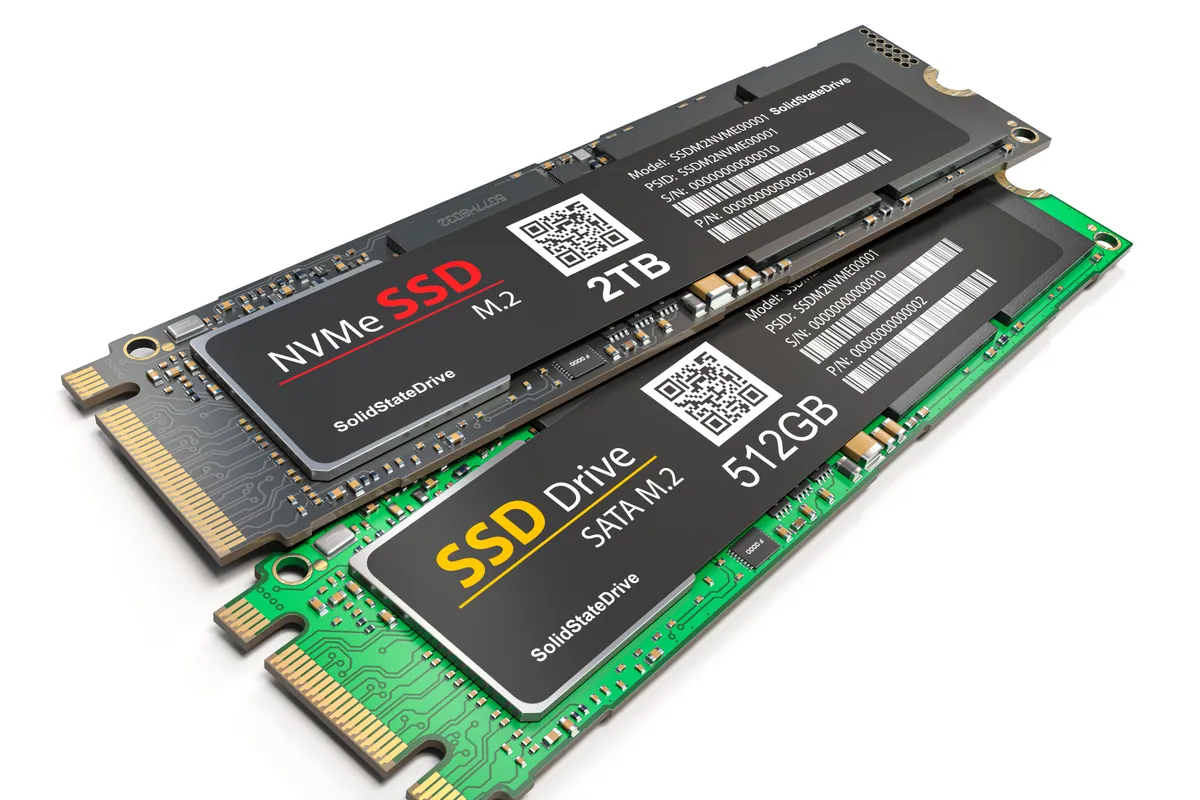
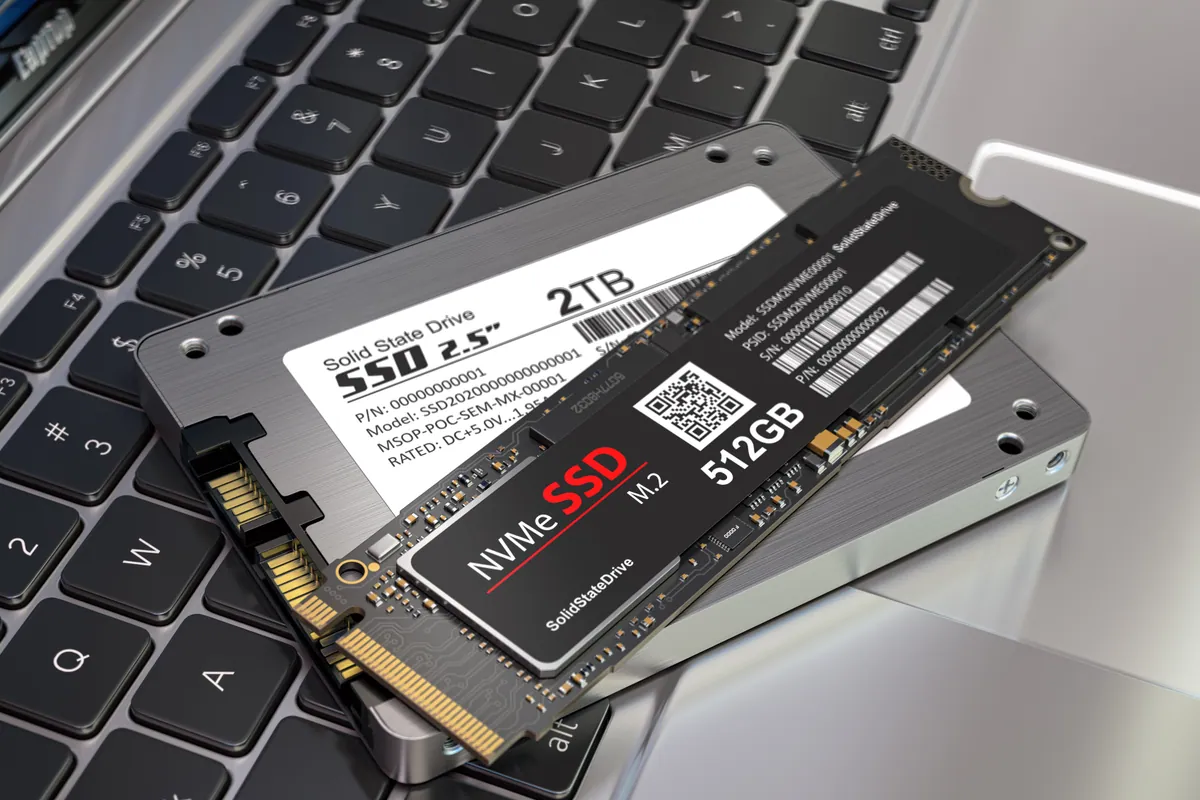
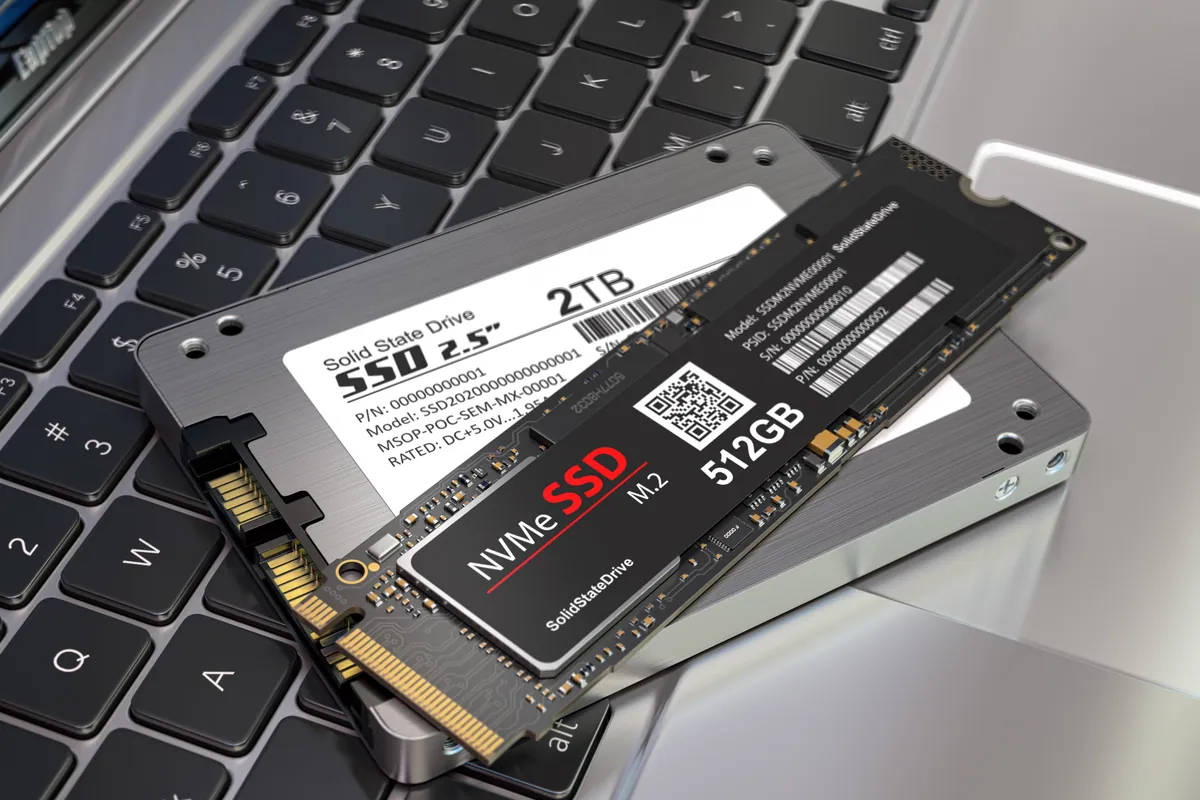
Fitted the new SSD. 240GB SATA SSD into the existing drive bay. Same connector, same physical fit, same cabling. Took minutes to install.
Disposed of the failing drive responsibly. Drives that have held user data — even when the user didn’t want to preserve it — should be wiped properly before disposal. We wiped the drive with a full overwrite where it still allowed it, and physically destroyed the platters where it didn’t.
Clean Windows install on the new SSD. Fresh partition table, current Windows version, no carry-over from the failing drive.
Asus driver bundle applied via the manufacturer’s installer. Chipset, network, sound, integrated graphics, system management, fingerprint reader (if applicable), keyboard backlight controller, function-key handler. Asus laptops have a number of model-specific drivers that the generic Windows install doesn’t cover.
Windows updates brought current.
Standard application suite installed (browser of customer’s choice, the office productivity suite they used, security software baseline).
Verification:
- Boot to login: under 20 seconds (down from “rarely successfully”)
- Stress test for 30 minutes — no freezes, no blue screens
- Drive activity light at idle (should be quiet, was) — confirmed no underlying repair attempts running
- SMART on the new drive — clean baseline
The Result
No more freezes. No more blue screens. Boot time under 20 seconds. Applications launching instantly. The laptop is noticeably faster than the customer remembers it being even when new — because spinning hard drives were the bottleneck on most laptops of this generation, and an SSD swap solves that.
Why This Happens
The Windows kernel calls into the storage driver constantly during normal operation. When the drive returns errors — bad reads on the boot partition, timeouts on writes, corrupted data — the kernel often can’t continue safely and triggers a bug check (blue screen) rather than risk corruption of in-memory data structures.
The symptom looks like a Windows bug. The cause is the drive underneath. Tell-tale signs:
- Blue screens with codes related to storage (CRITICAL_PROCESS_DIED, NTFS_FILE_SYSTEM, KERNEL_DATA_INPAGE_ERROR, INACCESSIBLE_BOOT_DEVICE)
- Freezes that correlate with disk activity (the activity light is solid for tens of seconds before the freeze)
- “Automatic repair” appearing on boot more often
- Boot times getting progressively longer
If you’re seeing any of these, run a SMART check before assuming Windows is the problem.
SSD vs HDD — why the upgrade transformed the laptop
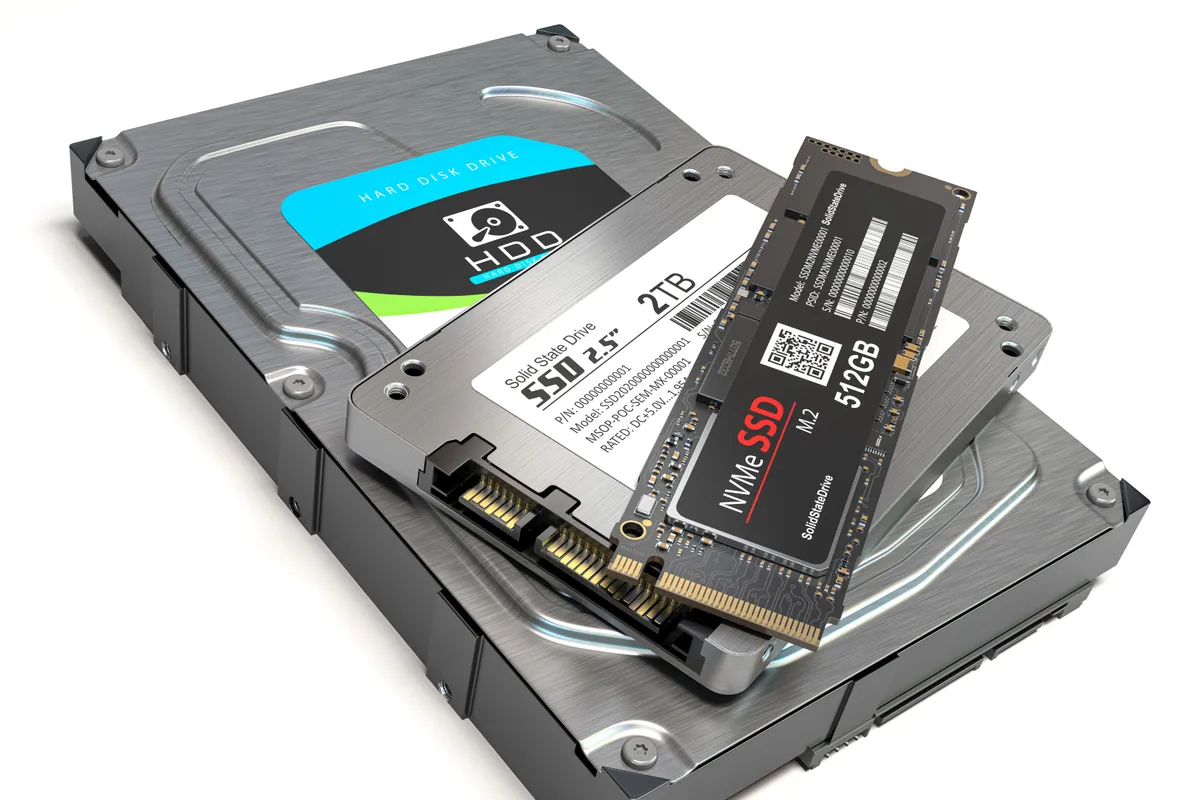
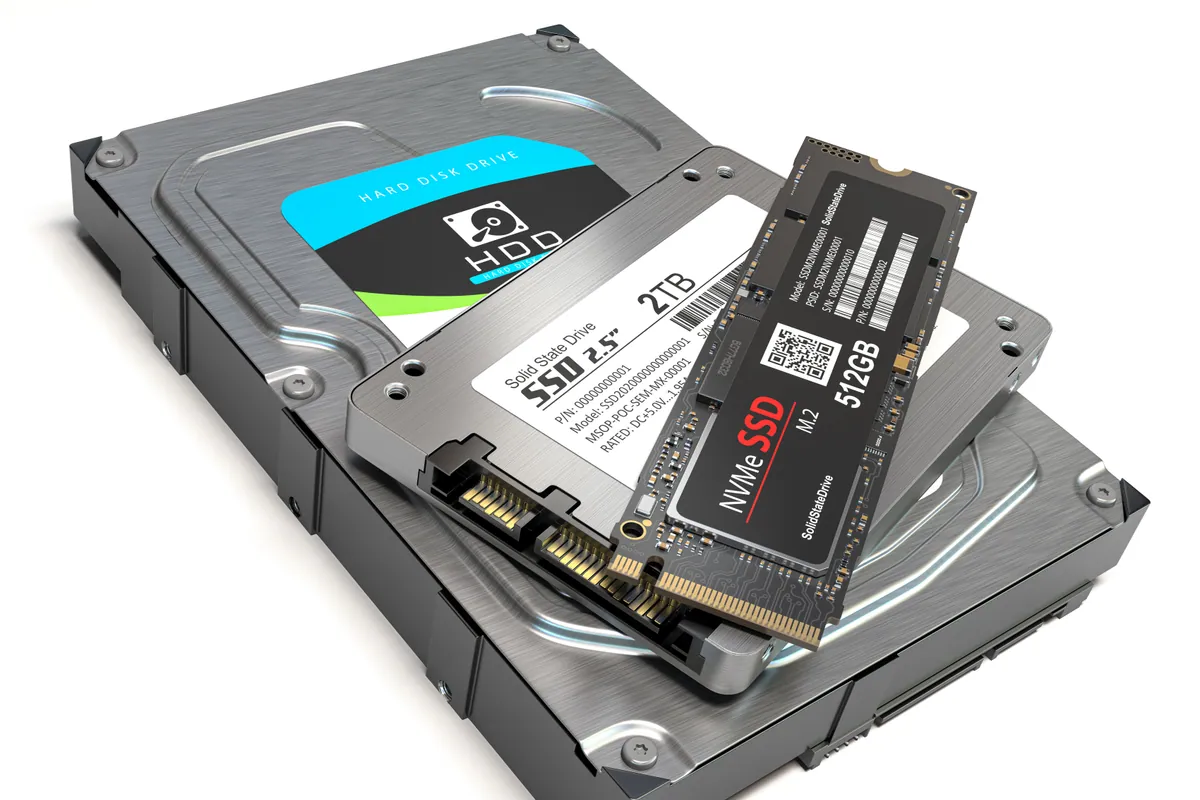
On any laptop made between roughly 2010 and 2018, the storage was the bottleneck. The CPU and RAM could handle modern workloads; the spinning hard drive couldn’t keep up. The result was a laptop that felt slow on every operation that required reading from disk — which is most operations.
Replacing the spinning drive with an SSD addresses this directly:
- Random read speed — typically 50–100× faster on SSD than on a spinning drive
- Random write speed — similar gap
- Access latency — under a millisecond on SSD vs 10+ milliseconds on spinning drives
- Resilience — no moving parts, no head-crash failure mode, no platter wear
- Power efficiency — SSDs draw less power than spinning drives, extending battery life slightly
The performance improvement is the most dramatic single upgrade you can apply to an older laptop, and it costs a fraction of what a new laptop would.
When an SSD upgrade is worth doing
Worth it when:
- Laptop is sluggish but the CPU and RAM are still adequate for your workload
- Currently has a spinning hard drive (not already on SSD)
- Boot times are noticeably long
- Disk activity light is constantly lit during everyday use
- The machine is otherwise healthy
Reconsider when:
- The laptop is already on SSD (you’re not the bottleneck — look elsewhere)
- The machine has other failing components (battery dead, screen damaged, hinge broken — calculate the total cost)
- The chassis is too old for current macOS or Windows versions (an old laptop with a new SSD is still an old laptop)
Local Help in Putney SW15
An SSD upgrade on a laptop or iMac with a spinning hard drive is the single biggest performance improvement you can apply.
Boot times collapse, application launches feel instant, and the machine often lasts another three to five years.
Drop in to our Putney workshop (SW15), call 020 7610 0500, or use the contact form to discuss.