What Was Happening
Two symptoms, and they arrived together. First, Task Manager showed disk usage sitting at 100% almost constantly — even with nothing obviously running, the drive was flat out. Second, and more disruptive, the machine would freeze completely after roughly half an hour: mouse frozen, nothing responding, a hard restart the only way out. Then the clock would start again on the next thirty minutes.
The owner had read that 100% disk usage means the machine is short on memory and starts leaning on the drive, and had been about to buy more RAM. That’s a reasonable theory and sometimes it’s even right — but the pattern here pointed somewhere else. A memory shortage tends to make a machine sluggish under heavy use. It doesn’t usually produce a hard freeze on a predictable timer regardless of what you’re doing. That “always about thirty minutes” behaviour is the tell of something physical warming up and degrading, not software running out of headroom.
Sound like your problem?
Bring it to our Putney workshop or message us a photo and we will give you a straight answer and a quote before any work starts.
Our Diagnosis
The brief specifically asked for a full stress test, which is exactly the right way to catch a fault that only shows up once the machine has been running for a while:
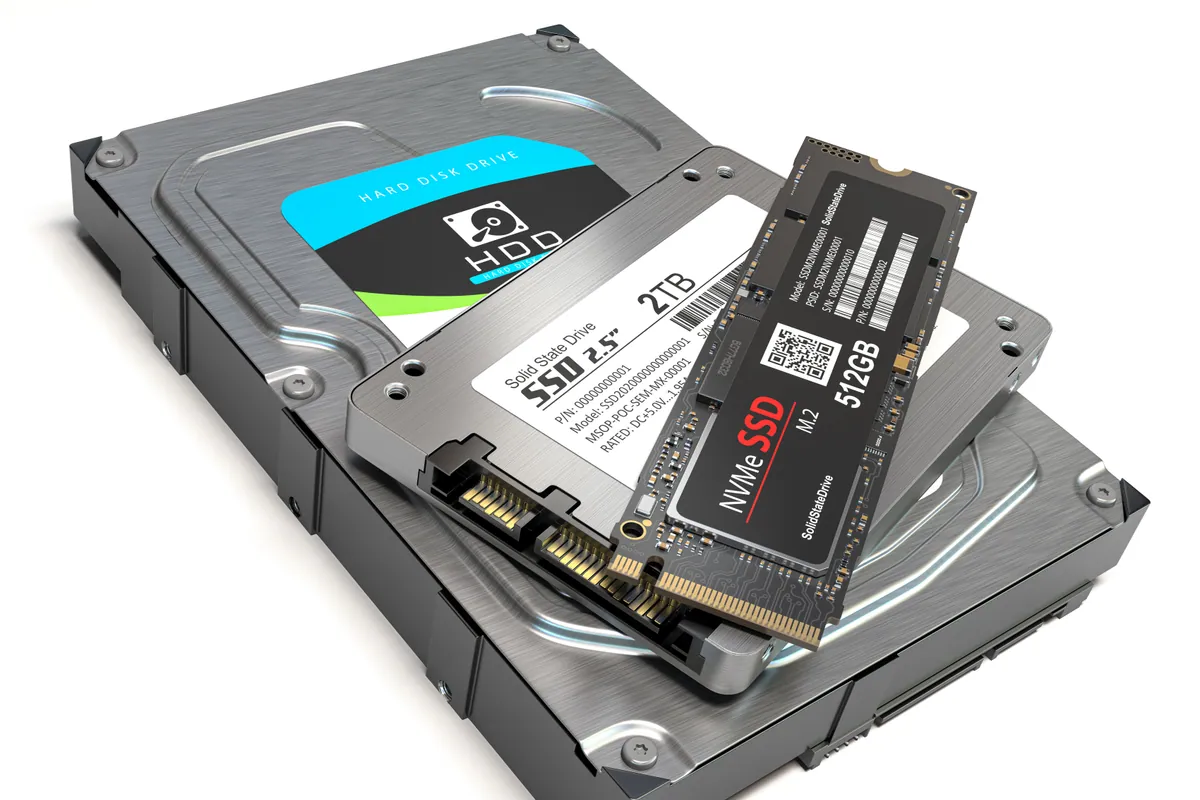
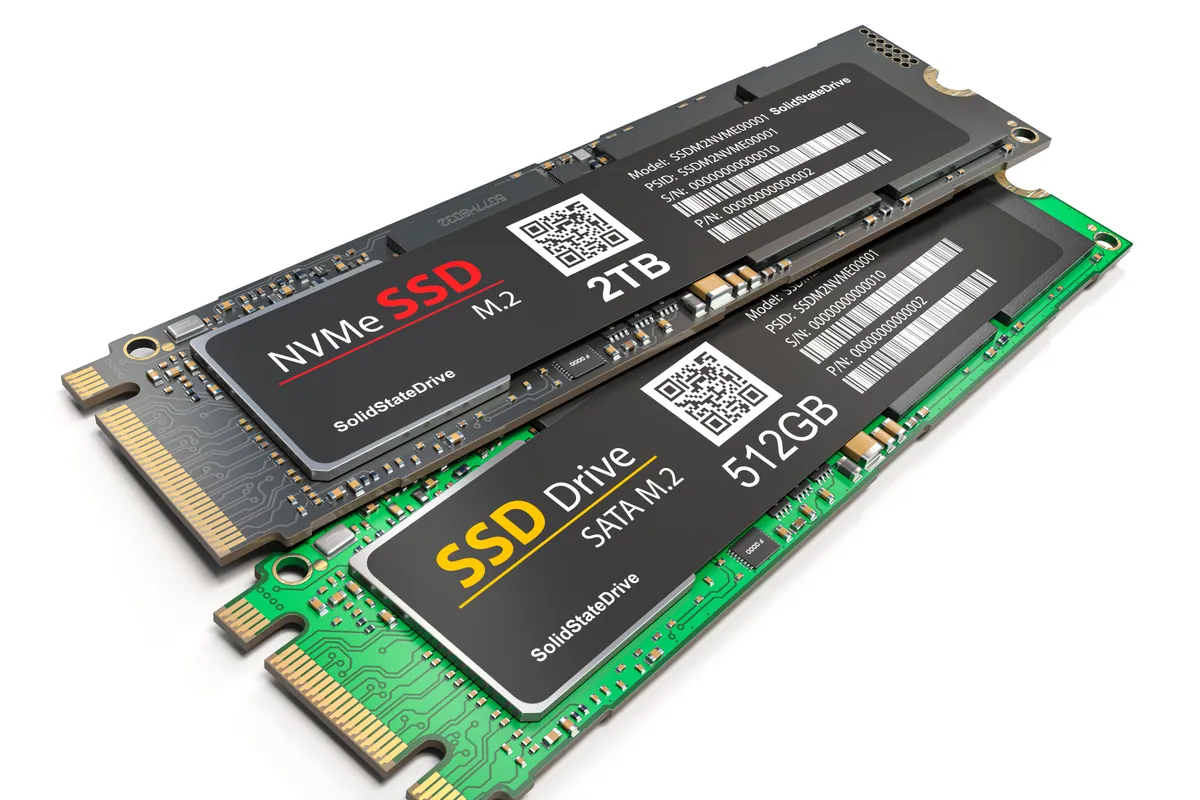
- Read the drive’s own health data first. Every SSD keeps internal health and error counters. This one was already reporting reallocated sectors and a climbing error count — early evidence the drive was struggling before we’d stressed it at all.
- Watch disk latency, not just disk usage. 100% usage on its own isn’t proof of a fault; a healthy drive can hit 100% briefly under load. The problem was the response time. The drive was taking far too long to answer each request, so a small amount of real work saturated it. That’s what pins usage at 100% — the drive can’t clear the queue.
- Run it under sustained load and watch what changes with time. This is where the thirty-minute pattern explained itself. As the machine ran and warmed through, read latency crept steadily upward until requests started timing out and the system stalled — the freeze the owner was seeing, reproduced on the bench.
- Confirm it isn’t the OS or a driver. We checked the failure followed the drive, not the Windows install on it, so we weren’t about to replace a healthy drive over a software fault. It did. The hardware was the problem.
Conclusion: a failing SSD, degrading as it warmed, was behind both the constant 100% usage and the timed freezes. More RAM would have changed nothing.
How We Fixed It
Got the machine onto a healthy drive. The failing SSD came out and a sound drive went in as the new boot device. Where a drive is degrading like this, the priority is to stop relying on it before it fails outright.
Fresh Windows install with current drivers. Rather than clone a struggling drive — which risks copying across corruption from the bad sectors — we set the machine up cleanly on the new SSD and brought all the drivers up to date, so it starts from a known-good state.
Internal dust clean-up. The case was carrying a lot of dust, which was pushing temperatures up and making everything work harder — not the cause of the drive fault, but a genuine contributor to a hotter, more stressed machine. We cleared the heatsinks, fans and filters so the desktop runs cooler and quieter.
Re-tested under the same sustained load. The whole point of the original brief was a stress test, so we finished with one. The rebuilt machine held steady well past the half-hour mark that used to kill it, with disk usage and temperatures where they should be.
The Result
Disk usage now sits low and normal at idle instead of pinned at 100%, and the machine stays up under sustained use — the thirty-minute freeze is gone. It also runs noticeably cooler after the clean-out. The owner kept the machine they had rather than replacing it, and didn’t spend money on the memory upgrade that wouldn’t have helped.
Why This Happens
There’s a common misconception that SSDs either work perfectly or die suddenly. In reality, a lot of them fail slowly — they get erratic and slow first, and go completely dead later. The internal flash wears with use, the drive’s controller spends more and more effort working around failing cells, and the visible symptom is exactly what this machine showed: high disk activity for little real work, rising latency, stalls, and eventually a drive that won’t boot at all.
The “100% disk usage” reading is one of the most misdiagnosed symptoms in Windows. It genuinely can be caused by software — a runaway update, an antivirus scan, an indexing service, or a real memory shortage forcing the system to lean on the drive. But it is also the calling card of a drive that can no longer keep up, and telling those two apart is the whole job. Buying more RAM to fix a dying SSD is one of the more common wasted-money situations we see.
The practical takeaway if you notice this on your own machine: assume the drive might be failing and get your important files backed up now, before troubleshooting anything else. A drive that’s slow today can be unreadable next week, and every hour of use on a failing SSD makes a clean recovery less likely.
Local Help in Barnes SW13
If your desktop or laptop is stuck at 100% disk usage, freezing on a timer, or taking forever to do simple things, it’s worth having the drive’s actual health checked rather than guessing at memory upgrades. A failing SSD is one of the most common causes — and one of the most worth catching early, because the window to save your data closes as the drive gets worse.
We diagnose, replace and set up drives — and clean out tired desktops — from our Putney workshop in SW15, a few minutes from Barnes. We’ll tell you honestly whether the fix is a drive, more memory, or neither.
Call 020 7610 0500, use the contact form, or drop the machine in to SW15.