What Was Happening
The Dell arrived from a Battersea SW11 owner at the end of its tether: it kept freezing, would stop responding entirely, and had started throwing blue-screen errors. From the outside, this is the behaviour of a machine that feels like it’s dying — and the natural fear is a failed hard drive or a dead motherboard.
The owner sensibly asked us to diagnose and quote rather than guess. That’s the right instinct, because freezing-and-blue-screens is one of those symptom sets that can be either trivial or terminal, and only a proper look tells you which.
Sound like your problem?
Bring it to our Putney workshop or message us a photo and we will give you a straight answer and a quote before any work starts.
Our Diagnosis
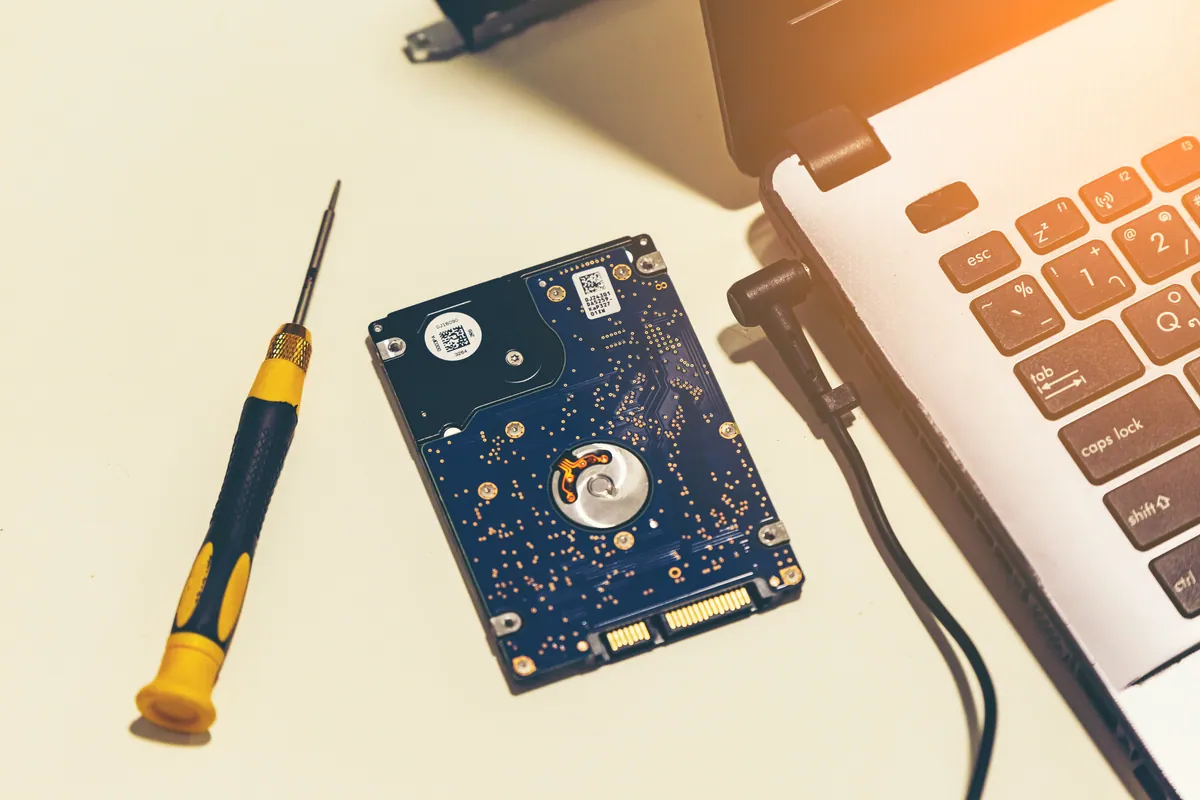
- Checked the storage drive first. Blue screens and freezes are classic symptoms of a failing drive — so that’s where we started. Reassuringly, the drive tested healthy. That single result changed the whole shape of the repair: the hardware wasn’t the problem.
- Pointed the finger at the operating system. With healthy storage, the freezing and BSOD errors lined up with a corrupt Windows installation — the kind of corruption a bad update, an interrupted shutdown or a botched driver can cause. The machine was sound; its software was not.
- Planned the fix around the data. A clean reinstall was clearly the right cure, but a reinstall wipes the drive. So before anything else, the plan was: get the data safe first, wipe second. The owner backed their files up (via their cloud storage) so nothing was at risk.
How We Fixed It
- Made sure the data was safe. No wipe happens on our bench until we know the files are protected. Here the owner had backed up to the cloud, so we could proceed with confidence.
- Wiped and installed a clean Windows 11. With the data secured, we cleared the corrupt installation and put on a fresh copy of Windows 11 — a clean slate rather than trying to patch broken system files.
- Brought it back to a working state. Updates were reinstated and the machine confirmed stable and responsive before it went back.
The Result
The Dell returned to Battersea stable and quick, the freezing and blue screens gone — and, crucially, with the owner’s data intact. No new hardware was needed. What had felt like a dying laptop was a corrupted operating system on perfectly good hardware, which is a far happier (and cheaper) diagnosis than it first appeared.
Why This Happens
Blue screens and freezes are frightening because they look like hardware death, and sometimes they are — a failing drive, bad memory, or an overheating board can all produce them. But just as often the hardware is fine and the operating system itself has become corrupt. Windows is a vast, intricate thing, and its system files can be damaged by an update that didn’t finish, a power cut mid-write, a driver conflict, or plain old accumulated rot over years of use. When that happens, the machine stumbles, hangs and crashes — despite nothing being physically wrong.
The reason diagnosis matters so much here is the order of operations. If you assume “software” and reinstall Windows onto a drive that’s actually failing, you’ve wasted the effort and the machine will crash again within weeks. That’s why we test the storage before deciding on a reinstall — so we know we’re rebuilding onto solid ground. And the second rule is absolute: back up before you wipe. A reinstall is a clean, effective fix for a corrupt OS, but it erases everything, so the data comes first, every time. Get those two things right and a “dying” laptop becomes a stable one for the cost of a rebuild, not a replacement.
Local Help in Battersea SW11
If your laptop keeps freezing, hanging or showing blue-screen errors, don’t assume it’s finished. Very often it’s a corrupt operating system on healthy hardware — fixable with a clean reinstall, provided the drive checks out and your data is backed up first.
We diagnose freezing and blue-screen faults from our Putney workshop, just across the river from Battersea SW11, and we always protect your data before we touch the drive.
Call 020 7610 0500, drop in to SW15, or use the contact form.