What Was Happening
The laptop had been freezing during normal use for a few days. Then it progressed to not booting into Windows at all — power-on, brief sign of life from the screen, then a blank display while the fan kept running. The customer specifically asked whether RAM might be the cause, and whether removing it would help.
That’s a good question to ask. RAM is one of the most common single causes of progressive boot failures, and the symptom-pattern fits. We diagnosed properly rather than just experimentally removing things.
Sound like your problem?
Bring it to our Putney workshop or message us a photo and we will give you a straight answer and a quote before any work starts.
Our Diagnosis
The right diagnostic approach for “freezing then won’t boot” runs through the candidates in order:
- External display test. Plugged the laptop into an external monitor to rule out the laptop’s display panel as the source of the “blank screen”. Got the same blank result on the external — confirming the blank screen was the laptop not producing any display signal, not the panel being broken.
- POST behaviour. With the laptop’s POST beep speaker reachable, listened for POST codes. Got the long single beep that this Dell uses for “RAM error” — strong hint at the cause before any tooling.
- SMART check on the storage drive (booted from a diagnostic USB to bypass the broken Windows boot). SMART clean — drive healthy. Ruled out the most common alternative.
- MemTest run on the existing RAM configuration. Within minutes the test was reporting errors on specific memory addresses. Let it run a full pass — multiple errors clustered in the address range that mapped to one specific physical module.
- Single-module test. Removed one of the two modules and re-ran MemTest with only the other in place. Clean pass — confirming the removed module was the source. Swapped and tested the other — confirmed the second module also clean.
Conclusion: one specific RAM module had developed errors. The other was healthy. Laptop ran fine with only the good module in place; couldn’t run reliably with the bad one in either slot.
How We Fixed It
Verified the failing module’s spec. Read the module’s marking for the manufacturer, capacity, speed, latency timings and DDR generation. Matched the surviving module — both came from the same kit originally.
Sourced a matched replacement. Replacing one stick of a matched pair means finding a module with:
- Same DDR generation (DDR3, DDR4, DDR5 are not interchangeable)
- Same speed (e.g. DDR4-2666 vs DDR4-3200 — mismatched speeds will run at the lower of the two if they cooperate at all)
- Same capacity ideally — different capacities work in many laptops but you lose some dual-channel performance benefit
- Same form factor (SO-DIMM for laptops, not DIMM which is desktop-only)
- Compatible timings — close enough that the system can run both at the same setting
Easier when the original kit is still available; sometimes the original kit is end-of-life and we have to find a compatible third-party module. Either way, we verify after fitting that the system runs both modules together in dual-channel mode.
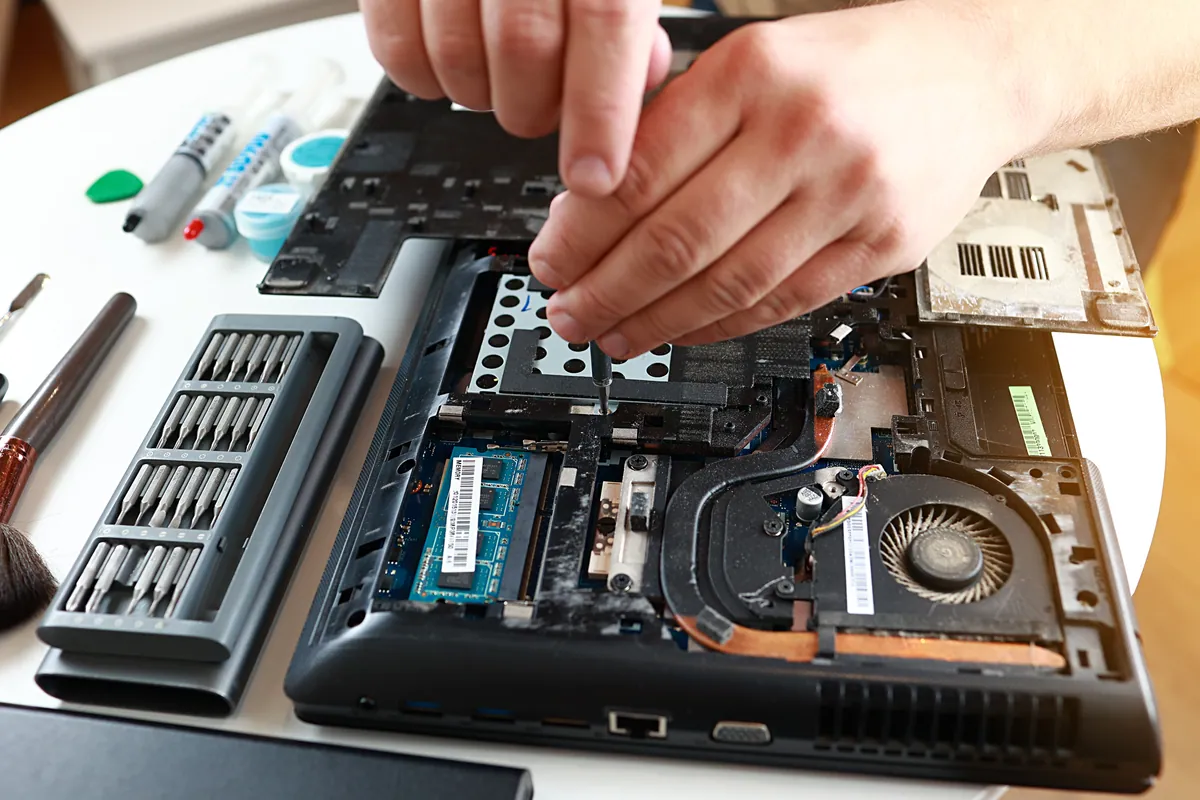
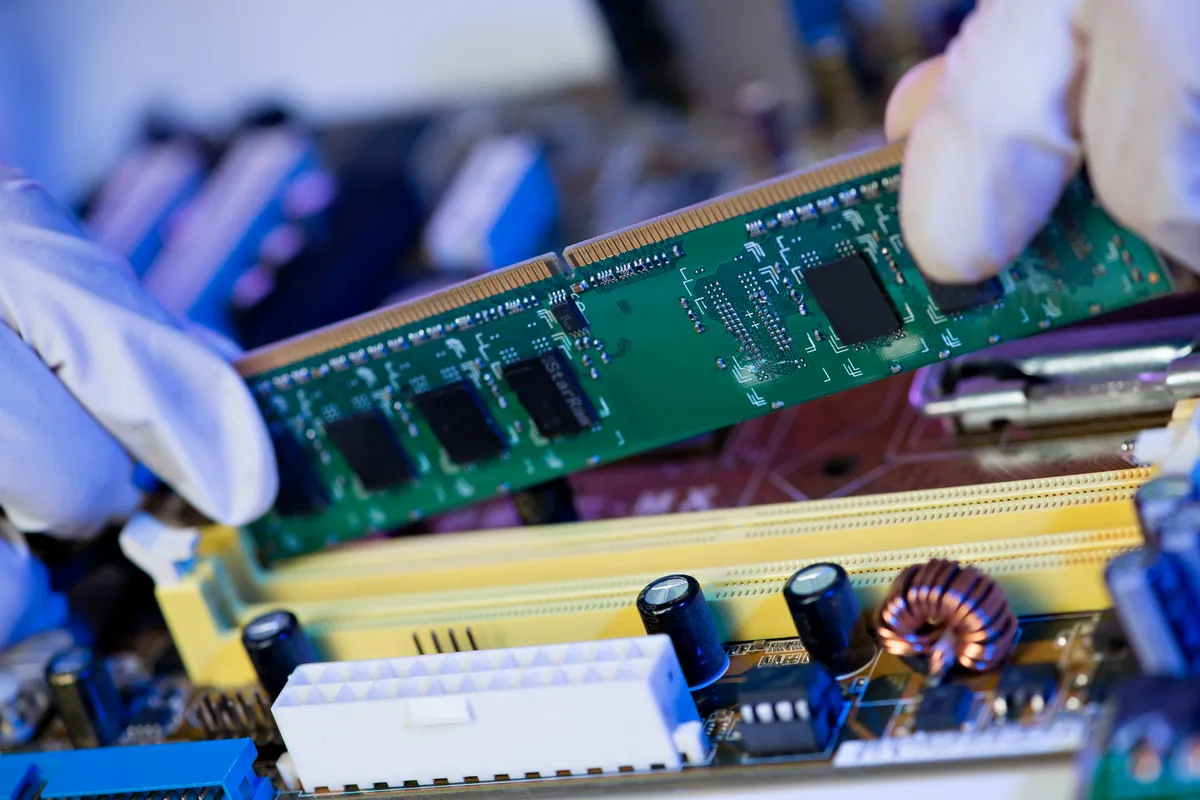
Fitted the replacement. Standard back-panel access on this Dell. Removed the failed module from its slot, fitted the replacement at the correct angle (SO-DIMM slots are angled — the module goes in at about 30 degrees then clicks down flat).
Extended verification with MemTest. Ran a full MemTest pass with both modules in place. Clean. Ran a second pass to confirm — clean. Memory was now reliable in dual-channel configuration.
Boot test. Powered on into BIOS to confirm both modules detected at full capacity and speed. Booted into Windows — clean boot, no errors.
Stress test under load. Ran a sustained-load stress test for 30 minutes to confirm stability under representative use. No freezes, no errors.
The Result
Stable boot, no more freezes. Memory at full dual-channel performance. The customer briefed on:
- Which module was replaced and why
- The other module is still original and within its working life
- Signs to watch for in case anything similar happens again
Why This Happens
A RAM module that’s starting to fail produces errors at specific memory addresses. The early stage:
- Errors happen rarely
- Windows mostly handles them through its memory protection
- User notices occasional crashes or freezes but no clear pattern
Middle stage:
- More frequent errors
- Specific applications crash more often
- Blue screens appear, usually with codes related to memory or page faults
- Some boots fail because the kernel itself is being corrupted during init
Late stage:
- Most boots fail
- The kernel can’t even load successfully because critical data structures are being corrupted by bad RAM reads
- POST sometimes succeeds but Windows never starts
- Eventually POST itself fails as the BIOS’s memory test sees the errors
The Dell in this case was at the middle-to-late stage. Caught any later, more boots would have failed.
Why removing RAM “to test” isn’t always the right approach
The customer’s instinct (try removing RAM) was correct in principle. In practice we’d advise calling a workshop first because:
- Dual-channel performance drops measurably when you remove one of two modules. If you remove the good one by accident, the laptop will run slower than it should and you might not realise the actual fault.
- Without proper testing, you might remove a module that’s actually fine while leaving the bad one in. The symptom continues; you blame the wrong component.
- Static damage to handled modules is a real risk. Modules should be handled by their PCB edges, not their contacts, and ideally with an anti-static wrist strap.
- Some laptops have one socket and one soldered module (lower-half soldered to the board, upper-half in a SO-DIMM socket). Removing the wrong one is impossible; removing what’s removable doesn’t help.
For a definitive RAM diagnosis, MemTest is the right tool — and it’s free. Booting from a MemTest USB takes 10 minutes; running the full test takes hours but produces a clear answer.
How to know if your laptop has a RAM problem
- Blue screens with memory-related codes (MEMORY_MANAGEMENT, PAGE_FAULT_IN_NONPAGED_AREA, IRQL_NOT_LESS_OR_EQUAL)
- Random crashes or freezes without clear correlation to specific apps
- Files corrupted after writes that were fine before (RAM corruption during the write makes the saved file unreadable later)
- POST codes or beep patterns indicating memory failures
- Boot succeeds intermittently with the same machine state and same workload
Any of these is worth a MemTest pass before assuming Windows is the problem.
Local Help in Fulham SW6
The cheapest laptop repair is the one where we find the real fault before any parts are ordered.
Our Putney bench covers Acer, Asus, Dell, HP, Lenovo, Samsung and more, with an honest view on what’s worth fixing.
Call 020 7610 0500 or message us before bringing the machine in.