What Was Happening
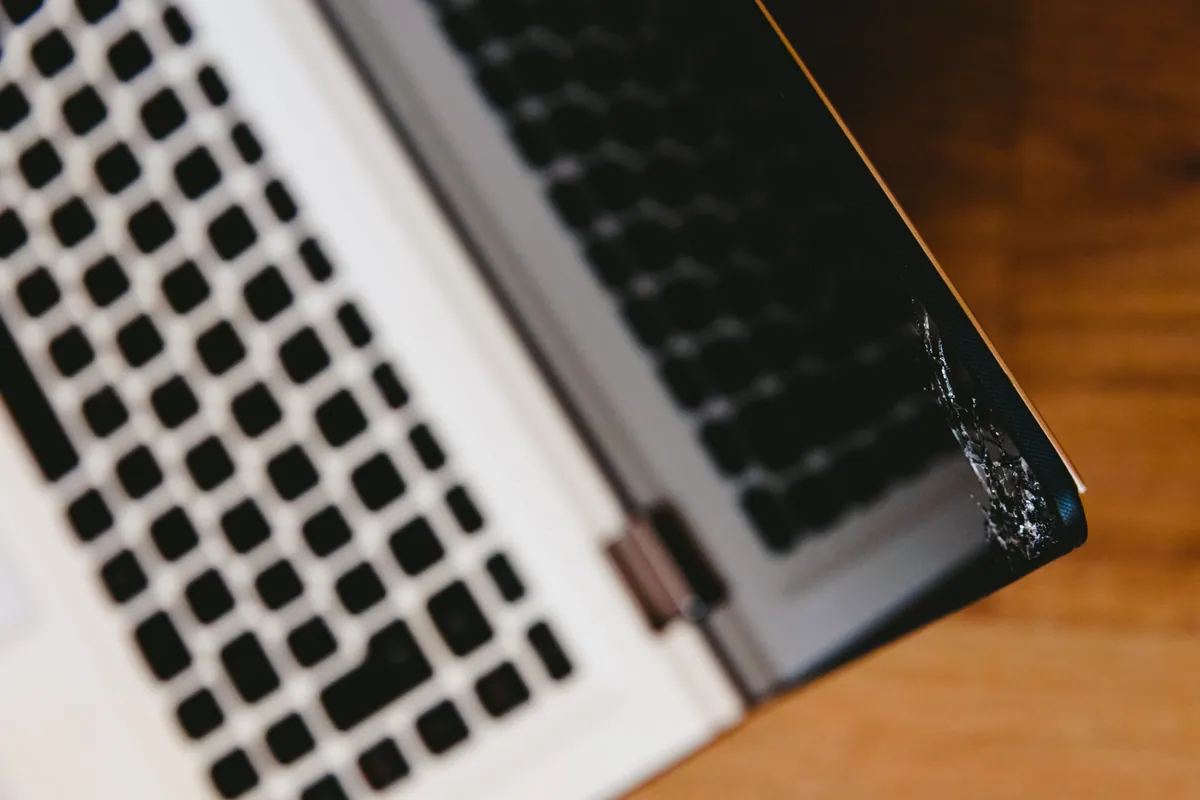
The screen was visibly damaged — the customer was clear it had been knocked. What they wanted to know before paying for a replacement panel was whether the rest of the laptop was healthy, or whether the same impact had also damaged something else internally that would make the screen fix pointless.
That’s the right question to ask before any screen job. A new panel is worth fitting when the laptop is otherwise sound; it is not worth fitting if the GPU is dead or the display cable inside the hinge has split.
Sound like your problem?
Bring it to our Putney workshop or message us a photo and we will give you a straight answer and a quote before any work starts.
Our Diagnosis
The check is quick and worth doing every time:
- Plug in an external monitor via the laptop’s HDMI / USB-C / DisplayPort output. Boot the machine and switch the display to “external only” mode (Windows: Win + P).
- Check the external image. If it is clean — correct resolution, no artefacts, no flicker — the GPU is healthy and is rendering normally.
- Check the internal panel signal. Even with a cracked panel, a faulty cable or controller usually shows up as colour shifts, lines, or no backlight in unbroken areas of the screen. On this Dell the unbroken corner was rendering correctly, just behind cracked glass — confirming the controller and backlight were fine.
- Hinge cable check. Open and close the lid a few times while watching the external monitor. If the laptop reboots, flickers or loses signal during hinge movement, the display cable is also damaged. This one did not.
Outcome: the only damaged component was the panel itself. Safe to quote for a straight screen replacement without worrying about a follow-up bill for cable or board work.
How We Fixed It
Sourced a replacement panel matched on five things, in this order:
- Part number / dimensions — exact physical fit for this Dell model
- Resolution — matching native resolution avoids scaling artefacts and driver mismatches
- Refresh rate — a 60 Hz panel in a 120 Hz chassis will work but will not deliver the smoothness the user paid for originally
- Panel type — IPS to IPS, TN to TN. Mixing changes viewing angle and colour reproduction noticeably
- Touch vs non-touch — touch panels have a separate digitiser ribbon; non-touch chassis do not have the controller to drive them
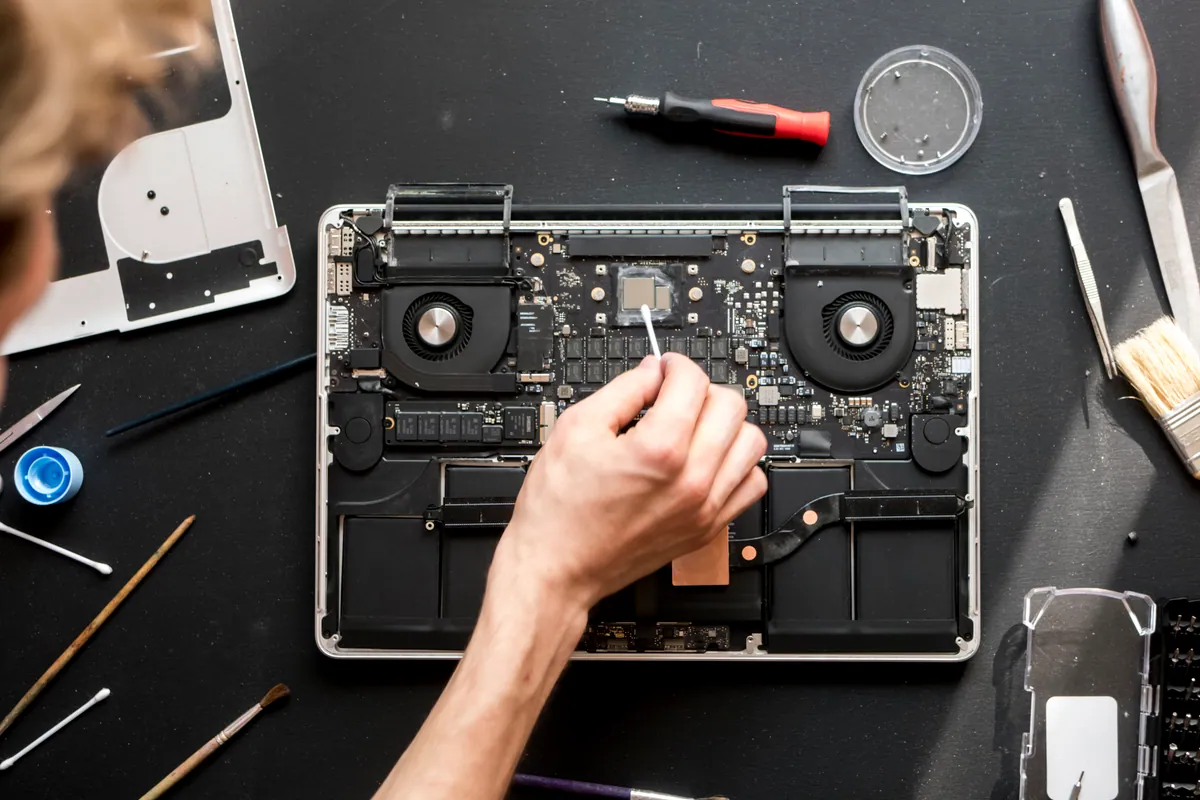
Fitting steps on most modern Dell laptops:
- Power off, disconnect mains, remove the battery if accessible
- Lift the bezel carefully (some Dell chassis use clips, others adhesive — we use a thin spudger to avoid marking the plastics)
- Disconnect the LVDS / eDP display cable from the back of the panel
- Lift the panel out, transfer brackets if needed, fit the new panel
- Reconnect the cable, reseat any antenna / webcam cables disturbed during the lift
- Refit the bezel, test before reassembling fully
Final checks before handover:
- Boot and verify the BIOS splash displays cleanly to the edges
- Run a colour and uniformity test pattern — full red, green, blue, white and black to check for dead pixels, backlight bleed or pressure marks
- Adjust brightness across the full range to confirm the backlight is responding correctly
- Open and close the lid a few times to confirm the hinge cable routing is clean
The Result
Display returned to spec — full brightness, even backlight, no dead pixels, correct colour reproduction across the panel. 30-day workshop warranty on the panel and the labour. Same-day turnaround once the part arrived in.
Why This Happens
The single most common cause of a damaged laptop screen we see at the workshop is closing the lid on a small object — usually a pen, a USB stick, an earphone bud, or a charging cable. The hinges are stronger than the panel by a wide margin, so anything caught between lid and base concentrates pressure straight into the LCD or OLED layer.
Drops and knocks come second, and stacking a laptop closed at the bottom of a backpack with a heavy book on top is third. The pressure required to crack a modern thin-bezel panel is much less than the chassis can take.
How to avoid it next time
- Visual sweep before closing the lid. A two-second check for pens, cables, headphones is the single most effective prevention.
- Carry the laptop in a sleeve, not loose in a bag. Even a thin neoprene sleeve cushions the lid from book corners and laptop chargers thrown in the same compartment.
- Carry it lid-down, not lid-up. If something is going to land on the bag, it lands on the base, not the screen.
- Do not lift the laptop by one corner of the lid. Flexing the lid concentrates stress at the corners of the panel where the bonding to the chassis is thinnest.
Local Help in Putney SW15
Display problems are diagnosed in minutes once you separate the panel from the cable from the GPU.
We replace laptop and MacBook screens at our Putney workshop and always check the rest of the display chain before fitting a new panel.
Drop in to SW15 or call 020 7610 0500 for a quick estimate. Bring the laptop with you if you can.