What Was Happening
The Dell came in from West Kensington W14 — the W14 postcode that sits in the Hammersmith and Fulham area — with a familiar double complaint: it was really slow, and it had reached the point where it wouldn’t boot into Windows at all. The owner made clear the data mattered, which shapes the whole job: nothing gets wiped or rushed until the files are safe.
A laptop that’s both slow and failing to boot is usually telling you something about its storage. The trick is to confirm that before assuming it, because “slow and won’t boot” can also be a corrupt system or, less often, something deeper. Getting the diagnosis right is what decides whether the fix is a cheap, transformative upgrade or something more.
Sound like your problem?
Bring it to our Putney workshop or message us a photo and we will give you a straight answer and a quote before any work starts.
Our Diagnosis
- Pinned the slowdown and boot failure on storage and system. The evidence pointed at the drive and operating system rather than a deeper hardware failure — the classic profile of a machine that will come back to life on a healthy SSD.
- Confirmed the data was recoverable. With the owner’s files at stake, we established the data could be safely got off and preserved before any reinstall — the non-negotiable first step.
- Spotted a separate, minor fault. The trackpad had an issue of its own, unrelated to the storage problem. We noted it rather than letting the good news about speed paper over it.
How We Fixed It
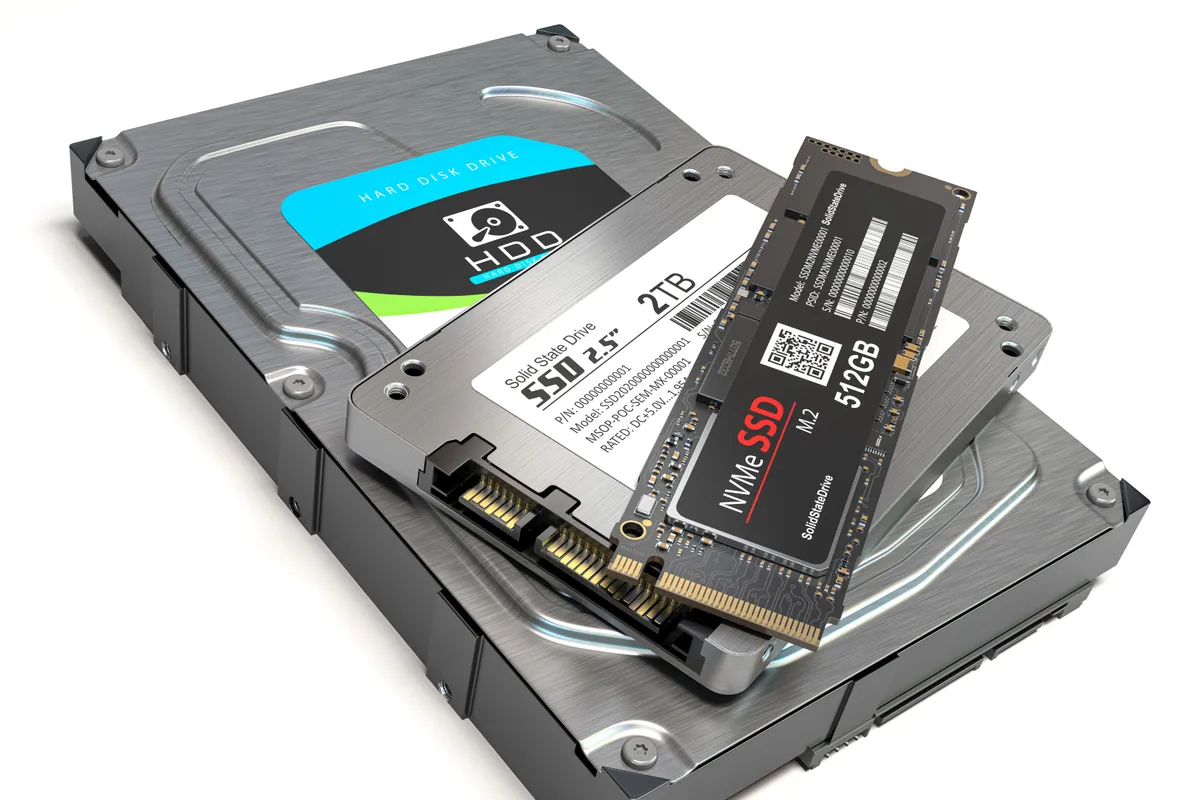
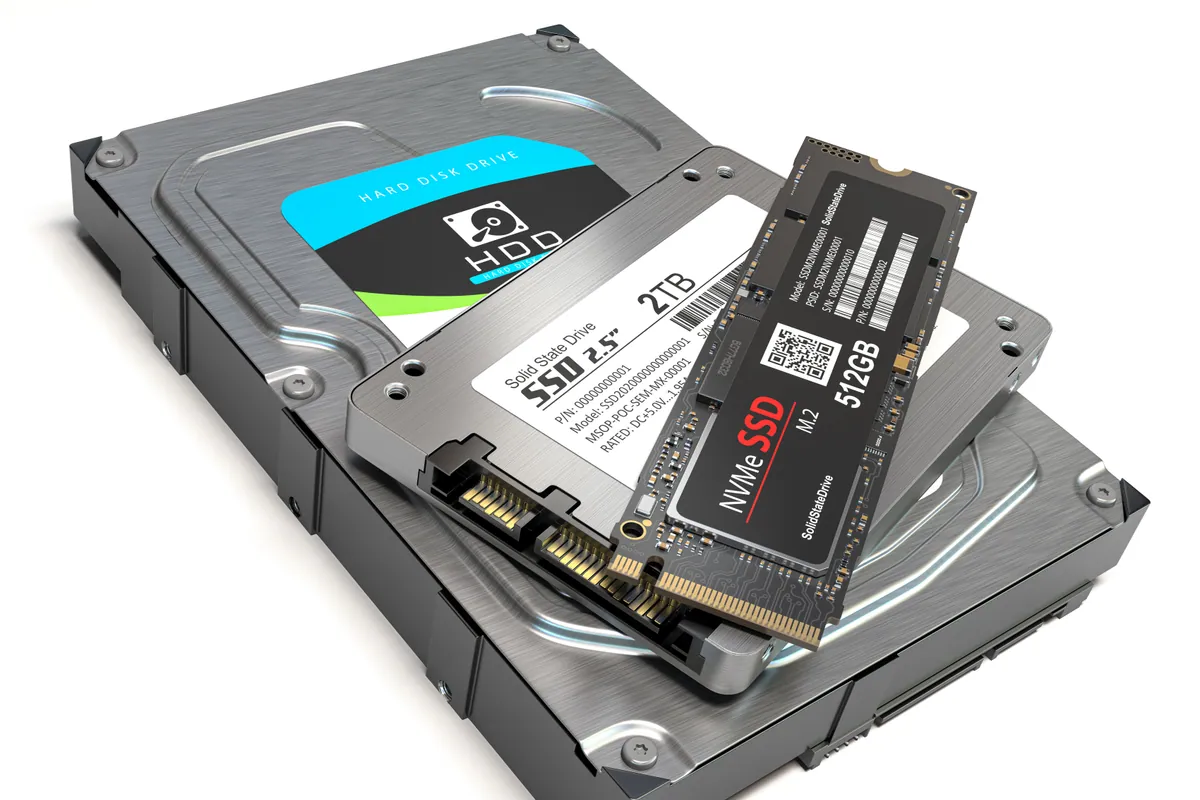
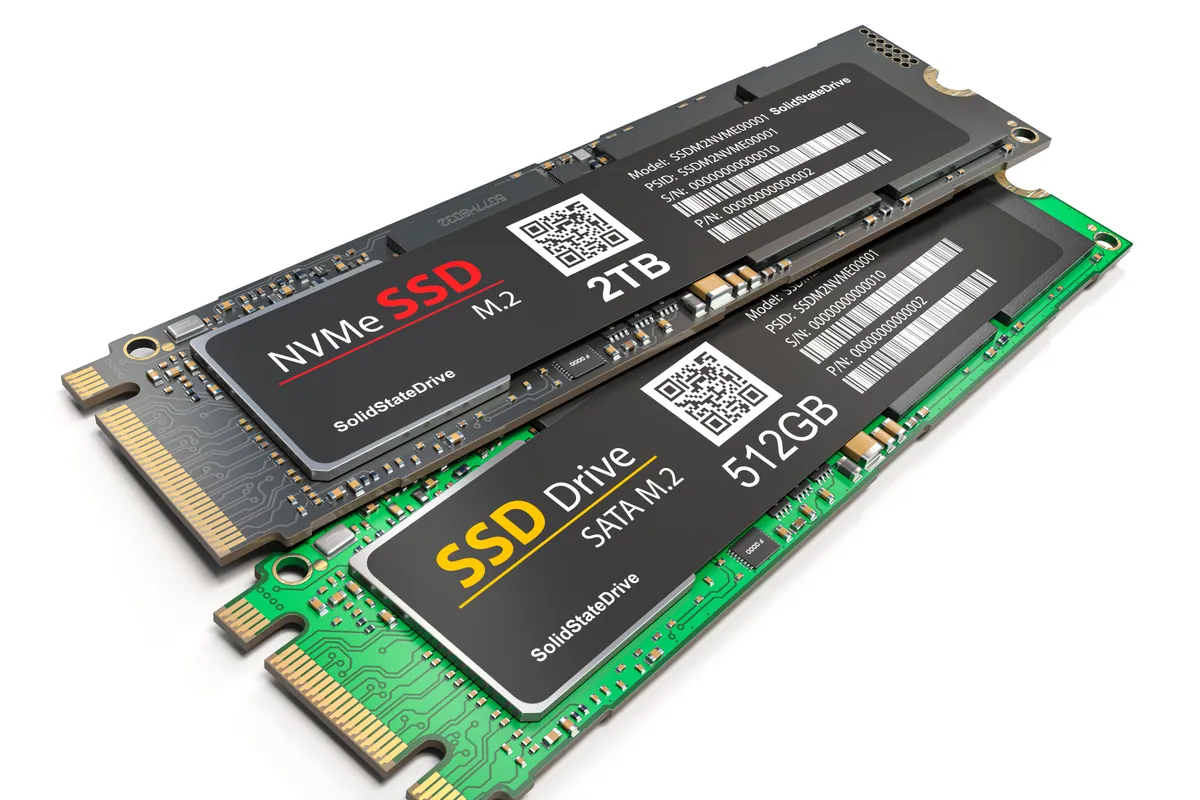
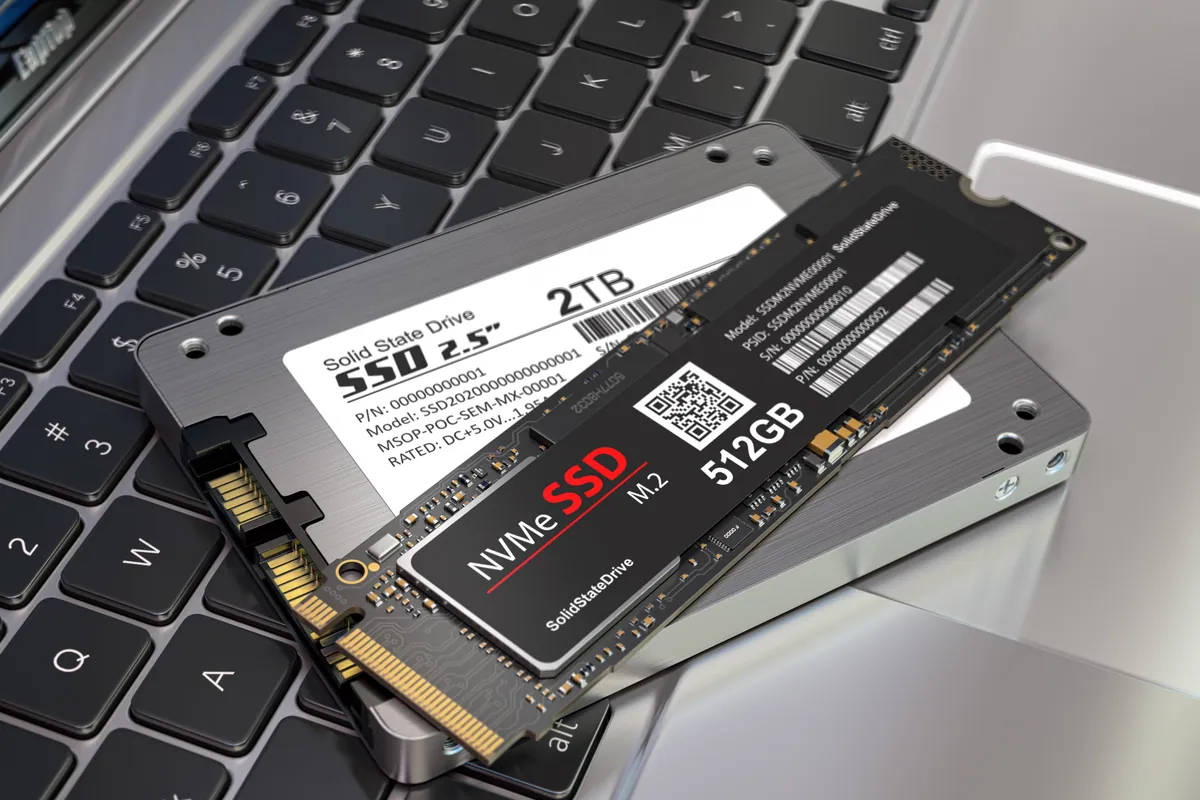
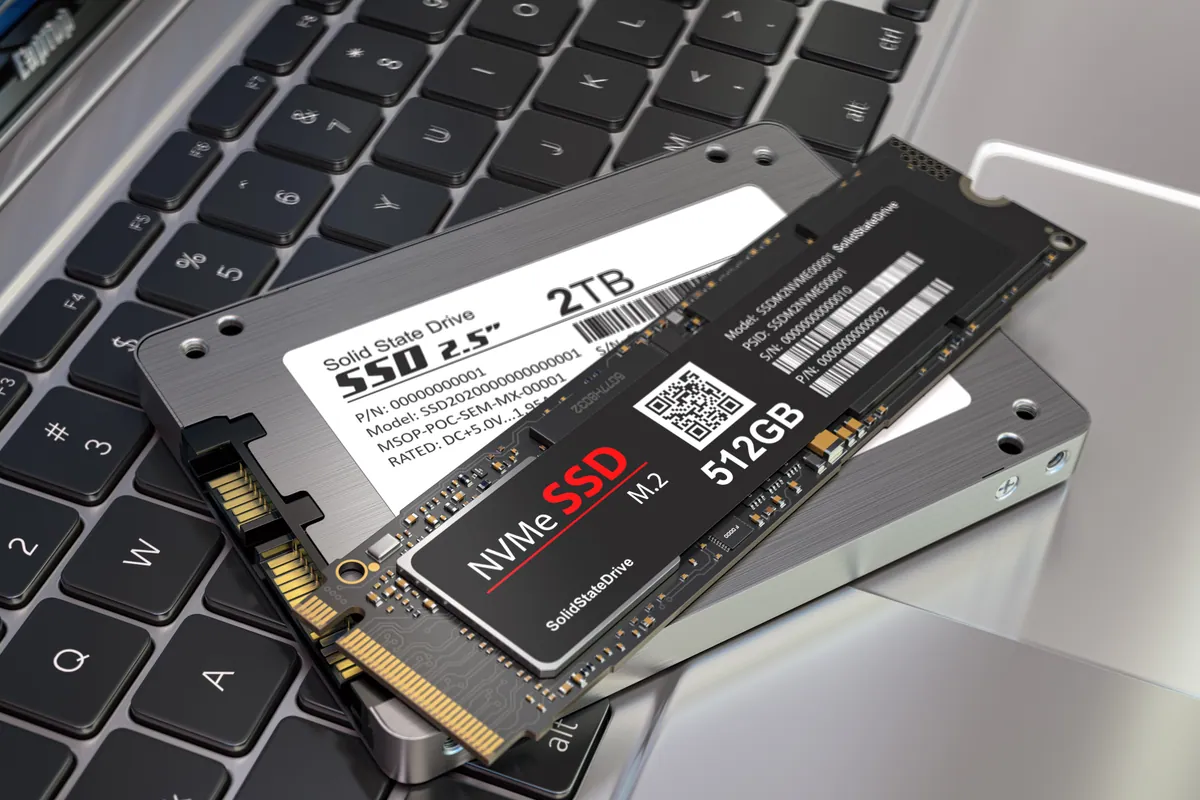
- Fitted a 240GB SSD with a fresh operating system, replacing the tired storage that had been dragging the machine down and stopping it booting.
- Migrated all the data across onto the new drive, so the owner got a working machine with their files in place — not a blank reinstall they’d have to rebuild.
- Handled the trackpad honestly. The trackpad fault was separate from the upgrade and wasn’t cured by it. We were straight about that: the trackpad has an issue, and an external mouse works around it cleanly. We’d rather set that expectation than have the owner discover it and think the “fixed” machine was faulty.
The Result
The Dell went back to West Kensington W14 booting reliably and running fast, with the owner’s data intact. The SSD swap did what it always does to a laptop held back by old storage — turned an unusable machine back into a quick one.
The one caveat was the trackpad, which we’d flagged from the start. It wasn’t part of the storage fault and the upgrade didn’t fix it; an external mouse sidesteps it. Being clear about what an upgrade does not solve is as important as celebrating what it does.
Why This Happens
The single biggest thing slowing down an older Windows laptop is almost always the mechanical hard drive. Windows constantly reads and writes small files as it runs, and a spinning drive — especially an ageing one — becomes a bottleneck the rest of the machine has to wait on. As the drive degrades, the machine slows further and can eventually fail to boot, stalling as it waits on storage that can’t keep up.
An SSD removes that bottleneck completely. With no moving parts and far faster access, boot times drop from minutes to seconds and the whole machine feels new — often for years more service. It’s the most cost-effective upgrade there is, which is why we reach for it before ever suggesting a customer replace a laptop that’s “just got slow”.
Local Help in West Kensington W14
If a Windows laptop has crawled to a halt or stopped booting, don’t write it off — it’s usually the drive, and an SSD upgrade with your data migrated across is often all it needs.
We carry out SSD upgrades and data migrations from our Putney workshop, an easy trip from West Kensington and the wider W14 area, and we’ll always tell you what the upgrade will and won’t fix.
Call 020 7610 0500, drop in to SW15, or use the contact form.