What Was Happening
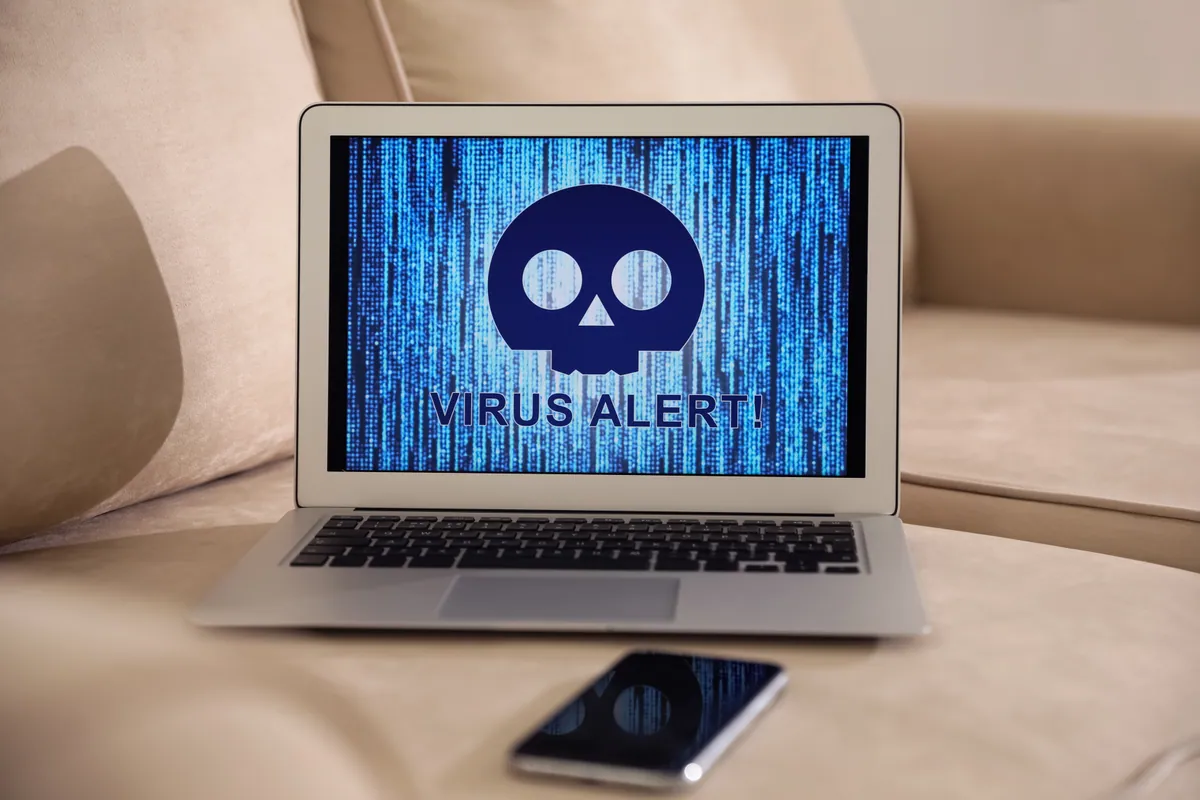
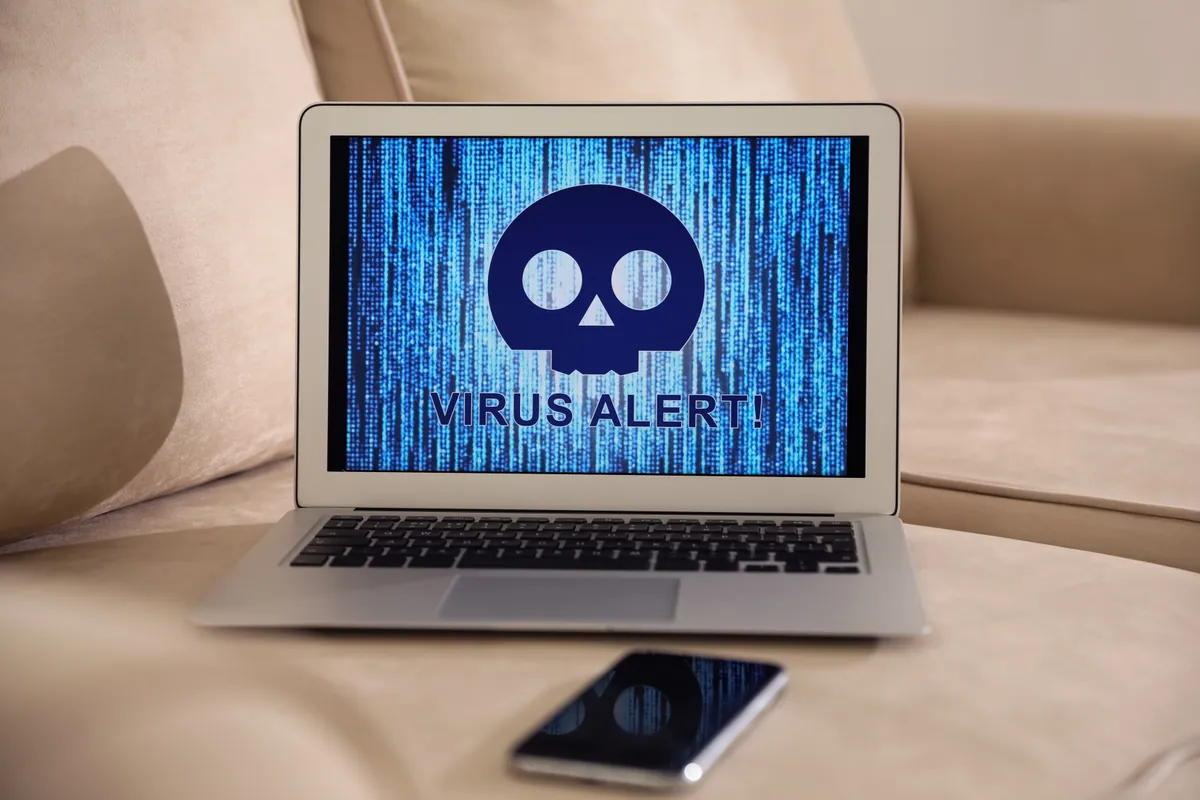
Full-screen pop-ups appearing while browsing. Each one styled to look like a Windows or Microsoft warning. The text varied — “your computer is infected with five viruses”, “your bank details have been exposed”, “do not turn off your computer” — but every one included a UK phone number to call for “support”.
Restarting the browser brought the pop-up back. Restarting the laptop brought it back. The customer was anxious enough that they had nearly phoned the number, which is exactly what the scam relies on.
Sound like your problem?
Bring it to our Putney workshop or message us a photo and we will give you a straight answer and a quote before any work starts.
Our Diagnosis
The visible symptom (a “virus warning”) is misleading. The first job is to work out whether there is an actual infection on the system, or whether the pop-ups are coming from a website misusing the browser:
- Boot to Safe Mode with Networking. Logged in. Opened the browser. No pop-up appeared. That is the first useful clue — actual malware running on the system would still be active in Safe Mode. Browser-side scams are not.
- Examined browser startup configuration. The browser was set to “open these specific pages at startup”, and one of the listed pages was the scam site. Every browser launch was visiting the scam page automatically.
- Examined site permissions. Notifications had been granted to the scam domain — meaning the site could push system-level desktop notifications even when the user was not actively visiting it.
- Checked installed extensions. None unfamiliar. The hijack was operating entirely through legitimate browser features that the scam site had requested permission to use.
- Ran a precautionary scan with two independent anti-malware tools. Both clean. The system itself was uninfected; the symptom was entirely browser-driven.
How We Fixed It
The right repair for a browser-driven scam pop-up is browser-side, not antivirus-side:
- Removed the scam URL from the browser’s startup pages and reset the homepage.
- Cleared all granted site permissions, with particular attention to notifications and pop-ups.
- Cleared the browser’s locally-cached service workers — these can persist after a page has been closed and continue showing notifications.
- Reset the browser’s default search engine and removed any unfamiliar entries from the search engine list.
- Checked the Windows hosts file for unauthorised entries (none in this case).
- Ran the precautionary full-system scan that confirmed no actual malware was present.
- Updated the browser to the current version — older browser versions have weaker controls around aggressive notification requests.
- Restarted the laptop, opened the browser, browsed a few normal sites — confirmed no recurrence of any pop-up.
The Result
Clean browser, no recurring pop-ups, no infection. We briefed the customer on the scam pattern so they can recognise the next one before it gets to the point of phoning anyone.
Why this matters — the tech-support scam pattern
The “tech-support scam” is one of the largest categories of online fraud against consumers in the UK. The pattern is consistent:
- The pop-up appears — usually full-screen, often with a recorded voice playing. It looks like a system warning and is designed to panic the user.
- It instructs the user to call a phone number for immediate help.
- The “support agent” who answers asks the user to install a remote-access tool (AnyDesk, TeamViewer, LogMeIn, occasionally fake variants).
- Once connected, the scammer either (a) shows the user fake “evidence” of viruses and bills them for “removal”, (b) asks for bank details to issue a “refund” and then transfers money out, or (c) installs actual malware for later use.
- The bill is often £200–£500 for nothing of value.
The single fact that matters: real Microsoft, Apple, antivirus vendors and banks never include a phone number in a pop-up warning. Real warnings appear in the operating system’s own notification area, not in the browser, and they never instruct you to call somewhere.
If you have already called the number
- Disconnect the device from the internet immediately.
- Uninstall any remote-access software the scammer asked you to install.
- Change passwords for email, bank, and any other accounts you use on that device — from a different device.
- Tell your bank if you gave bank details or made any payment.
- Run a full anti-malware scan to remove anything the scammer may have installed.
- Report it to Action Fraud (the UK’s fraud reporting service).
- Consider professional help to verify the device is clean — anything that was on screen during a remote-access session was visible to the scammer.
How to avoid it
- Update browsers regularly. Modern browsers do a much better job of blocking aggressive notification requests than older versions.
- Don’t grant notification permission to sites you don’t trust completely. The pop-up that asks “this site wants to send you notifications” should almost always be denied unless it is a site you use heavily and want notifications from.
- If a “virus warning” tells you to call a number — close the browser. Use Task Manager (Ctrl+Shift+Esc) to force-quit if the browser refuses to close.
- If the same pop-up reappears on browser restart, your browser startup pages have been hijacked. Reset them in the browser’s settings.
- Run a reputable anti-malware scan monthly even if nothing seems wrong.
Local Help in Putney SW15
Most ‘virus’ problems on home laptops are browser-based and clear with a proper clean, not a full reinstall.
We diagnose the type of infection before quoting so you’re not paying for work you don’t need.
Drop in to our Putney workshop (SW15), call 020 7610 0500, or contact us to discuss first.