What Was Happening
A customer working from home in Balham SW12 had invested in a proper desk setup: their existing Dell Latitude 3420 — a couple of years old and working fine — plus a brand-new Dell WD25 dock and two brand-new Dell monitors.
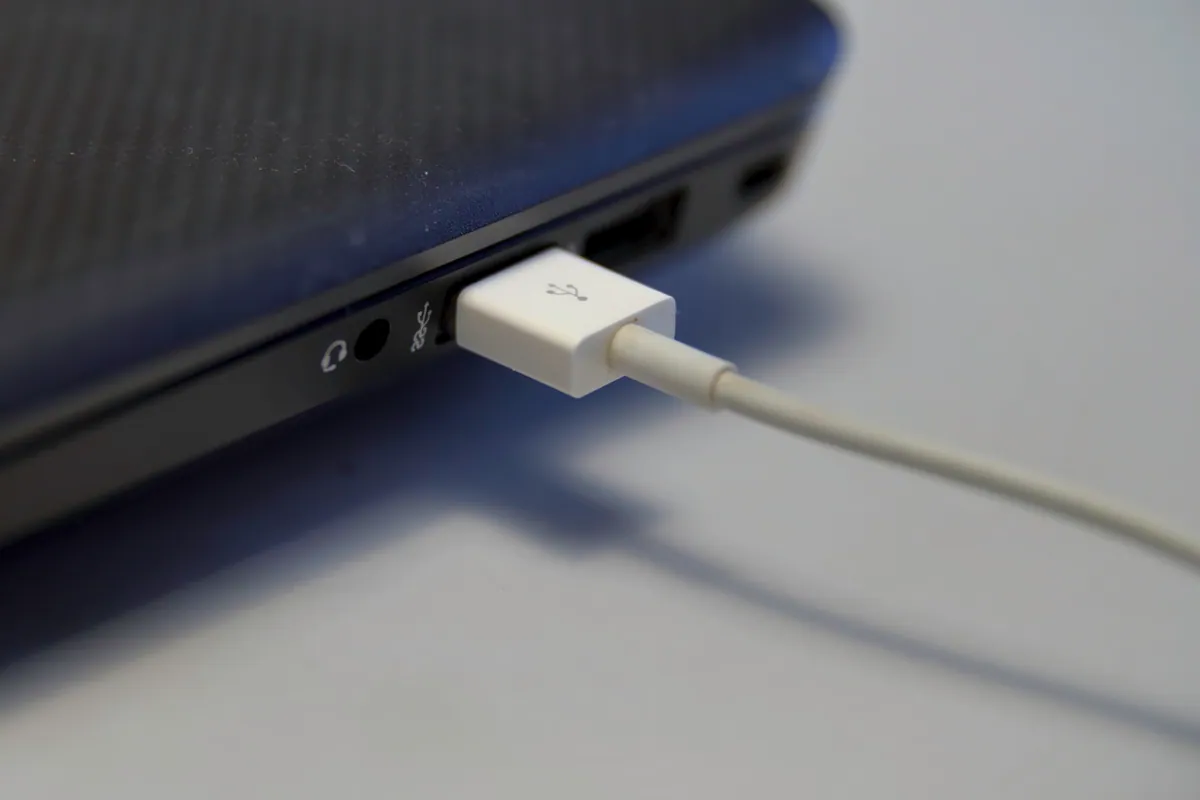
The result was frustrating in a very specific way. The dock clearly wasn’t dead: connect it and the laptop started charging immediately. But Windows behaved as if the two monitors simply didn’t exist. No flicker, no detection, nothing — from either screen.
They’d done sensible troubleshooting before calling us. Each monitor worked perfectly when cabled directly to the laptop; they just couldn’t get both running together through the dock, which was the whole point of buying it. They asked us for a home visit to get the workstation set up properly, and we booked them in two days later at £90 per hour.
Sound like your problem?
Bring it to our Putney workshop or message us a photo and we will give you a straight answer and a quote before any work starts.
Our Diagnosis
The symptoms they described when booking had already done a lot of the diagnostic work, which is worth spelling out because it’s a useful pattern:
- The dock charged the laptop. Power delivery over the dock’s cable was working, so the physical connection between laptop and dock was alive. A completely dead cable or port was effectively ruled out before we arrived.
- Each monitor worked when connected directly. That cleared the monitors themselves, their inputs and their cables of blame. Two brand-new screens failing identically at the same time was always unlikely; direct connection proved it.
- Both monitors failed identically through the dock. When two known-good displays vanish behind one device, the fault sits in the path they share — the dock, or how the laptop is set up to talk to it.
With the hardware on the shared path checking out on site, that left configuration: the laptop wasn’t set up to actually use the dock’s display outputs, even though it was happy to take power from them.
How We Fixed It
This was a software-side fix, done at the desk. We corrected how Windows on the Latitude was configured to handle the dock’s video outputs, at which point both monitors were detected and came to life.
With the screens up, we finished the job as a workstation setup rather than stopping at “it detects now”: both displays arranged and set to their correct resolutions, the laptop confirmed charging through the same single cable, and peripherals checked through the dock. We then tested the two failure modes that catch dock setups out later — a full reboot, and unplugging and reconnecting the dock as you would at the start of a working day. Both monitors came back on their own each time.
The Result
One visit, and the desk did what the equipment was bought to do: a single cable into the laptop driving two monitors, charging, and peripherals. Nothing needed replacing — every piece of hardware they’d bought was fine.
Why This Happens
Docks like the WD25 carry power and video down the same cable, but the two functions are independent — which is why “it charges but no picture” is such a common and confusing combination. Charging needs almost no negotiation between laptop and dock; driving external displays needs the laptop’s video output, its drivers, and Windows’ display handling all cooperating. Any one of them being misconfigured produces exactly what this customer saw: a dock that seems half-alive.
It’s also a fault class where nothing is broken. Everything can be new, genuine and compatible, and the setup still won’t work until the software side is put right. That’s frustrating to troubleshoot alone, because the usual instinct — swap cables, suspect the hardware, return the dock — doesn’t fix anything.
We’ve written up the general troubleshooting sequence for this fault in our guide to docking stations not detecting monitors, which is worth working through before you assume the dock is faulty.
Local Help in Balham SW12
If your dock, monitors or home-office setup aren’t behaving — whether nothing is detected or things only work in some combinations — we can usually sort it in a single visit. Balham is comfortably inside our callout area, and testing the setup at your actual desk means the fix covers the way you really use it, not a guess made remotely.
Book an onsite visit in Balham or call 020 7610 0500 — tell us the laptop and dock models when you get in touch and we’ll tell you honestly whether it needs a visit at all.