What Was Happening
A family in Mortlake SW14 got in touch about online safety at home. They had children of different ages sharing a mix of Windows laptops and iPads, and they had already made a genuine attempt at setting up parental controls themselves — switching on the restrictions built into each device as they went.
It kept not sticking. Controls set up on one iPad didn’t apply to the second one. A laptop that got reset came back with nothing in place. And because each set of controls had been added under the child’s own account, the restrictions could be turned off by the person they were meant to apply to. Every gap they closed, another opened somewhere else.
Sound like your problem?
Bring it to our Putney workshop or message us a photo and we will give you a straight answer and a quote before any work starts.
Our Diagnosis
The setup wasn’t wrong so much as incomplete. Every control they had put in place lived on one specific device — which means the protection only ever extends as far as the devices you remembered to configure, and lasts only as long as nobody resets or reinstalls anything.
That leaves three predictable gaps. New devices arrive unprotected by default. A factory reset or a new user account wipes the restrictions. And a visiting friend’s tablet joining the home Wi-Fi is outside the scheme entirely.
The other issue was where the controls were anchored. Restrictions configured under a child’s own account, with no separate parent password above them, can be undone by that child. Effective controls need to sit on a parent-held account so that changing them requires the parent’s credentials.
How We Fixed It
We built the setup in three layers, so that no single point of failure takes the whole thing down.
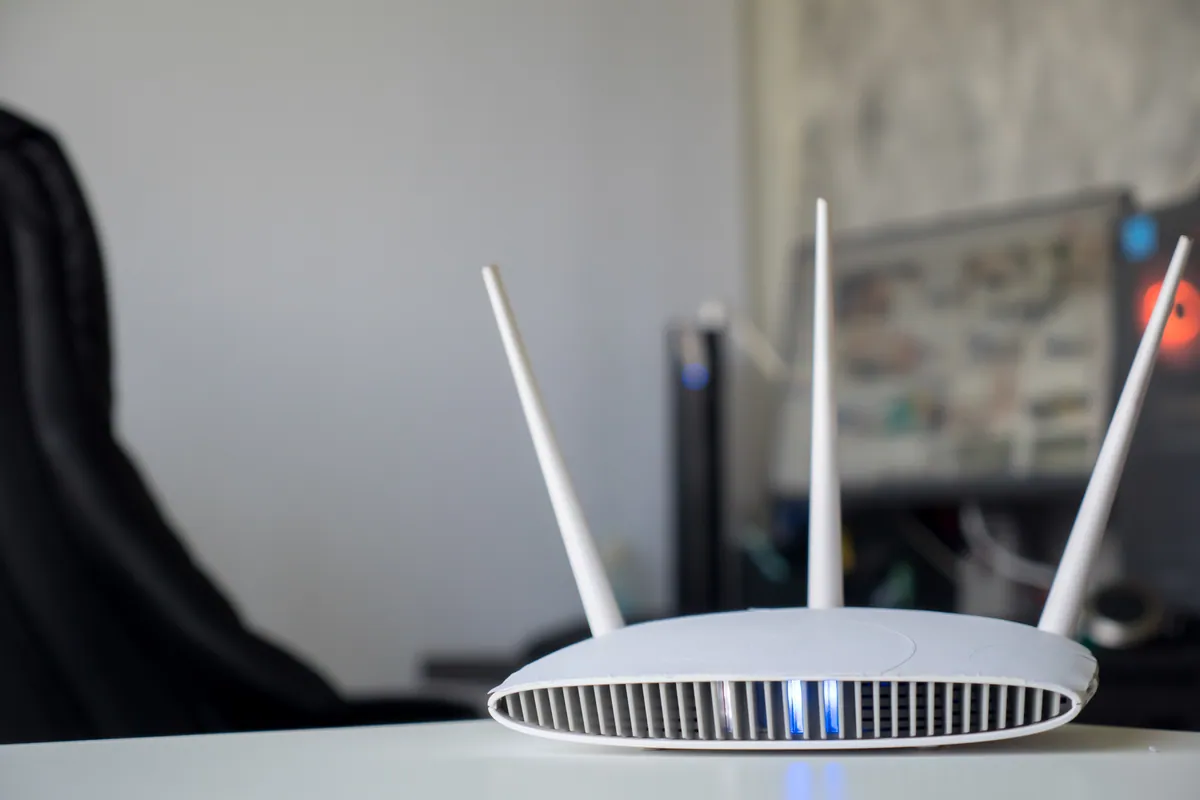
Filtering at the router. We configured content filtering at network level, which means it applies to every device connecting through the home Wi-Fi — the laptops, the iPads, and any device that arrives in future — without anything needing to be installed on each one. This is the layer that closes the “new or reset device” gap, because a device doesn’t have to be configured to be covered; it just has to be on the network.
Microsoft Family Safety on the Windows machines. We set up proper child accounts linked to a parent account, with age-appropriate limits on apps and games, web filtering, and screen-time schedules. Because the accounts are linked to the parents’ Microsoft account, changing any of it requires the parent’s password.
Apple Screen Time and Family Sharing on the iPads. We set up Family Sharing so the children’s Apple accounts sit under the parents’, then configured Screen Time with downtime schedules, app limits, and content restrictions. Crucially, we set a Screen Time passcode different from the device unlock code — a very common oversight, and the reason a lot of Screen Time setups get quietly switched off within a week.
We then walked the parents through where each control lives and how to adjust it as the children get older, so the setup doesn’t become something only we can change.
The Result
The household went from a patchwork of per-device settings to a layered setup where the layers cover each other’s weaknesses. Router-level filtering means anything joining the network is filtered by default, including devices nobody has configured. Family Safety and Screen Time add the per-child detail on top — what’s age-appropriate, when devices work, and for how long.
Just as importantly, the controls now sit on parent-held accounts with parent-held passwords, so they can’t be undone by the people they apply to. The whole job took a single one-hour onsite visit.
Why This Happens
Parental controls are unusual among home IT tasks in that the built-in tools are genuinely good — Microsoft Family Safety and Apple Screen Time are both capable — but they’re designed to protect a device, and families don’t think in devices. They think about their children.
That mismatch is where most home setups come apart. You configure the iPad, and the protection stops at the edge of that iPad. It doesn’t follow the child to the laptop or the tablet they got for their birthday. It doesn’t survive a reset. And a child with a bit of patience will find that the restrictions on their own account can be changed from their own account.
The fix is not a better single tool. It’s recognising that the two kinds of control do different jobs. Network-level filtering answers “what can be reached from this house?” — broad, automatic, and applies to everything. Device-level controls answer “what can this specific child do, and when?” — detailed, personal, and age-aware. Neither one covers the other’s ground, which is why the setups that hold up use both.
Getting parental controls to actually stick
- Start at the router. It’s the only layer that covers devices you haven’t configured, including visitors’ and future ones.
- Use a parent account as the anchor. Controls set up under a child’s own account can be undone from that account.
- Set a separate Screen Time passcode. If it matches the device unlock code, the child already knows it.
- Cover the whole family’s devices, not just the obvious ones. Games consoles and smart TVs reach the same internet the laptops do.
- Revisit it as they grow. Limits that suit a seven-year-old will be ignored, resented, or worked around by a thirteen-year-old.
Local Help in Mortlake SW14
If you’ve tried setting up parental controls and they keep getting bypassed, it’s usually not something you’ve done wrong — it’s that device-level settings alone can’t do the job. We set up family online safety across Mortlake SW14 and the surrounding area, covering the router, Windows PCs, Macs, iPads and phones in one visit, and we’ll show you how to adjust things yourself as your children get older. Call 020 7610 0500 or use the contact form to arrange a visit.
Related Services
- Cybersecurity — home and small-business security, filtering, and device protection
- Onsite IT Support in Mortlake — local onsite visits covering SW14
- Network Setup — routers, Wi-Fi, and home network configuration
More Case Studies
- Stamford Hill Wi-Fi Security Upgrade — home network segmentation for improved security
- Onsite Wi-Fi: installing access points with a PoE switch in Putney SW15 — whole-property Wi-Fi coverage done properly
- Patchy home Wi-Fi fixed by clearing channel congestion in Wimbledon SW19 — diagnosing an unreliable home network