What Was Happening
An Asus ROG Strix gaming laptop came into our Putney SW15 workshop with a frustrating, escalating problem. It had started freezing — locking up mid-use, sometimes for a few seconds, sometimes needing a hard restart — and over time the freezes had got worse until eventually the laptop wouldn’t boot into the operating system at all.
From the outside this looks like a software problem, and that’s usually the first assumption: a corrupt Windows install, a bad update, too much running at startup. The owner had reached the point where the machine was unusable and wanted to know whether it was worth saving or time for a new one.
Sound like your problem?
Bring it to our Putney workshop or message us a photo and we will give you a straight answer and a quote before any work starts.
Our Diagnosis
The pattern here — intermittent freezing that gradually worsens, ending in boot failure — is one we see regularly, and it points more often at hardware than software. Specifically, a failing mechanical hard drive.
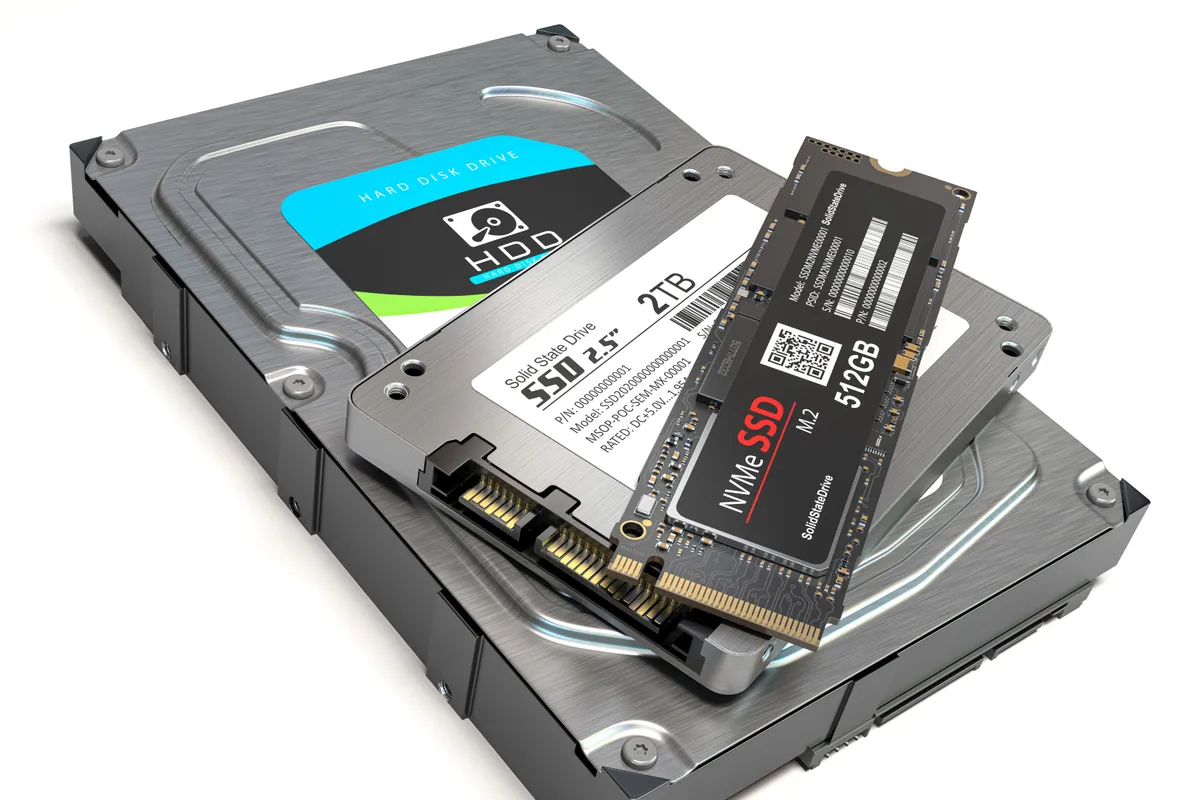
When a spinning hard drive starts to fail, it doesn’t always die cleanly. It develops bad sectors and struggles to read data reliably. The system hangs while the drive retries a read it can’t complete — which is exactly what a “freeze” is — and as more of the drive becomes unreadable, eventually the part holding the operating system can’t be read at all, and the machine won’t boot.
So before assuming a reinstall would fix anything, we tested the drive. The checks confirmed it: the hard drive was failing, not the software. Reinstalling the operating system onto a dying drive would have been a waste of time — it would have failed again within weeks.
How We Fixed It
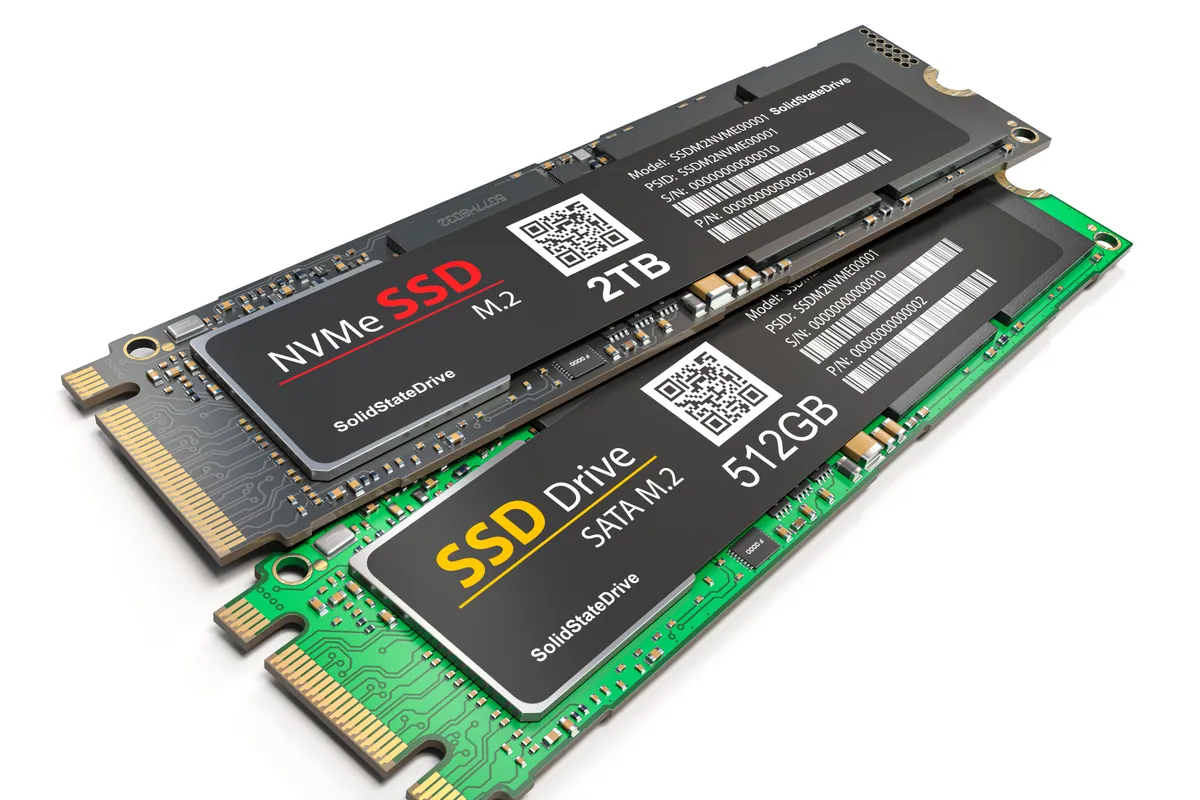
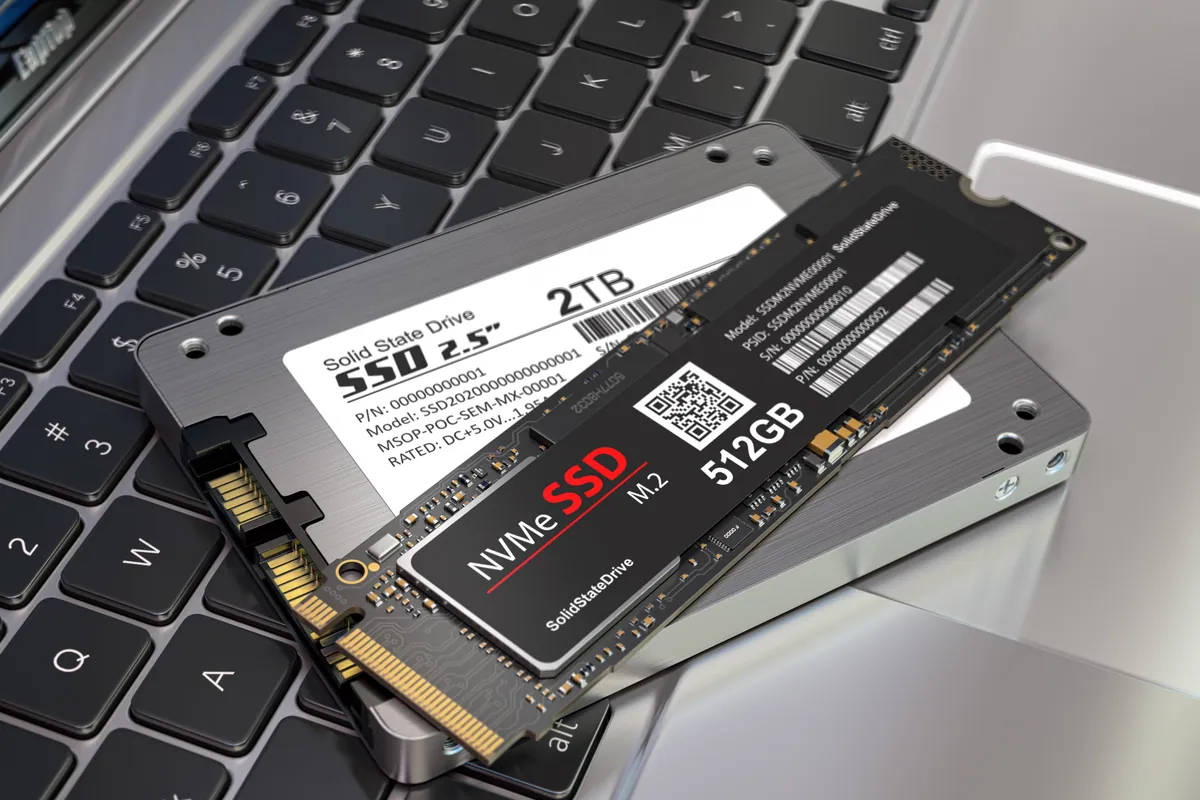
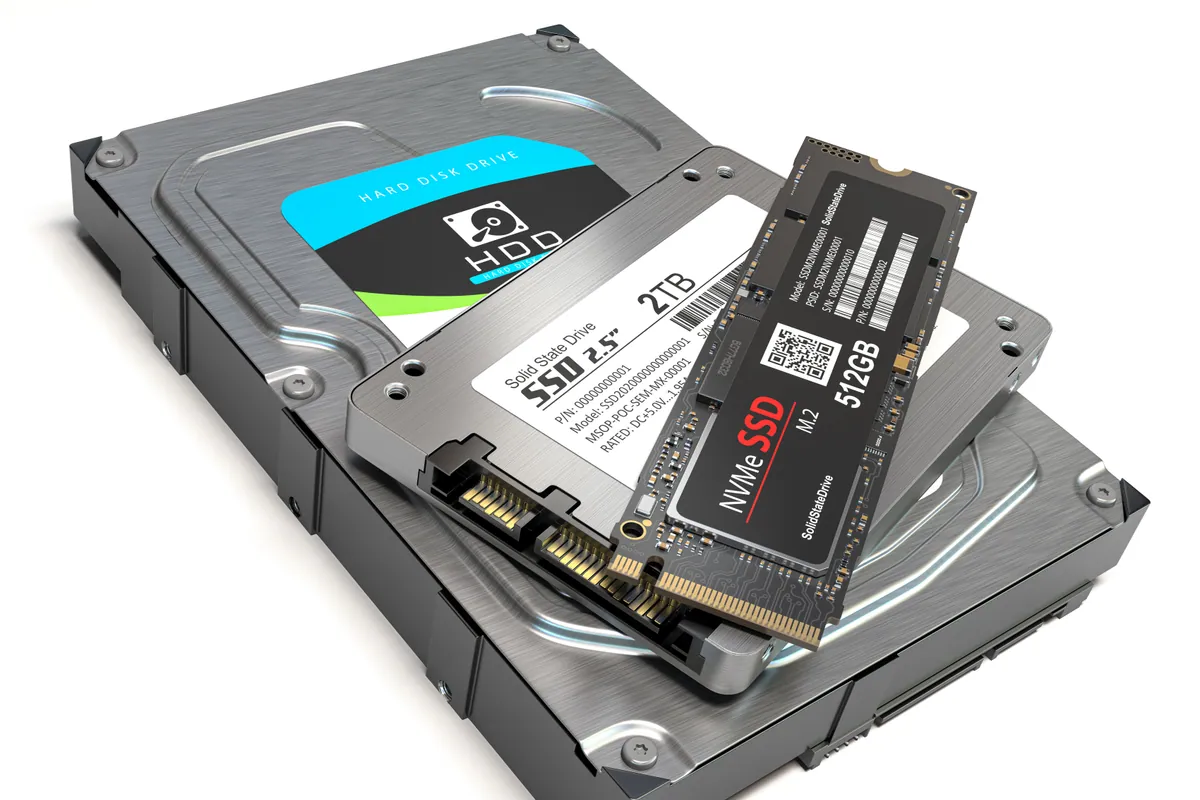
We removed the faulty mechanical hard drive and installed an SSD in its place, with a clean operating system. An SSD has no moving parts, so it sidesteps the entire failure mode that was causing the freezes, and it’s dramatically faster than the drive it replaced — boot times, loading, and general responsiveness all improve sharply, which matters even more on a gaming machine.
We then tested the laptop thoroughly: repeated boots, sustained use, and load to confirm the freezing was genuinely gone and the machine was stable.
The Result
The laptop boots reliably every time and runs noticeably faster than it did even before the trouble started — the SSD is a real step up from the original hard drive. The intermittent freezing, the symptom that started it all, is gone, because the failing component that caused it is gone.
Why This Happens
Mechanical hard drives are one of the few parts of a computer with moving components — a spinning platter and a head that reads it — and moving parts wear out. As a drive ages, it develops areas it can no longer read reliably. The tell-tale early symptom is freezing: the whole system pauses while the drive struggles with a read it can’t complete. Left alone, this gets worse until the drive can’t deliver the operating system at all and the machine won’t start.
Because the symptom looks like a software fault, it’s easy to waste time and money reinstalling the OS — which either fails outright on the bad drive or “works” briefly before the same symptoms return. Testing the drive early is what separates a quick, correct fix from a frustrating loop.
The silver lining is that replacing a hard drive with an SSD doesn’t just fix the fault — it’s the single biggest speed upgrade most older laptops can get.
Acting Before a Drive Dies Completely
- Treat unexplained freezing as a possible drive warning, especially if it’s getting more frequent — don’t wait for the machine to stop booting.
- Back up now if your machine is freezing — a failing drive is on borrowed time, and data is far easier to recover before it dies completely than after.
- Don’t just reinstall onto a suspect drive — if the hardware is failing, a fresh OS won’t save it.
- Upgrade to an SSD while you’re at it — if the drive’s being replaced anyway, an SSD is the obvious choice for speed and reliability.
Local Help in Putney SW15
If your laptop is freezing, slowing down, or refusing to boot, it’s well worth checking the drive before assuming the worst about the whole machine. We diagnose and repair laptops — gaming machines included — from our Putney SW15 workshop, and we’ll tell you honestly whether it’s a quick SSD fix or something more. If your data matters, bring it in sooner rather than later. Call 020 7610 0500 or use the contact form.
Related Services
- SSD Upgrade — replacing failing or slow hard drives with fast, reliable SSDs
- SSD Upgrade in Putney — local service covering SW15
- Data Recovery — recovering data from failing and failed drives
More Case Studies
- Cooler Master desktop NVMe SSD BSOD repair — diagnosing a storage fault behind blue screens
- MacBook SSD upgrade in Kingston — storage upgrade for speed and reliability
- Bambu A1 Combo first-layer and AMS feed setup in Putney SW15 — careful diagnosis on a different class of machine