What Was Happening
The HP arrived from a Barnes SW13 owner with the fault that erodes all trust in a machine: constant blue screens. The laptop would be working one moment and, without warning, crash to a full-screen error and restart the next — unpredictable, repeatable, and impossible to work through. The owner asked us to fix it if it was a software problem and to diagnose and quote if it turned out to be hardware.
That “software or hardware?” question is the crux of a blue-screen fault, because the two lead to completely different fixes — and getting it wrong wastes real time and money. A blue screen is the machine telling you something went badly wrong at a low level; it doesn’t, on its own, tell you what.
Sound like your problem?
Bring it to our Putney workshop or message us a photo and we will give you a straight answer and a quote before any work starts.
Our Diagnosis
- Resisted the easy assumption. The tempting reflex with blue screens is to reinstall Windows and hope. But if the cause is hardware, a reinstall changes nothing — the crashes return within days — so we don’t reach for it until hardware is ruled out.
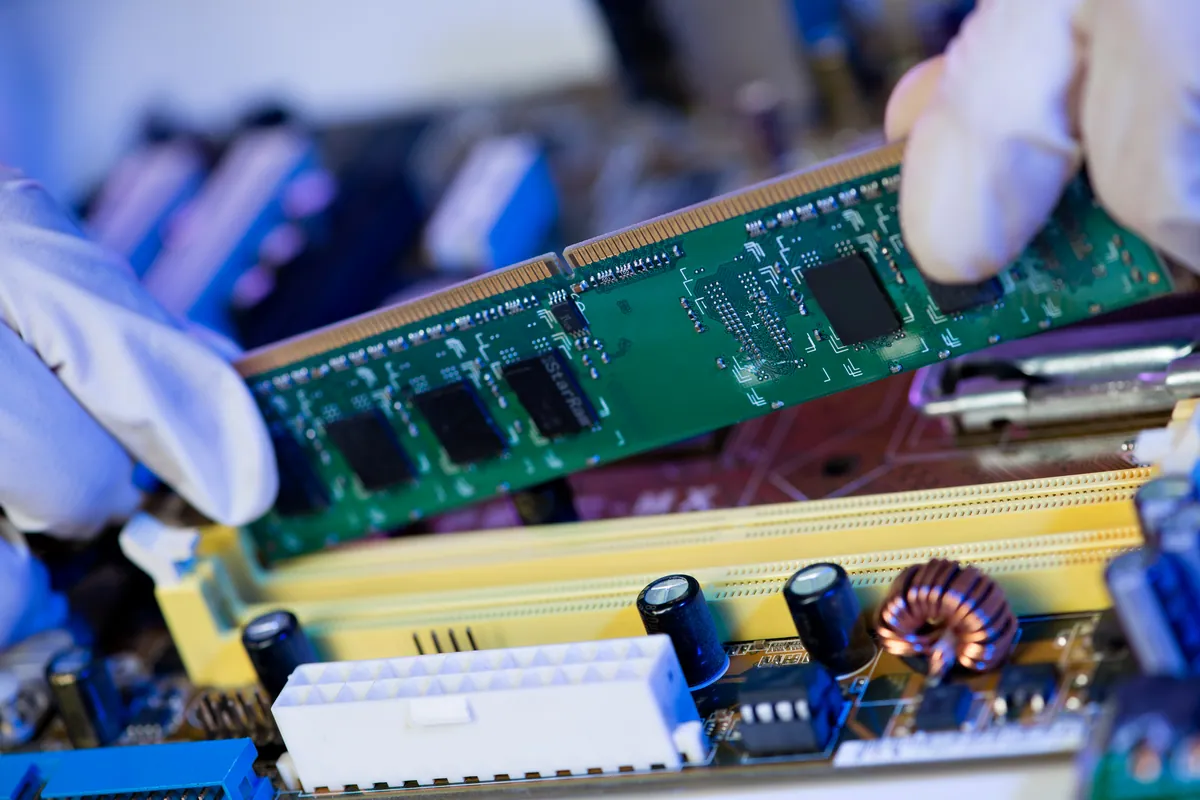
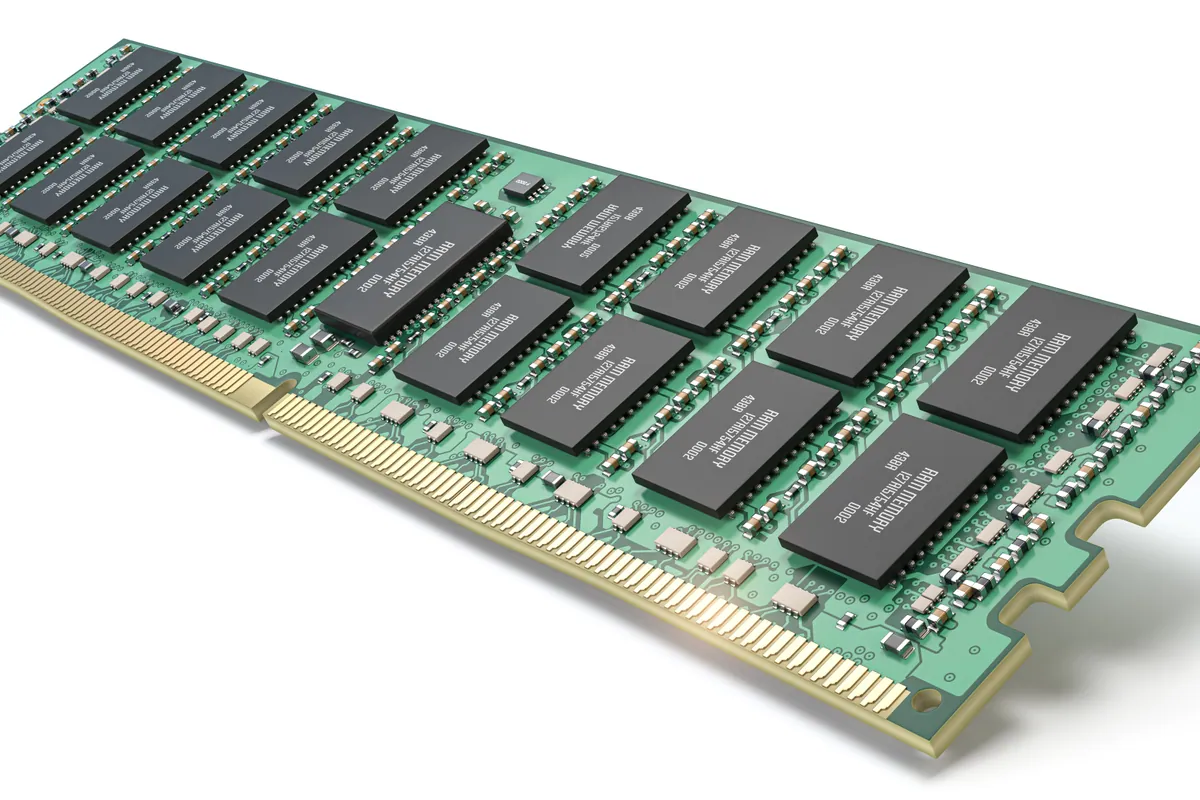
- Suspected the memory. Random, recurring blue screens that don’t cluster around any one task are a textbook symptom of faulty RAM. Memory is where the machine holds everything it’s actively working on, and when a memory cell goes bad, whatever was stored there is corrupted mid-use — and the system crashes to protect itself.
- Proved it with a swap test. Suspicion isn’t diagnosis. We tested the machine with known-good memory in place of the suspect module and watched what happened: with the good memory in, the blue screens stopped. That swap is the definitive test — it turns “probably the RAM” into “certainly the RAM”, so the fix is a sure thing rather than a guess.
How We Fixed It
- Replaced the faulty memory. With the fault proven, we fitted a new memory module in place of the failed one — the direct, correct fix for bad RAM.
- Confirmed the machine ran clean. We ran the laptop with the new memory in place to make sure the crashes were genuinely gone and hadn’t simply moved, rather than declaring it fixed on the strength of the swap alone.
- Stood behind the fix. The repair was backed by a warranty, so the owner had reassurance that if the blue screens returned, they were covered — the confidence that comes from a diagnosis proven rather than assumed.
The Result
The HP went back to Barnes stable, the blue screens gone. What had been an unusable, unpredictable machine became reliable again — and, importantly, the owner had a clear answer for why it had been crashing, rather than a reinstall that might or might not have helped. A proven hardware fix beats a hopeful software one every time.
Why This Happens
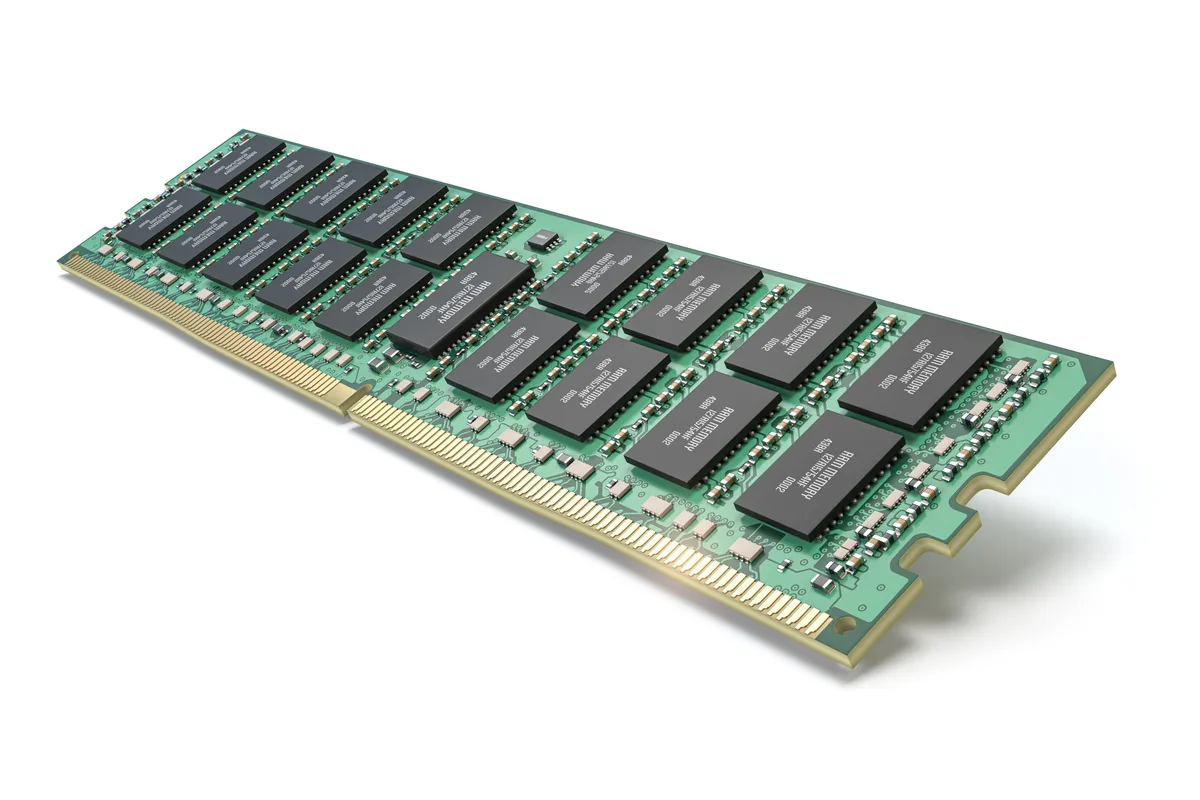
RAM — random-access memory — is the machine’s short-term working space. Everything the computer is actively doing lives there while it’s happening: the app you’re in, the document you’re editing, the parts of the system currently running. It’s fast, temporary, and absolutely central — and when it goes wrong, the effects are dramatic. A single bad memory cell can corrupt whatever data happens to be stored in it, and because the system relies on that data being correct, the result is an instant crash: the blue screen. Because programs use memory unpredictably, the crashes look random, which is exactly the pattern we saw here.
Memory can fail from age, from heat, or simply from a manufacturing weakness that shows up over time. It’s not the most common laptop fault, but it’s a real one — and it’s frequently misdiagnosed. Because the symptoms (crashes, freezes, blue screens) look like a software mess or even a virus, people reinstall Windows, run cleanup tools, and change nothing, because the faulty chip is still sitting there. That’s why the swap test matters so much: it’s the difference between chasing the symptom around the software and actually finding the cause in the hardware.
It’s worth adding that this was a faulty-memory replacement, but the same component is also where a healthy machine’s performance can be improved — adding more RAM is one of the most effective upgrades for a computer that’s simply short of working space. Different problem, same part: memory is worth understanding, because it’s behind both a class of nasty faults and one of the best upgrades going.
Local Help in Barnes SW13
If your laptop or PC keeps blue-screening, freezing or restarting at random, don’t assume it just needs Windows reinstalling — faulty memory is a common cause, and reinstalling won’t touch it. The reliable way to know is to test it properly.
We diagnose and fix memory faults — and carry out RAM upgrades — from our Putney workshop, close to Barnes SW13, and we prove the cause with a swap test rather than guessing.
Call 020 7610 0500, drop in to SW15, or use the contact form.