What Was Happening
The All-in-One had developed a pattern over a week: sometimes it booted normally, sometimes it got stuck on the Windows logo for ten minutes, sometimes it would not progress past the BIOS handover at all. The first cold boot of the day was the most likely to fail; subsequent attempts often worked.
This intermittent pattern is harder to diagnose than a hard failure because the machine sometimes works. It usually progresses to a hard failure over days or weeks if left alone — and the work to recover from a hard failure is the same as the work to fix the intermittent pattern, only with more anxiety attached.
Sound like your problem?
Bring it to our Putney workshop or message us a photo and we will give you a straight answer and a quote before any work starts.
Our Diagnosis
Same hardware-first principle as any boot-failure job:
- BIOS health, drive enumeration, SMART check, RAM test. All clean. Hardware ruled out as the underlying cause.
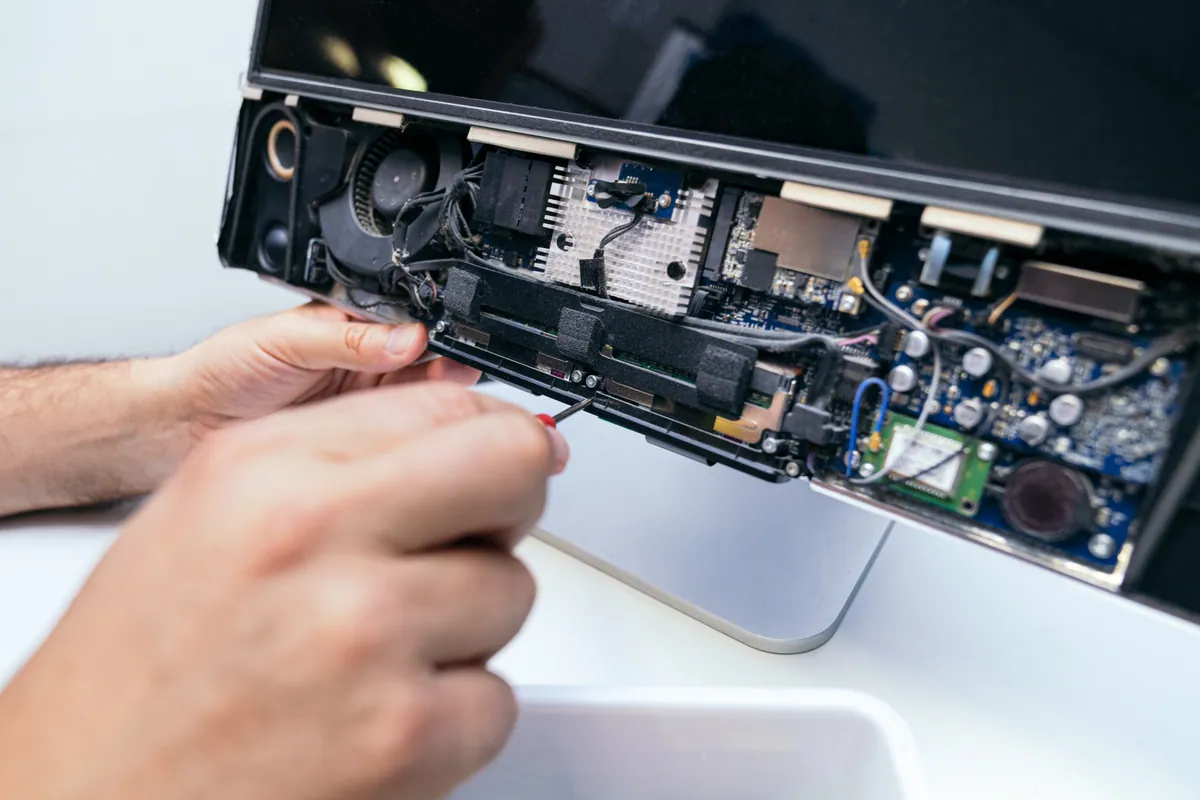
- Boot pattern in detail. Watched a series of cold boots with the side panel off and the disk activity LED visible. The drive was being read aggressively for several minutes on the failing boots — disk activity LED solid, no errors thrown, just very slow reading. Suggested a file system or Windows-side issue rather than a drive that couldn’t physically read.
- Safe Mode boot. Reached Safe Mode on every attempt, including the cold-boot-of-the-day that normally failed. Confirmed hardware was healthy and that the problem was something in the standard startup chain — a driver, a service, or a system file that took too long or hung on load.
- Event Viewer. Examined Windows event logs from the previous boot attempts. Found multiple events around startup pointing at corruption in a couple of system files used by a Windows component that loads early in the boot sequence.
Outcome: OS corruption, fixable in principle without a full reinstall. Worth trying in-place repair first.
What we tried, in order
The right order for Windows OS repair is cheapest and least disruptive first, escalating only when each step fails:
Attempt 1 — SFC and DISM. Booted into Safe Mode, ran sfc /scannow to repair any corrupted system files from the component store. Found and repaired several issues. Followed up with DISM /online /cleanup-image /restorehealth to repair the component store itself.
Boot tested. Cold boot succeeded; subsequent boots succeeded. Looked promising. We kept the machine on the bench for 24 hours of repeated cold boots to confirm the fix was holding.
The fix didn’t hold. After about 18 hours and a dozen successful cycles, an overnight cold boot got stuck on the Windows logo again. SFC repairs had addressed the immediate symptoms but the underlying corruption was reasserting itself.
Attempt 2 — Windows Reset (keep files). Used Windows’ built-in Reset This PC option with “Keep my files” selected. This reinstalls the Windows OS files while preserving user data and most user-installed applications.
Reset completed successfully. Boot tested over another 24 hours of cold cycles. This time the fix held — but the customer had a few third-party apps that the reset had removed (Windows Reset preserves user data but uninstalls non-Microsoft Store apps), and the driver state was a mix of Windows-generic and HP-specific that wasn’t quite right.
Attempt 3 — Clean install with HP driver bundle. At this point we had data confidence (image taken, files verified) and a clear sense that the system would benefit from a fresh start with proper drivers. We:
- Wiped the drive completely
- Ran a fresh Windows install
- Applied the HP driver bundle for this specific All-in-One model
- Ran Windows updates to current state
- Restored user files from the imaged drive
- Reinstalled the third-party applications the customer was actually using
Boot tested over 48 hours of cycles. Stable on every attempt.
The Result
Stable cold boot every cycle. Current driver baseline. User data preserved. The full repair path took two working days on the bench because we worked through the in-place options first, but the customer kept their data through the whole process — which is the outcome that matters most.
Why we don’t always jump to a clean install
It would be quicker for us to just reinstall every time. We don’t, because:
- A clean install loses everything the user has installed and configured. Even when files are preserved via Windows Reset, the apps and settings often go with it.
- An in-place repair often works. SFC and DISM resolve a significant minority of these cases on their own. Going straight to a reinstall when the in-place repair would have worked wastes the customer’s time.
- The customer’s data is at less risk during an in-place repair than during a wipe-and-reinstall, because nothing destructive happens unless the in-place repair fails.
The trade-off: in-place repair takes more bench time when it fails because we’ve effectively done two repair jobs. We tell customers honestly which path we’re going down and why.
Why this kind of corruption happens
For intermittent boot failures that escalate over days, the usual causes:
- A driver update or Windows update that introduced an incompatibility. Often something the user installed weeks ago that has been slowly destabilising the system.
- Drive errors during writes that left files inconsistent. Even when SMART is clean, occasional bad writes can corrupt system files.
- An antivirus product or “PC optimiser” that has interfered with system files.
- Hardware that is technically still healthy but has marginal performance. A slightly failing drive that hasn’t yet tripped SMART thresholds can still cause timeouts during boot.
How to spot this early
- Boot times getting longer over a week or two. Worth investigating before it becomes a refusal to boot.
- “Automatic repair” screens appearing. Even if the machine recovers, it’s telling you Windows had to fix something.
- Application launches getting slower across the board. Could be storage, could be the OS — worth a check.
Local Help in Wimbledon SW20
A desktop that won’t power on, restarts randomly or runs hot usually traces to the PSU, RAM, storage or cooling — all testable on the bench.
We diagnose before quoting and are happy to work with customer-supplied parts on a clear protocol.
Call 020 7610 0500 or book through the contact form.