What Was Happening
The HP came in from a Hammersmith W14 owner who wanted an upgrade rather than a repair — though the machine had taken a knock along the way. The goal was simple to state: more storage and more speed. The laptop was running low on space and could do with being quicker, and the owner wanted a bigger, faster drive. Crucially, they didn’t want to start over — no reinstalling programs, no reconfiguring settings, no hunting for files. They wanted the same laptop they already knew, just with more room and more pace.
That’s a specific request, and it points to a specific method. “Upgrade my drive but keep everything exactly as it is” isn’t the same job as “wipe it and set it up fresh” — and choosing the right one matters.
Sound like your problem?
Bring it to our Putney workshop or message us a photo and we will give you a straight answer and a quote before any work starts.
Our Diagnosis
- Matched the method to the goal. Because the owner wanted everything kept exactly as-is, the right approach was to clone the existing drive rather than install a fresh system. A clone makes an exact copy of the whole drive onto the new one, so the machine comes back identical — same programs, same settings, same files, same arrangement — just on bigger, faster storage.
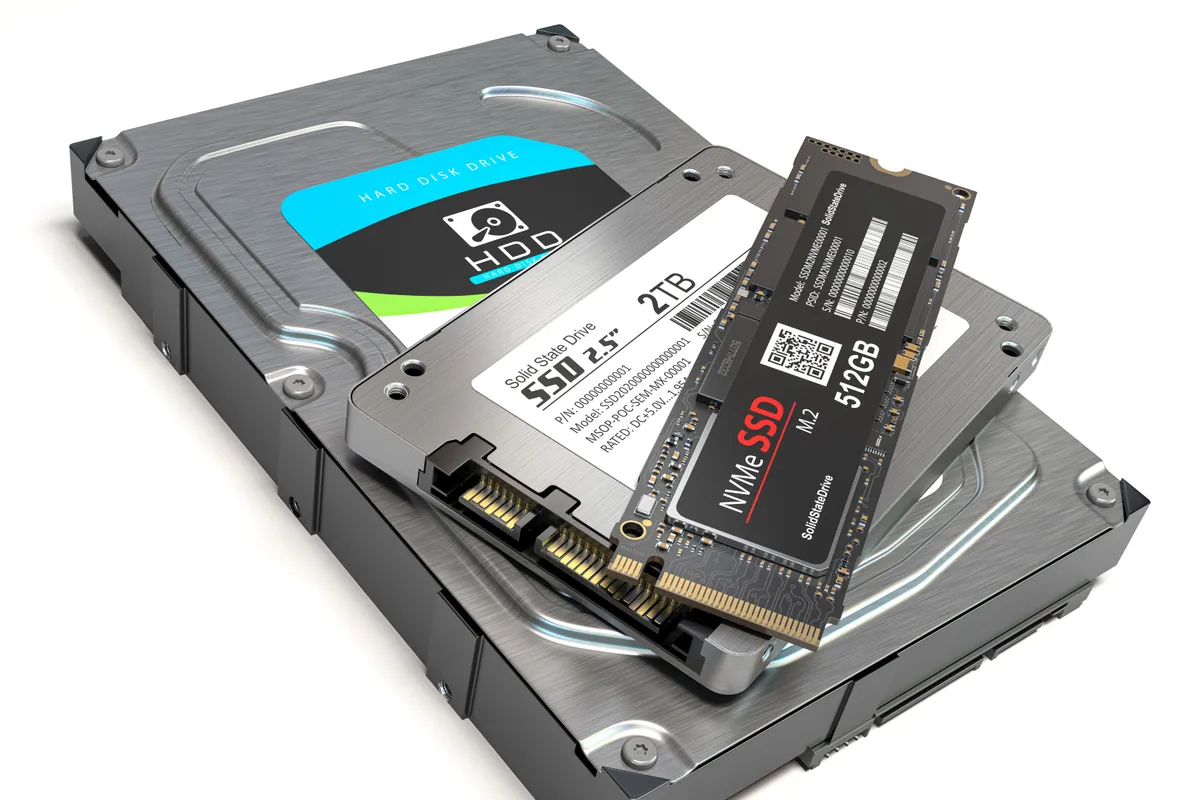
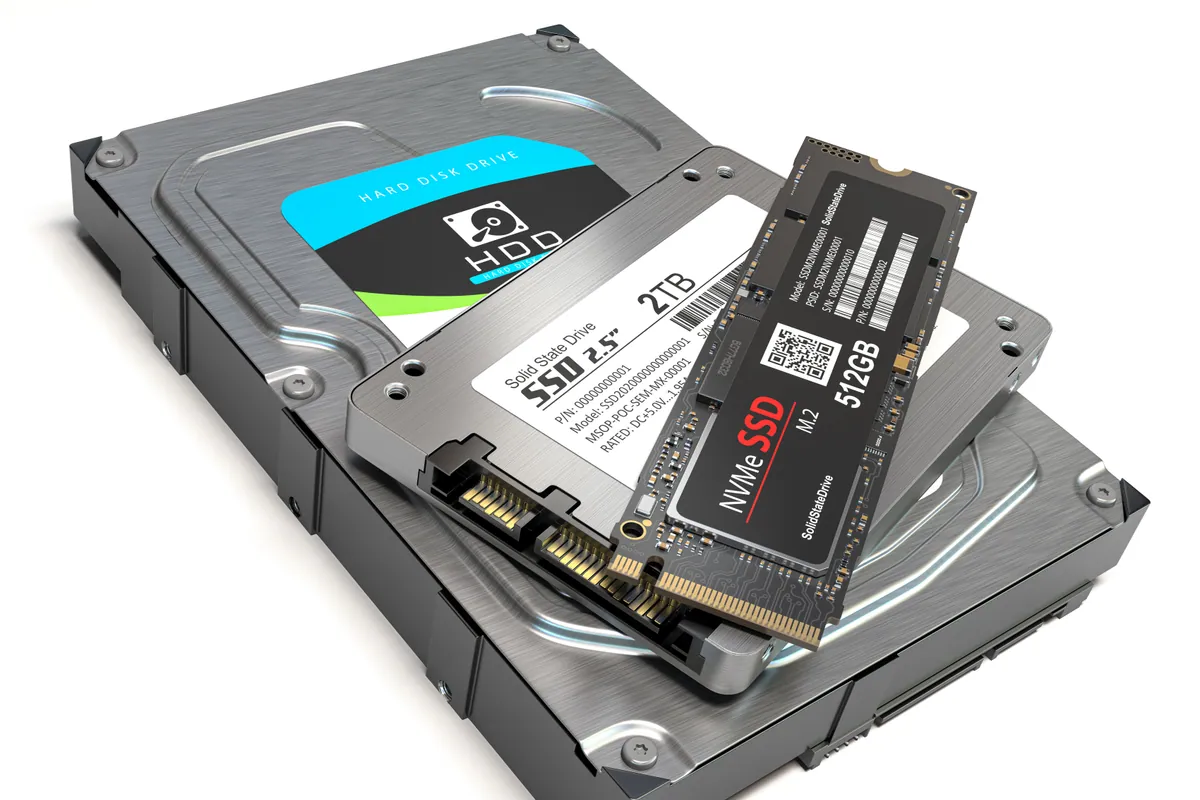
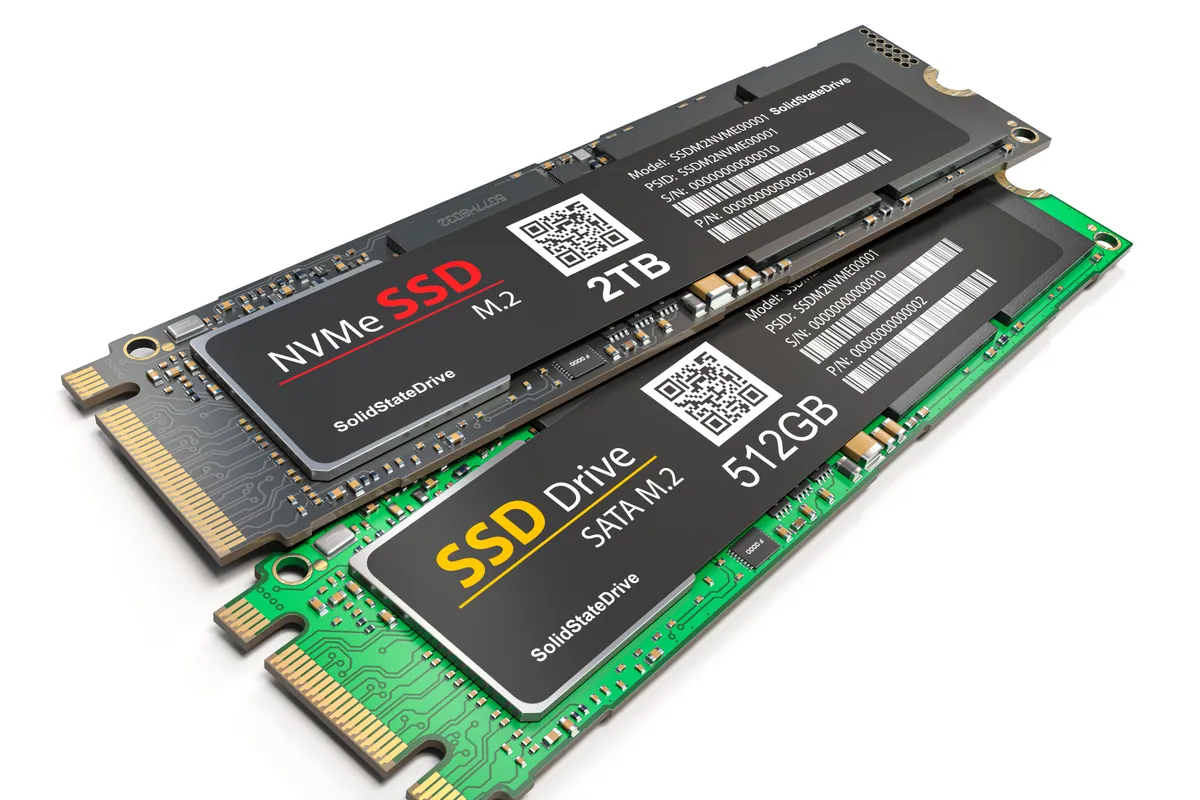
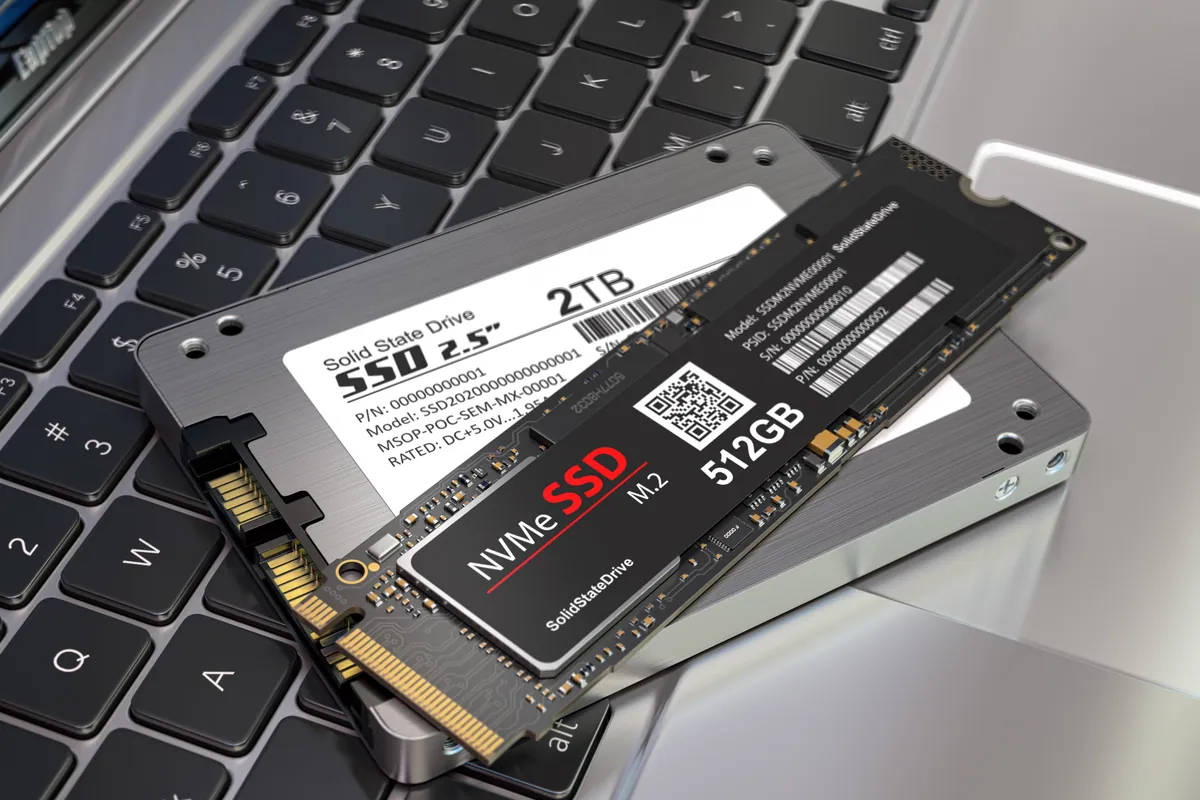
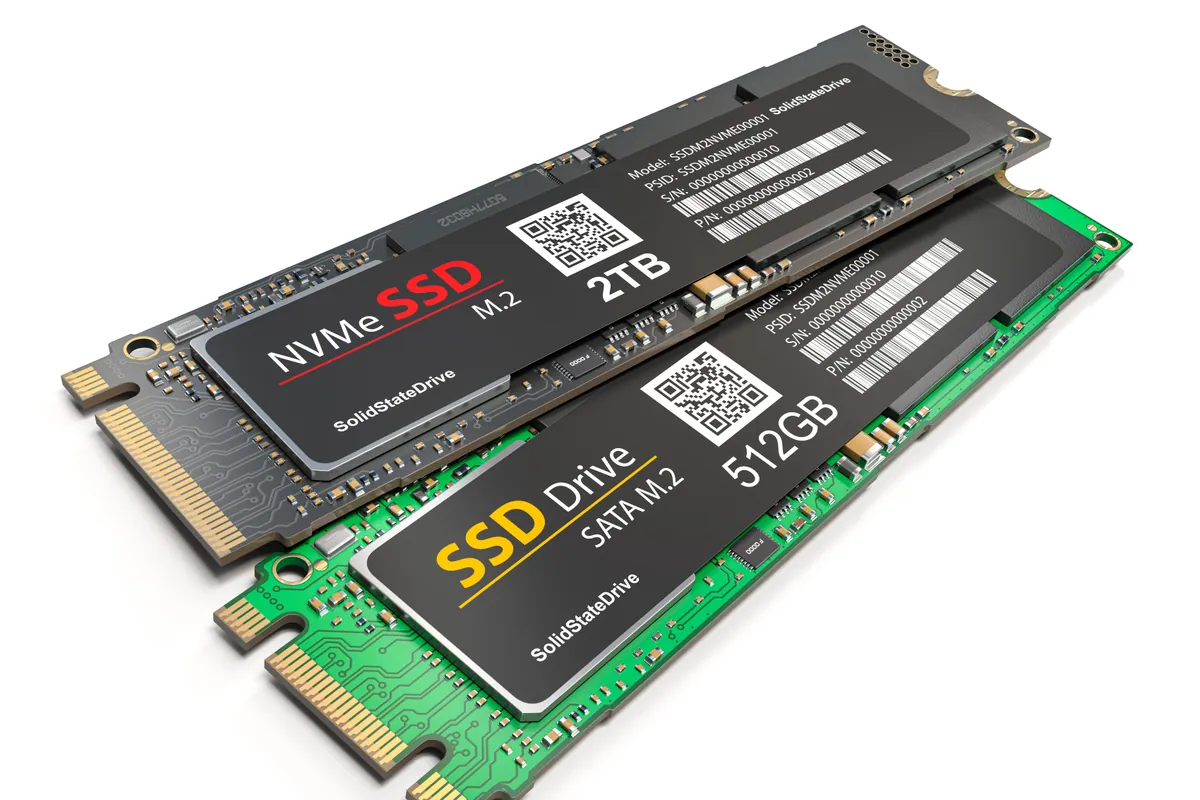
- Sized the new drive to the need. They wanted room to grow, so a 1TB SSD was the target — a substantial jump in space, and the speed benefit of solid-state storage over whatever the machine had before.
- Planned to preserve the old drive. Part of a clean upgrade is deciding what happens to the original drive. Rather than wipe or discard it, we planned to return it to the owner, so they’d keep a complete snapshot of the machine as it was — a free backup, in effect.
How We Fixed It
- Cloned the drive onto a 1TB SSD. We made a full clone of the existing drive onto a new 1TB solid-state drive — an exact, bit-for-bit copy — and fitted it into the laptop. Everything came across as it was.
- Confirmed it booted and behaved identically. We checked the machine started up and ran exactly as before, with all the owner’s programs and files in place, now with far more space and the speed of an SSD.
- Returned the old drive. We handed the original drive back to the owner. Because it still holds a complete copy of everything as it was on the day of the swap, it doubles as a backup they can keep safe.
The Result
The HP went back to Hammersmith as the same familiar laptop — nothing to relearn, nothing to reinstall — but with a great deal more storage and the responsiveness of a solid-state drive. The owner also went home with their old drive in hand, a ready-made backup of their setup. It’s the ideal shape of an upgrade: everything you liked about the machine untouched, everything you wanted improved.
Why This Happens
There are two ways to move a computer onto a new drive, and they suit different situations. A fresh install puts a clean operating system on the new drive — a blank slate, which is perfect when you want to clear out years of clutter or fix a system that’s misbehaving, but it means reinstalling your programs and setting everything up again. A clone does the opposite: it copies the existing drive exactly, so the machine comes back precisely as it was, with nothing to redo. For someone who’s happy with their setup and simply wants more space and speed, cloning is exactly right — and it’s what we did here.
The speed and space both come from the same upgrade. A solid-state drive is dramatically faster than an older mechanical hard drive and quicker than a small or full drive struggling for room, so everyday tasks — booting, opening apps, saving — get snappier. And moving to a 1TB drive gives breathing room that a cramped machine badly needs; a drive running near full slows down and leaves no space to work with, so the extra capacity is as much about smooth running as it is about storage.
The quiet bonus is the old drive. When you clone onto a new SSD, the original still contains a complete copy of everything as it was at that moment. Keeping it, rather than wiping or binning it, hands you a backup for free — a full snapshot you can fall back on. It’s a small habit that turns a routine upgrade into a bit of insurance, and it’s why we return the old drive rather than dispose of it.
Local Help in Hammersmith W14
If your laptop is short on space or feeling slow, an SSD upgrade is the most effective fix there is — and if you want to keep everything exactly as it is, cloning brings your whole setup across with nothing to reinstall. We’ll also hand you the old drive so you’ve got a backup in the bargain.
We upgrade drives and clone data from our Putney workshop, within reach of Hammersmith W14, and we’ll advise honestly on the right size and the right method for how you use the machine.
Call 020 7610 0500, drop in to SW15, or use the contact form.