What Was Happening
The laptop had been working normally and then started taking longer to boot — first a few extra minutes, then it stopped reaching the desktop at all. Automatic repair attempts ran on several boots without success. By the time it came in, it sat on the Windows logo indefinitely on every attempt.
The customer was specific about what mattered: the documents on the drive. They could reinstall the OS, reinstall apps, sign back into accounts — but losing the documents was not acceptable. That framing is the right one to bring to a repair like this; it dictates the order of operations end-to-end.
Sound like your problem?
Bring it to our Putney workshop or message us a photo and we will give you a straight answer and a quote before any work starts.
Our Diagnosis
The non-negotiable: don’t write to the drive until the data is safe. Every diagnostic step, every repair attempt, was chosen to avoid altering anything on the drive until we had a complete copy of it on separate storage.
- No in-place Windows repair attempts before imaging. SFC, DISM and Reset all write to the drive. None of them run until the data is backed up.
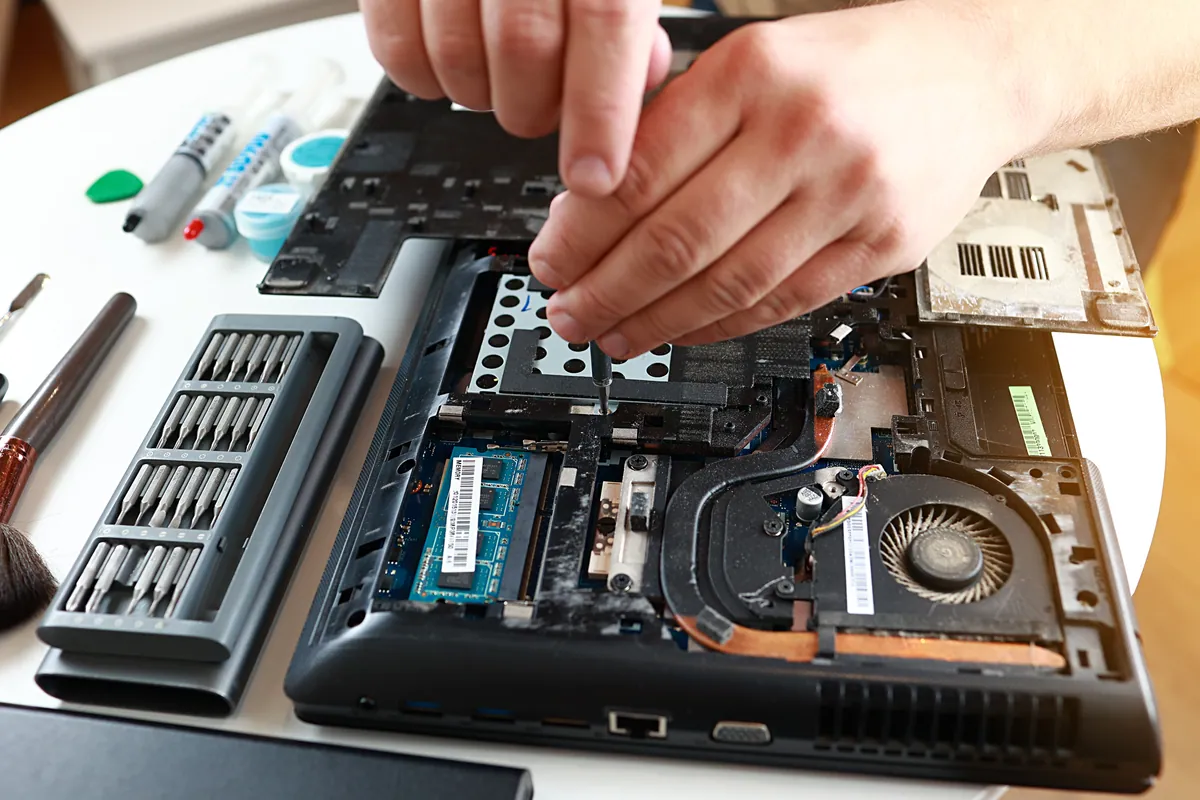
- Drive out of the laptop, into our imaging setup. Connected via an interface that prevents writes during reading to make accidental writes impossible during imaging.
- Full bit-for-bit image to dedicated dedicated recovery storage. This produces a complete, untouched copy of the customer’s drive — operating system, user files, application data, everything.
- Verified the image. Browsed user folders, opened sample files in their expected applications. Confirmed everything the customer had flagged as critical was present and readable.
Only after that did we start thinking about the reinstall.
How We Fixed It
Drive back into the laptop. With the image safe, the drive went back into the laptop for a clean install. If something had gone wrong, we still had the image to restore from.
Wiped the drive. Deleted any leftover partitions from the previous install to give Windows setup a clean slate.
Clean Windows install. Booted from a Windows installer USB. Let setup create its own partition layout and install fresh. First-boot setup as a brand-new laptop.
HP driver bundle. HP publishes a curated driver pack per model — chipset, network, audio, integrated graphics, system management, fingerprint reader (if applicable), camera, BIOS firmware. We use HP’s own tooling rather than third-party “driver updater” software. The difference is real: a Windows install relying on generic drivers usually works but has subtle issues — Wi-Fi power management, fan curves, function keys not behaving — that the official driver bundle resolves.
Windows updates run to current state on the bench so the customer’s first day back doesn’t start with “preparing updates”.
Restored user files from the image. Documents, Downloads, Pictures, Desktop all back where they belonged in the new user profile. Browser bookmarks and saved passwords where credentials allowed.
Reinstalled the customer’s regular applications — the ones they actually use, not the entire list of things that had accumulated on the old install.
Verification. Three full boots, each under 20 seconds. Application launches normal. Wi-Fi working with proper power management. Function keys (volume, brightness, airplane mode) all responding correctly.
The Result
Laptop booting cleanly and quickly. All important data restored. Current driver baseline. The customer can build their setup back up on a known-good foundation rather than fighting the accumulated cruft of the previous install.
We also took the customer through setting up OneDrive sync for their Documents and Desktop folders before they took the laptop home. The next time something goes wrong with this laptop or any other, the data will already be in a second location.
Why This Happens
The most stressful thing about a non-booting laptop is usually not the laptop itself — it’s the uncertainty about the data. Most repairs are routine; the data question is what makes the customer anxious.
We can almost always recover the data when the drive itself is healthy and the only problem is the OS install. The risk profile changes when:
- The drive itself is failing. SMART warnings, intermittent detection, read errors — these change the recovery odds and sometimes require specialist cleanroom services.
- The customer has already attempted DIY recovery by running aggressive repair tools, deleting partitions, or formatting the drive. Each of these reduces what we can recover.
- The laptop has been damaged physically (drop, liquid) since the fault appeared, adding hardware damage to the OS issue.
For straightforward OS corruption on a healthy drive — the most common case — recovery odds are very high.
How to make sure you never need this job again
- OneDrive (Windows) or iCloud Drive (Mac). Free for small amounts, low cost for serious volumes. Your Documents and Pictures folders automatically synced to a second location.
- Local backup to an external drive. Windows File History or Mac Time Machine to a drive that stays connected. The drive doesn’t have to be expensive — a basic USB external drive is plenty.
- Both, ideally. Cloud and local. Different failure modes, different recovery paths, very low cost in absolute terms.
The cost of any of these is much less than the cost of a data-recovery job, and they remove the anxiety from the next broken Windows install entirely.
Local Help in Putney SW15
A laptop that won’t boot, overheats or drops its charge usually has a single identifiable cause once it’s on the bench.
We diagnose first and quote second, so there are no surprises halfway through the job.
Visit our Putney workshop (SW15) or call 020 7610 0500 to get started.