What Was Happening
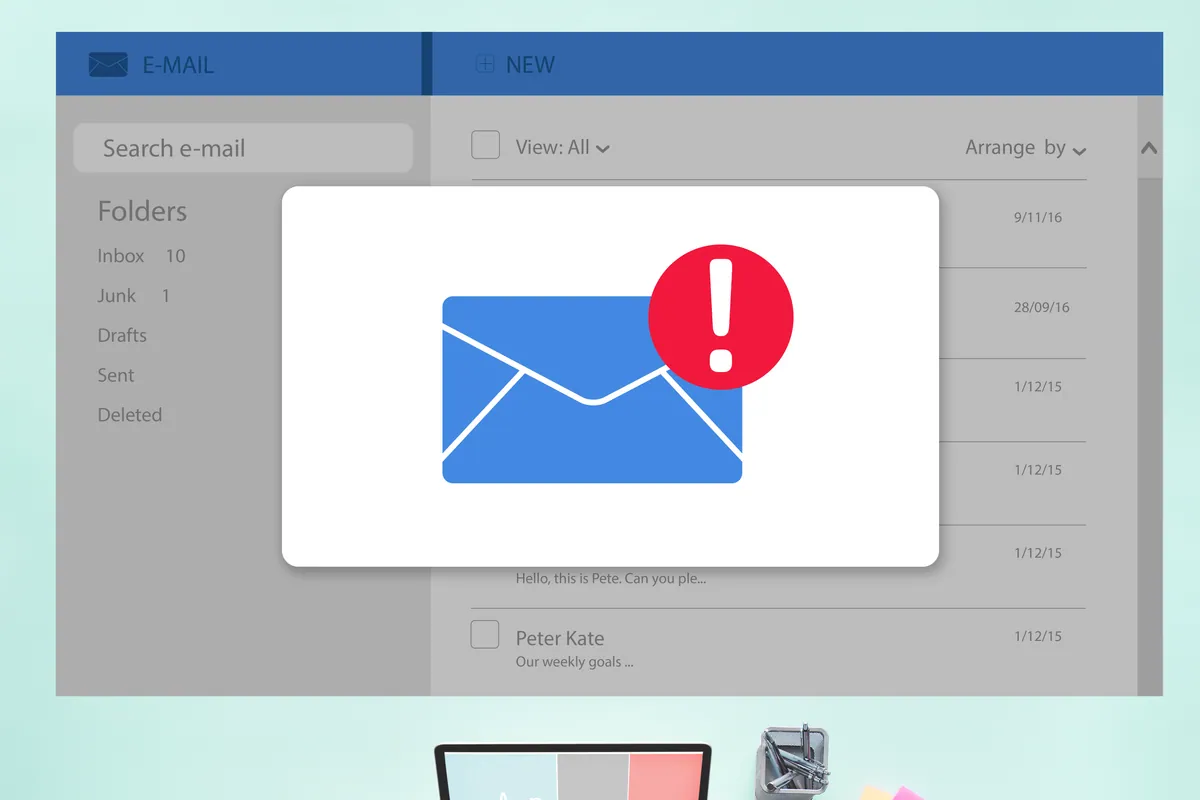
A user in Tooting SW17 came to us to get their email working properly in Outlook. It wasn’t a fault — it was a setup job — but it was more involved than “add an account”, because there were several accounts to configure on the one machine. That’s a common situation for anyone running a home office or a small business: a personal address, a business address, maybe a domain email and a shared one, all needing to live together in a single Outlook without tripping over each other.
Email setup sounds trivial until it’s done badly. Accounts added the wrong way go out of sync between your phone and your computer, mail lands in the wrong place, and sent items scatter. Getting it right the first time is the difference between email that just works and a low-grade headache that follows you around for months.
Sound like your problem?
Bring it to our Putney workshop or message us a photo and we will give you a straight answer and a quote before any work starts.
Our Diagnosis
There was no hardware fault to find here — the work was in doing the configuration properly rather than quickly:
- Understood how the accounts needed to behave. The key question with any modern email account is whether it should keep everything in sync across devices. For almost everyone today the answer is yes, which points to a specific way of adding each account rather than the older method that leaves your phone and laptop showing different mail.
- Planned for several accounts on one machine. With multiple addresses in a single Outlook, the risk is disorganisation — replies going out from the wrong address, incoming mail piling into one undifferentiated inbox. Setting it up well means thinking about organisation, not just connection.
- Set a standard of “verified, not assumed”. An account isn’t set up until it’s been proven to send and receive. Adding it and moving on is how problems surface a week later.
How We Fixed It
- Configured each email account in Outlook using the method that keeps mail synchronised across devices, so what the owner sees on the laptop matches their phone and the webmail — read, filed and deleted mail stays consistent everywhere.
- Organised the mailbox so several accounts could coexist cleanly, with mail arriving where it belonged rather than merging into one confusing pile.
- Verified every account by sending and receiving on each one, confirming the whole setup worked before handing it back — no “should be fine”, just checked.
The Result
The owner left with every email account working in Outlook, syncing across their devices, and organised so nothing landed in the wrong place. It’s an undramatic outcome, and that’s exactly the point: email you never have to think about again, set up once and correctly, instead of a recurring source of small frustrations.
Why This Happens
The single most consequential choice in email setup is how each account connects. The modern approach keeps a copy of your mail on the server and mirrors it to every device, so your inbox looks the same on your laptop, phone and browser. The older approach pulled mail down to one device and often removed it from the server — fine when you only had one computer, a disaster in a world where everyone checks mail on several devices. Accounts set up the old way are the reason people find mail on their laptop that never appears on their phone.
Add several accounts to one Outlook and a second issue appears: organisation. Without a little thought about folders, rules and which address replies come from, a multi-account inbox becomes a mess. A good setup handles both — the right connection method and a sensible structure — so the machine works the way a busy person actually needs it to.
Local Help in Tooting SW17
If you’re setting up a new laptop, juggling several email addresses, or finding your mail never quite matches between your phone and computer, a proper Outlook setup fixes it for good.
We configure email and Microsoft 365 for home-office and small-business users from our Putney workshop, a short trip from Tooting SW17, and we can do it in the workshop or talk it through with you.
Call 020 7610 0500 or use the contact form to arrange it.