What Was Happening
The laptop had stopped powering on without any obvious trigger. They had checked the obvious things — different power outlet, different charger if they had one — and got nothing. By the time it came to us it was completely unresponsive: no LEDs, no fan, no clicks, no signs of life.
The customer travelled to our Putney workshop from SE8 (Deptford) rather than searching for a local repair — we get a fair number of customers from across South and East London who’d rather come to a workshop that diagnoses before quoting.
Sound like your problem?
Bring it to our Putney workshop or message us a photo and we will give you a straight answer and a quote before any work starts.
Our Diagnosis
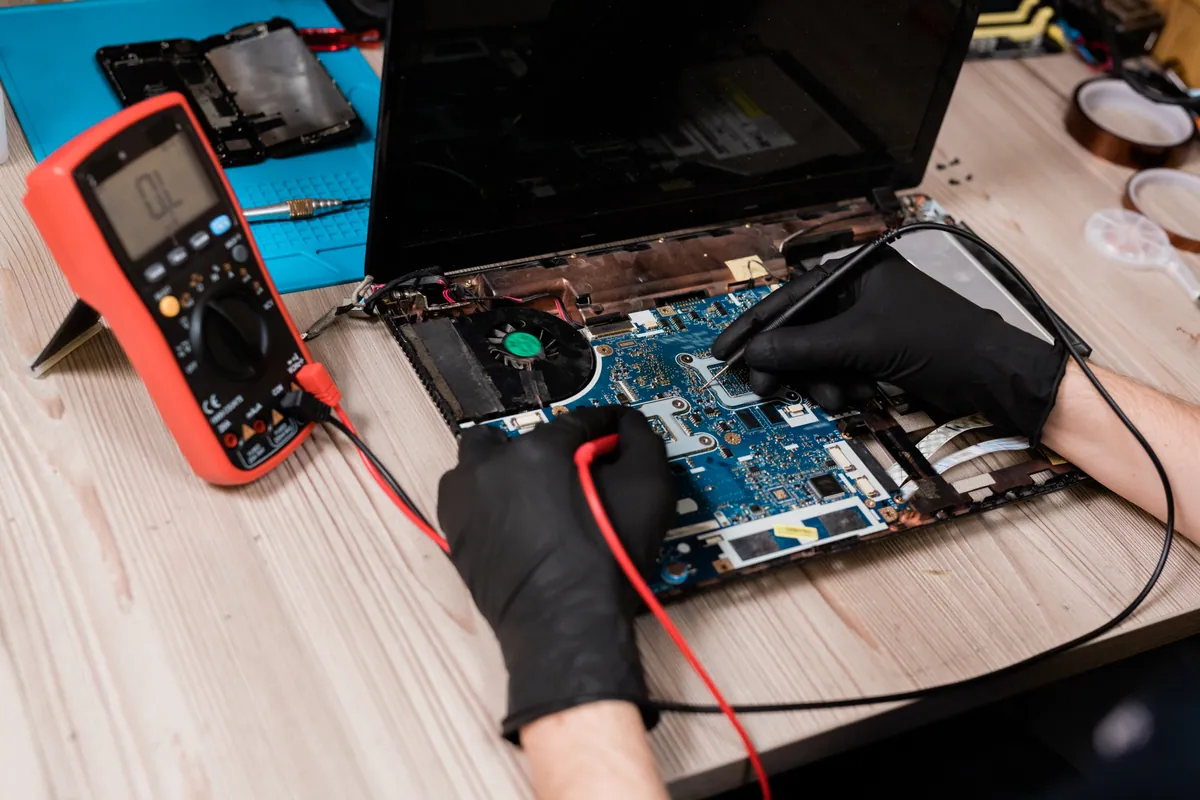
A completely dead laptop has a small number of possible causes, and the right diagnostic walks the power chain in order so each cheap check rules out cheap problems before getting to expensive ones:
- Charger output, externally. Tested the supplied charger on a multimeter under load. Voltage and current within spec, brick warming normally. Charger ruled out.
- DC jack. Looked for the typical wobble that signals a cracked solder joint where the jack meets the mainboard. Solid. Plugged the charger in and confirmed the LED on the jack was responding to the charger being present. Jack ruled out.
- External signs at power-on. Pressed the power button with the charger plugged in. Listened carefully for any click, watched for any LED flicker, felt for any fan twitch. None. Completely dead.
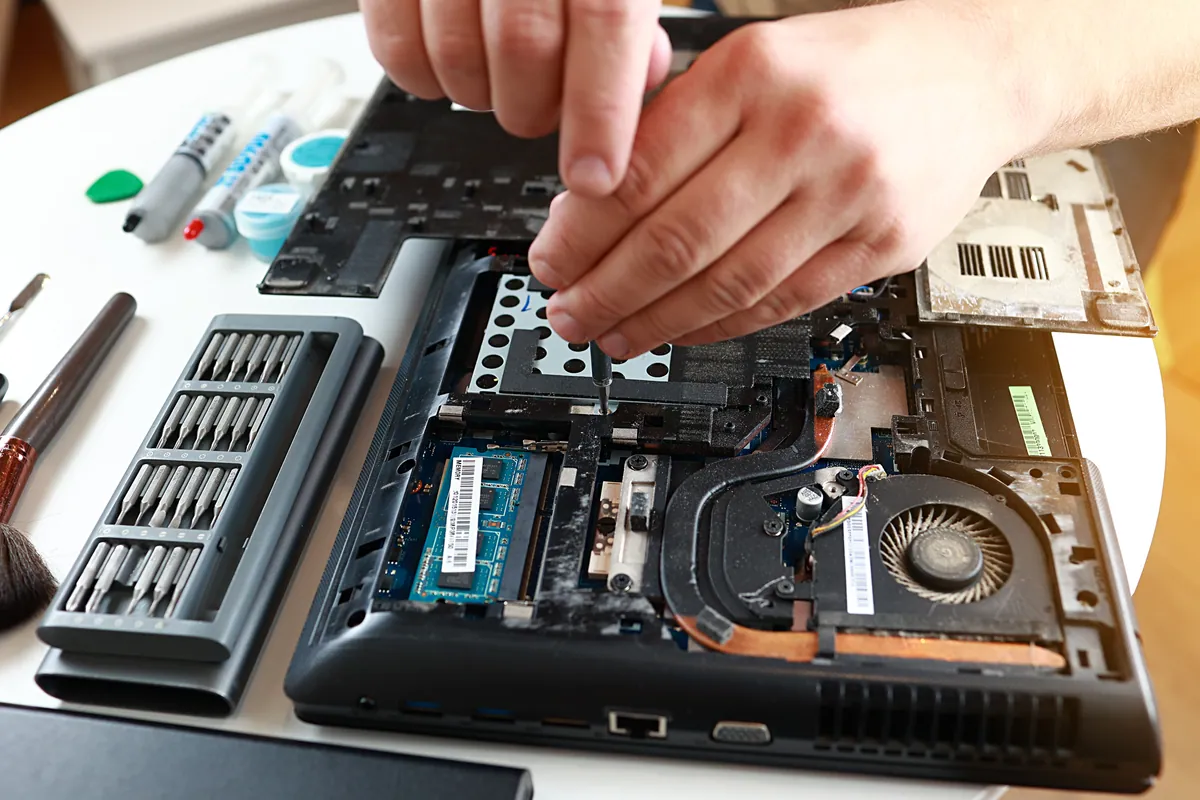
- Internal battery and connector check. Opened the back panel and inspected the battery connector. The battery cable was seated but had visible black scoring on one contact — sign of a poor connection that had been drawing more current than it should through too small a contact area. Disconnected, cleaned the contacts, reseated. Power test: laptop powered on immediately.
What had happened: the battery cable had not been fully seated at some previous point (possibly after the laptop had been opened for service or after a hard knock). It made just-good-enough contact to work for a while, but the increased resistance at the partial contact had been heating up over time and eventually carbonised enough to break the connection entirely.
How We Fixed It
The connector clean was the immediate fix. While the laptop was open, we ran a proper internal service to address the underlying causes that had likely contributed to the problem:
- Cleaned all internal connectors with isopropyl alcohol on a lint-free cloth. Battery, keyboard ribbon, display cable, fan power, speaker cables. Every connector reseated with its lock-down mechanism (where present) properly engaged.
- Removed the cooling system and cleaned accumulated dust from the fan blades and heatsink fins. Old thermal paste removed with isopropyl alcohol; new thermal paste of the right type and quantity applied.
- Reassembled with correct screw torque following the model’s service guide. Over-tightening any of the heatsink screws can damage the CPU die; under-tightening leaves a gap that loses heat transfer.
- Cable routing check to confirm no internal cable was pinched between panels or running over a sharp edge.
The Result
Laptop powering on reliably on every attempt. Internal temperatures back in the healthy range — better than before the original fault, because the thermal paste refresh was overdue. No return visits.
Why This Happens
“Completely dead” laptops fall into four broad categories with very different fixes:
- Power chain interrupted. Charger, DC jack, internal cabling, battery connector. Cheapest to fix and most common.
- Logic board damaged. Liquid spill, severe impact, or power surge through the charge port. Requires board-level repair or replacement.
- Failed power-management IC on the mainboard. A specific chip on the board has died, often after years of marginal operation. Board-level repair candidate.
- Failed motherboard component (CPU, GPU, RAM). Rare and almost always uneconomic to repair at board level. Usually a replacement-laptop call.
Almost half of the “completely dead” laptops we see fall into the first category — interrupted power chain, fixable cheaply if you don’t go straight to assuming the worst.
What to try before bringing a dead laptop in
- Try a different power outlet. Eliminates a faulty wall socket as the cause.
- Try a different charger if you have one of the correct spec. Eliminates a faulty charger.
- Hold the power button for 30 seconds with no charger and no battery (where removable). Discharges residual capacitance in the laptop. Sometimes this alone gets a “dead” laptop responding again.
- Don’t keep pressing the power button repeatedly on an unresponsive machine. If something internal is bridging where it shouldn’t, repeated power attempts can damage things further.
Local Help in Deptford SE8
A completely dead laptop still has a story to tell: working through the power chain in order — charger, jack, board rails — finds the real break without guesswork.
We cover the full range of consumer and business laptops at our Putney workshop and tell you honestly which faults are worth fixing and which aren’t.
Book a workshop slot on 020 7610 0500 or via our contact form.