What Was Happening
The iMac had been running for several years and had developed the cumulative slowness that comes from a long-lived OS install — old preference files, deprecated launch agents, apps that uninstalled themselves messily, the long tail of macOS doing its housekeeping less and less efficiently as more clutter accumulates.
A clean install was the right answer. The customer’s only non-negotiable was the Photos library — many years of family photos, the only copy. Lose it and the OS reinstall would be a disaster.
Sound like your problem?
Bring it to our Putney workshop or message us a photo and we will give you a straight answer and a quote before any work starts.
Our Diagnosis
The right order for this kind of job is: protect the data first, every time. Only once the data is verified safe do we touch the OS.
- Inventory the data. Identified the Photos library size, location, and any related shared albums or Photo Booth content. Also inventoried Documents, Downloads, Desktop, Mail and key application data — even though the customer’s priority was the photos, a clean install wipes everything by default.
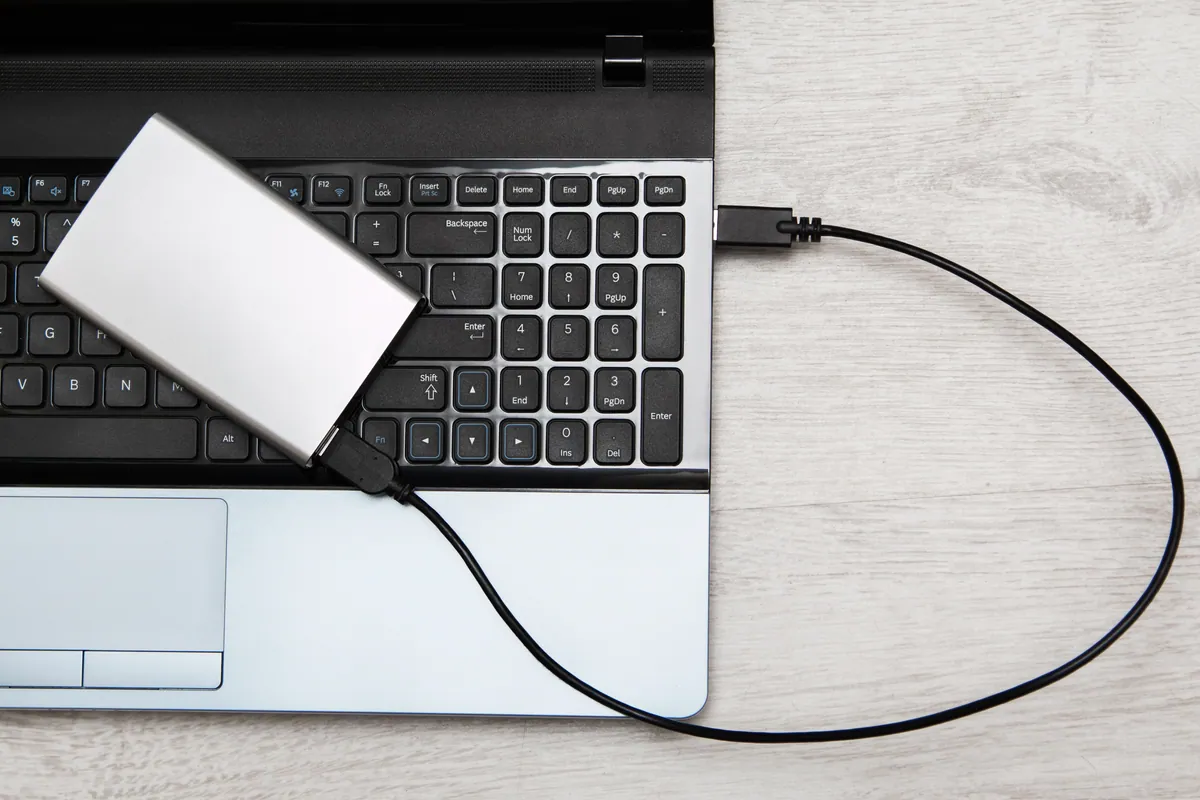
- Sized the destination USB drive. A 128 GB USB stick gave comfortable headroom for the library size with room for temporary export overhead. Rule of thumb: at least twice the library size, because export operations need temporary space alongside the original.
- Photos export, not just copy. macOS’s Photos library is a structured database with originals, edits, faces, places and album metadata. The right way to back it up is either as the complete library bundle, or via Photos’ built-in export which gives original-quality originals plus a separate metadata export. We did both — the library bundle for a complete restore, plus an exported folder of originals as a belt-and-braces independent copy.
- Verify the backup before doing anything destructive. Opened the exported library on a separate machine, browsed through several years’ worth of albums, and confirmed images and videos played correctly.
- Backed up the rest — Documents, Desktop, Downloads, Mail, browser bookmarks, and a list of installed applications — to the same USB drive.
The clean install
With the data verified safe:
- Booted the iMac into macOS Recovery mode.
- Used Disk Utility to wipe the internal drive completely.
- Ran a clean install of the latest macOS version this iMac officially supports.
- First-boot setup as a fresh machine — no Migration Assistant, no carry-over of previous settings (which would have brought the cruft back with them).
- Signed in to iCloud after the OS was running so the user’s Apple ID account, contacts and calendars came back from iCloud rather than from the old install.
- Reinstalled the standard suite of applications the user actually needed, rather than every application that had accumulated on the previous install.
Restoring the photos
The Photos library went back via the library-bundle method:
- Copied the backed-up library to the new iMac’s Pictures folder.
- Double-clicked to open in Photos. Photos asked to repair / re-index the library — this is normal after a move.
- Let the re-index complete (large libraries take time — minutes to hours depending on size and machine speed).
- Verified random samples across the full date range to confirm originals, edits, album structure and faces had all come through correctly.
- Confirmed iCloud Photos was enabled correctly so any photos that had been synced from other devices would resync down without duplicating.
The Result
Clean macOS install. The iMac felt noticeably faster — boot time down significantly, applications launching cleanly, no background spinning from the old install’s accumulated services. The Photos library intact, re-indexed, and accessible.
We also handed back the USB drive to the customer as a second copy of their photos to keep separately from the iMac itself. The library is now in two places, which is the start of a proper backup strategy.
Why This Happens
There are situations where an OS reinstall makes sense and situations where it does not:
Worth considering a clean install when:
- The machine has been running for several years and has accumulated visible slowness
- An OS upgrade has gone poorly and left intermittent bugs
- The user is passing the machine on to a new owner
- A malware infection cannot be fully cleaned in place
- The user has accumulated dozens of unused applications and wants to start fresh
Not worth a clean install when:
- The machine is genuinely failing — failing storage, RAM errors, logic-board issues. A clean install on dying hardware just wastes the install.
- The user does not have a verified backup and is unwilling to make one. Reinstalling without a backup is a one-way trip for data.
- A specific issue can be fixed in place more cheaply (single-app problems, browser hijacks, individual driver issues).
How to make the next reinstall easier
- Use iCloud or a similar service for the things it handles well — contacts, calendars, browser bookmarks, passwords. These come back automatically when you sign in.
- Keep a written list of installed applications and their licence keys. Reinstalling 30 apps from memory takes much longer than reinstalling 30 apps from a list.
- Maintain a separate backup of the Photos library on an external drive that lives somewhere other than the iMac. A backup that lives inside the same machine is not a backup.
- Use Time Machine to a dedicated external drive for ongoing protection. Time Machine is not a replacement for a separate photos backup, but it is the single best automatic backup option for everything else.
Local Help in Putney SW15
MacBook repairs deserve a workshop that’s seen the model before — Apple hardware has specific failure patterns and specific recovery routes.
We work on MacBook Air, MacBook Pro, iMac and Mac mini from the 2015 Retina generation through current models from our Putney bench.
Drop in to SW15, call 020 7610 0500, or use the contact form to book.