What Was Happening
The slowdown had crept up over months rather than appearing overnight. First it was occasional beach balls when opening Mail. Then Safari took longer to launch. By the time the iMac came in, the customer was waiting two to three minutes after pressing the power button before the desktop appeared, and almost every action triggered a beach ball.
They had assumed the machine was simply “old” — it was a 2017 model that had been used heavily — and were close to replacing it. The reality is that for a 2015–2019 iMac, the storage is almost always the bottleneck, not the CPU or the RAM, and replacing the storage transforms the machine.
Sound like your problem?
Bring it to our Putney workshop or message us a photo and we will give you a straight answer and a quote before any work starts.
Our Diagnosis
The diagnostic order for a slow Mac runs cheapest-to-most-invasive:
- Activity Monitor — CPU and Memory tabs under normal use. Look for any single process pegged at 100% CPU or chewing through RAM. None here — all processes idle when the user was idle, but the disk light was constantly on.
- Activity Monitor — Disk tab. Disk read/write activity was high and constant, even with nothing obvious requesting it. The first real clue.
- Disk Utility — First Aid on the boot volume. Reported several “could not be repaired” errors and a recommendation to back up and reformat. Worse clue.
- SMART check via Terminal (
smartctl). SMART reported reallocated sector count well above threshold, pending sectors growing, and a handful of UDMA CRC errors. Conclusive — the mechanical half of the Fusion Drive was failing. - Boot time measurement from chime to login screen: over four minutes. From login to a usable Finder: nearly five.
Root cause: Fusion Drives in iMacs combine a small SSD with a larger spinning hard disk; macOS automatically moves frequently-used files to the fast half. When the spinning half starts to fail, macOS has to retry reads repeatedly, and almost every operation eventually requires data from the failing platter.
How We Fixed It
A Fusion Drive failure is also a data risk, so the order was: protect the data first, upgrade second.
Step 1 — image the failing drive. Connected the iMac in Target Disk Mode to a working machine via Thunderbolt and made a SMART-aware image of the boot volume. SMART-aware imagers skip and retry around bad sectors rather than getting stuck, so we got a usable image of the user’s data even though parts of the drive were unreadable.
Step 2 — verify the image. Mounted the image and confirmed all user folders were intact, all critical files openable, all mail archives readable. Cross-checked the customer’s own list of “things I cannot lose” against the image.
Step 3 — open the iMac. This is the part most people are not prepared for. The screen is held to the chassis with adhesive strip; removing it requires:
- A pizza-cutter-style display cutting tool (we use a dedicated cutting tool)
- Patience to work through the adhesive slowly without flexing the panel
- Care to avoid the LCD ribbon and Bluetooth antenna behind the screen
- A clean bench to lay the display panel down without scratching it
This is the single most common reason this upgrade is not a DIY job. Flex the panel during removal and it cracks; a replacement 21.5" iMac panel costs more than the upgrade itself.
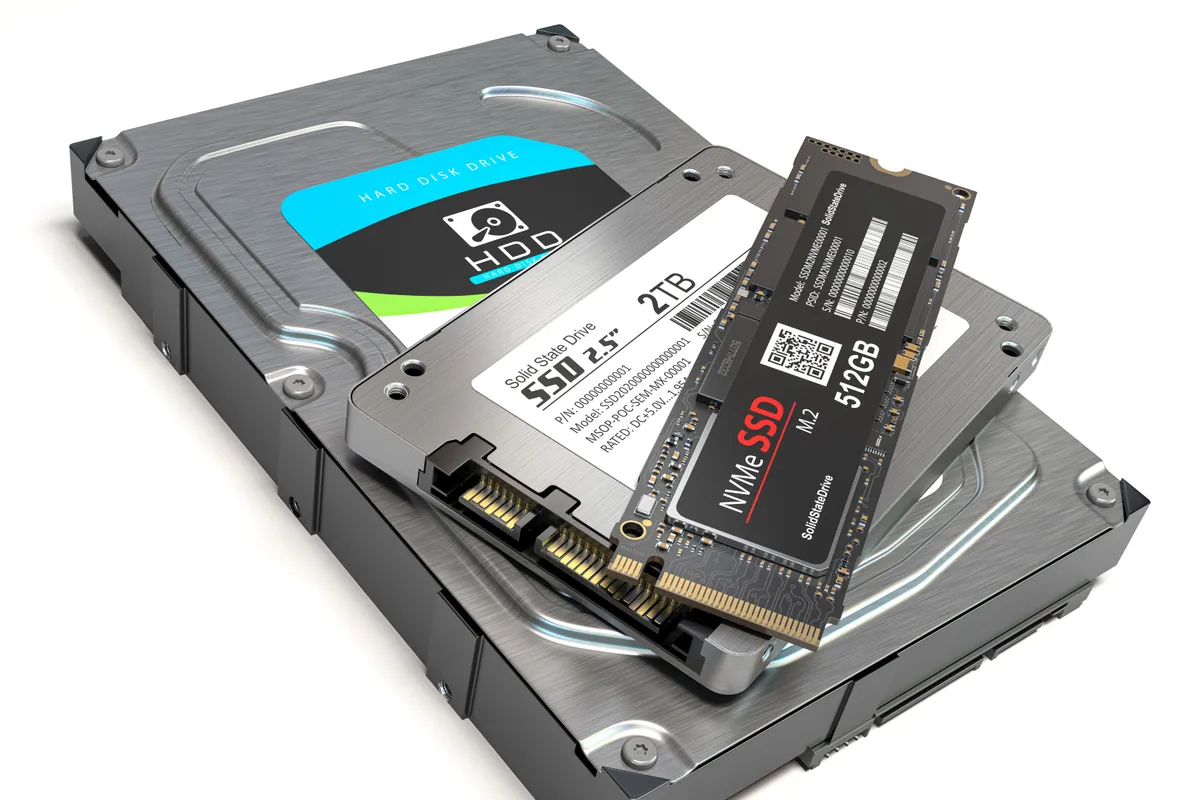
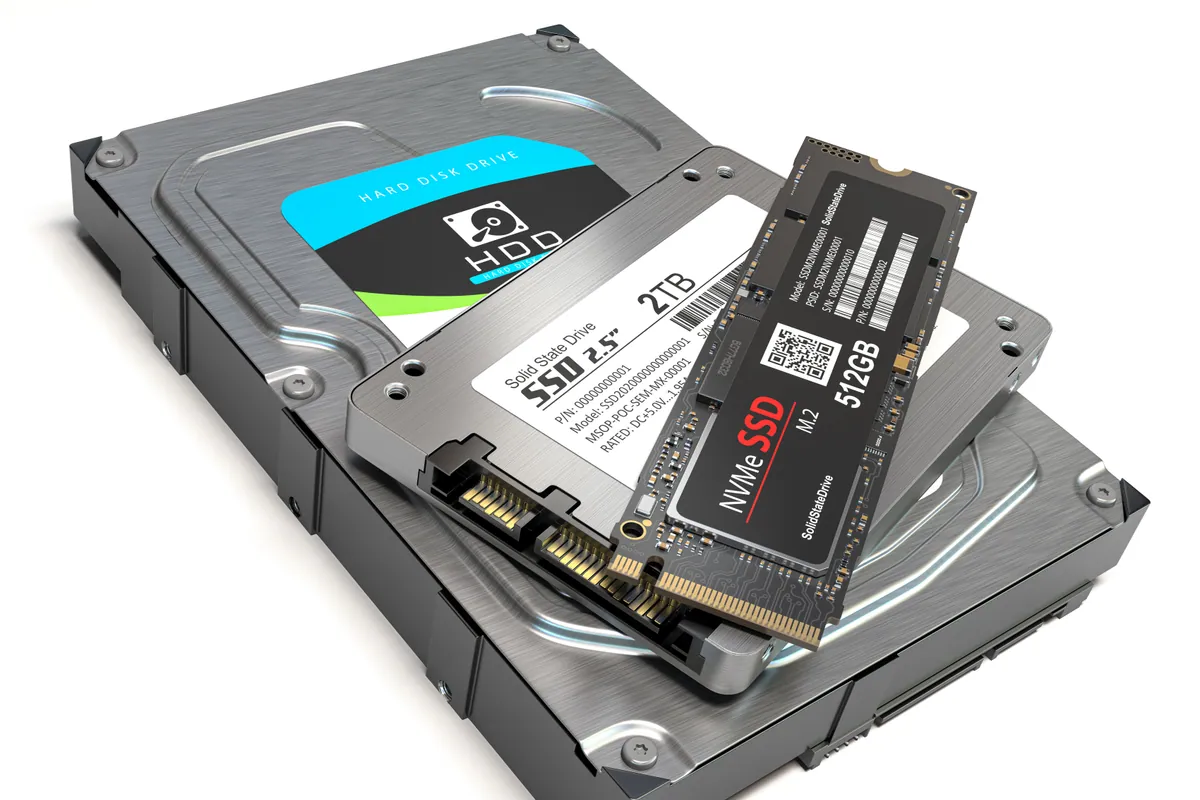
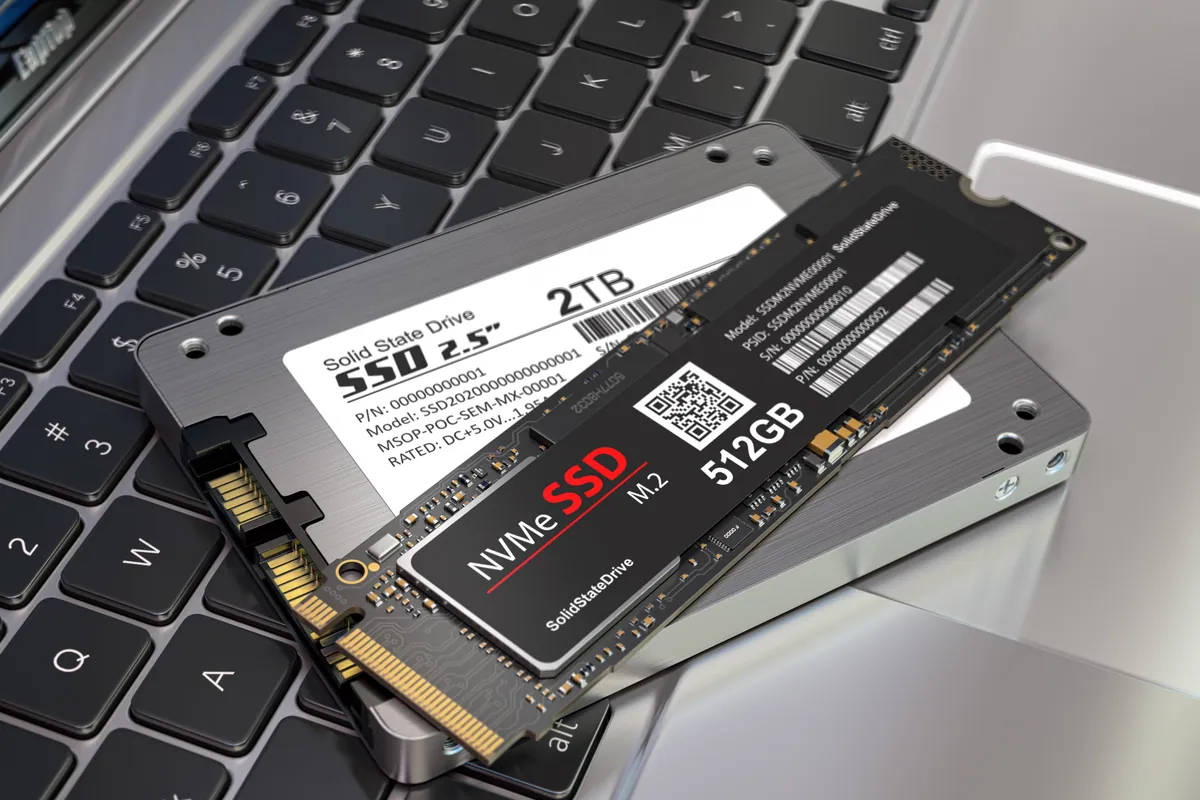
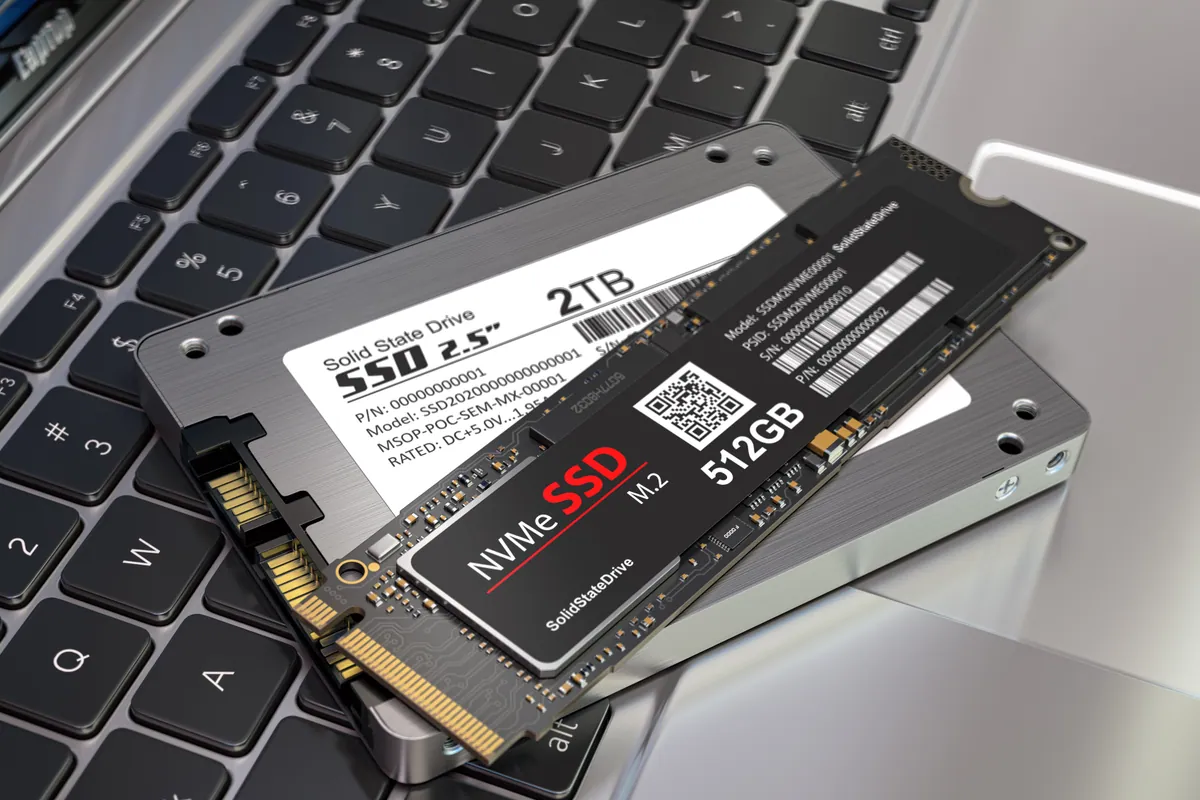
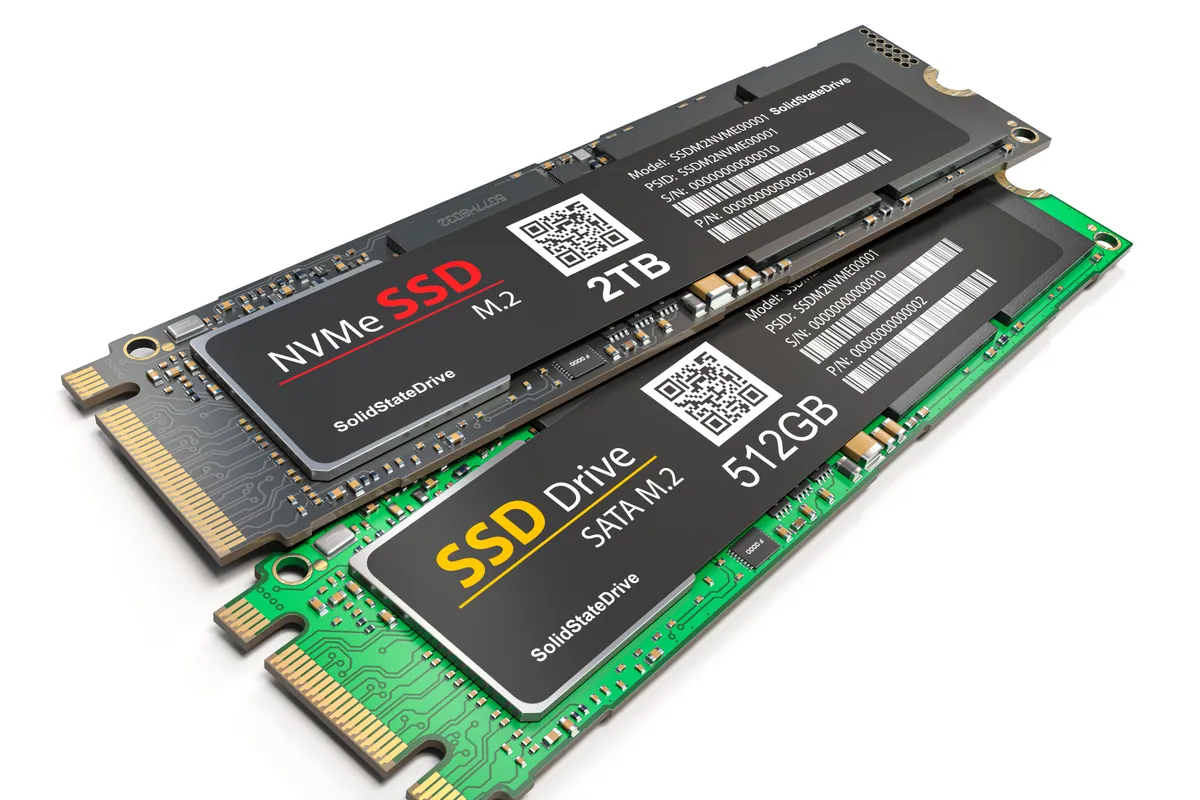
Step 4 — fit the SSD. Disconnected the original Fusion Drive components, fitted a 1TB SSD in place. The iMac chassis has a 2.5" SATA bay for the SSD; the spinning disk’s larger bay is left empty.
Step 5 — refit the display. New adhesive strip applied, screen reseated carefully, ribbons reconnected.
Step 6 — clean macOS install on the new SSD. We installed the latest macOS version this iMac is officially supported on — sometimes upgrading the OS at the same time, sometimes staying on the version the user is comfortable with, depending on the customer’s preference.
Step 7 — data migration. Restored user accounts, documents, photos, mail, applications and settings from the image taken in step one. Verified login worked, mail synced, iCloud reconnected, and all bookmarks / saved passwords carried across.
Step 8 — verification. Booted three times, timed each boot. Confirmed Activity Monitor was idle when the machine was idle. Confirmed no SMART warnings on the new drive.
The Result
- Boot time: under fifteen seconds (from several minutes)
- Application launch: instant for most apps (from 20–60 seconds each)
- General responsiveness: indistinguishable from a current-model Mac for normal-user workloads
- All user data, accounts, mail, photos, applications intact and accessible
Total bench time: two days, the bulk of which was the SMART-aware imaging of the failing drive — image work happens at the speed of the slowest sector, not the average. The actual SSD swap and clean install was a few hours.
Why This Happens
Fusion Drives were Apple’s compromise between SSD speed and HDD capacity for the iMac line during a period when SSDs above 256 GB were expensive. They work well when both halves are healthy. They age badly because:
- The mechanical half is a 2.5" or 3.5" spinning hard disk — same wear pattern as any other consumer hard drive, including the same eventual mechanical failure.
- macOS uses the spinning half for less-frequently-accessed files, so the failure can be invisible for a long time. The day a frequently-accessed file gets evicted to the failing half is the day everything starts to feel slow.
- Once the mechanical half is failing, every Fusion operation is at the mercy of its slowest read. The SSD half cannot rescue the experience.
Pure-SSD iMacs and Macs with Apple Silicon do not have this problem. If your Mac has a Fusion Drive (most 2015–2019 21.5" iMacs and many 27" iMacs of the same era), expect this failure pattern eventually and plan for it.
How to know if your iMac would benefit
Quick checks you can do at home:
- Boot time over a minute? Storage bottleneck.
- Activity Monitor → Disk tab showing constant activity when idle? Storage bottleneck.
- Disk Utility → First Aid reporting any errors? Storage at risk — back up now.
- About This Mac → System Report → Storage shows “Fusion Drive” as the device type? You are on borrowed time.
The fix is the same as the case above and it transforms the machine. It is genuinely cheaper than replacing the iMac.
Local Help in Putney SW15
If your machine spends most of its time waiting for the disk, an SSD upgrade transforms it.
We carry out SSD upgrades with full data migration so you keep your applications and settings intact.
Book on 020 7610 0500 or contact us for an estimate.