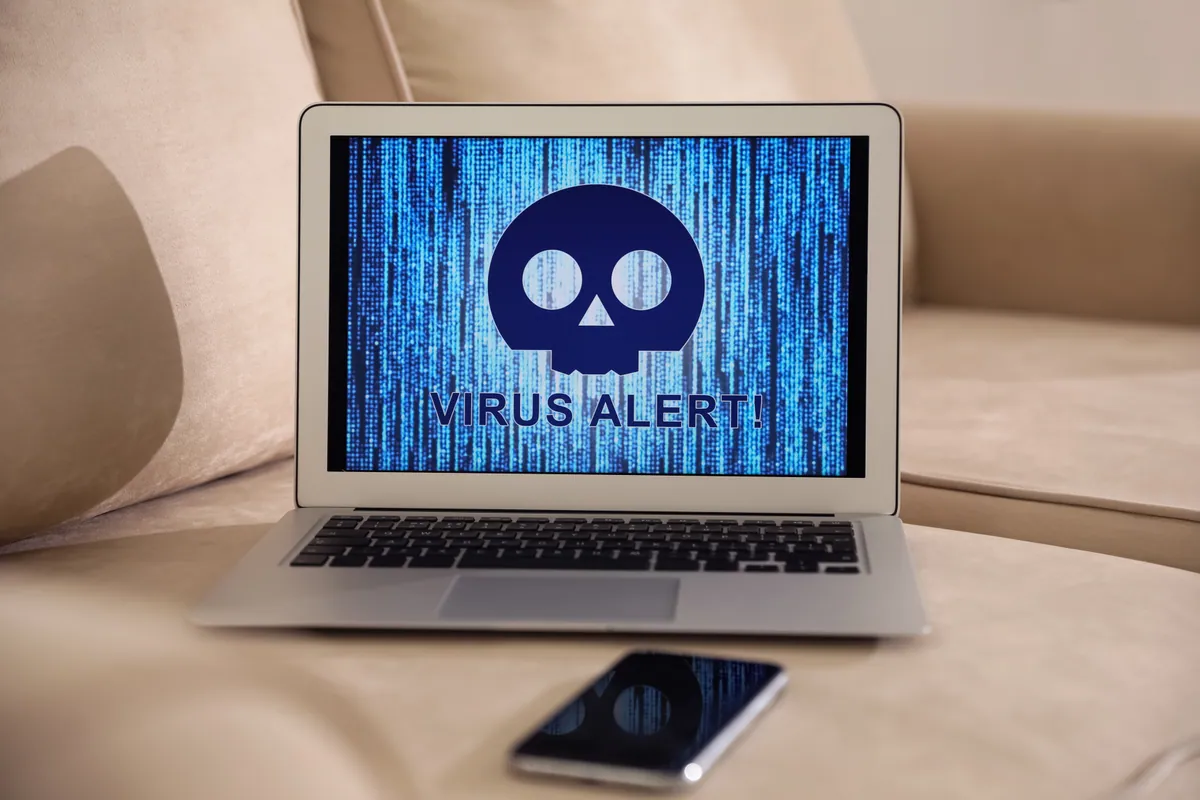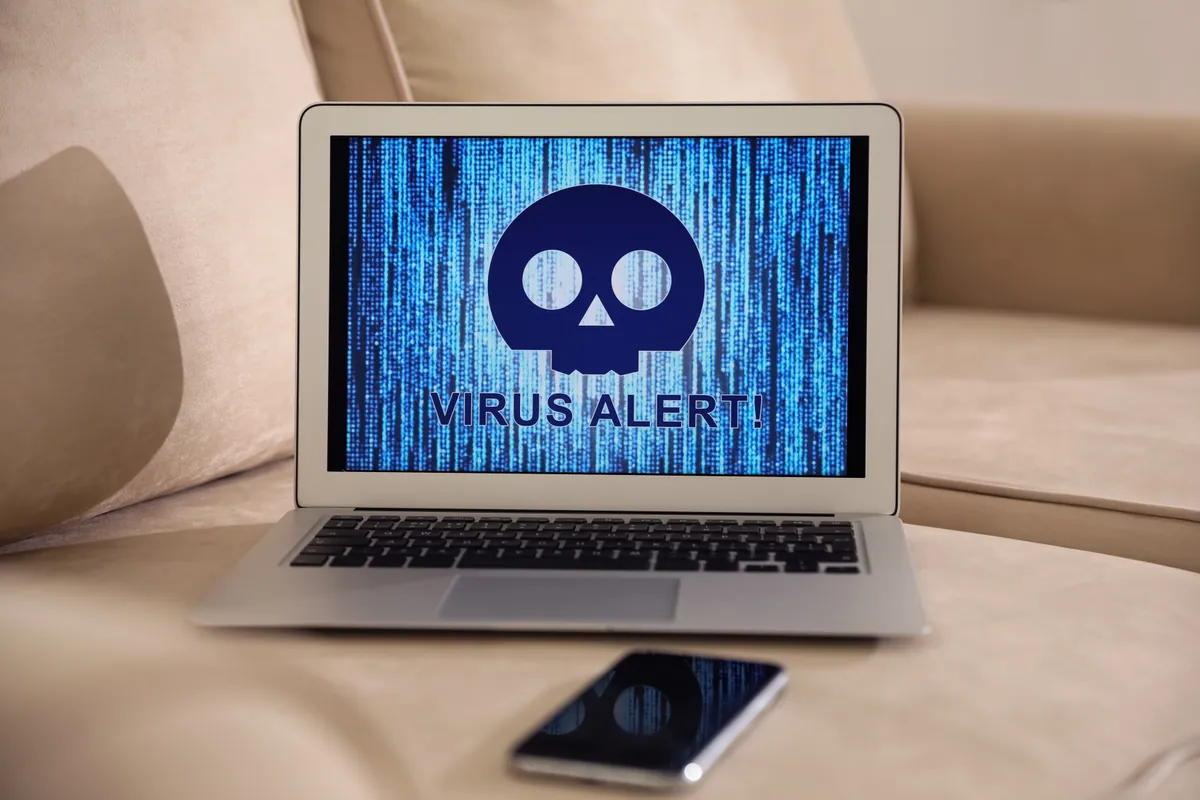
What Was Happening
Pop-ups appearing in the browser. Each one closed by the user, only to reappear the next time the browser was opened. The browser homepage had been changed to a search-redirector page they didn’t recognise. When they tried to change the default search engine back to their preferred one, the option was greyed out — the browser refused to let them.
That last detail is the diagnostic giveaway. A pop-up problem on its own can be any of several causes. A pop-up problem combined with locked browser settings tells you this is a policy-based hijack, not a simple adware extension.
Sound like your problem?
Bring it to our Putney workshop or message us a photo and we will give you a straight answer and a quote before any work starts.
Our Diagnosis
Browser policies are an enterprise feature — they’re how IT departments centrally manage browser configurations across hundreds of laptops. When they appear on a home user’s machine without an IT department to put them there, it’s almost always a hijack.
The diagnostic walk:
- Examined the browser’s settings page. Confirmed multiple settings were locked: default search engine, startup pages, new tab page, and the ability to install/remove extensions. Settings showed “managed by your organisation” — the telltale sign of a policy.
- Checked installed extensions. None unusual. The hijack was operating entirely through policy, not through an extension.
- Checked installed programs. Found an unfamiliar “search assistant” application installed several months ago. Likely arrived bundled with a free download.
- Checked the registry policy keys where Chrome / Edge / Firefox each store their enterprise policies. Found entries setting the default search engine, the homepage, and a managed extension list.
- Checked autostart and scheduled tasks. Found the unwanted application starting at login and a scheduled task that ran a periodic “configuration check” — really a recreation script that would restore the policy if it was removed.
That last point matters: removing just the policy registry entries would have worked for one reboot, then the scheduled task would have recreated them. Cleaning has to be done in the right order.
How We Fixed It
The right order, because each step depends on the previous:
- Disabled the scheduled task first — stop it recreating the policy after removal.
- Removed the unwanted application via Programs and Features. Took the visible part of the hijack with it.
- Deleted the residual registry policy entries that the uninstaller had left behind. These are at known paths (HKLM\SOFTWARE\Policies... for each browser); we cleared each one specifically rather than running a generic “policy reset” tool.
- Cleared autostart entries in the registry, the startup folder, and via Task Manager’s Startup tab. Anything pointing at the removed application or its data folder.
- Reset browser settings to defaults. With the policy gone, the user-level reset actually took effect this time.
- Removed the application’s data folder that the uninstaller had also left behind.
- Ran two independent on-demand scanners as a final pass to catch anything related.
- Restarted, signed back in, opened the browser, confirmed clean. Default search engine setting now under user control. No pop-ups on browser open. Settings page no longer showing “managed by your organisation”.
The Result
Clean browser, full user control restored, no pop-ups. We took the customer through what had happened so they could recognise the install vector next time:
- The unwanted app had arrived bundled with a free PDF converter the customer had downloaded months earlier.
- The installer had a “recommended additional software” screen that defaulted to “yes please install”.
- That additional install was what set the browser policy.
Why This Happens
Bundled installers are the single biggest source of “I didn’t install this” software on home users’ machines. The pattern:
- User searches for “free X” (PDF converter, video downloader, image resizer, Zip tool — the genre varies)
- Lands on a site offering the genuine tool
- The installer presents a multi-step wizard
- One step has a “recommended” or “optional” or “express install” option that’s pre-selected
- The user clicks “Next” without reading carefully
- The bundled software installs alongside the wanted software
Some of the bundled software is merely annoying (adware extensions, “PC optimisers”). Some is genuinely hostile (browser hijackers, credential stealers, less commonly cryptominers). Almost all of it is hard to remove cleanly because it’s designed to survive a basic uninstall.
How to avoid this
- Be sceptical of “free” downloads of paid-equivalent software. If a tool would normally cost £30 a year and a website is offering it free, the cost is hidden in what gets installed alongside it.
- Read installer screens carefully. Look for “custom install” or “advanced” options where you can untick bundled software.
- Use known-good sources. Microsoft Store for Windows, Mac App Store, the official websites of established software vendors. Avoid “free download portal” aggregators.
- Check installed programs every few months. Anything unfamiliar with a recent install date is worth investigating.
- Watch for “managed by your organisation” in browser settings. On a home laptop with no IT department, that text means a policy hijack and needs removal.
How to recognise the symptoms early
- Default search engine changes by itself. Check whether you can change it back. If you can’t, you have a policy hijack.
- New tab page changes by itself. Same test.
- Browser extensions you didn’t install. Worth investigating.
- “Managed by your organisation” or similar wording in the browser’s settings — diagnostic giveaway on home machines.
- Performance slowdown after installing free software. The bundled extras add up.
Local Help in Putney SW15
Scareware, browser hijacks and fake ‘support’ pop-ups each need a different removal route — guessing wastes time.
We identify the infection type, clean it properly, and close the gap that let it in.
Drop in to our Putney workshop (SW15), call 020 7610 0500, or contact us.