What Was Happening
The MacBook Pro came in from a Clapham SW4 owner with a problem that sounds mundane and isn’t: the startup disk was completely full, the machine had become sluggish and awkward to use, and the photos on it were the thing that couldn’t be lost. Their instruction was sensible — fix it if it’s software, but call me if it’s serious.
A full startup disk is more dangerous than it looks. macOS needs free space to work — for temporary files, for updates, for the everyday shuffling it does behind the scenes. When that space runs out, the machine doesn’t just slow down; it becomes fragile, and the risk of losing something during any clean-up rises. So the order of operations matters enormously.
Sound like your problem?
Bring it to our Putney workshop or message us a photo and we will give you a straight answer and a quote before any work starts.
Our Diagnosis
- Established this was capacity, not failure. The drive itself was working — the problem was that it was full, not that it was dying. That’s a better starting point than a failing drive, but it doesn’t make the photos any less at risk while the disk is jammed.
- Made the photos the priority. With irreplaceable images on a full disk, the safe move is to get a copy of them onto separate media before deleting anything to make room. Deleting first, on a stressed full disk, is how people lose the very files they were trying to protect.
- Planned the longer-term fix. A machine that has filled its disk once will fill it again. So alongside the immediate rescue, the honest conversation was about capacity — a larger SSD as the permanent answer rather than a clean-up that buys a few months.
How We Fixed It
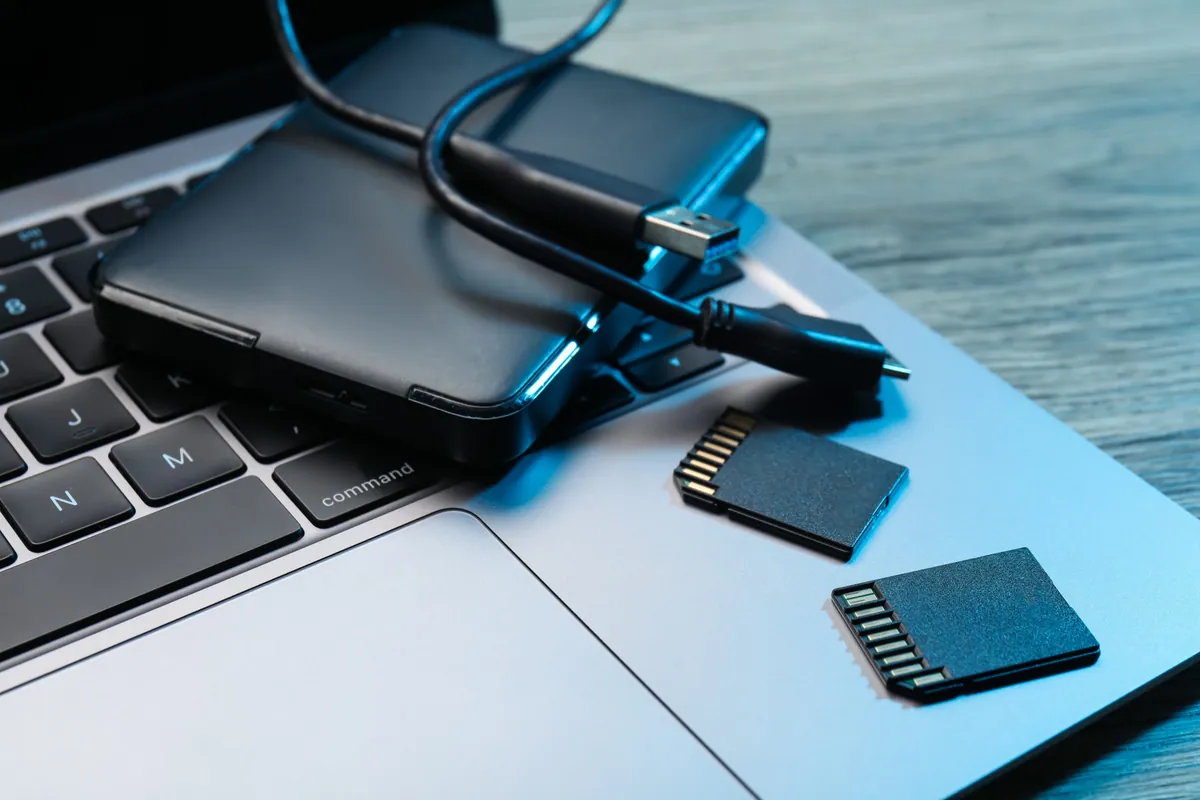
- Recovered the photos to an external hard drive first. Before touching the full disk, we copied the irreplaceable photos onto an external drive, so there was a safe, separate copy in the owner’s hands no matter what happened next.
- Freed up working space on the startup disk, giving macOS room to breathe and the machine back its responsiveness.
- Updated macOS and firmware to the latest version the machine supported — a worthwhile step for security and stability, and one we flagged as a longer process so the owner knew it wasn’t a five-minute job.
We also laid out the fuller option plainly: a larger SSD with the data migrated across would end the cycle of running out of room for good. That’s the real fix; the clean-up is the stopgap. Giving the owner both, honestly costed against each other, let them choose.
The Result
The photos were safe on an external drive — the outcome that mattered most — and the MacBook was usable again with free space and an up-to-date system. The owner left knowing exactly where their photos now lived and what the permanent fix would be if they wanted to stop the disk filling up again.
Why This Happens
Startup disks fill up quietly. Photo libraries grow, phone backups pile up, downloads accumulate, and macOS quietly keeps its own caches and snapshots. On a Mac with a modest SSD it doesn’t take long to hit the ceiling, and modern devices increasingly can’t have their storage expanded internally — so “just add a bigger drive” isn’t always an option, which makes the squeeze worse.
The reason it becomes a data-recovery job rather than a tidy-up is human: the photos people most want to keep are usually the ones that only exist in one place. When the disk that holds them fills up and the machine starts misbehaving, the risk and the panic arrive together.
Making sure this doesn’t cost you your photos
- Keep at least one copy of your photos off the machine — an external drive, a cloud service, or both.
- Don’t wait until the disk is full to deal with it; free space is what keeps a Mac healthy.
- If you’re constantly running out of room, upgrade the storage rather than repeatedly deleting — it’s cheaper than the stress and safer for your files.
Local Help in Clapham SW4
If your Mac is full, slow and holding photos you can’t afford to lose, the safe move is to get those photos copied off before anything else — and we can do exactly that.
We handle data recovery and safe migrations from our Putney workshop, a short trip from Clapham SW4, and we’ll get your irreplaceable files onto separate media first, then sort the machine.
Call 020 7610 0500, drop in to SW15, or use the contact form — sooner rather than later if the disk is full.