What Was Happening
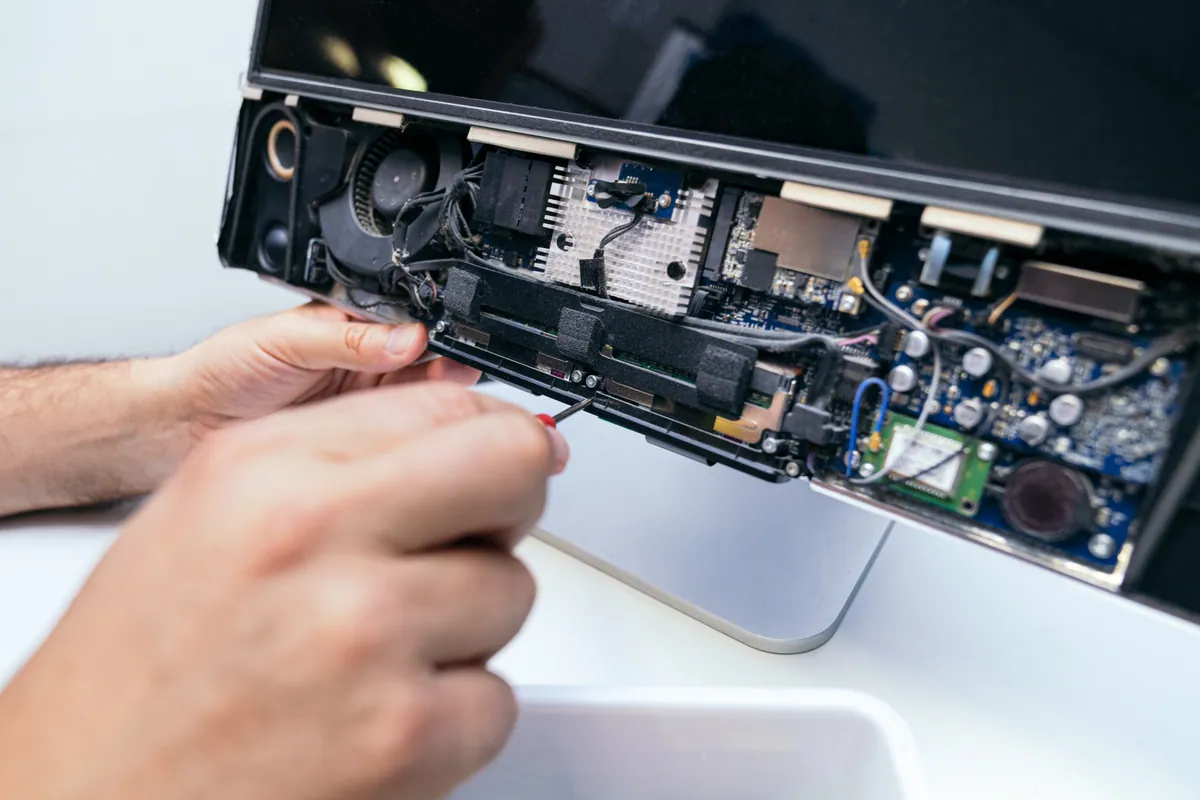
An Acer Predator desktop in Battersea SW11 had stopped booting into Windows. The machine powered up, but it never reached a usable desktop.
The customer’s instruction was a sensible one that we get a lot: fix it if it’s minor, quote if it’s major. That’s exactly the right brief, because at the point a machine won’t boot, nobody — including us — can honestly say which it is. The whole job is finding out.
“Won’t boot into Windows” is one of the broadest symptoms in computer repair. It can be a failed storage drive, a corrupted Windows installation, failing memory, a motherboard problem, or a firmware setting. Those range from a modest fix to a machine that isn’t worth repairing, so the diagnosis has to come first and it has to be conclusive.
Sound like your problem?
Bring it to our Putney workshop or message us a photo and we will give you a straight answer and a quote before any work starts.
Our Diagnosis
The technique that settles this fastest is substitution: replace one component with a known-good equivalent and see what changes.
We connected a test drive with a working operating system on it and started the machine. It booted normally, ran properly, and behaved exactly as a healthy desktop should.
That one test is worth a great deal, because of everything it rules out simultaneously. If the machine boots and runs from a different drive, then the processor is fine, the memory is fine, the motherboard is fine, the power supply is delivering properly, and the firmware settings are correct. Every expensive possibility was eliminated in a single step. What remained was the original SSD.
This is the difference between a diagnosis and a guess, and it matters commercially as much as technically. A shop that suspects a drive can order one, fit it, and hope. If the fault turns out to be the motherboard, the customer has bought a drive they didn’t need and is no further forward. Proving it first means the part that gets ordered is the part that was actually broken.
It also framed the second question properly. A failed drive means the machine can be repaired straightforwardly — but the customer’s data was on the failed drive, and that is a separate problem with a separate answer. We quoted the two independently: replacing the drive and reinstalling Windows to get a working computer, and attempting data recovery from the failed SSD as its own piece of work.
Keeping those separate matters, because they carry different levels of certainty. Fitting a new drive will definitely produce a working machine. Recovering data from a failed SSD might not succeed. Bundling them into one price would hide that distinction.
How We Fixed It
With the diagnosis proven and the customer’s agreement, we ordered and fitted a new 256GB SSD and carried out a fresh Windows installation on it.
We then attempted recovery of the data from the failed drive. That work was done separately from the rebuild, as quoted.
Once the new drive was in and Windows installed, we tested the machine properly — repeated boots from cold rather than a single successful start, and confirmation that it ran normally rather than just reaching the desktop once.
The Result
The customer got their desktop back working on a healthy drive with a clean Windows installation.
Just as importantly, they were never asked to pay for a part on a hunch. The substitution test proved which component had failed before anything was ordered, and the data recovery was quoted as its own job with its own honest odds rather than folded into the repair price.
Why This Happens
SSDs have been a substantial improvement over mechanical hard drives in almost every respect — faster, quieter, far more resistant to being knocked about, and generally more reliable. But they fail differently, and that difference catches people out.
A mechanical hard drive usually warns you. It gets slow, it clicks, files take a long time to open, the machine hangs while it retries a bad area. There’s often a window of days or weeks in which the drive is clearly unwell and a backup can still be taken.
SSDs are much more inclined to work perfectly and then not work at all. There’s no noise to hear and often no gradual slowdown. The controller — the small processor managing where data physically sits on the memory chips — is a common failure point, and when it goes, the storage chips may be perfectly intact but unreachable. This is why “it was completely fine yesterday” is such a frequent description with SSD failure, and why it’s true rather than a misremembering.
That failure mode has two practical consequences.
The first is that backups matter more with SSDs than they did with mechanical drives, not less, precisely because you’re less likely to get a warning. The reliability improvement is real, but it buys you a lower chance of failure rather than a gentler one.
The second is that data recovery from a failed SSD is genuinely uncertain. If the controller has failed while the memory chips are intact, specialist recovery is sometimes possible. If the storage itself has degraded, it may not be. Anyone promising a guaranteed outcome before looking is not being straight with you.
For a desktop that won’t boot, the practical takeaway is the substitution test. It’s the reason a workshop can tell you confidently what’s wrong rather than working through parts at your expense — and it’s worth asking any repairer how they established their diagnosis before you agree to buy anything.
Local Help in Battersea SW11
If a desktop has stopped booting, don’t assume the machine is finished. A failed drive is one of the more affordable faults there is, and it’s very often what’s actually happened — but it needs proving rather than guessing.
Battersea is an easy run from our Putney workshop. Call 020 7610 0500 or book in for PC repair in Battersea — and tell us straight away if there’s data on the machine that matters, because that changes how we handle the drive from the moment it arrives.