What Was Happening
A customer in Wimbledon SW19 had a printer that had become more frustrating than useful. It was jamming on almost every job — paper pulled in crooked, snagged partway through, or refused to feed at all — and the constant stopping to clear it had made printing a chore. The machine itself was otherwise fine, and they understandably didn’t want to throw out a good printer over a feeding fault.
A printer that jams once is usually the paper. A printer that jams constantly is telling you something mechanical has worn or failed inside the paper path — and that’s a repair, not a reason to replace it.
Sound like your problem?
Bring it to our Putney workshop or message us a photo and we will give you a straight answer and a quote before any work starts.
Our Diagnosis
We started where the cheap checks are: the paper itself, the tray, and how it was loaded. Damp, curled, or overfilled paper causes jams that look like a printer fault but aren’t. With those ruled out, the problem was clearly in the paper path — the series of rollers and guides that pull a sheet from the tray and carry it through the machine.
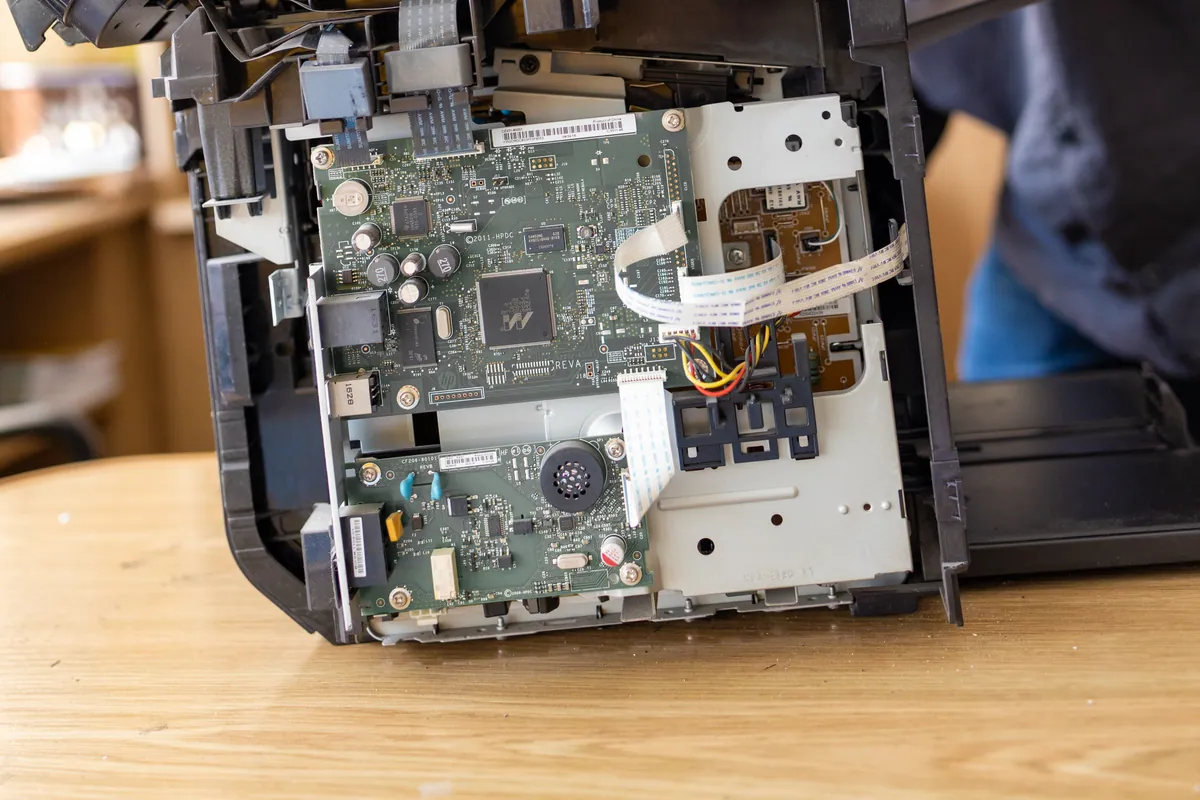
The usual culprits are the pickup roller and the separation pad. The pickup roller grabs the top sheet; over time its rubber surface glazes or wears smooth and starts to slip or grab unevenly. The separation pad’s job is to make sure only one sheet feeds at a time; when it wears, the printer pulls multiple sheets or skews them. Either fault produces exactly the symptom here — paper feeding crooked and jamming. We inspected the feed components and the path through the machine to pinpoint where sheets were being grabbed unevenly.
Draft note for review: the printer make/model and the exact internal fault aren’t in the job record (the invoice reads “printer service — paper jam plus internal repair”). Tell me the printer model and what the internal repair actually involved (e.g. pickup roller replaced, separation pad, a feed sensor, a fuser issue) and I’ll make this section specific rather than describing the typical cause.
How We Fixed It
We cleared the jammed media carefully, working with the paper path rather than against it so nothing tore off inside the machine. We then serviced the feed components — cleaning the rollers to restore grip and addressing the worn part that was causing sheets to feed unevenly — and repaired the internal fault behind the repeated jamming.
With the mechanism serviced, we ran test prints to confirm sheets were being picked up squarely and carried through cleanly, job after job, rather than jamming. The printer was checked under normal use before we finished.
The Result
The printer was feeding and printing cleanly again, and the customer kept a machine that was perfectly good apart from a worn feed mechanism — at a fraction of the cost of replacing it. Chronic jamming, once the worn parts are dealt with, tends to stay fixed rather than creeping back.
Why Printers Jam Repeatedly
An occasional jam is normal and usually down to the paper. Persistent jamming is mechanical. The feed system relies on rubber rollers and a separation pad that wear with every page they handle, and on consumer and light-duty office printers these parts are often the first thing to go. As the rubber glazes over, it loses grip; the printer then either fails to pick up a sheet or grabs it off-square, and a skewed sheet jams in the path.
Other contributors are environmental: paper that’s absorbed moisture in a damp room curls and misfeeds, and an overfilled or wrongly-adjusted tray fights the pickup mechanism. That’s why the diagnosis always starts with the paper and the tray before opening the machine — the cheapest causes first.
Keeping a Printer Jam-Free
- Store paper flat and dry — damp, curled paper is the single most common avoidable cause of jams.
- Don’t overfill the tray, and set the guides snug to the paper width so sheets feed straight.
- Fan a fresh ream before loading to separate sheets that can stick together.
- Clean the pickup rollers periodically with a little isopropyl alcohol if you’re comfortable doing it — restoring grip prevents misfeeds.
- Treat constant jamming as a repair, not a paper problem — once the rollers or separation pad are worn, no amount of new paper will fix it.
Local Help in Wimbledon SW19
If your printer is jamming on every job, that’s usually a worn feed mechanism, and it’s very often cheaper to repair than to replace. We service and repair printers onsite across Wimbledon SW19, so there’s no hauling a heavy machine across town. We’ll tell you honestly whether it’s worth repairing or genuinely time to replace. Call 020 7610 0500 or use the contact form to arrange a visit.
Related Services
- Printer Setup & Repair — printer installation, configuration, and repair for home and office
- Printer Setup in Wimbledon — local service covering SW19
- Onsite IT Support — onsite help for printers, networks, and everyday business IT
More Case Studies
- Office Wi-Fi stabilisation for a small business — onsite networking for a local office
- Regaining access to a locked computer in East Putney — onsite IT support for a stuck machine
- Bambu P1S AMS PETG profile setup in Wimbledon SW19 — onsite hardware servicing for a Wimbledon maker