What Was Happening
A small business in Putney SW15 contacted us after a Microsoft SQL Server 2022 reinstall left staff unable to log in to their line-of-business software. The production database had been restored from backup, but authentication and query failures meant day-to-day operations were at a standstill.
Three blocking errors were showing:
Login failed for user 'sa'(Error 18456)Shared Memory Provider, error: 0 - No process is on the other end of the pipe(Error 233)- Collation conflicts between
Latin1_General_CI_ASandSQL_Latin1_General_CP1_CI_AS
Between them these prevented SQL authentication, blocked any validation of the restored data, and broke application connectivity entirely.
Sound like your problem?
Bring it to our Putney workshop or message us a photo and we will give you a straight answer and a quote before any work starts.
Our Diagnosis
We ran a structured SQL Server triage covering the service and instance state, the authentication mode, and a collation audit across the instance, tempdb and the restored database.
Two independent faults were stacked on top of each other:
- SQL Server had been installed in Windows-only authentication mode, so the
salogin the application relied on could not connect at all. Error 18456 was the symptom; error 233 was the same refusal surfacing through the Shared Memory protocol. - The instance collation was
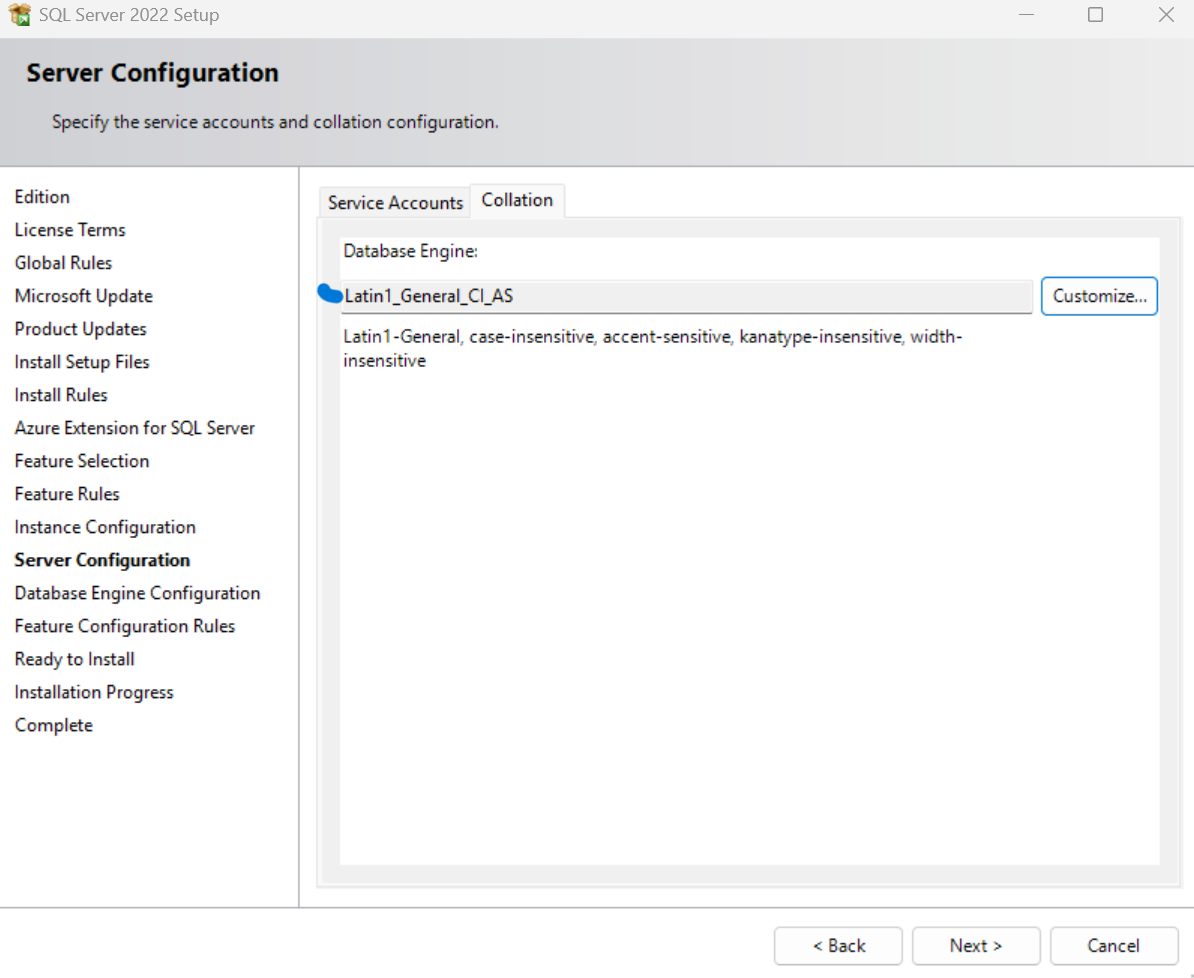
Latin1_General_CI_ASwhile the production database standard wasSQL_Latin1_General_CP1_CI_AS.
That second point matters more than it looks. A restored database keeps its own collation, so the restore itself succeeds and everything appears fine — until a query joins a restored table to anything in tempdb, which inherits the instance collation. At that point SQL Server refuses the comparison and the query fails. It is a fault that hides until real work is attempted.
How We Fixed It
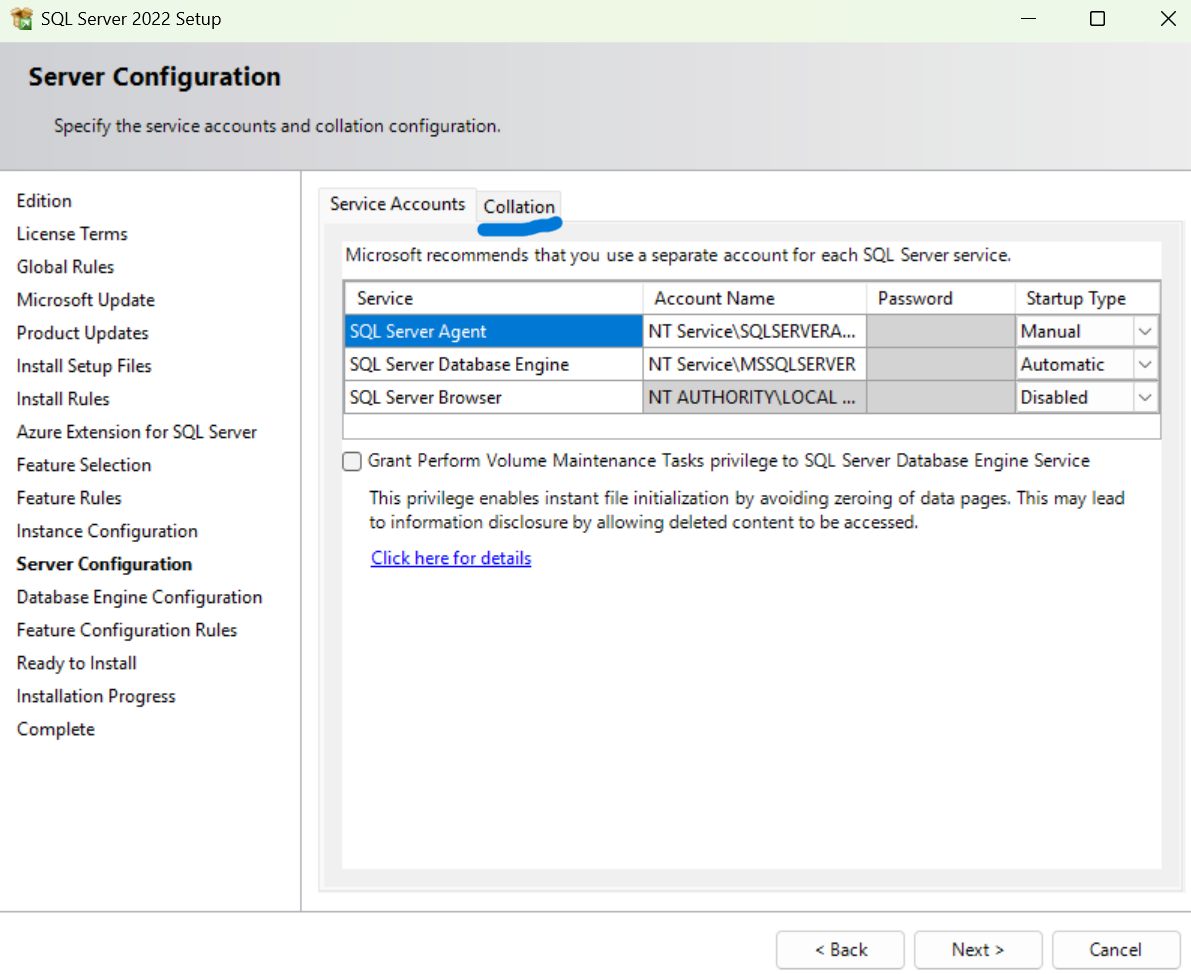
Authentication first. We connected using Windows Authentication, enabled Mixed Mode, restarted the SQL services and re-secured the sa account with a strong credential scoped to controlled application access. That restored the ability to log in and gave us a working position to diagnose from.
Then collation. Changing an instance collation is not a settings toggle — it requires rebuilding the system databases, which destroys anything held at instance level. We took full backups of the user databases, captured the logins and jobs, then rebuilt the SQL Server instance using the client’s database standard, SQL_Latin1_General_CP1_CI_AS, so instance and data agreed from that point on.
Then restore and prove it. We restored the production .bak files, validated schema and stored procedures, and retested the application’s query workflows end to end rather than assuming a successful restore meant a working system.
The alternative — leaving the instance mismatched and patching individual queries with COLLATE clauses — would have worked in the short term and left a permanent trap for every future query, report and developer. We took the one-off disruption instead.
The Result
- SQL authentication restored and the application reconnected
- Collation conflicts eliminated at instance level rather than worked around
- Queries and stored procedures executing cleanly against the restored data
- Downtime contained entirely within a planned business-hours window
- Future migration risk reduced, because instance and database collation now match
Why This Happens
Collation mismatches after a reinstall are one of the most common ways a SQL Server restore looks successful and is not. The installer’s default collation depends on the OS locale, and on a UK English Windows build it frequently differs from the SQL_Latin1_General_CP1_CI_AS that older application databases were built against. Nobody chooses the wrong collation — it is simply accepted during setup, and the mismatch stays invisible until a query touches both the restored data and tempdb.
The authentication half is just as routine. SQL Server’s setup defaults to Windows-only authentication because it is the more secure option, which is correct in general and wrong for any application whose connection string expects a SQL login. Reinstall a server without re-enabling Mixed Mode and every application login fails immediately, even though the databases themselves are perfectly healthy.
The lesson from this job is that a restore is not finished when the backup file has been applied. It is finished when the application has been tested against it. Checking the instance collation before restoring — and matching it to the database rather than the other way round — turns a rebuild into a five-minute setup choice.
Local Help in Putney SW15
If your business is facing SQL login failures, database restore errors, or collation conflicts after a migration or reinstall, these are diagnosable faults with known fixes — not a reason to rebuild from scratch or lose data.
We support small business servers and line-of-business applications remotely and on site across South West London, from our Putney workshop in SW15. Call 020 7610 0500 or use the contact form.