What Was Happening
The Toshiba arrived from a Kingston KT6 owner worn down by waiting. The laptop had become painfully slow — long boots, apps that took an age to open, the whole machine feeling like it was wading through treacle. It’s the classic complaint of an older laptop, and it had reached the point where the owner wanted it either made usable or told it was beyond it. They asked us to fit an SSD and, crucially, to bring their data across if the old drive would still allow it.
That last part carried a quiet warning. The request was to migrate the data “if possible, and if not, recover it” — a sign the old drive wasn’t just slow but tiring, to the point where reading everything off it cleanly wasn’t guaranteed. When a hard drive is that far gone, time matters.
Sound like your problem?
Bring it to our Putney workshop or message us a photo and we will give you a straight answer and a quote before any work starts.
Our Diagnosis
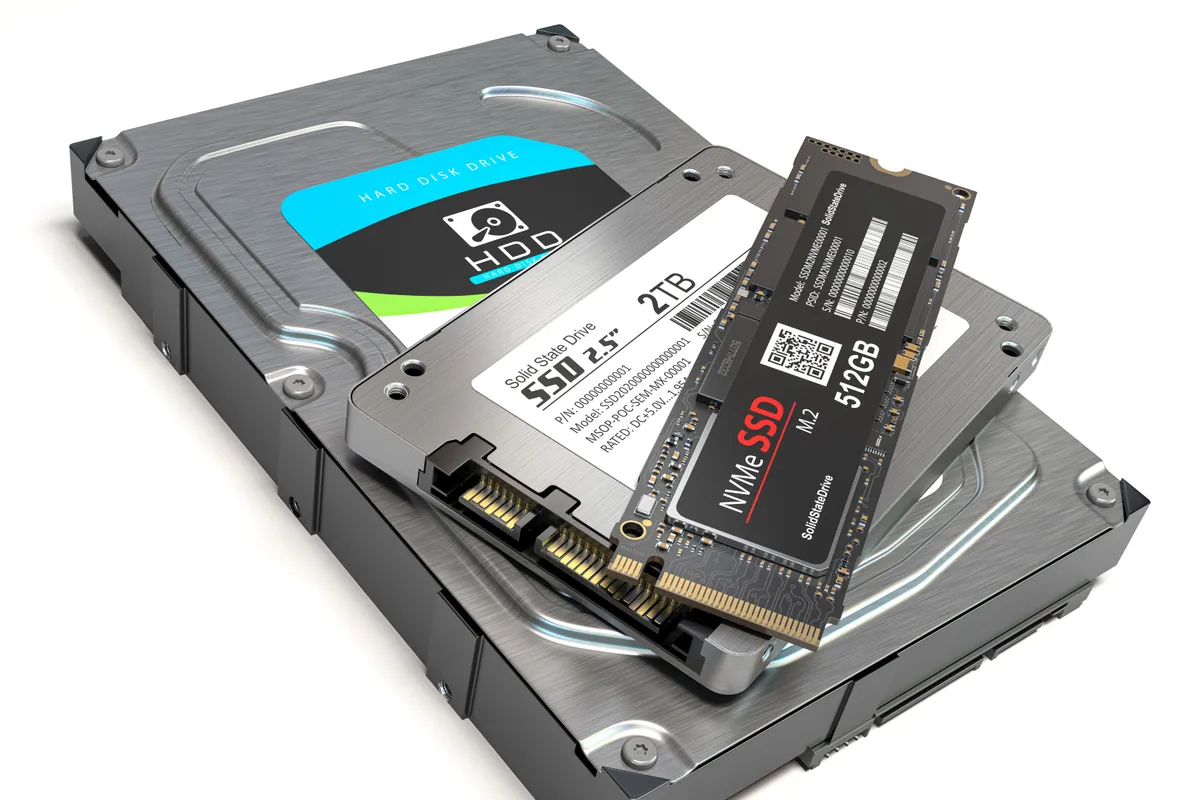
- Identified the hard drive as the bottleneck. A laptop that has grown slow across the board — not in one app, but everywhere — is almost always being held back by an ageing mechanical hard drive. These spinning drives slow markedly as they age, and they’re the single biggest brake on an otherwise capable machine.
- Treated the old drive as fragile. Because the brief itself flagged that migration might not be possible, we assumed the drive was on the way out and handled it accordingly — the goal being to get the data off it in one careful pass rather than stressing it with repeated attempts.
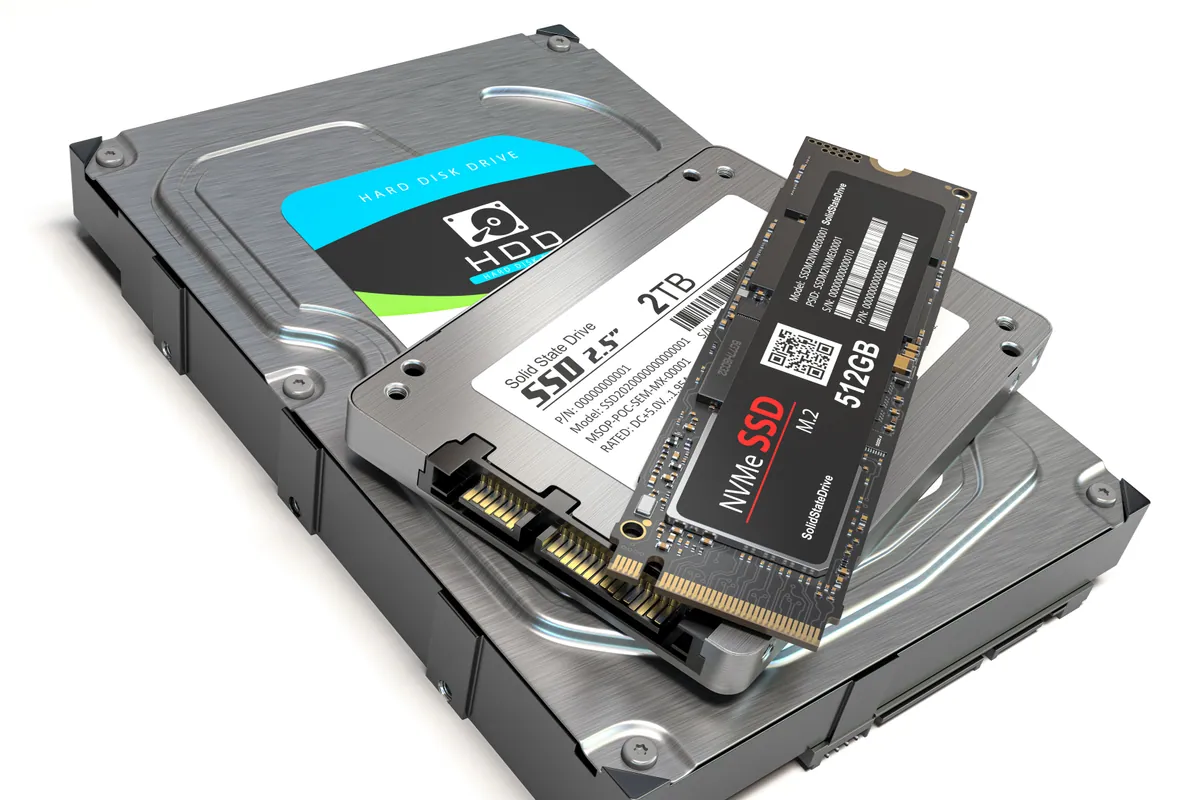
- Chose the SSD upgrade as the fix. Swapping the mechanical drive for a solid-state drive addresses the actual cause rather than papering over it. An SSD has no moving parts and reads data many times faster, which transforms boot times and everyday responsiveness. With the data at some risk on the old drive, the sooner it moved to a healthy SSD, the better.
How We Fixed It
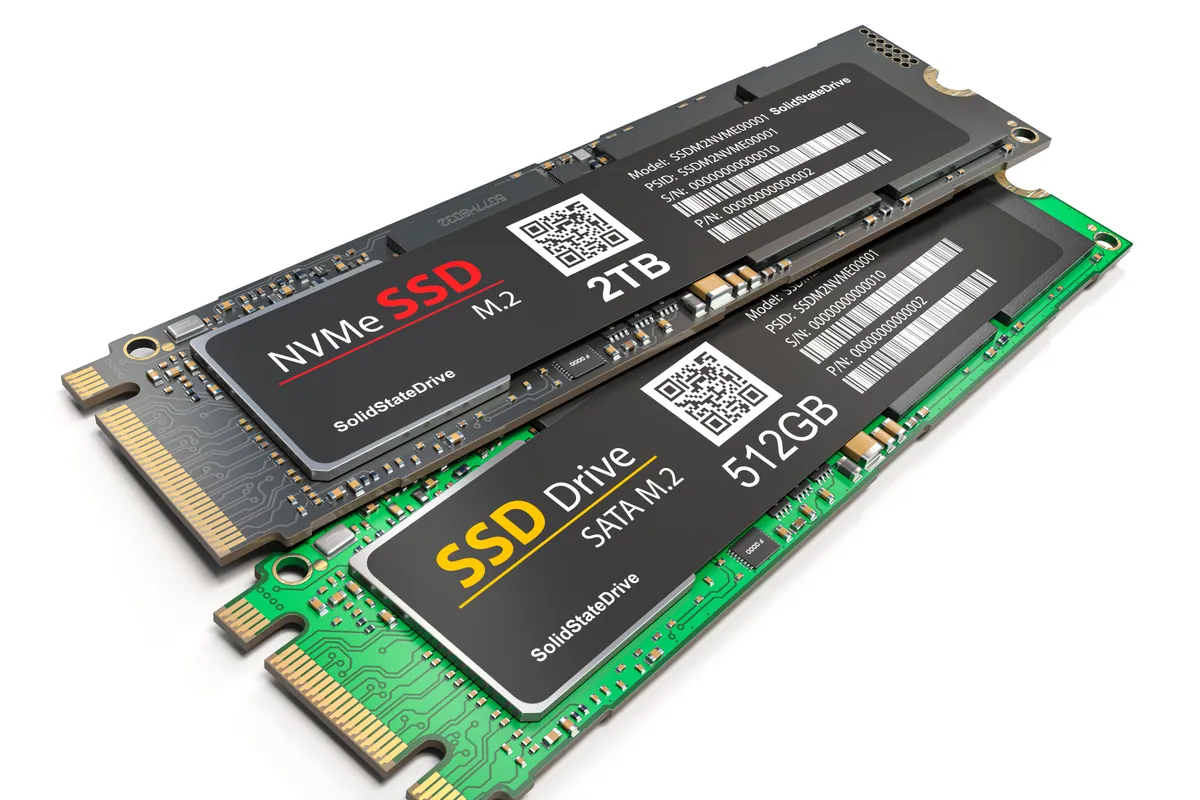
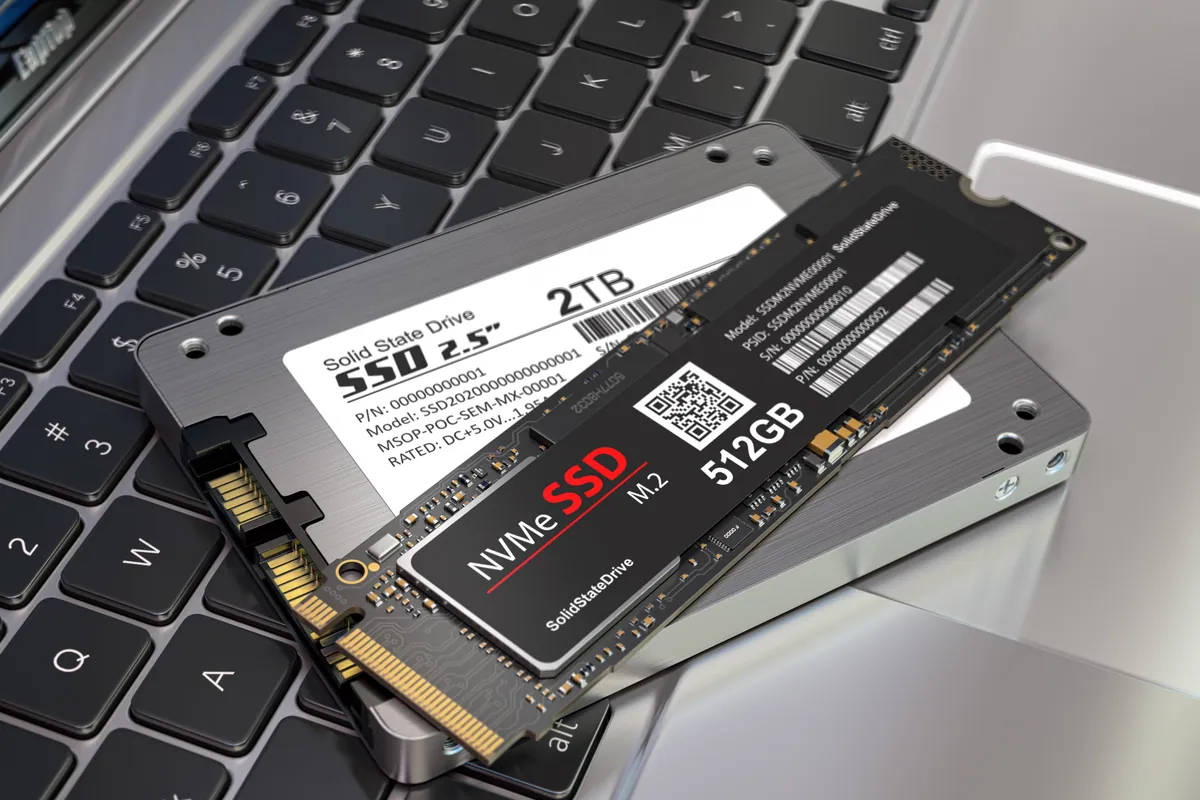
- Fitted a 480GB SSD. We replaced the tired mechanical hard drive with a 480GB solid-state drive — a generous amount of space and a night-and-day difference in speed.
- Installed a fresh operating system. Rather than clone years of accumulated clutter onto the new drive, we put a clean operating system on the SSD, so the machine had a tidy foundation to run on.
- Migrated the data across. We moved the owner’s data over from the old drive successfully — the outcome that had been in doubt at the start. Everything that mattered made the journey to the new drive.
The Result
The Toshiba went back to Kingston a genuinely different machine to use: quick to boot, quick to open things, and free of the constant waiting that had made it a chore. The owner’s data came across intact — no small thing, given the old drive had been tired enough that we’d braced for a recovery job instead. What could have been a laptop written off for being “too slow to bother with” was, underneath, a good machine held back by one failing part.
Why This Happens
A traditional hard drive stores data on spinning magnetic platters read by a moving arm — clever engineering, but mechanical, and mechanical things wear and slow with age. As a hard drive gets older it takes longer to find and read data, and because almost everything the computer does involves the drive, that slowness spreads to everything: booting, opening apps, saving files, even moving between windows. It’s why an older laptop can feel sluggish even when nothing is obviously “broken”.
A solid-state drive changes the picture completely. With no moving parts and dramatically faster read speeds, an SSD removes the single biggest bottleneck in an ageing computer. On most laptops it’s the most transformative upgrade available — the difference between a machine that feels finished and one that feels new. Boot times drop from minutes to seconds, and the general lag simply lifts.
There’s a timing lesson worth taking from this one. Ageing hard drives don’t just get slow; they eventually fail, and a drive that’s slowing is often a drive that’s tiring. That makes the moment you notice the slowness the right moment to act — because it’s far easier to migrate your data cleanly onto a new SSD while the old drive is still readable than to attempt a recovery after it has failed outright. Upgrading early gets you a faster machine and sidesteps a data scare in the same move.
Local Help in Kingston KT6
If your laptop or desktop has become slow to the point of frustration, an ageing hard drive is the most likely cause — and an SSD upgrade is the most effective fix there is. If the machine is also showing signs of a struggling drive, it’s worth acting sooner, while your data is still easy to move across.
We fit SSDs and migrate data from our Putney workshop, within easy reach of Kingston KT6, and we’ll tell you honestly whether an upgrade is worthwhile or the machine has had its day.
Call 020 7610 0500, drop in to SW15, or use the contact form.