Start by matching the method to the job
People often ask us for the single best way to transfer files between computers, but the honest answer is that it depends. Moving a 40GB photo library from an old desktop to a new laptop is a very different problem from sending one spreadsheet to a colleague across London. Before you pick a tool, ask yourself three questions: how much data is there, are the two machines in the same room or miles apart, and how private is the content? Those three answers point you straight at the right method, and they also flag the moments where a transfer can go badly wrong. The advice below reflects the mix of jobs we see week to week in the Putney workshop.
Sound like your problem?
Bring it to our Putney workshop or message us a photo and we will give you a straight answer and a quote before any work starts.
Cloud services: convenient, but watch the ceiling
Uploading to OneDrive, Google Drive, Dropbox or iCloud and downloading on the other machine is the simplest option for most people. It needs no cables, works between a Windows PC and a Mac without fuss, and gives you a copy sitting safely off-site while you move.
The catch is capacity and speed. Free tiers cap out quickly — typically 5GB to 15GB — so a large media library either will not fit or forces you into a paid plan. Upload speed is throttled by your broadband’s upload rate, which on many UK connections is a fraction of the download rate, so a big folder can take hours. Cloud is ideal for documents, a handful of photos, or sending files to someone remote. It is a poor choice for tens of gigabytes of video on a slow line.
External drives: the workhorse for large volumes
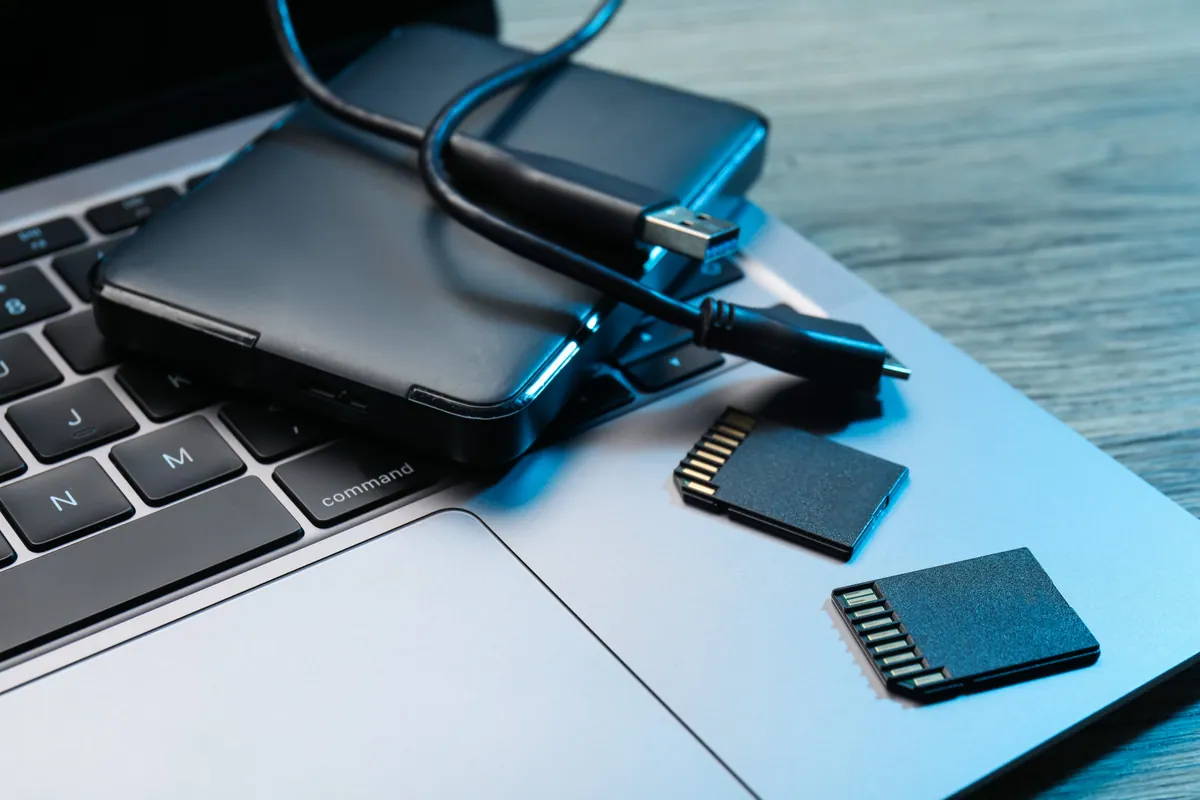
For moving a lot of data, a USB stick or an external SSD is still the fastest and most reliable route. Copy everything across, unplug, walk to the second machine, and copy it back. There is no reliance on internet speed and no monthly fee.
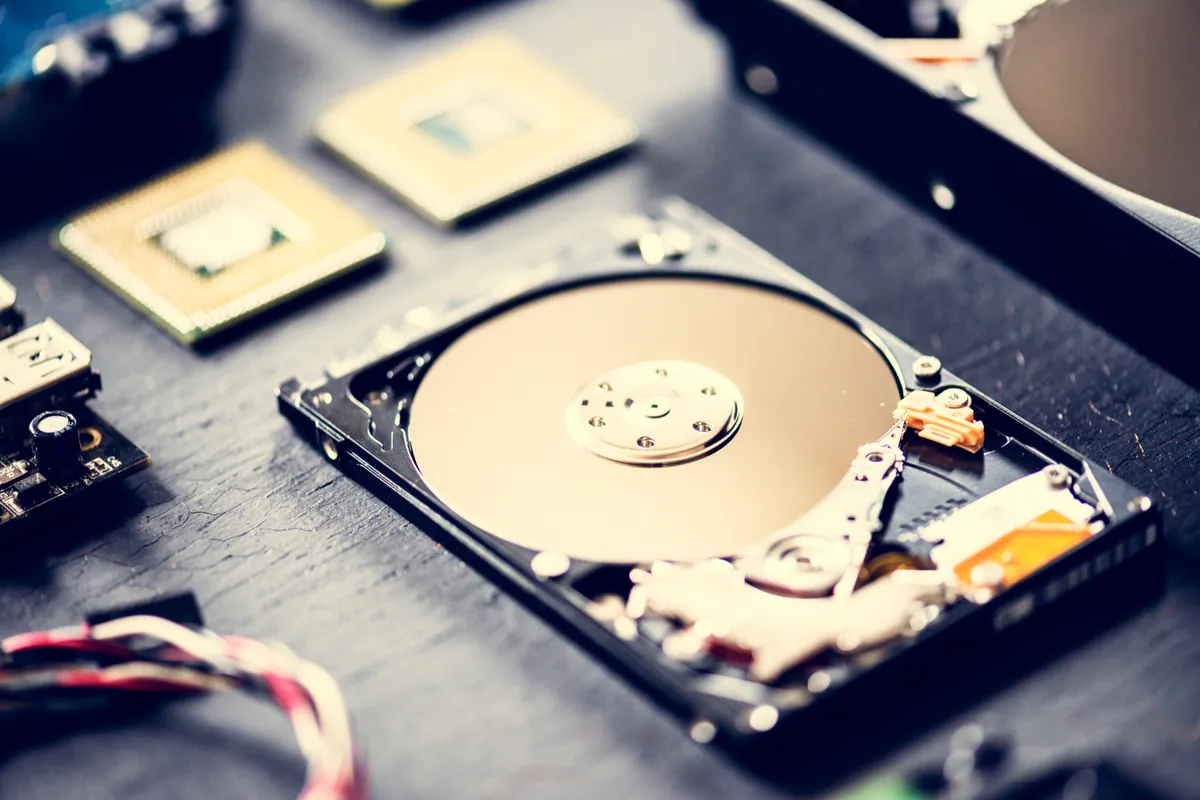
Two things trip people up. First, format: a drive formatted as NTFS is read-only on a Mac by default, while a Mac’s APFS or HFS+ won’t mount on Windows at all. Format the drive as exFAT and both platforms can read and write to it. Second — and this is where we get called — treating the transfer drive as your only copy. If you cut and paste rather than copy, or the drive is knocked while writing, you can lose the lot. If that happens, stop using the drive immediately; continued use overwrites the very sectors a data recovery job would need to read.
Local network transfer: no cables, no cloud
If both computers are on the same Wi-Fi or wired network, you can move files directly between them without touching the internet or a physical drive. Windows File Sharing (SMB) and macOS file sharing let one machine browse the other’s folders. Nearby Sharing on Windows and AirDrop between Apple devices handle ad-hoc smaller transfers neatly.
Speed here depends entirely on your network. A wired gigabit connection is quick; older Wi-Fi in a house with dead spots will crawl. Network sharing is also the method most likely to throw permissions and discovery errors — machines that simply refuse to see each other. It is worth persevering with for regular transfers between your own devices, but it is fiddly to set up the first time. This is a common thing our onsite IT support visits sort out in a few minutes.
Direct cable: fast and private for a one-off migration
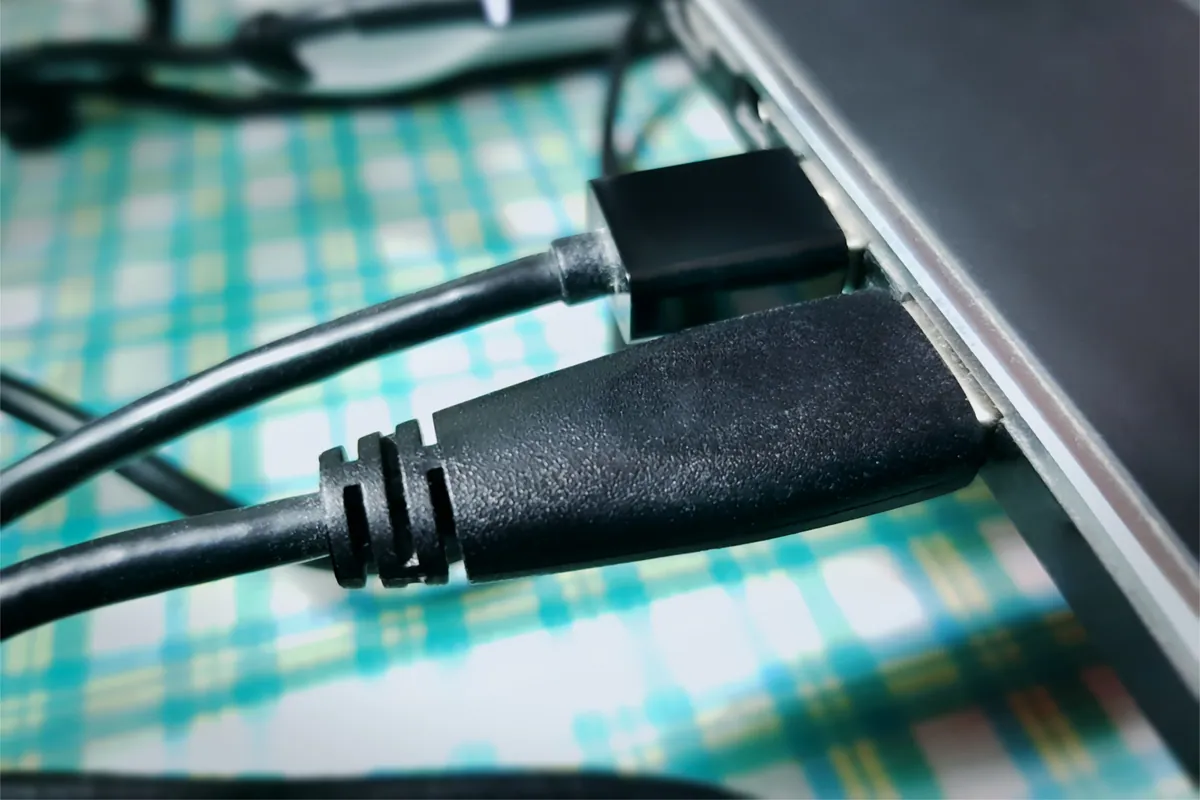
For a full move from one computer to another, a direct connection avoids the network entirely. A USB-C to USB-C cable between two modern machines gives very high throughput, and a data-transfer cable (not a plain charging cable — a charging-only lead carries no data) can bridge two Windows PCs. On Macs, Migration Assistant over a cable or Thunderbolt copies accounts, apps and settings wholesale.
The trade-off is that both machines are tied up during the copy, and Migration Assistant in particular can stall on a failing source drive. If the old machine is slow, noisy or already showing errors, don’t push it — a struggling disk chosen as the source is exactly how a routine migration turns into a recovery job.
Moving genuinely large files
When it’s a single enormous file — a video project, a disk image, a database — email is out (attachment limits are tiny) and free cloud tiers often choke. Options that work: a paid large-file service such as WeTransfer, a compressed archive split into parts, or simply the external SSD method above. For anything above roughly 20GB, physical transfer almost always beats the internet on a typical home connection.
Protect the data before you move it
Whatever route you choose, the golden rule is the same: never let the transfer be the only copy in existence. The moment you have data living in exactly one place mid-move, a dropped drive or a stalled copy becomes a disaster instead of an annoyance. A proper backup solution taken before you start means any failure during the transfer is a shrug, not a crisis. Verify the files opened correctly on the new machine before you wipe anything off the old one.
If a transfer has already gone wrong — a drive that won’t mount, files that vanished mid-copy, or a migration that corrupted your documents — stop and give us a call on 020 7610 0500, use the contact form, or bring the machine into our Putney workshop. The sooner a struggling drive is left alone, the better the odds our data recovery team can get everything back.