The Price Is Not the Problem. The Spec Sheet Is.
Black Friday laptops are rarely bad because they are cheap. They are bad because the money was saved in places the listing does not make obvious: memory that is soldered to the board, storage that is too small or too slow, and a screen that looks fine in the shop and tiring after an hour.
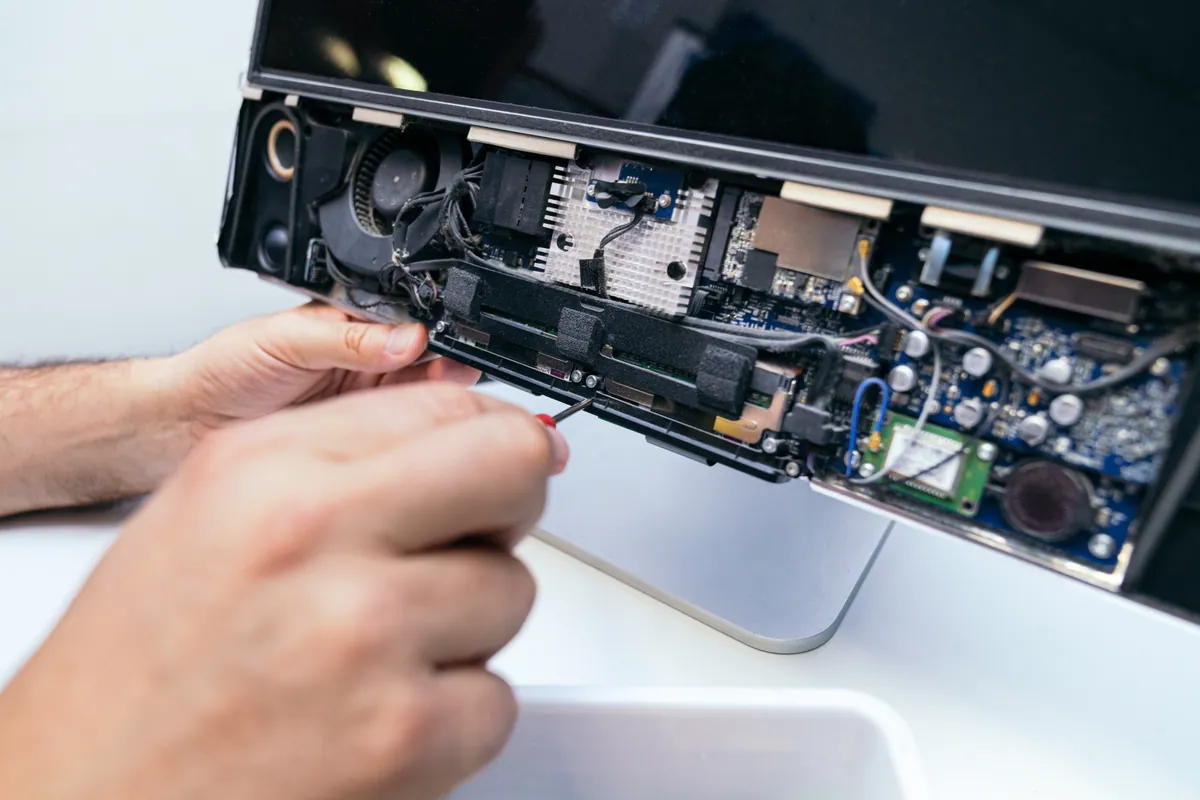
Those are the parts that decide whether a laptop is pleasant to use in year four or a reason to buy another one. They are also the parts we spend most of our time on in the workshop. Screen faults are the single most common job in our records, at roughly 18% of the more than 15,000 repairs we have analysed, and SSD upgrades and battery replacements each account for around 4% (see what 15,000 repairs taught us). How a laptop is built decides whether those jobs are a quick fix or a dead end.
Sound like your problem?
Bring it to our Putney workshop or message us a photo and we will give you a straight answer and a quote before any work starts.
1. Check the Full Model Code, Not the Series Name
The same series name covers very different machines. Two laptops sold as the same range can differ in processor, memory, screen and battery, and sale-event listings often lead with the series name and bury the exact configuration.
Find the full model code on the listing (a string of letters and numbers, not just “IdeaPad 3” or “Pavilion 15”) and look that exact code up on the manufacturer’s site. That is the only reliable way to see what you are actually buying.
2. RAM: 16GB, and Find Out If It Is Soldered
For Windows 11, 8GB is the point at which a laptop feels fine on day one and sluggish within a year. A browser with a few tabs, Outlook and a Teams call will use most of it. 16GB is the sensible minimum for a laptop you want to keep.
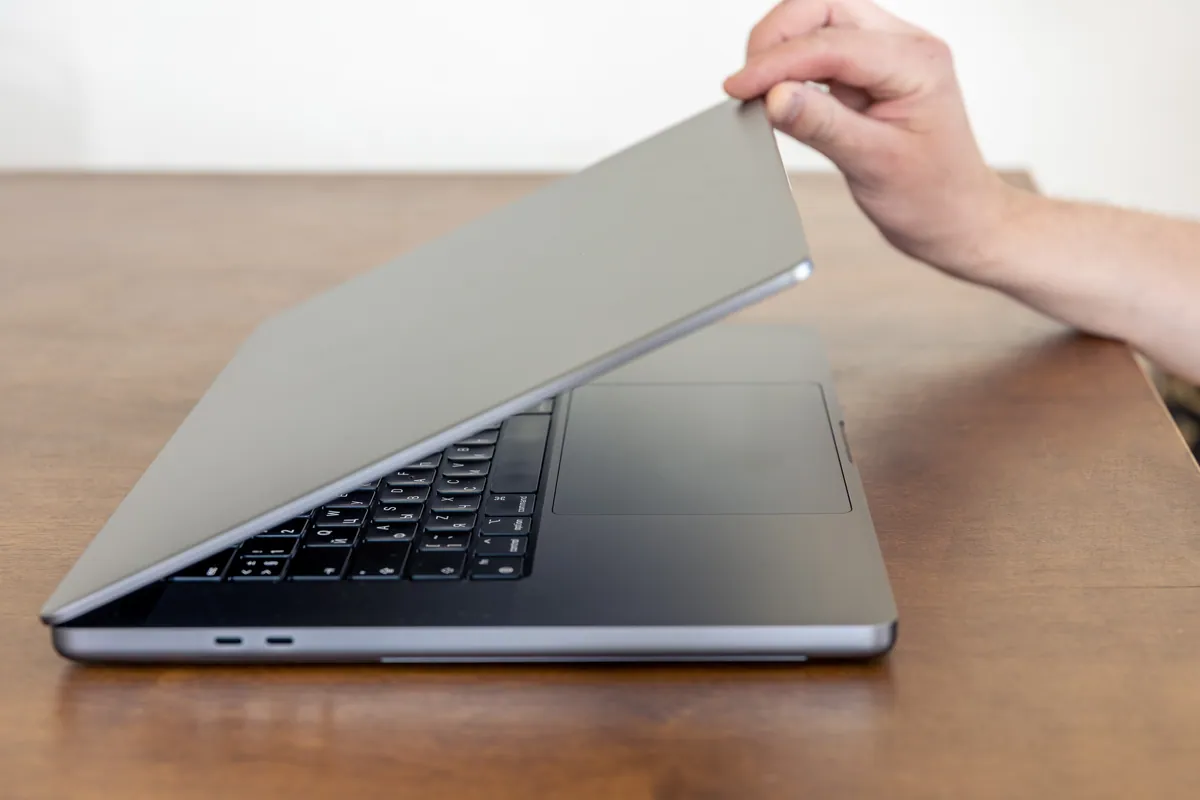
The bigger question is whether you can change your mind later. Many thin laptops have their memory soldered to the motherboard, and every current MacBook does. If the spec sheet says “onboard”, “soldered” or gives a single fixed figure with no free slot, the RAM you buy is the RAM you keep.
A laptop with a free slot is different: a RAM upgrade starts from £55 including the memory and fitting, so an 8GB machine with a slot is a reasonable buy if the price reflects it.
3. Storage: Avoid eMMC and 128GB
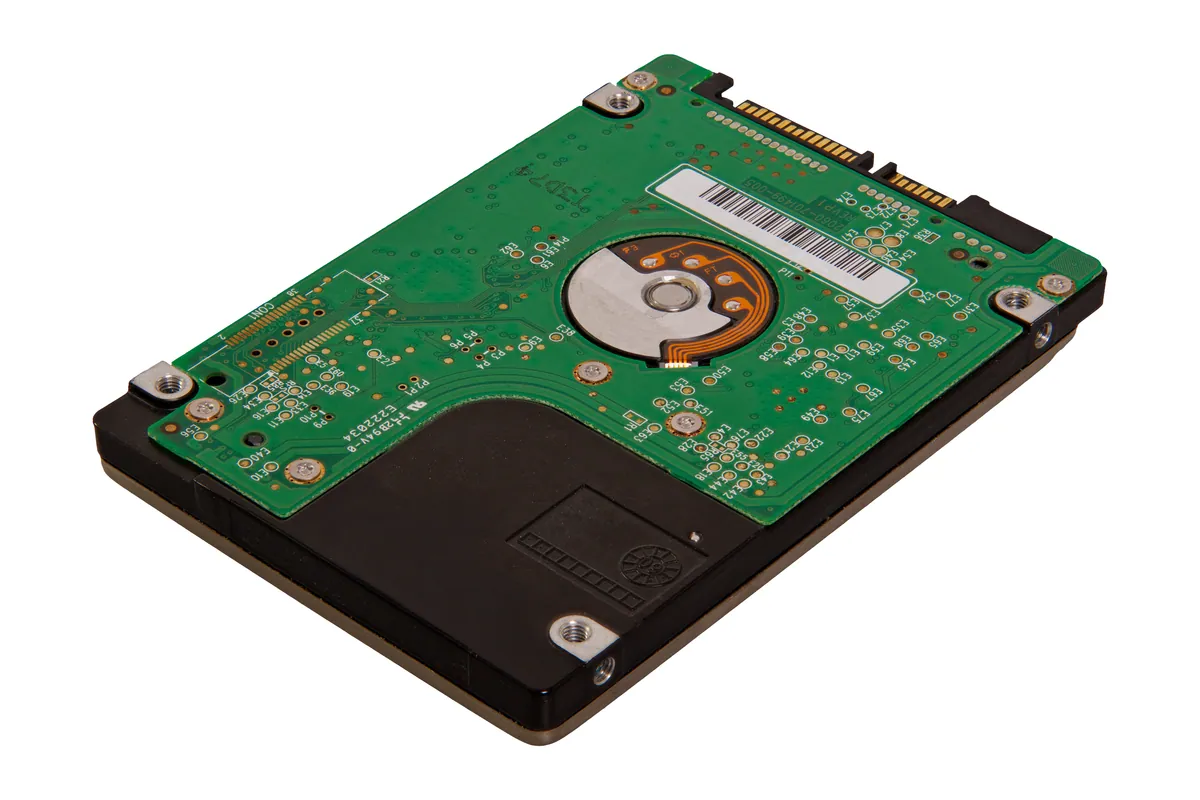
The cheapest laptops sometimes use eMMC storage, which is closer to a memory card than a proper SSD. It is slow, it is usually soldered, and at 64GB or 128GB it fills up with Windows updates alone. We regularly see these machines come in “broken” when the real fault is a full drive that can no longer update.
Look for an NVMe SSD of at least 256GB, and 512GB if you keep photos locally. If the laptop has a standard M.2 slot, the drive can be replaced later; an SSD upgrade starts from £95 including data migration. If the storage is soldered, buy the size you will need for the life of the machine.
4. The Screen: Brightness and Panel Type
Budget laptops save money on the screen more than anywhere else. A 1366×768 or dim, washed-out panel is hard to read for long sessions and almost impossible to use near a window.
Look for 1920×1080 (Full HD), an IPS or OLED panel, and a brightness of around 300 nits or more. If the listing does not state the brightness, that is usually because it is low.
5. Battery and Charging: What Wears Out First
Batteries are a consumable. After three to five years most will hold noticeably less charge, so how easy the battery is to replace matters. On many laptops it is screwed in and a battery replacement is routine. On others it is glued in place, which takes longer and costs more.
Charging is the other thing to look at. Most USB-C charging ports are soldered to the motherboard, so a damaged port is a board-level repair rather than a quick part swap. That does not make USB-C a bad choice, since most laptops with it have two or more ports that can charge, but it is worth knowing. Our guide to charging port repair costs explains the difference.
6. Check for Windows “S Mode”
Some budget laptops ship in Windows 11 in S mode, which only runs apps from the Microsoft Store. You can switch out of it for free in Settings, but the switch is one-way. It is not a reason to avoid a laptop, but it is a reason not to be surprised when your usual software will not install.
Should You Buy Refurbished Instead?
At the budget end, often yes. A new laptop at £300–£400 on offer is usually built down to that price. An ex-business laptop for similar money typically has a better keyboard, a stronger chassis, a free RAM slot and a standard SSD, and spare parts are easy to find when something wears out. Our refurbished laptops are tested, cleaned and graded honestly, and come with a 90-day warranty.
Above roughly £600 new, the balance shifts, and a well-specified new laptop is usually the better long-term buy.
Your Rights If It Is Not Right
If you buy online, you normally have 14 days to cancel and return it for any reason under the Consumer Contracts Regulations. If it develops a fault, the Consumer Rights Act gives you 30 days to reject it for a refund. Use the first fortnight to check the laptop properly: battery life, screen, keyboard and every port.
Getting It Set Up
The part nobody budgets time for is moving everything across. Files, email, passwords, printers and Wi-Fi all need to arrive on the new machine before the old one is wiped. Our new computer setup covers the full data transfer from £89 in store, including a secure wipe of the old machine if you want one. If you are moving between Macs, our guide to transferring data from an old Mac to a new one covers the do-it-yourself route.
And if you are not sure whether the old laptop really needs replacing, read is it worth repairing an old laptop? first. An SSD and a fresh battery are sometimes all a five-year-old machine needs.
Send Us the Link
If you have a deal in mind and are not sure about it, send us the listing or the full model code. We will tell you what is soldered, what can be upgraded later and whether the price is fair for what you are getting.