What the blue screen is actually telling you
A Blue Screen of Death (BSOD) is Windows deliberately halting because it hit an error it could not safely recover from. Rather than corrupt your data by carrying on, it stops, notes what went wrong, and restarts. That is why the screen is a diagnostic tool, not just a failure — it hands you a stop code that points at the culprit.
On modern Windows you get a short line of text and a stop code such as DRIVER_IRQL_NOT_LESS_OR_EQUAL, MEMORY_MANAGEMENT, PAGE_FAULT_IN_NONPAGED_AREA or WHEA_UNCORRECTABLE_ERROR. Write it down exactly, along with any file named in the message (often something ending in .sys). Those two details do most of the detective work for you.
Sound like your problem?
Bring it to our Putney workshop or message us a photo and we will give you a straight answer and a quote before any work starts.
The three families of cause
Almost every blue screen traces back to one of three areas. Working out which one saves you from guessing.
- Drivers and software. By far the most common cause. A graphics, network, storage or chipset driver misbehaves — usually after an update, a new device, or a half-finished Windows update. Stop codes containing
DRIVER, or a named.sysfile, point here. - Memory (RAM). Faulty or unstable memory produces some of the most random, hard-to-pin-down crashes.
MEMORY_MANAGEMENT,PAGE_FAULT_IN_NONPAGED_AREAandIRQL_NOT_LESS_OR_EQUALare classic memory-related codes, especially if they appear at different times doing different things. - Hardware and storage. A failing SSD or hard drive, an overheating processor, a struggling power supply or a loose component.
WHEA_UNCORRECTABLE_ERRORandCRITICAL_PROCESS_DIEDoften sit here, as do crashes that only happen under load or when the machine is warm.
The reason people go round in circles is that the same symptom — a blue screen — spans all three. The stop code is what separates them.
How to triage a recurring BSOD
If it happened once and never came back, a passing glitch is the likely answer and there is little to chase. It is the recurring blue screen that needs a method. Here is the order we work through in the workshop.
1. Read the pattern, not just the crash
Does it blue-screen doing the same thing every time — launching a particular game, waking from sleep, plugging in a monitor? A consistent trigger almost always means software or a specific driver. Crashes that strike randomly, at idle and under load alike, lean towards memory or hardware.
2. Match the stop code to a family
Note the code and any .sys file across two or three crashes. If the same driver file keeps appearing, you have your suspect. If the codes are all over the place with no common file, suspect RAM or storage instead.
3. Rule out the recent change
Ask what changed just before the crashes started — a Windows update, a new driver, a new device, freshly installed software. Rolling back that one change (Device Manager lets you roll back a driver; System Restore undoes a bad update) resolves a large share of blue screens without touching hardware.
4. Test the memory
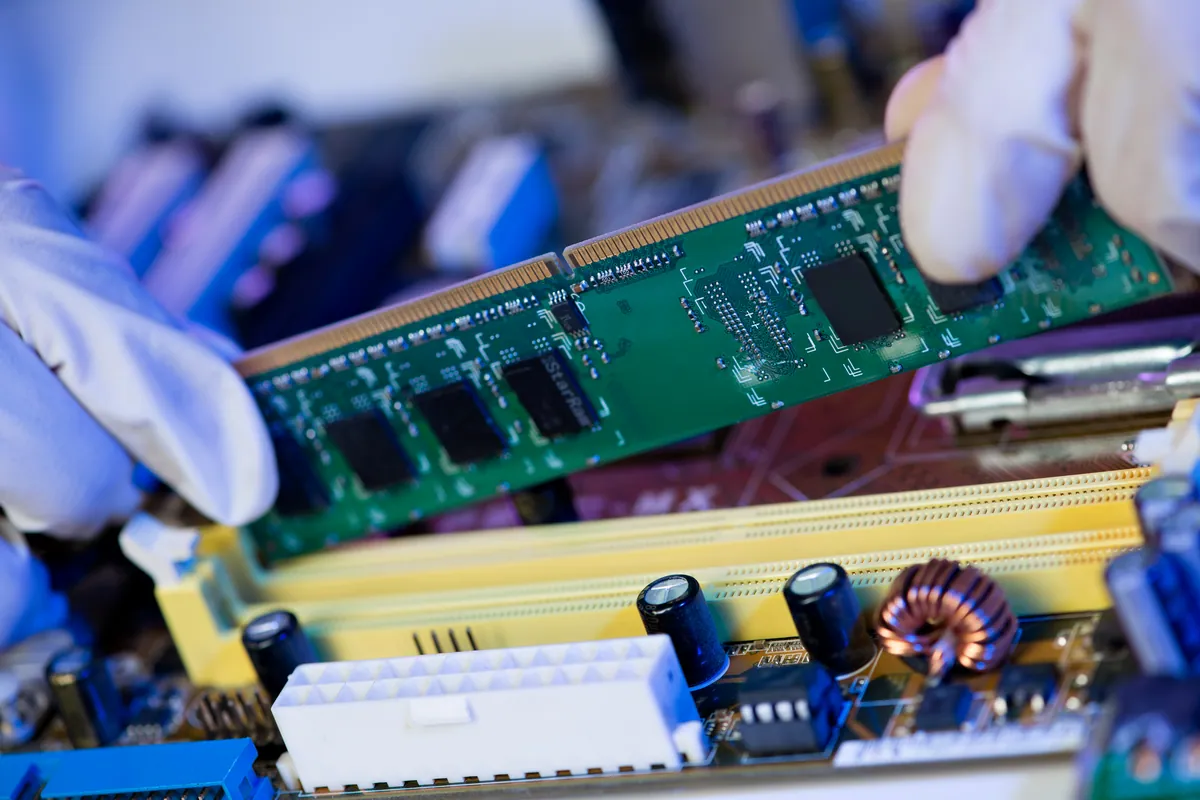
Windows has a built-in tool — search for Windows Memory Diagnostic — that checks your RAM on the next restart. For a thorough result, the free MemTest86 run overnight is better. If either flags errors, you have found it. Re-seating the memory modules, or testing one stick at a time, can confirm whether it is a bad module or a bad slot before you commit to a RAM upgrade.
5. Check the drive and temperatures
A failing SSD or hard drive throws blue screens as it struggles to read data. Check the drive’s SMART health, and keep an eye on temperatures — a processor that spikes and crashes under load points at cooling or thermal paste rather than software. Persistent storage errors are also your cue to make sure your data is backed up now, before the drive gets worse.
Fixes that resolve most blue screens
Once you know the family, the fixes are fairly direct:
- Driver crashes: update the named driver from the manufacturer’s site, or roll it back if the trouble started after an update. A clean reinstall of graphics drivers cures a surprising number of gaming-related BSODs.
- Windows itself: run
sfc /scannowand thenDISM /Online /Cleanup-Image /RestoreHealthfrom an admin command prompt to repair corrupted system files. Install pending Windows updates fully. - Memory: re-seat or replace faulty modules; make sure any XMP/overclock profile is stable or turned off.
- Storage and hardware: replace a failing drive, restore proper cooling, or test the power supply. These are the jobs where a professional diagnosis pays off, because swapping parts on a guess gets expensive.
When to bring it in
If you have matched the stop code, tested the memory and rolled back recent changes and the blue screens keep coming, the fault is usually hardware — and that is worth a proper look rather than more guesswork. In the Putney workshop we run structured memory and drive testing to separate a failing component from a software tangle, so you are not buying parts you do not need. If it is one machine misbehaving, our PC repair service is the place to start; if you would rather catch problems before the next crash, a PC health check gives the whole system a once-over.
Happy to take a look — call us on 020 7610 0500, drop the machine into the Putney workshop, or send the details through the contact form and we will tell you honestly what we think is going on.