Why Bluetooth drops out in the first place
Bluetooth and Wi-Fi both share the crowded 2.4 GHz radio band, so most disconnection problems come down to one of four things: interference from other signals nearby, a driver or firmware fault, an aggressive power-saving setting switching the radio off, or a pairing that has quietly become corrupted. The frustrating part is that any of these produces the same symptom — audio stuttering, a mouse freezing for a second, a keyboard missing keystrokes — so the fix is really about working through the causes in a sensible order rather than guessing.
Before anything else, rule out the device itself. A low battery is the single most common cause of a Bluetooth device that “keeps disconnecting”. Charge or replace the batteries in your mouse, keyboard or headphones and see whether the problem persists. It sounds obvious, but a device at 10% will drop out repeatedly while still reporting as connected.
Sound like your problem?
Bring it to our Putney workshop or message us a photo and we will give you a straight answer and a quote before any work starts.
Interference: the cause people overlook
Because Bluetooth sits on the same 2.4 GHz band as older Wi-Fi, USB 3.0 ports, microwaves and even some LED lighting, physical placement matters far more than people expect.
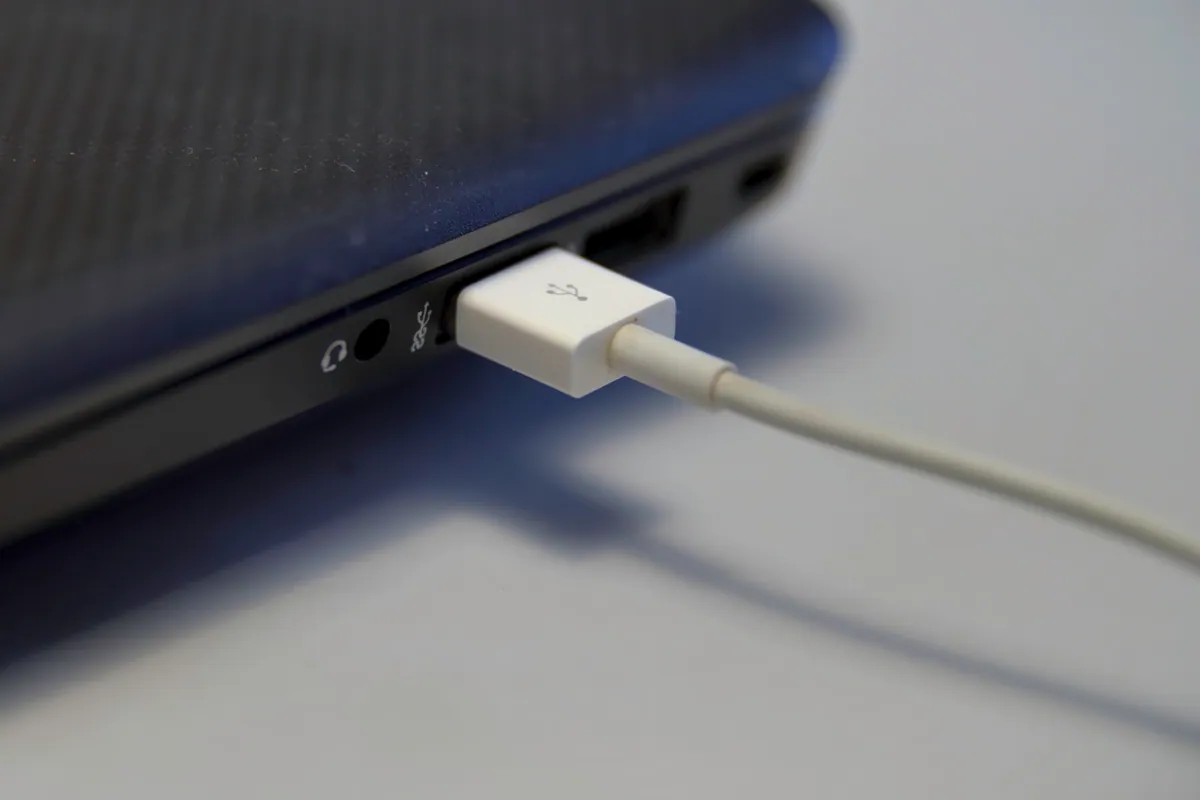
- Move the USB receiver away from USB 3.0 ports. If you use a dongle-based mouse or headset, plug it into a USB 2.0 port or a short extension lead. USB 3.0 controllers are a notorious source of 2.4 GHz noise, and simply moving the receiver a few inches away often stops the dropouts dead.
- Reduce the distance and obstacles. Bluetooth is a short-range technology. A laptop lid, a monitor stand or your own body between the device and the machine can be enough to cause stutter, especially with headphones when you turn your head.
- Check your Wi-Fi band. If your router and devices support 5 GHz, moving your main traffic onto the 5 GHz band frees up the 2.4 GHz space that Bluetooth relies on. This overlap is one reason Bluetooth and Wi-Fi problems so often appear together, and getting your Wi-Fi setup right can quietly cure a Bluetooth complaint.
Windows: drivers and power settings
On Windows, the two biggest culprits are outdated drivers and a power-management setting that switches the Bluetooth radio off to save battery.
To stop Windows powering down the adapter, open Device Manager, expand Bluetooth, right-click your adapter, choose Properties, and under the Power Management tab untick Allow the computer to turn off this device to save power. On laptops, also check that your power plan isn’t set to an aggressive battery-saving mode, which can throttle the radio.
For drivers, don’t rely on Windows Update alone. Go to your laptop manufacturer’s support page — or Intel’s site if you have an Intel Wireless adapter — and install the latest Bluetooth driver directly. A clean reinstall often helps: uninstall the device in Device Manager (tick Delete the driver software if offered), reboot, and let Windows or the manufacturer’s package reinstall it fresh. This clears the corrupted driver state behind a surprising number of intermittent drops.
Mac: reset the connection cleanly
On a Mac, the equivalent first step is to remove and re-pair the device rather than repeatedly reconnecting a stale pairing. Go to System Settings > Bluetooth, click the i next to the misbehaving device, choose Forget This Device, then pair it again from scratch.
If several Bluetooth devices misbehave at once, the Mac’s Bluetooth module itself may be in a bad state. A restart clears it in most cases. Keeping macOS fully updated matters too — Apple has shipped fixes for Bluetooth stability in point releases, so an out-of-date system can be the whole problem. As on Windows, a nearly flat Magic Mouse or Magic Keyboard will drop out long before it warns you, so charge it and retest.
Fix the pairing, not just the symptom
A pairing that has become corrupted will keep failing no matter how many times you reconnect. The reliable fix on both platforms is to remove the device entirely and pair it again, as above. If a device is paired to two computers or a phone at the same time, it may be fighting over which host to connect to — unpair it from the devices you’re not using. And if a single Bluetooth adapter is trying to run a mouse, keyboard and headphones simultaneously, bandwidth contention can cause the audio to stutter; try dropping the headphones onto a wired or dongle connection to confirm.
When it’s actually a hardware fault
If you’ve charged the device, updated drivers, disabled power management, cleared power-saving modes and re-paired cleanly, and it still drops, the fault may be physical. A failing internal Bluetooth/Wi-Fi card, a loose antenna cable after a previous repair, or a worn adapter will all produce exactly these symptoms. This is common on older laptops, and it’s genuinely worth diagnosing rather than replacing the perfectly good mouse or headphones you assumed were broken. A quick bench test tells us whether the module or antenna is at fault — and on many machines the card is a cheap, replaceable part.
If you’ve worked through these steps and your Bluetooth still won’t stay connected, we’re happy to take a look. Call us on 020 7610 0500, drop into the Putney workshop, or use our contact form, and we’ll diagnose whether it’s a driver issue we can sort remotely or a hardware fault that needs a proper pc repair or laptop repair on the bench.