Why a Clicking Noise Is Different from Other Sounds
Computers make plenty of sounds in normal use — fans spinning up, the soft hum of a drive, the occasional beep at startup. Most are harmless. A steady, rhythmic click… click… click, however, is one of the few noises that genuinely warrants dropping everything. In our workshop it is one of the clearest early warnings of a mechanical hard drive that is failing, and the window to act is often measured in hours, not days.
The reason it matters so much is that a clicking hard drive is frequently past the point of self-repair. Unlike a slow computer or a software glitch, this is a physical fault getting worse with every minute the drive stays powered on. Understanding what you are hearing — and, just as importantly, what you should not do next — can be the difference between recovering your files and losing them.
Sound like your problem?
Bring it to our Putney workshop or message us a photo and we will give you a straight answer and a quote before any work starts.
What the “Click of Death” Actually Is
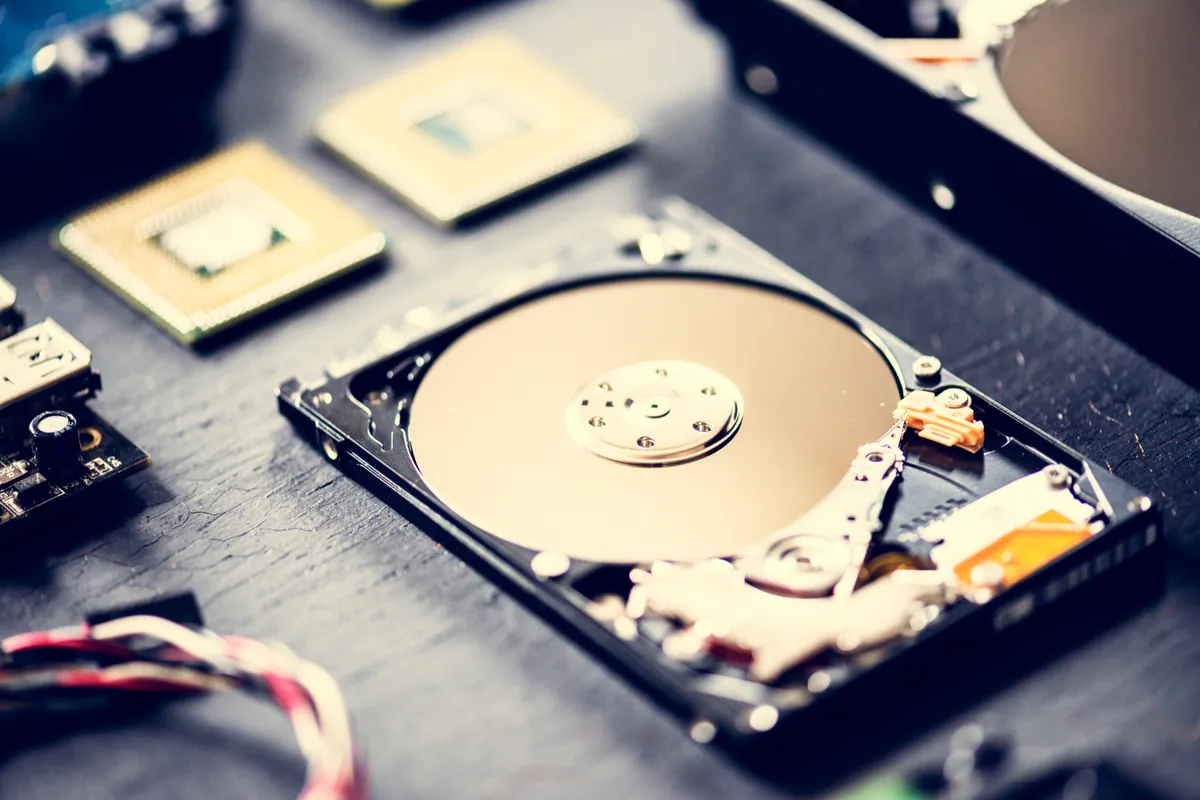
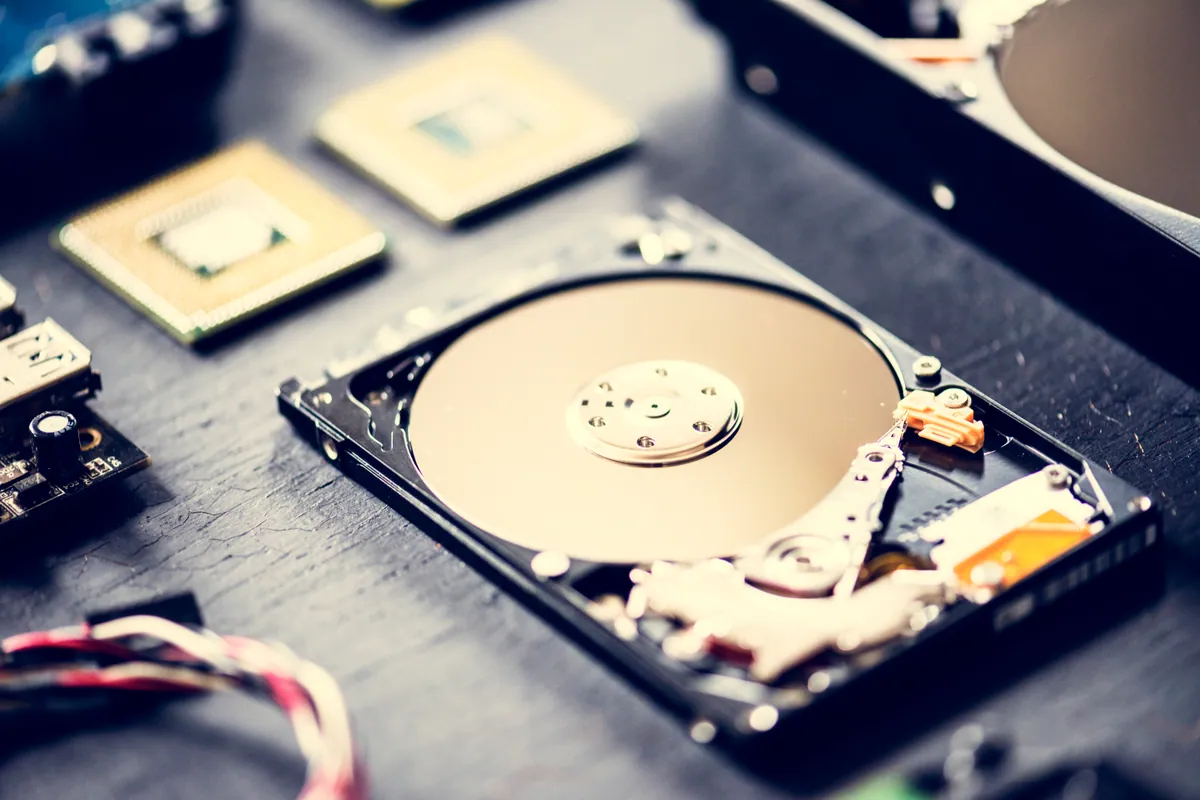
Traditional hard drives (HDDs) store data on spinning platters read by a tiny arm called the actuator head, which floats microns above the surface. When that head cannot find its position — because of a mechanical fault, worn bearings, or damage to the platter — it repeatedly resets itself, snapping back to a home position. That reset is the click you hear, and it is why engineers grimly nickname it the “click of death”.
Common triggers include:
- A knock or drop while the drive was running, especially on laptops
- Age and wear — mechanical drives simply wear out, typically after five to seven years
- Power surges or an unstable power supply
- Overheating that warps internal components
Each click is the head struggling and, potentially, scraping the platter. That is why continued use is so risky: the damage compounds itself.
Fan Noise vs Drive Noise — How to Tell Them Apart
Not every rattle is a dying drive, and it is easy to panic over something harmless. Here is how to distinguish the two.
Fan noise tends to be:
- Continuous whirring, buzzing, or grinding rather than a distinct click
- Load-dependent — it gets louder when the machine works hard, then settles
- Often improved temporarily if you gently nudge the laptop or clear a dust-clogged vent
Drive noise tends to be:
- A repetitive, evenly-spaced click or clunk, sometimes with a faint beep
- Present at startup or when opening files, regardless of workload
- Frequently accompanied by the system freezing, files that won’t open, or the drive vanishing from Windows
A quick test: if the noise is rhythmic and your files or folders have started failing to load, treat it as a drive fault until proven otherwise. If it is a rushing, uneven whir tied to heat and effort, a fan or cooling clean-up is the more likely culprit — usually a straightforward PC repair job rather than an emergency.
Note that solid-state drives (SSDs) have no moving parts and cannot click. If your machine uses an SSD and you hear clicking, the noise is almost certainly a fan, the optical drive, or coil whine — not storage failure.
What to Do the Moment You Hear Clicking
If you suspect a failing hard drive, the single most important step is counter-intuitive: stop using the computer and shut it down.
- Power off properly, then leave it off. Every extra minute of spinning risks turning a recoverable drive into an unrecoverable one.
- Do not run repair tools. CHKDSK, defrag, and disk utilities force the failing drive to work harder and can accelerate the failure.
- Do not repeatedly restart hoping it will “sort itself out”. It won’t, and each cycle adds wear.
- Do not open the drive. The platters must stay in a dust-free environment; opening the casing at home almost always destroys the data.
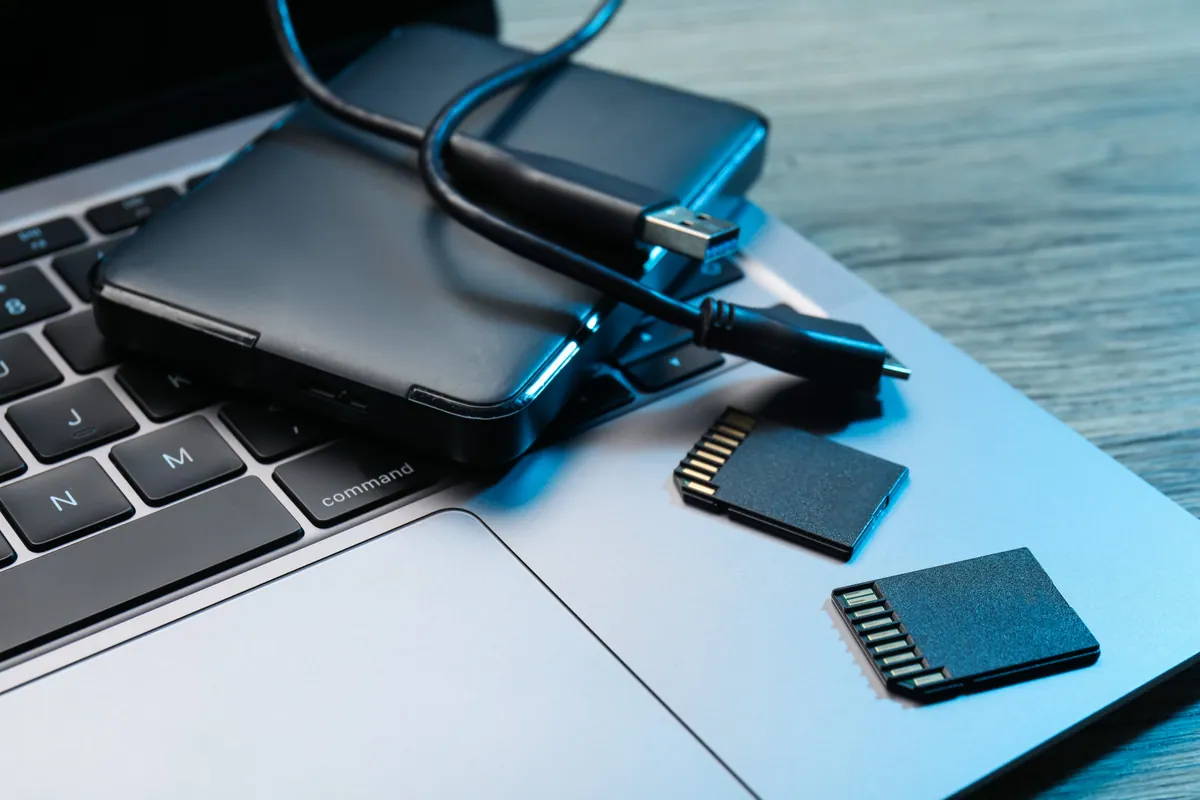
- If the machine is still on and you have no backup, copy your most critical files to an external drive once, calmly — but if the clicking is loud or the system is freezing, it is safer to power down and seek help than to push a dying drive.
Prevention: The Backup That Makes This a Non-Event
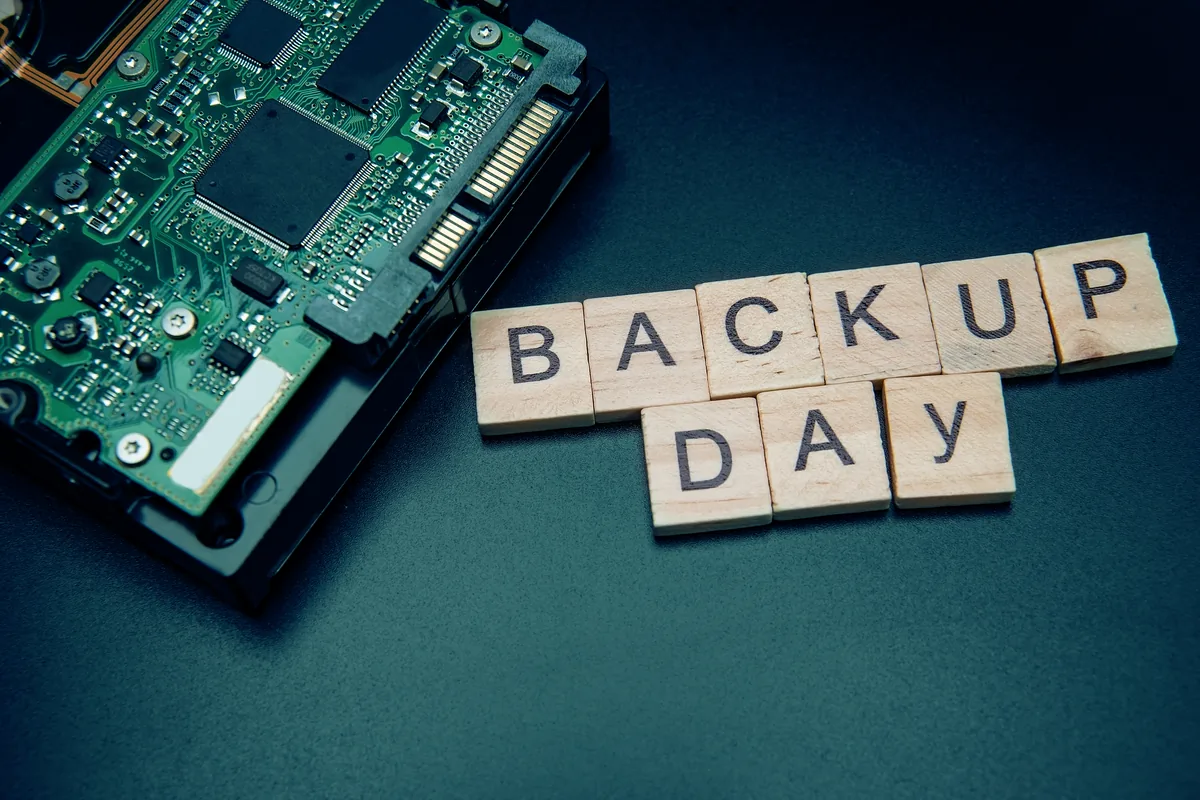
The uncomfortable truth is that every hard drive will eventually fail — the only question is whether your files are somewhere else when it happens. A clicking drive is only a catastrophe if it holds the sole copy of your data.
A sensible routine follows the 3-2-1 principle: three copies of important files, on two different types of media, with one kept off-site or in the cloud. Setting up proper backup solutions turns a failing drive from a crisis into a mild inconvenience — you simply fit a new drive and restore. If you would like more preventative guides like this, our Support Centre covers common faults and how to stay ahead of them.
When to Call in a Professional
If the drive holds files you cannot afford to lose and you have no backup, resist the temptation to keep trying. Professional data recovery uses controlled, cleanroom-grade methods to retrieve files from drives that are mechanically failing — but success rates drop sharply once a drive has been run too long or tampered with. The best outcomes come from acting early and handling the drive gently.
If your computer is clicking and you are worried about your files, power it down and bring it to our Putney workshop, or call us on 020 7610 0500 before doing anything else. You can also reach us through the contact form and we will advise on the safest next step for your particular drive.