Start by reading what the machine does when you press power
A desktop that won’t turn on feels like a single problem, but it’s really several different faults that happen to share a symptom. The quickest way to narrow it down — before opening anything or buying a single part — is to watch carefully what happens the moment you press the power button. The behaviour tells you roughly where the fault sits.
There are three broad patterns, and they point in different directions:
- Nothing at all — no fans, no lights, no sound. → Power delivery.
- Fans and lights come on, but nothing appears on screen — no logo, no beeps, no boot. → Memory, graphics, or motherboard.
- It powers on, tries to boot, then shuts off or restarts in a loop. → Overheating, power instability, or a storage/OS fault.
Work out which of the three you’ve got first. It saves you chasing the wrong part.
Sound like your problem?
Bring it to our Putney workshop or message us a photo and we will give you a straight answer and a quote before any work starts.
Pattern 1: completely dead — suspect the power supply
If pressing the button does nothing — total silence, no fan twitch, no LED — the machine almost certainly isn’t getting power to its components. In rough order of likelihood:
- The wall socket, cable or switch. Obvious, but worth ruling out first. Try a different, known-working kettle lead and a socket you’ve tested with something else. Check the little voltage switch on the back of some power supplies hasn’t been knocked.
- The power supply unit (PSU). This is the single most common cause of a completely dead desktop. Power supplies work hard, run whenever the machine is on, and wear out — the capacitors inside age and eventually give up. A dead PSU produces exactly this symptom: press power, nothing happens.
- The front-panel power button or its wiring, which can fail and mimic a dead machine even when everything else is fine.
A power supply can be tested in isolation, and it’s one of the cheaper desktop parts to replace — if the failure didn’t damage anything else on the way out. That “if” is the reason it’s worth having checked rather than just swapping blind: occasionally a PSU fails destructively and takes something with it, and you want to know that before you assume a new power supply is the whole fix.
Pattern 2: fans spin, screen stays black — suspect memory or motherboard
This one catches people out because the machine looks like it’s working — fans whirring, lights on — but nothing ever appears on the monitor. That combination usually means the computer is getting power but can’t get far enough through its start-up checks to put anything on screen.
The usual suspects, easiest first:
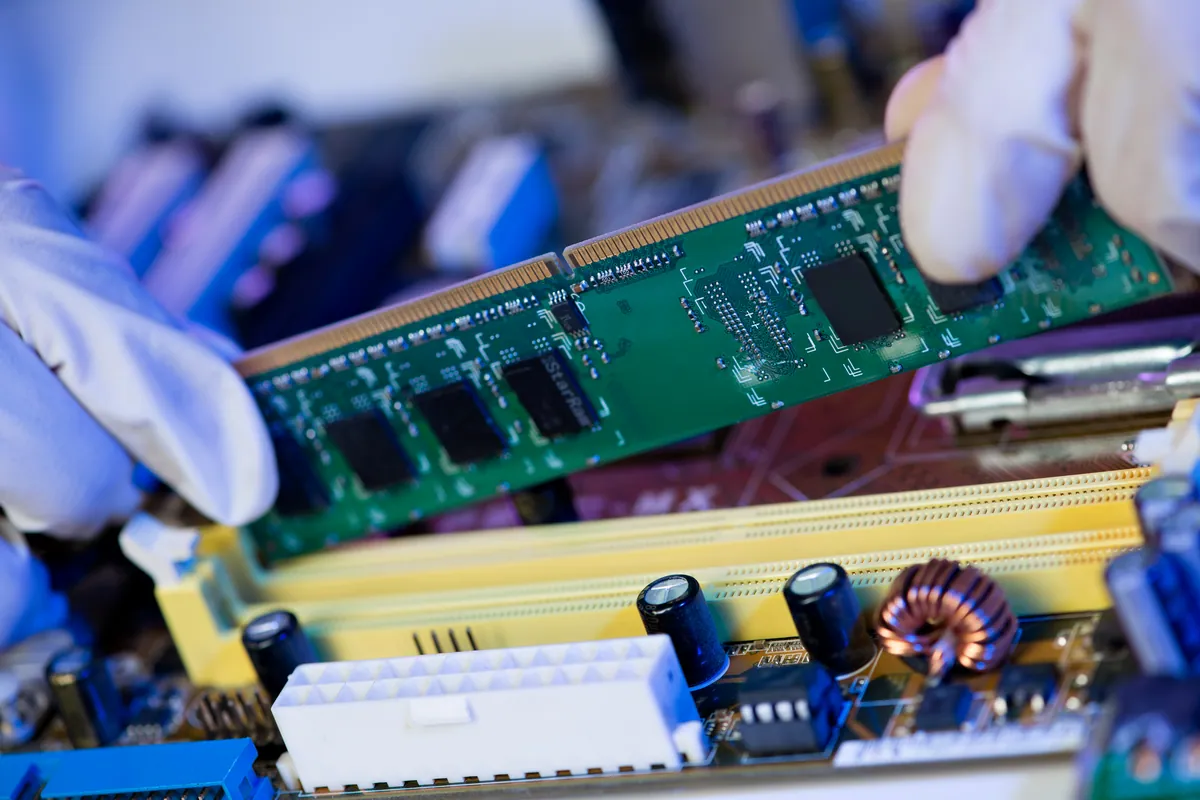
- Memory (RAM). Loose, dirty or failed memory is one of the most common causes of “powers on, black screen.” A stick that’s worked itself slightly loose, or a contact that’s oxidised, is enough. Reseating the memory — removing each stick and firmly pushing it back in — fixes this surprisingly often. If there are two sticks, trying one at a time can identify a failed module.
- Graphics. If the machine has a separate graphics card, make sure the monitor is plugged into that, not the motherboard’s own video output — plugging into the wrong one gives a black screen on a perfectly healthy machine. A failed or unseated graphics card produces the same symptom.
- The monitor and cable themselves. Quick to rule out: try a different cable or a different screen.
- The motherboard. If memory and graphics check out, the board itself is the next candidate — and the least happy one, because it’s often the point where repair stops being economical on an older machine.
Many desktops beep or flash a code when they can’t start — a pattern of beeps, or a small diagnostic light on the board. Those codes are genuinely useful; they often tell you directly whether it’s memory, graphics, or something else.
Pattern 3: powers on then shuts off or reboots — suspect heat, power or storage
If the machine starts, gets somewhere, then cuts out or restarts before it finishes booting, it’s a different family of faults:
- Overheating. A desktop clogged with dust, or with a cooler that’s come loose, will start and then shut itself off to protect the processor once it heats up. This often happens on a predictable timer — fine for a few minutes, then off — and a good internal clean-out is frequently the fix.
- Unstable power. A power supply that’s failing rather than fully dead can start the machine and then drop out under load, causing shutdowns or reboot loops.
- Storage or operating-system faults. If it powers through the hardware start-up fine but then fails, freezes or loops once Windows begins loading, the drive or the OS is the more likely culprit — a different problem from a hardware “won’t turn on.”
What you can safely check yourself
If you’re comfortable opening the case (unplugged from the wall, and touch a bare metal part of the case first to discharge static), a few checks are safe and often solve it:
- Reseat the RAM — out and firmly back in. Free, and a genuinely common fix for the black-screen case.
- Check every power connector is fully home — the big motherboard connector and the separate processor power connector especially, as these can work slightly loose.
- Make sure the monitor is on the right video port — the graphics card, not the motherboard, if there’s a card fitted.
- Give it a clean if it’s full of dust and the symptom is a heat-related shutdown.
What we’d steer you away from is buying parts on a guess. “It won’t turn on so I bought a new power supply” is a common way to spend money on a part that wasn’t the problem — because a black screen from loose RAM and a dead machine from a failed PSU can look similar from the outside if you haven’t separated the symptoms first.
When to bring it in
If you’ve reset the obvious things and the machine still won’t start, it’s worth having it properly diagnosed rather than throwing parts at it. Proper diagnosis means testing components in isolation — proving whether the power supply, memory, graphics or board is actually at fault — and, importantly, checking that a failed part hasn’t damaged anything else before declaring the repair done.
We diagnose, repair, upgrade and build desktops — gaming machines and custom builds included — from our Putney workshop in SW15. We test before we quote, so you only pay for the part that’s actually the problem, and we’ll tell you honestly if an older machine isn’t worth the repair.
Call 020 7610 0500, drop your desktop in to SW15, or use the contact form and describe what happens when you press the power button — that alone tells us a lot about where to start.