Start with the things that fail most often
Before you assume anything is broken, rule out the everyday causes. In our experience the majority of “monitor not detected” calls come down to a cable, a port or a wrong input setting — not a fault in either device.
Work through these in order:
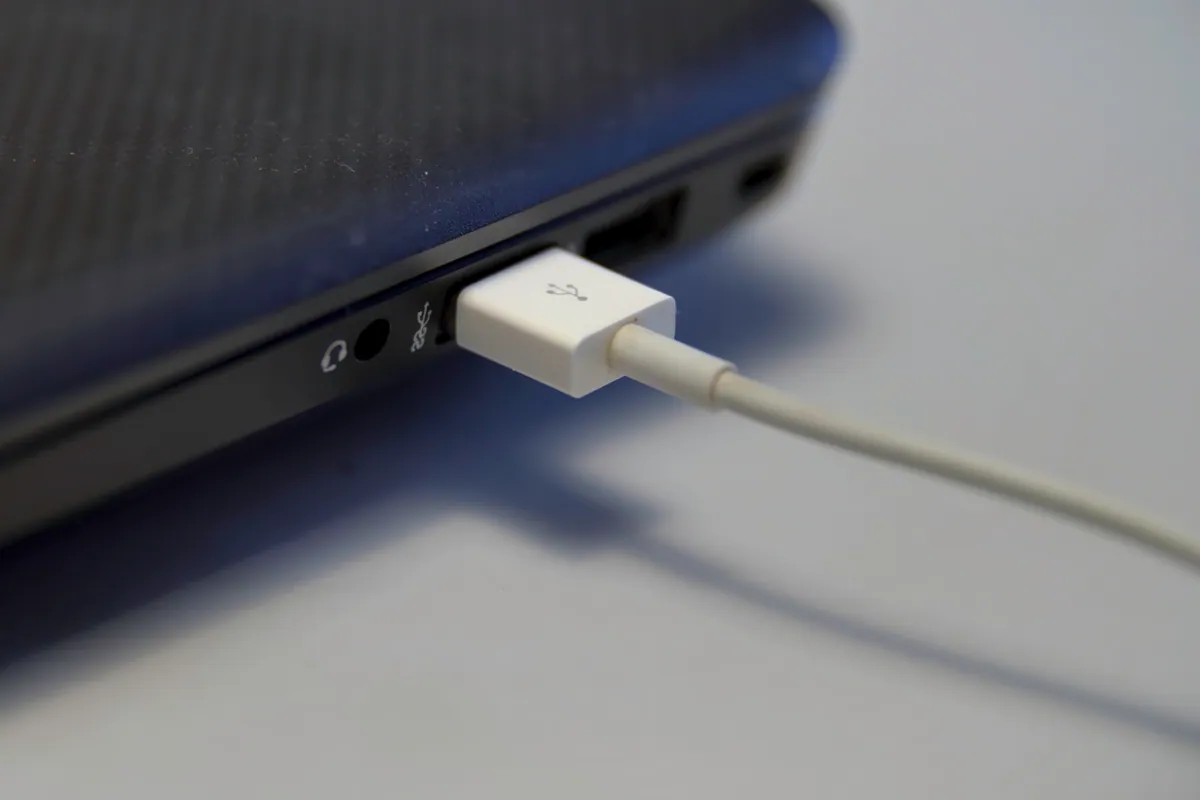
- Reseat both ends of the cable. HDMI and DisplayPort plugs work loose surprisingly easily, especially if the monitor sits at the back of a desk. Unplug and firmly push both ends home.
- Try a different cable. A cable that charges or carried video last week can still fail internally. This is the single most common culprit, so borrow a known-good one if you can.
- Try a different port. Many laptops and desktops have more than one video output. A dead or disabled port will look exactly like a dead monitor.
- Power-cycle the monitor. Switch it off at the wall for thirty seconds, then back on. Monitors run their own firmware and can hang.
If the screen springs to life after any of these, you’ve found your answer and saved yourself a lot of digging.
Sound like your problem?
Bring it to our Putney workshop or message us a photo and we will give you a straight answer and a quote before any work starts.
Check the input source on the monitor
This trips up more people than any other single thing. A monitor with several inputs — say HDMI 1, HDMI 2 and DisplayPort — will only show whatever input it’s currently set to. If your laptop is plugged into HDMI 2 but the monitor is watching DisplayPort, you get a black screen and a “no signal” message, even though everything is connected correctly.
Press the Input or Source button on the monitor (often a small button or joystick underneath the front edge) and cycle through until you match the port you actually plugged into. It’s a five-second check that resolves a genuinely large share of cases.
Force your computer to look again
Sometimes the hardware is fine but the operating system simply hasn’t noticed the new display.
- On Windows, press Windows + P and choose Extend or Duplicate. Then open Settings > System > Display and click Detect.
- On a Mac, open System Settings > Displays and hold the Option key — a Detect Displays button appears.
If the monitor shows up here but stays black, the signal is reaching it but at a mode it can’t display. Drop the resolution or refresh rate back to a safe default and build up from there.
Update or roll back the graphics driver
If detection still fails, the graphics driver is the next suspect — especially after a Windows update or a new machine. A corrupt or mismatched driver can disable a working output entirely.
Open Device Manager > Display adapters, right-click your graphics card and choose Update driver. If the problem started right after an update, use Roll Back Driver on the same menu instead. Where possible, get the driver straight from Intel, AMD or NVIDIA rather than relying on Windows Update, which often ships a generic version. A restart afterwards is worth the two minutes.
Watch out for the adapter and dongle
USB-C hubs, HDMI-to-USB-C dongles and cheap adapters are a frequent weak point. Not every USB-C port outputs video — the port has to support DisplayPort Alt Mode, and many budget laptops route video through only one specific port. If you’re going through an adapter, plug the monitor in directly first (or into a different USB-C port) to take the adapter out of the equation. Adapters also age and overheat, so a hub that worked for a year can quietly stop passing a signal.
Is it the laptop or the monitor? How to isolate the fault
Once the quick fixes are exhausted, the goal is to prove which device is at fault. The trick is to change one variable at a time:
- Plug the monitor into a completely different computer. If it works there, your monitor is fine and the fault sits with the laptop’s port, driver or graphics hardware.
- Plug a different, known-good screen (or a TV) into your laptop. If that second screen works, the original monitor is the problem.
- Note whether the monitor shows anything at all — even a “No Signal” logo floating on screen tells you the panel and backlight are alive, so the fault is upstream in the cable or computer.
If a laptop refuses to drive any external display through any port and cable, that points to a graphics or logic-board issue rather than a simple accessory fault — the kind of thing worth having looked at properly before you spend money on new cables you don’t need.
When to bring it to us
Most external-monitor faults are solved at the desk with the steps above. If you’ve swapped cables, checked the input, updated drivers and tested a second screen with no luck, the problem is likely inside the computer — a failing port, a graphics fault or a driver conflict that needs proper diagnosis.
That’s where we can help. Our Putney workshop handles PC repair and laptop repair, and for office setups with docks and multiple screens we also offer onsite IT support across South West London. Call us on 020 7610 0500, message us on WhatsApp, or use the contact form and we’ll help you get both screens working again.