Blue Screen of Death from Corrupt SSD? How to Diagnose & Fix It

Getting repeated BSODs? A failing SSD is often the cause. Step-by-step guide to check SSD health, identify the error, and decide whether to repair, replace, or recover data.

4 min read By PC Macgicians
Blue Screen recovery workflow after SSD corruption

If your Windows PC is stuck in repeated Blue Screen loops, a failing SSD can be the root cause. This guide explains how to identify the signs and what to do next.

Share this article:

Table of Contents

Blue Screen of Death and SSD Failure

Frequent Blue Screen crashes are often blamed on Windows updates or drivers, but storage failure is a common hidden cause. If your SSD is degrading, system files can become unreadable and Windows may crash before startup completes.

Typical warning signs

  • BSOD appears repeatedly during boot
  • Startup repair cannot complete
  • System freezes while loading Windows
  • Files go missing or become unreadable
  • Drive health utilities show SMART warnings

What to Check First

Before replacing hardware, run a structured diagnosis:

  1. Enter BIOS/UEFI and confirm the drive is detected consistently.
  2. Run a storage health test from a bootable diagnostic tool.
  3. Check Windows error logs for disk-related failures.
  4. Attempt recovery from a known-good USB installer.

If the drive disconnects intermittently or reports poor health, continuing to use it can increase data-loss risk.

Practical Repair Path

For systems with confirmed SSD corruption, the reliable route is:

  • Replace the failing SSD
  • Reconfigure BIOS boot order
  • Install Windows cleanly
  • Apply drivers and updates
  • Verify system stability under test load

Where data is still accessible, recover important files before full reinstall.

When to Get Professional Help

If your machine is trapped in crash loops or you are unsure whether the issue is SSD, RAM, or motherboard related, a professional diagnosis avoids unnecessary part swaps.

At PC Macgicians, we provide targeted PC Repair and SSD Upgrade services with clear recommendations and realistic turnaround times.

Need help with a BSOD issue now? Contact us and we will assess the fastest recovery route for your system.


Frequently Asked Questions

Can a failing SSD cause a Blue Screen of Death?

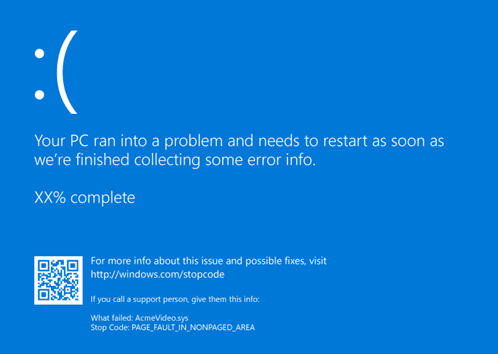
Yes — a failing SSD is one of the most common causes of repeated Blue Screens that other diagnostics miss. When SSD cells degrade, system files stored on those cells become unreadable. Windows crashes when it tries to access them. BSOD error codes like CRITICAL_PROCESS_DIED, PAGE_FAULT_IN_NONPAGED_AREA, and INACCESSIBLE_BOOT_DEVICE frequently point to storage problems rather than software faults.

How do I check if my SSD is causing crashes?

Run CrystalDiskInfo (Windows) to check S.M.A.R.T. data for reallocated sectors, pending sectors, or uncorrectable errors. In the Windows Event Viewer, look for disk error events around the time of each crash. If the BSOD error points to ntfs.sys, disk.sys, or storahci.sys, storage is very likely involved. You can also boot from a USB recovery drive and run chkdsk /r to check for file system errors.

Can data be recovered from a corrupted SSD?

Often yes, if the SSD still powers on and is partially readable. Software tools like Recuva or R-Studio can recover data from logically corrupted SSDs. Physically failed SSDs — those that don’t appear at all in Disk Management — require specialist hardware-level recovery. SSD data recovery is significantly harder than HDD recovery due to TRIM, wear levelling, and encryption. The sooner you stop using the drive, the better your chances.

Should I replace or repair a Blue-Screening SSD?

If the SSD has critical S.M.A.R.T. errors or is producing Blue Screens, replace it — SSDs don’t recover from cell degradation. The priority is getting your data off first before the drive fails completely. Once data is safe, a replacement SSD is straightforward to fit. If the Blue Screens are caused by file system corruption rather than hardware failure, a Windows repair install or full reinstall may resolve it without needing a new drive.

Helpful Internal Links

Need Help With This Issue?

Get expert help with PC Repair.

Author

PC Macgicians

Explore more

Related Posts

View all