Why your Windows drive keeps filling up
Windows needs breathing room. When the drive holding Windows (usually the C: drive) drops below roughly 10 to 15 per cent free, things start to go wrong: the machine slows, updates fail to install, temporary files can’t be written, and programmes throw odd errors. Under the bonnet, Windows uses free space for virtual memory, update staging and system restore points, so a nearly-full drive doesn’t just stop you saving files — it strangles the whole system.
The good news is that a lot of what fills a modern drive is genuinely disposable: temporary files, update leftovers, browser caches and forgotten downloads. The trick is clearing the safe things confidently while leaving the important things alone.
Sound like your problem?
Bring it to our Putney workshop or message us a photo and we will give you a straight answer and a quote before any work starts.
Start with the safe, built-in cleanups
Before installing anything, use the tools Windows already gives you. These only remove files Windows itself considers disposable, so they are a safe first pass.
- Storage Sense. Go to Settings > System > Storage. The bar at the top breaks your drive down by category — apps, temporary files, documents, and so on. Turn on Storage Sense to have Windows automatically clear temporary files and empty the Recycle Bin on a schedule.
- Temporary files. In that same Storage screen, click Temporary files. Tick items like Windows Update Cleanup, Delivery Optimisation files, Thumbnails and Recycle Bin, then remove them. Windows Update leftovers alone can reclaim several gigabytes on a machine that has had a few big feature updates.
- Empty the Recycle Bin. Obvious, but easy to forget — deleted files still occupy space until the bin is emptied.
On Windows 10 and 11 the older Disk Cleanup tool (search “Disk Cleanup”) still works too, and its Clean up system files button reaches update caches that the main view sometimes hides.
Find the big files eating your space
Cleaning temporary files often isn’t enough on its own — something large is usually hiding. The Storage breakdown in Settings is a good start, but to actually see which folders and files are the culprits, a visual disk-space map is far quicker.
Free tools such as WizTree or WinDirStat scan the drive and show you the biggest folders and files at a glance, sorted by size. Nine times out of ten this surfaces the real offenders:
- Video and photo libraries that have quietly grown to tens of gigabytes.
- Old Windows installations — a
Windows.oldfolder left behind after a version upgrade can be 15 to 30 GB on its own (clear it via Temporary files, not by deleting the folder by hand). - Downloads folder stuffed with installers, ISO files and PDFs you no longer need.
- Game installs — modern titles can be 100 GB each; uninstalling one or two you no longer play frees enormous space.
- OneDrive or Dropbox syncing everything locally. Switching to Files On-Demand keeps files in the cloud until you open them.
Sort by size, deal with the largest items first, and you’ll usually reclaim more in ten minutes than hours of cautious tidying.
What NOT to delete
It’s tempting to go hunting through system folders, but some space-savers cause more harm than good:
- Don’t delete files from
C:\Windows,Program Files, orAppDataby hand unless you know exactly what they are. - Don’t disable the page file to save space — it can cause crashes and instability.
- Be careful turning System Restore off entirely; it’s your safety net if an update goes wrong. Reducing its allocated space is fine.
- Never empty a folder just because it’s large — check what it is first. That 40 GB folder might be your only copy of family photos.
If files matter and you’re unsure, back them up to an external drive or the cloud before deleting anything. Recovering data that has been wiped from a full drive is far harder and more expensive than copying it out beforehand.
When the real fix is a bigger SSD
Here’s the honest bit we tell customers in the workshop: if you’re clearing space every few weeks, tidying up has stopped being maintenance and become a chore that masks the real problem. The drive is simply too small for how you use the machine.
This is especially common on laptops and pre-built PCs that shipped with a 128 GB or 256 GB SSD. After Windows, Office, a couple of apps and a photo library, there’s barely room left — and Windows performs poorly when it’s constantly running near full.
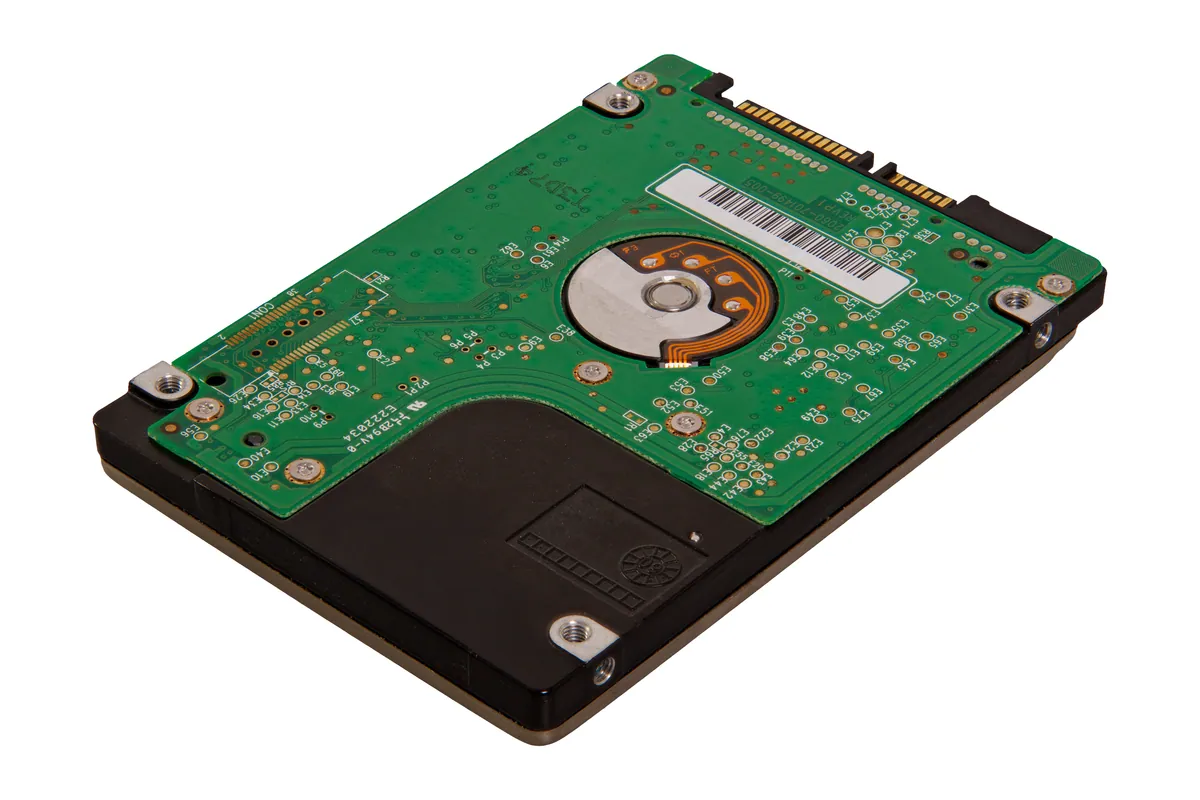
Upgrading to a larger SSD (say 500 GB or 1 TB) solves the space problem permanently and, if you’re moving from an older or smaller drive, often makes the whole machine feel faster too. In most laptops and desktops it’s a straightforward swap, and your Windows installation, programmes and files can be cloned across so nothing is lost. An SSD upgrade is one of the most cost-effective improvements we fit — cheaper than a new machine and dramatic in effect.
If the drive keeps filling and the PC feels sluggish generally, a PC health check is the sensible starting point. We’ll check the drive’s health (a failing drive sometimes reports odd space behaviour), see whether a larger SSD is the answer, and flag anything else that’s dragging performance down before it turns into a bigger fault.
Get help if the drive keeps filling up
Freeing space yourself is usually straightforward — but if you’ve cleared everything you safely can and the drive is still full, or the machine keeps warning you week after week, it’s worth getting it looked at properly. Call PC Macgicians on 020 7610 0500, message us on WhatsApp, or use the contact form. You’re also welcome to bring the machine into our Putney workshop, where we can check the drive, clone your data across to a larger SSD if that’s the right move, and hand it back with room to breathe.