Laptop overheating in South West London? We clean cooling systems and replace thermal paste across Putney, Clapham, Wimbledon, Wandsworth, and surrounding areas — usually fixed same day. Book a repair or call 020 7610 0500.
Why Laptops Overheat
A laptop’s cooling system is straightforward: the CPU and GPU generate heat, a copper heatsink conducts it away from the chip, and a fan blows that heat out through the vents. When any part of that chain isn’t working properly, temperatures rise.
The two most common causes are dust blockage and dried thermal paste — and after a few years of regular use, both tend to happen at the same time.
Dust accumulates inside the cooling system gradually. It builds up on fan blades, coats the heatsink fins, and eventually blocks the exhaust vent almost completely. The fan spins harder trying to compensate — which is why you hear it screaming during tasks that used to be quiet — but if the air can’t get out, fan speed doesn’t help.
Thermal paste sits between the CPU die and the heatsink baseplate. Its job is to fill the microscopic gaps between the two surfaces and transfer heat efficiently. Over time — typically three to five years in regular use, sometimes sooner in hot environments — thermal paste dries out and cracks. Once that happens, the heatsink can no longer draw heat away fast enough, and temperatures climb even when the airflow is fine.
Signs Your Laptop Is Throttling
Thermal throttling is the processor deliberately slowing itself down to generate less heat. It’s a protection mechanism built into every modern CPU, but it means your laptop runs slower than it should — sometimes dramatically so.
Common signs to look for:
- Fan at full speed even during light tasks like browsing or watching video
- Laptop uncomfortably hot to the touch, especially around the vents and near the hinge
- Tasks that were previously smooth — video calls, spreadsheets, light editing — now cause lag or stutter
- Unexpected shutdowns with no warning, particularly under load
- Performance that’s noticeably worse than when the laptop was newer
You can verify throttling by installing HWMonitor on Windows, which shows live CPU temperatures and clock speeds. If you’re regularly hitting 90–95°C under moderate load, or you can see the clock speed dropping well below the processor’s base frequency, the cooling system needs attention. On a Mac, Activity Monitor shows per-process CPU usage, and the system will log thermal events in the Console app if throttling is occurring.
What You Can Do Yourself
Blowing out the vents with compressed air is the safest starting point and worth doing before anything else. Hold the can upright, point it at the exhaust vent (usually on the side or rear of the laptop), and use short bursts rather than one long continuous blast. The liquid propellant can damage components if the can is tilted, so keep it straight. You’ll see dust come out — keep going until it stops.
This helps, but it’s limited. The worst dust build-up is on the internal heatsink fins, not at the vent opening, so compressed air from outside only goes so far.
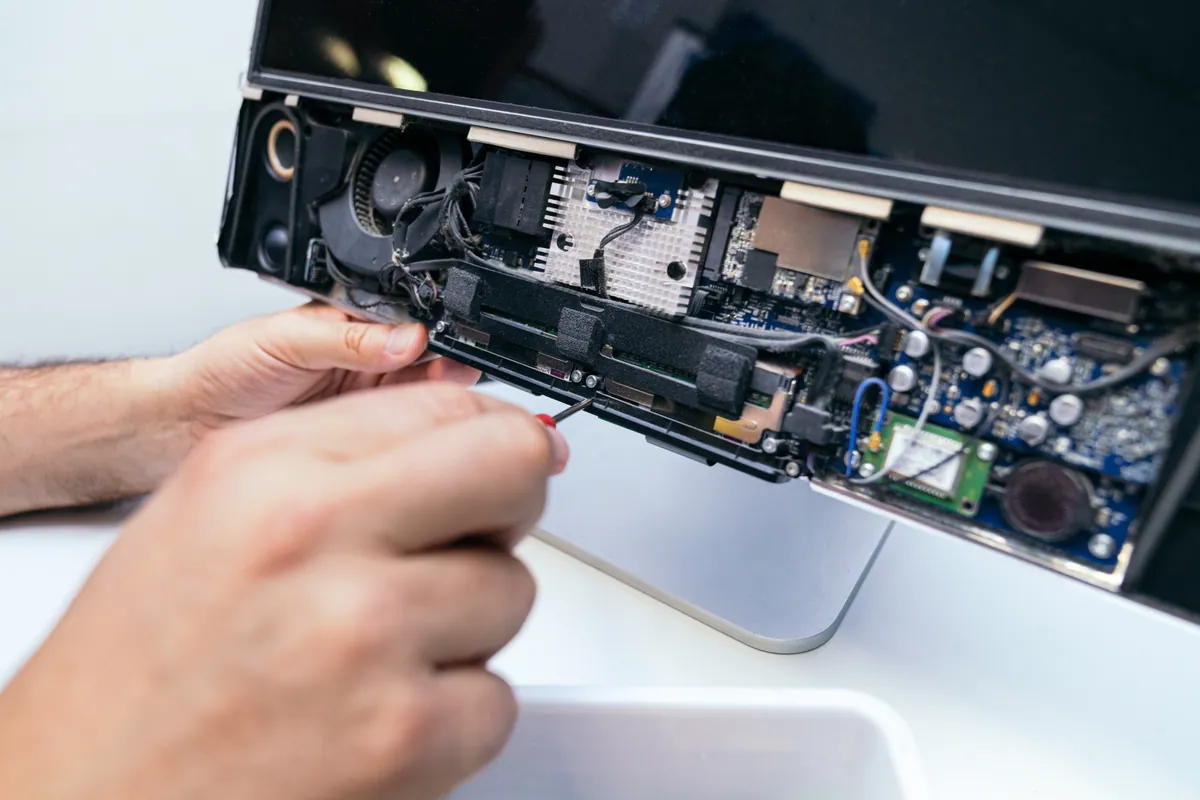
Opening the laptop to clean internally is more involved but usually straightforward on most Windows laptops. The back panel is typically held on by Phillips screws — check under rubber feet and any stickers, as manufacturers often hide screws there. A plastic spudger or a flat guitar pick helps separate the panel without scratching it.
Once inside, hold the fan blades still with a finger and blow compressed air directly through the heatsink fins and out the vent. A soft brush or cotton bud can get dust off the fan blades that air doesn’t shift. The difference between the before and after is usually striking on a laptop that hasn’t been opened in two or three years.
When Thermal Paste Needs Replacing
Cleaning helps immediately, but if the paste has dried out, temperatures will still run higher than they should even after the dust is gone.
Replacing thermal paste means removing the heatsink, cleaning off the old compound, and applying fresh paste. The process itself isn’t complicated:
- Locate and remove the heatsink screws (typically four, sometimes more on gaming laptops)
- Lift the heatsink gently — dried paste may have bonded it slightly, so take it slowly
- Clean both the CPU die and the heatsink contact plate with isopropyl alcohol (90%+) and a lint-free cloth or cotton bud until both surfaces are completely clean
- Apply a small, centred amount of new paste — roughly the size of a grain of rice for smaller chips, a pea for larger ones. Arctic MX-4 and Thermal Grizzly Kryonaut are both reliable choices
- Reattach the heatsink and tighten screws in a cross pattern to ensure even contact pressure
The risk isn’t the paste itself — it’s the disassembly. Some laptops have delicate ribbon cables routed near the heatsink. Gaming laptops often have complex heatsink arrangements with multiple heat pipes covering both CPU and GPU, and getting the screw order wrong or applying uneven pressure can create new problems. If you’re not certain about the disassembly, it’s worth having it done professionally rather than risk making things worse.
A well-done respace typically brings temperatures down by 10–20°C under load and can add two or three years to a laptop’s useful life.
Sound like your problem?
If you'd rather not tackle the disassembly yourself, or the laptop is already shutting down unexpectedly, bring it in. An overheating service is usually done same day.
What We Do When We Service an Overheating Laptop
At our Putney workshop, an overheating service covers:
- Full internal clean with compressed air and brushwork on the heatsink and fan
- Thermal paste replacement on both CPU and GPU where applicable
- Fan inspection — we replace fans that are noisy or no longer spinning at the correct speed
- Temperature testing under sustained load before the laptop is returned
Most laptops come back running 15–20°C cooler under the same workload, and the fan stays quiet during normal use rather than spinning up constantly.
If the laptop is already shutting down unexpectedly or the fan sounds strained, it’s worth sorting before the sustained thermal stress causes more serious damage to the logic board or storage. Call 020 7610 0500 or book a repair online.