Why phone photos are the most vulnerable files you own
A phone is dropped down the loo, left in a taxi, or has its screen shattered far more often than a laptop dies. Yet for most people the phone is where a decade of birthdays, holidays and everyday moments actually lives. When a customer brings in a water-damaged handset, the first question is almost never about the phone itself — it is “are my photos gone?” Often they are recoverable, but not always, and the recovery is far more expensive and stressful than a backup that costs nothing and runs by itself.
The goal is simple: your photos should exist in at least two places, so that losing the phone never means losing the pictures. Here is how to set that up properly on both platforms.
Sound like your problem?
Bring it to our Putney workshop or message us a photo and we will give you a straight answer and a quote before any work starts.
Backing up an iPhone with iCloud Photos
The built-in option on iPhone is iCloud Photos. Go to Settings, tap your name at the top, then iCloud, then Photos, and switch on Sync this iPhone. Every photo you take is then uploaded automatically and stays in sync across your other Apple devices.
The catch is storage. Apple gives you only 5GB free, which a modern camera roll fills within weeks. A paid iCloud+ tier (50GB, 200GB or 2TB) is usually needed, at a few pounds a month. It is worth it, but be aware of one trap: iCloud Photos is a sync, not a true backup. If you delete a photo on your phone, it disappears from iCloud too (though it sits in Recently Deleted for 30 days first). That is why a second, independent copy matters — more on that below.
If your iPhone storage is full, turn on Optimise iPhone Storage in the same menu. Full-resolution images live in iCloud while smaller previews stay on the device, freeing up space without losing quality.
Backing up an Android phone with Google Photos
On Android — and on iPhone too, if you prefer — Google Photos is the most popular option. Open the app, tap your profile picture, then Photos settings, then Backup, and turn it on. Choose Original quality if you want pixel-perfect copies, or Storage saver for lightly compressed versions that use far less space.
Google gives 15GB free across Gmail, Drive and Photos combined, so heavy shooters will eventually need a Google One subscription. Samsung owners also have Samsung Cloud, but Google Photos is more portable if you ever switch phones. As with iCloud, treat it as one copy, not your only copy.
Keeping a local copy as well
Cloud backup is convenient, but relying on a single provider leaves you exposed if an account is locked, hacked, or closed. A local copy you physically control is the reassurance that pays off on the worst day.
- iPhone to a computer: connect with a cable and import photos using the Photos app on a Mac, or the Windows Photos app / File Explorer on a PC. Copy the imported library to an external drive.
- Android to a computer: connect via USB, set the phone to File transfer (MTP) mode when prompted, then drag the DCIM folder to your PC or Mac, and onward to an external drive.
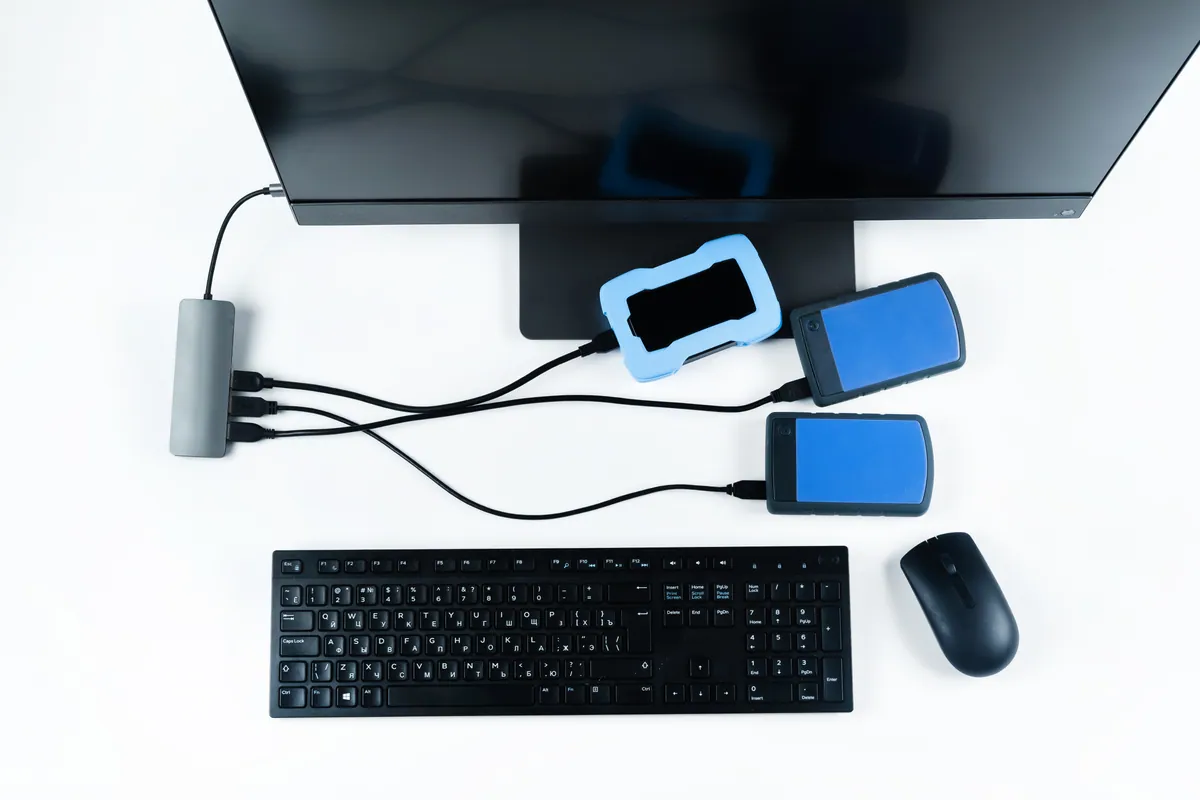
- Either phone to an external drive directly: modern phones with USB-C can copy straight to a portable SSD using a simple adapter.
This mirrors the well-known 3-2-1 principle: keep the copy on your phone, one in the cloud, and one on a drive at home. If you have thousands of images spread across old devices, our cloud migration service can consolidate them into one organised, backed-up library rather than scattered folders.
Avoiding the accidental-loss traps
Most photo losses we see are not dramatic failures — they are small mistakes that snowball:
- Deleting to free up space without checking the cloud copy actually finished uploading. Wait for the “Backup complete” confirmation first.
- Signing out of iCloud or Google to fix an unrelated problem, then finding sync stopped for months.
- Running out of free storage, so new photos silently stop backing up. Check occasionally that uploads are current.
- A shared family account where someone else empties the Recently Deleted folder.
Set a monthly reminder to open your photos app and confirm the last backup date, exactly as you would glance at a car’s fuel gauge. Two minutes now saves a genuine heartbreak later.
When photos are already gone
If a phone has died, been dropped in water, or a photo library has been wiped and there is no backup, do not keep using the device — continued use can overwrite the very data you want back. Power it down and bring it in. Recovery from phones is more involved than from a hard drive, but it is often possible, and a professional data recovery attempt is far safer than DIY apps that can make things worse. Better still, once your photos are safe again, let us set up automatic backup solutions so it never happens twice.
If you would like a hand setting up reliable photo backups, migrating years of images into one organised library, or recovering pictures from a damaged phone, call PC Macgicians on 020 7610 0500, drop into the Putney workshop, or use our contact form. We will get your memories safely in more than one place.