Why Your Wi-Fi Doesn’t Reach
A wireless signal weakens the further it travels and every time it passes through something solid. Floors, thick Victorian walls, chimney breasts, foil-backed insulation, large mirrors, and even fish tanks all absorb or reflect it. So the problem is rarely that your broadband is slow — it’s that the signal leaving your router can’t physically reach the far corners of your home.
That’s an important distinction, because it changes the fix. If your connection drops out or stutters even when you’re sitting next to the router, that’s a stability problem — work through our guide on what to do when your internet keeps dropping instead. If the signal is fine nearby but weak or absent in certain rooms, you have a coverage problem, and this guide is for you. And if your device shows full bars but nothing loads at all, that’s neither — see our guide to Wi-Fi connected but no internet.
Sound like your problem?
Bring it to our Putney workshop or message us a photo and we will give you a straight answer and a quote before any work starts.
Step 1: Try the Free Fixes First
Before buying any kit, rule out the changes that cost nothing. For a surprising number of homes, these alone solve the dead spot.
Reposition your router
Router placement is the single biggest free win:
- Get it central and high. A router in a hallway cupboard or on the floor by the front door broadcasts half its signal into the street. Move it as central as your master socket allows, and up on a shelf rather than on the ground.
- Out in the open. Keep it away from thick walls, metal, and other electronics. Don’t tuck it behind the TV or inside a media cabinet.
- Stand the aerials correctly. If your router has external aerials, one vertical and one horizontal often gives the best spread across floors and rooms.
Use the right frequency band
Most routers broadcast on two bands. 2.4 GHz travels further and through walls better but is slower and more congested; 5 GHz is much faster but has a shorter reach. For a distant room, make sure your device can fall back to 2.4 GHz; for speed near the router, force 5 GHz.
Change the Wi-Fi channel
In a block of flats or a terraced street, your neighbours’ networks crowd the same channels and cause interference that looks like weak signal. Logging into your router and switching the 2.4 GHz network to channel 1, 6, or 11 (whichever is least used nearby) can noticeably improve things.
Update the firmware
An out-of-date router can underperform or drop connections. Log in to its settings page and install any firmware update — it’s free and occasionally fixes range and reliability outright.
If you’ve done all of the above and a room is still dead, the signal genuinely isn’t reaching it. Now it’s a question of which piece of kit to add.
Step 2: Choose the Right Solution
This is where most people go wrong — they buy a cheap plug-in extender, get disappointing results, and assume nothing works. Each option suits a different property and problem. Here’s how they compare:
| Solution | Best for | Pros | Watch out for |
|---|---|---|---|
| Mesh system | Whole-home coverage, larger or multi-floor properties | Seamless roaming on one network name; easily expandable; strong, consistent speeds | Higher upfront cost; best results need nodes wired or well-placed |
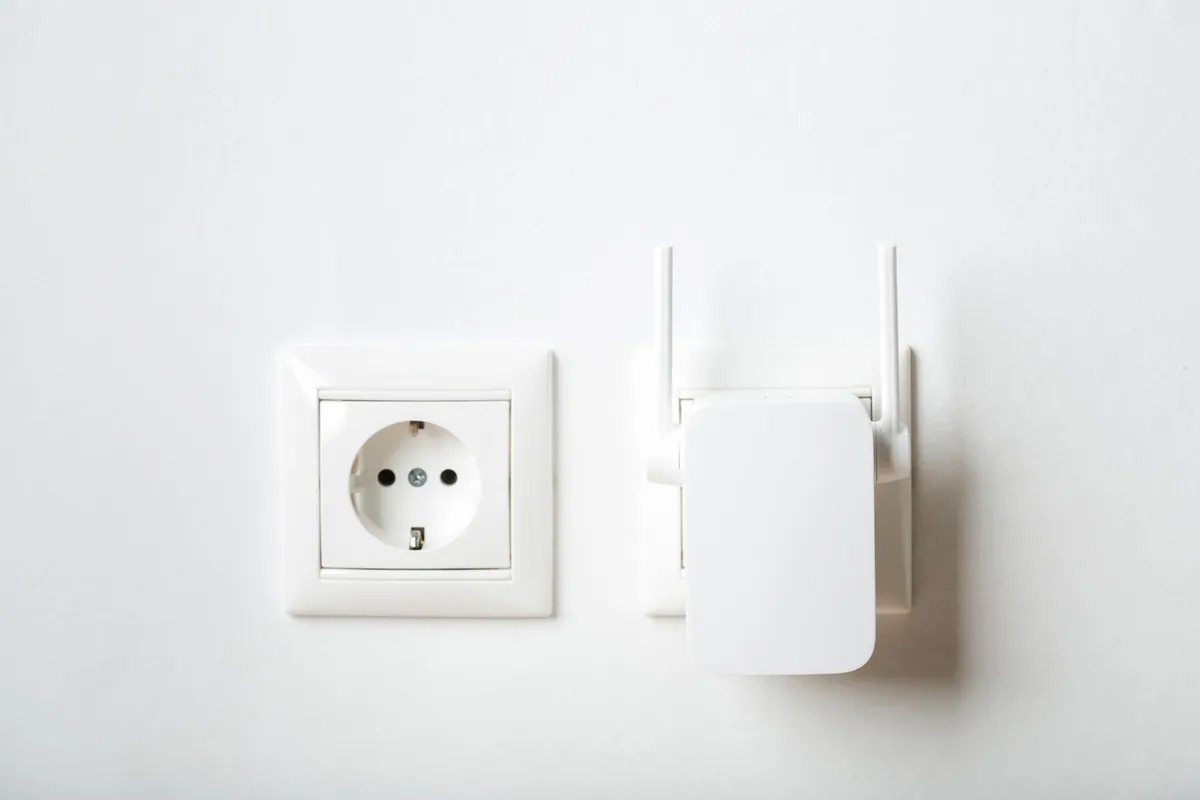
| Wi-Fi extender / booster | Filling a single dead spot cheaply | Inexpensive; quick to set up | Often creates a second network; can halve speed; poor if placed too far from the router |
| Powerline adapter | Reaching a room or garden office through electrical wiring | Uses existing power circuit; good through thick walls where Wi-Fi fails | Performance depends on your wiring; struggles across separate circuits/consumer units |
| Wireless access point | Permanent, high-performance coverage in a specific area | Excellent, stable signal; ideal with an Ethernet run | Needs a cable to the router; more involved to install |
When to choose what
- A whole house with patchy coverage: a mesh system (Google Nest, Eero, TP-Link Deco, or similar) is almost always the right answer. It replaces the single-router model with several nodes that hand your devices over seamlessly as you move around.
- One stubborn room: a single extender or powerline adapter is the cheapest fix. Powerline tends to be the more reliable of the two through solid walls.
- A garden office or outbuilding: a powerline adapter, an outdoor access point, or — best of all — a buried Ethernet cable feeding a node. Plain Wi-Fi rarely survives the trip across a garden.
- A permanent, no-compromise fix in one spot: a wired access point. If you can get an Ethernet cable to the location, this beats everything for stability.
Common Scenarios
“Wi-Fi is fine downstairs but weak upstairs.” Floors block signal more than you’d expect. A mesh node or access point on the upstairs landing usually fixes it; a powerline adapter into an upstairs socket is the budget alternative.
“Thick walls kill the signal.” Period properties with solid brick or stone defeat most extenders. Powerline adapters (which travel through the wiring, not the air) or hardwired access points are the dependable choices here.
“I need Wi-Fi in the garden.” Treat this as a wired problem first: a powerline adapter or, ideally, an Ethernet cable to an outdoor-rated access point gives far better results than hoping a booster will punch through an external wall.
When to Call a Professional
You can absolutely tackle the free fixes and a plug-in extender yourself. It’s worth getting help when:
- you’re investing in a mesh system or access points and want them placed and configured correctly the first time;
- you need an Ethernet cable run cleanly to an upstairs room or garden;
- coverage problems persist after you’ve tried the basics, and you want it diagnosed properly rather than by trial and error.
Our Wi-Fi setup and signal improvement service does exactly this: we survey your property, identify the dead spots, recommend the right solution for your layout and budget, and install and test it so every room is covered. We work across South West London, with remote advice available UK-wide. You can also browse more guides in our Support Centre.