How to Replace a MacBook Air Battery
Our MacBook Repair Service
Battery problems can significantly affect productivity. Whether you are studying late or managing business tasks on the move, a failing battery can disrupt your day.
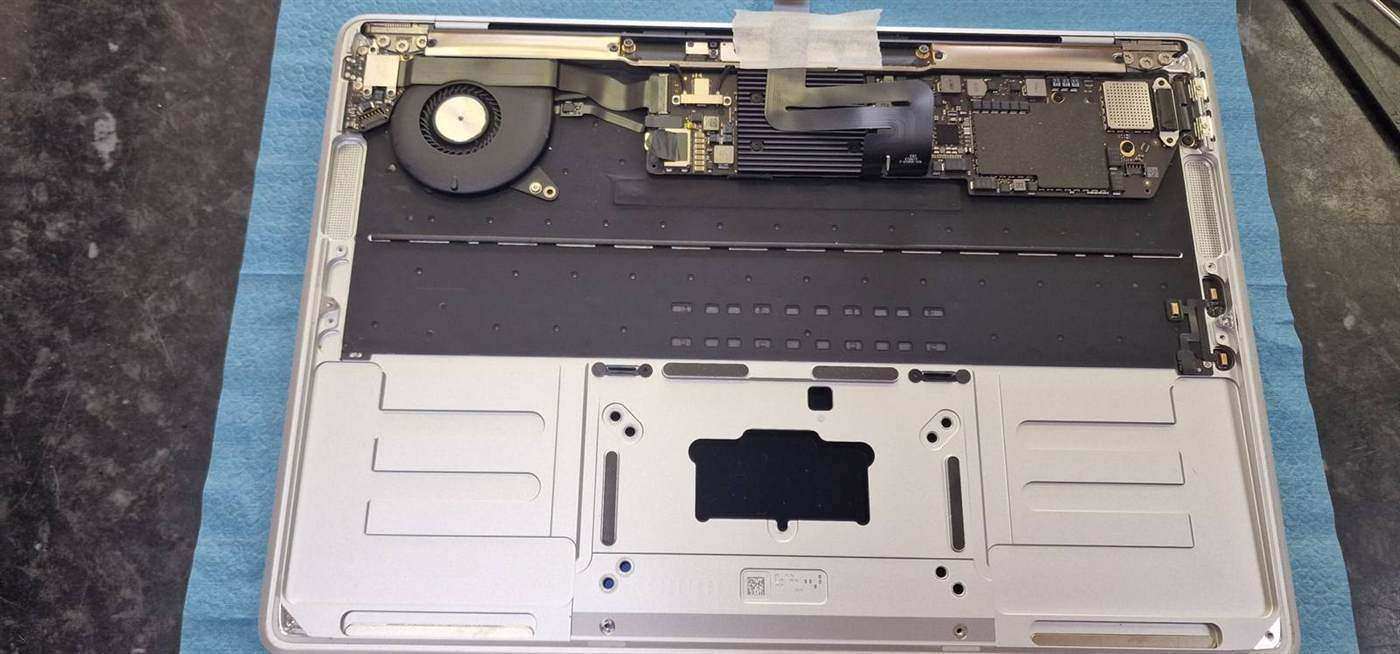
Recently, a client brought us a MacBook Air A1932 (EMC 3184) with rapid battery drain, random shutdowns, and intermittent charging issues. The system also showed the “Service Recommended” warning. We diagnosed the battery as worn and replaced it with a new A1965 unit.
The Problem: MacBook Wouldn’t Hold a Charge
The client had used the device for several years. Battery health had dropped below 75%, and the MacBook shut down unexpectedly, even around 30% charge.
We confirmed this in System Information > Power, where cycle count was close to 1000 (around Apple’s upper expected range for this model).
Step-by-Step: Replacing the Battery in a MacBook Air A1932
If you prefer DIY repair, follow these steps carefully. If you’re not confident opening a MacBook, use a professional repair service.
Tools You’ll Need
- Pentalobe screwdriver
- T5 Torx screwdriver
- Plastic spudger
- Tweezers
- Replacement A1965 battery (OEM or high-quality compatible)
1. Power Down and Unplug
- Shut down the MacBook completely.
- Disconnect the charger and all peripherals.
- Place the laptop on a clean, static-safe surface.
2. Remove the Back Cover
- Remove the 10 bottom screws with a Pentalobe screwdriver.
- Lift the back cover carefully and set it aside.
3. Disconnect the Battery
- Locate the battery connector on the logic board.
- Use a plastic spudger to disconnect it safely.
4. Remove Speakers if Required
- On some units, speaker and trackpad cabling can block access.
- Disconnect and move these components gently where needed.
5. Remove the Old Battery
- Unscrew the battery with a T5 Torx driver.
- Release adhesive tabs (if present).
- Lift the battery slowly without stressing flex cables.
6. Install the New Battery
- Position the new A1965 battery.
- Reconnect the battery cable.
- Refit and tighten original screws.
7. Reassemble the MacBook
- Reinstall any removed components.
- Refit the bottom case and screws.
8. Power On and Test
- Boot the MacBook.
- Re-check
System Information > Power. - Confirm charging behaviour is stable.
The Result: Full Power, Fresh Start
The customer was back up and running in under an hour.
- Battery life improved from around 45 minutes to over 7 hours
- Random shutdowns stopped
- Charging became stable and consistent
Why Battery Health Matters
A failing battery can:
- Cause sudden shutdowns and possible unsaved work loss
- Trigger thermal throttling and slower performance
- Force constant charger dependency
- Eventually prevent normal startup
We usually recommend battery replacement when health drops below 80% or cycle count is very high.
When to Call PC Macgicians
If you are not comfortable opening your MacBook, we can handle the full process safely.
We provide:
- Professional MacBook battery replacement
- Genuine A1965 battery installation for MacBook Air A1932
- Charging and power diagnostics
- MacBook repair across London
Final Thoughts
A battery replacement is often one of the most cost-effective ways to extend the life of a MacBook Air.