Old Data, New Laptop: Transfer Data Safely and Quickly
Switching to a new laptop should feel exciting, not stressful. At PC Macgicians, we recently helped a customer move from a MacBook Pro A1502 (EMC 2678) to a newer MacBook Pro A2141 (EMC 3347) without losing files, apps, or settings.
Their goal was simple: open the new Mac and feel immediately at home.
Sound like your problem?
Bring it to our Putney workshop or message us a photo and we will give you a straight answer and a quote before any work starts.
Migration Goal
- Move documents, folders, and media safely
- Preserve app availability and key settings
- Keep login access, email setup, and desktop layout consistent
- Minimise downtime
Our Migration Workflow
Phase 1: Prepare Both Macs
- Confirm both devices support Migration Assistant
- Check macOS versions and available storage
- Recommend a full Time Machine backup before starting
Phase 2: Use a Stable Transfer Connection
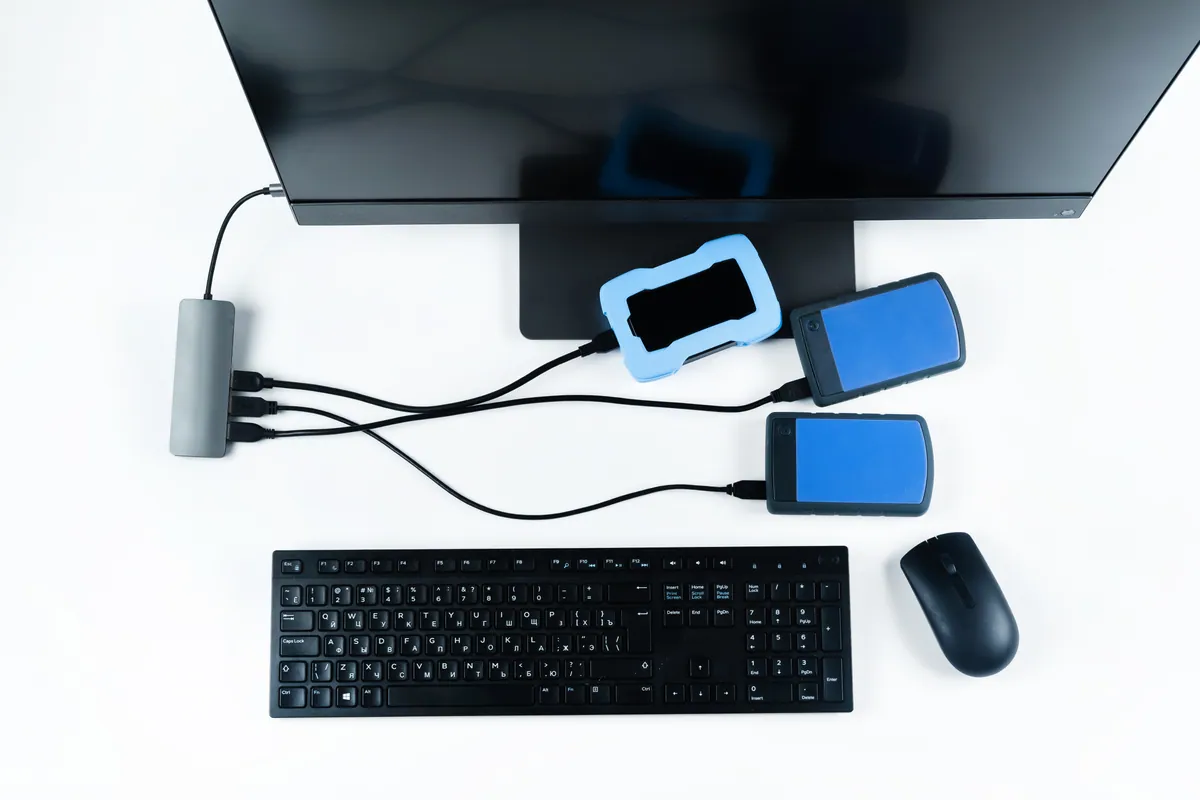
- Prefer a direct high-speed cable connection (Thunderbolt/Ethernet where applicable)
- Use reliable Wi-Fi only when wired transfer is not practical
Phase 3: Run Migration Assistant Correctly
- Open Migration Assistant on both Macs from
Applications > Utilities - Select
From a Mac, Time Machine backup, or startup diskon the destination Mac - Select
To another Macon the source Mac - Verify matching security codes before continuing
Phase 4: Select Data Carefully
- Choose required user accounts, applications, and files
- Exclude outdated or unnecessary items
- Keep only what the customer actually needs on day one
Phase 5: Complete and Restart
- Start the migration and allow uninterrupted completion
- Monitor progress on both devices
- Restart the new Mac when prompted
Phase 6: Post-Migration Verification
- Sign in with expected user credentials
- Validate folder structure and key documents
- Open priority apps and re-authenticate where needed
- Confirm mail accounts, preferences, and desktop layout
Result
The customer logged into the new MacBook and found a familiar environment with files, apps, and settings in place. The migration was completed with minimal setup overhead and no data-loss issues.
Migration Snapshot
- Old laptop: MacBook Pro A1502 (EMC 2678)
- New laptop: MacBook Pro A2141 (EMC 3347)
- Software context: macOS migration workflow via Migration Assistant
- Data transferred: apps, documents, folders, settings, and profiles
- Customer outcome: smooth transition with minimal disruption
Need Help Moving to a New Laptop?
If you want a safe migration with less risk and less downtime, we can help.