The printer is the easy part
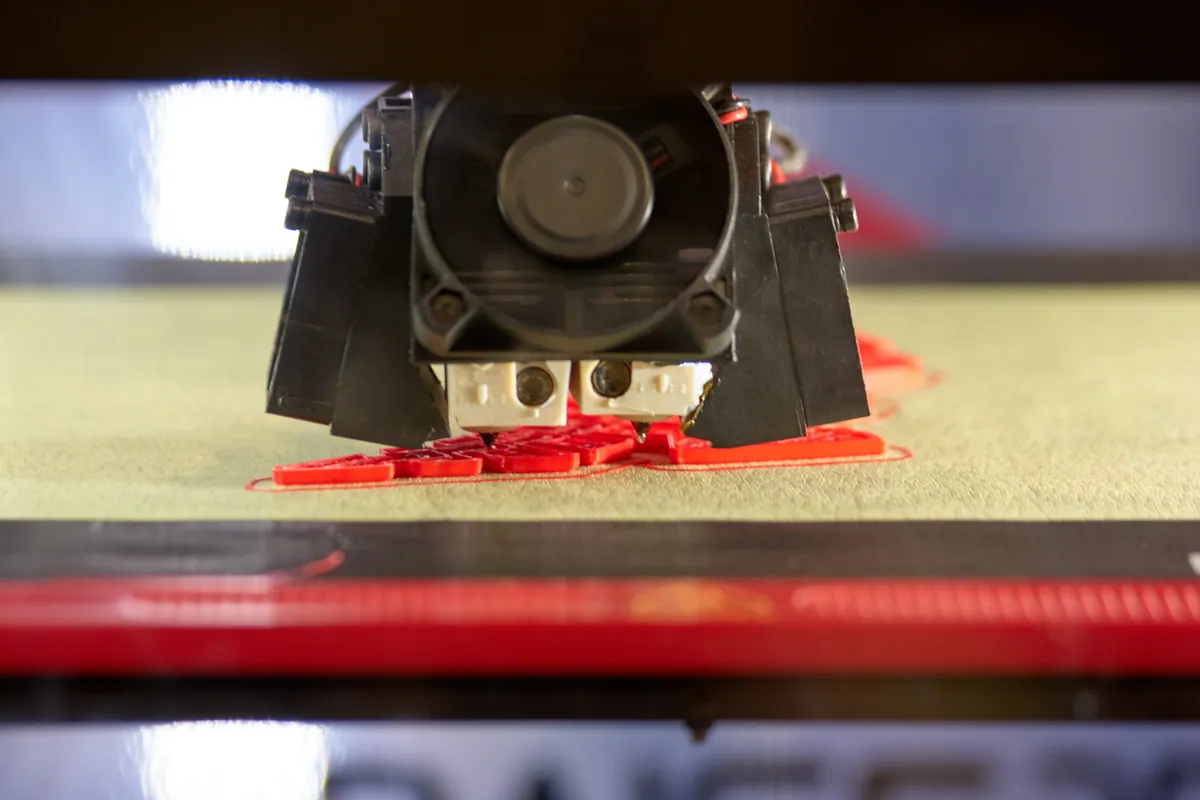
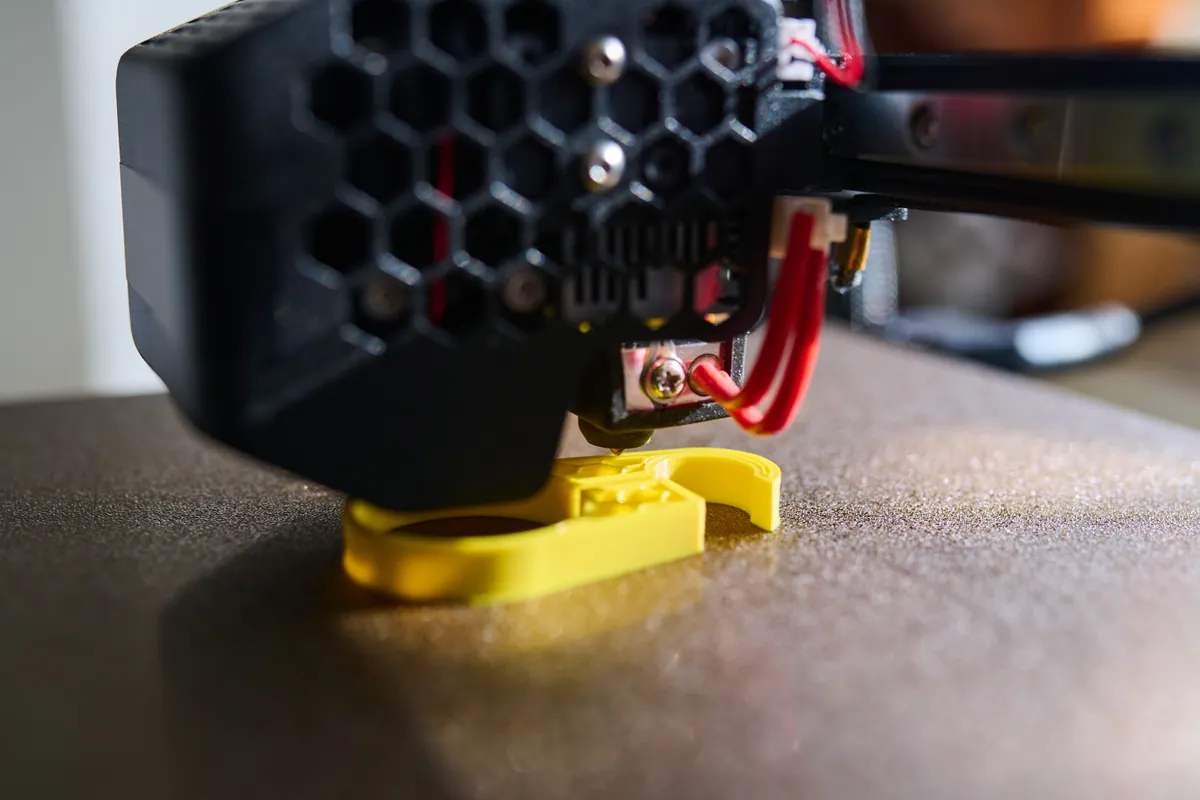
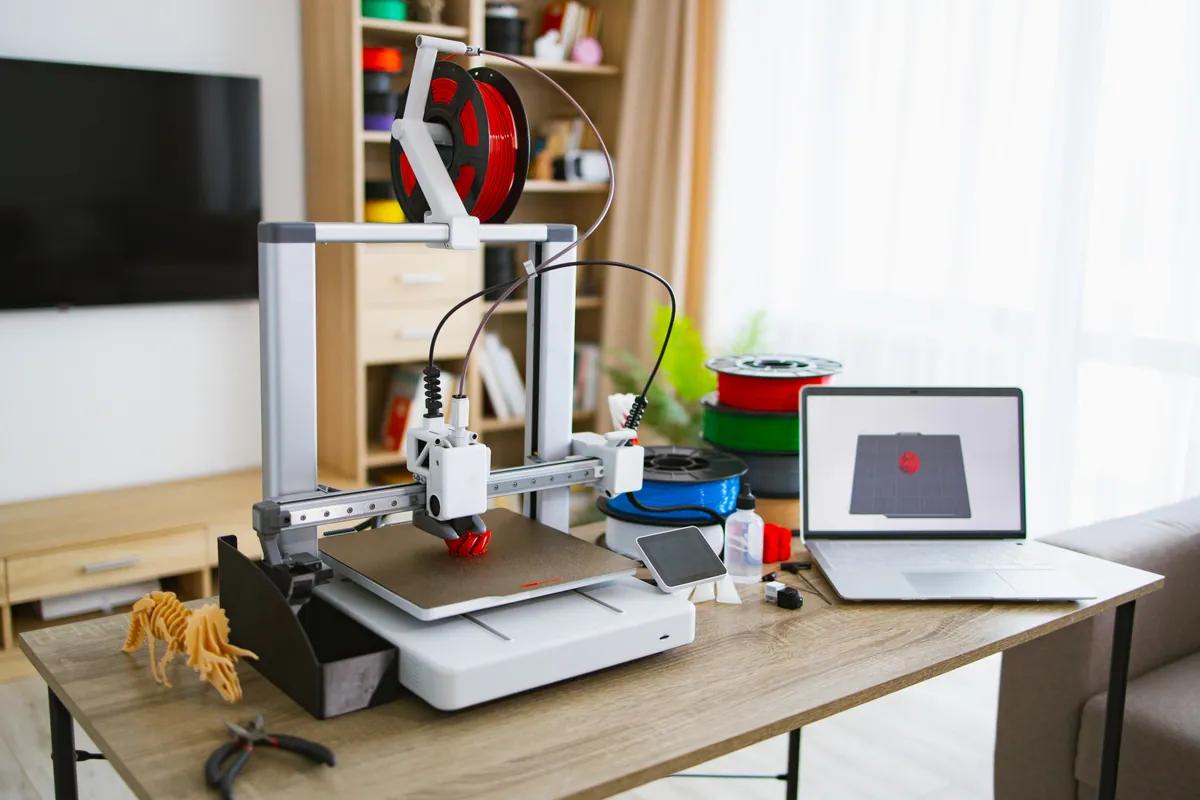
A kids’ 3D printer is a real 3D printer in a friendlier case. It melts a thin plastic filament and builds a toy layer by layer, while an app or website handles everything a hobbyist would normally do in specialist software. That is what makes printers like Toybox good presents: children choose from a catalogue, press print and watch.
What the box does not make obvious is that the first print depends on three things working together: the printer, your home Wi-Fi and an online account. When families get stuck, it is almost always one of those three, and very rarely a fault with the printer itself.
We set one up for a family in Chelsea at the end of October who had plugged it in and got no further. The printer was fine. The Wi-Fi was the problem.
Sound like your problem?
Bring it to our Putney workshop or message us a photo and we will give you a straight answer and a quote before any work starts.
1. Check your Wi-Fi before anything else
This is the snag we see most. Toybox’s own instructions are clear that its printers can only connect to a 2.4 GHz Wi-Fi network, and many other app-connected printers have the same limitation.
Most modern routers broadcast on two bands, 2.4 GHz and 5 GHz, and many merge both under a single network name. Phones and laptops cope with that without anyone noticing. A printer that only speaks 2.4 GHz may refuse to connect.
How to tell: if your phone shows only one network name for your home, your bands are probably combined. Before the big day, find out how to separate them in your router’s settings, or how to switch on a separate 2.4 GHz network. Your broadband provider’s help pages usually explain it, and it is a quick job once you know where the setting is. We did exactly that for a Raynes Park household whose 2.4 GHz-only device would not connect.
Also check the signal where the printer will live. A spare-room shelf at the far end of the house may have weak Wi-Fi even if the living room is fine.
2. Create the account in advance
Toybox printers link to an online account. During setup the printer joins your Wi-Fi, then shows a six-digit code on its screen that you enter in the app to add it to your account.
Create the account and install the app on the parent’s phone or tablet beforehand, and check you can sign in. That removes one whole layer of passwords and confirmation emails from Christmas morning.
3. Consider a dry run
If you can, unbox the printer a few days early, connect it, let it install any firmware update it asks for, and run one small test print. Then pack it away again.
New devices often want a software update the first time they go online, and that is not something you want running while a child waits. A dry run also confirms the whole chain works, so on the day the only job left is choosing the first toy.
If a dry run is not possible, at least do steps 1 and 2.
4. Have the basics ready
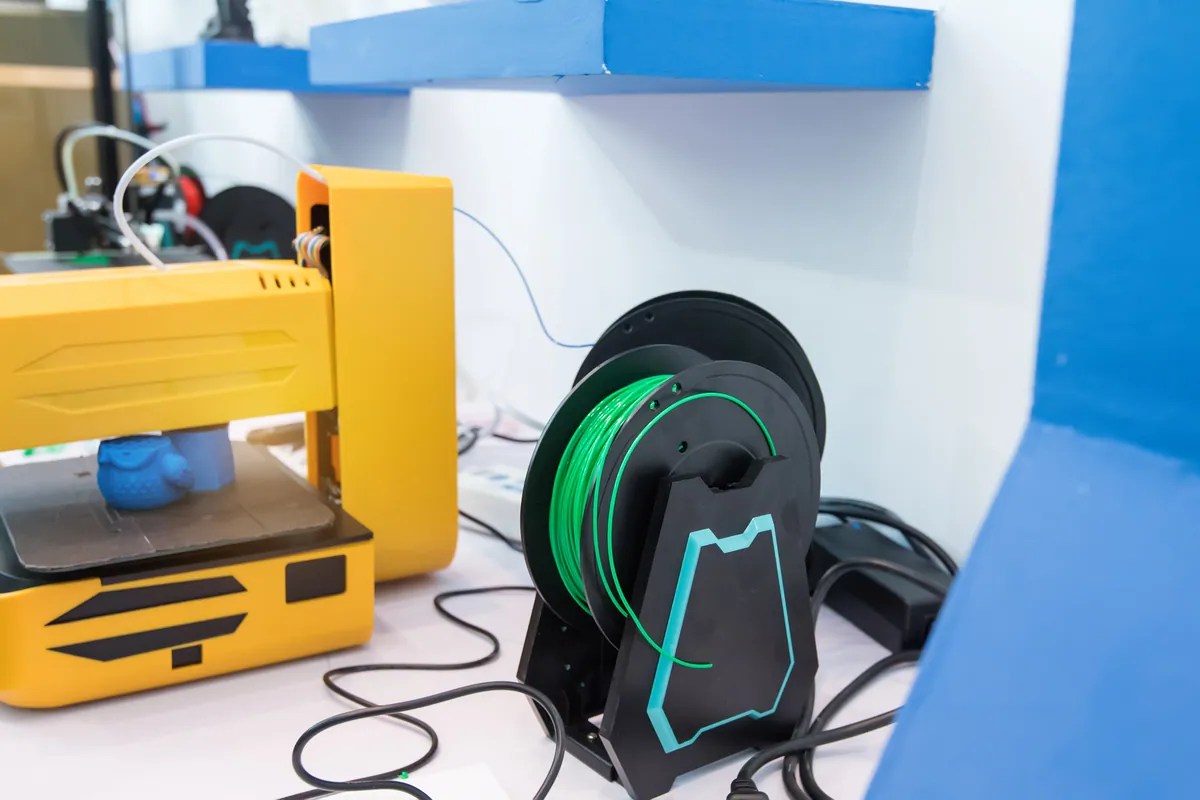
- Filament. Toybox printers use 1.75 mm PLA. Check what comes in the box and consider a spare roll, so a new hobby does not stall when the first one runs out.
- A stable spot. A firm, level surface away from curtains and clutter, in a room with some ventilation.
- Realistic expectations. Even small toys take from half an hour to a few hours. Start with something quick.
- An adult who knows the controls. Someone should know how to start, pause and cancel a print, and how to take a finished toy off the bed without forcing it.
5. Know when to ask for help
If the printer will not join the Wi-Fi after you have separated the bands, the setup network does not appear on your phone, or prints fail to stick to the bed, the manufacturer’s help centre is the first stop. Toybox’s walks through the common Wi-Fi and pairing problems in plain steps.
If you would rather someone else handled it, our 3D printer setup visits cover exactly this: Wi-Fi, app and account, filament, firmware, a first print and a walkthrough for whoever will be supervising. We set up printers from kids’ models to Bambu Lab and Creality at homes across South West London, and we can sort the router side at the same time if the Wi-Fi needs attention.
A little preparation in December means the present works the moment it is unwrapped.