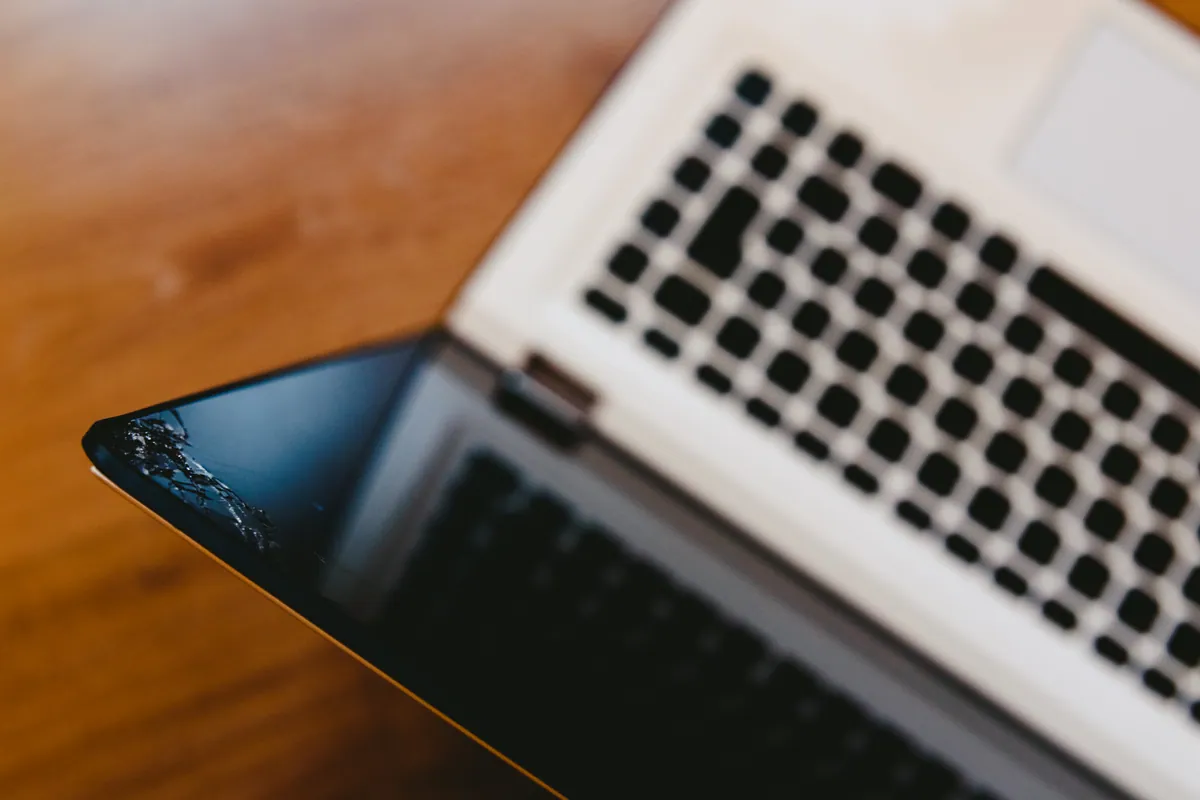
Across more than 15,000 workshop jobs, screen and display faults are our single biggest category — roughly one job in six. That makes sense: a laptop screen is a large, thin sheet of glass and electronics that gets closed on things, dropped, sat on, and leaned against, day after day.
But “the screen’s gone” is one of the least precise things a customer can tell us, because it covers half a dozen genuinely different faults with wildly different fixes and costs. A cracked panel and a flickering panel and a black panel are three separate problems. Here’s how to read what your screen is actually doing — and why guessing tends to be the expensive option.
The quick map
| What you’re seeing | Most likely cause | Rough fix scope |
|---|---|---|
| Cracked or shattered glass, spreading marks | Physical panel damage | Panel (or full assembly if lid/hinges hit) |
| Flickering that changes as you move the lid | Display cable, not the panel | Cable — often the cheaper end |
| Fixed lines, colour blocks, dead patches | Failing panel | Panel replacement |
| Very dim / faint image, visible only in bright light | Backlight | Backlight or panel |
| Completely black, machine clearly running | Panel, backlight, cable or board/GPU | Depends — needs the external-monitor test |
| Ghost touches / unresponsive touchscreen | Digitiser (touch layer) | Panel/digitiser, not the board |
The rest of this article walks through each, because knowing which one you’ve got is most of the battle.
Sound like your problem?
Bring it to our Putney workshop or message us a photo and we will give you a straight answer and a quote before any work starts.
Cracked or physically damaged
The obvious one. A drop, a knock, something left on the keyboard when the lid closed — and the glass cracks, often with spreading dark patches or spidering lines. This is the most common screen fault we see, and the good news is it’s usually one of the most contained repairs: on most laptops the panel is a self-contained part that can be swapped without disturbing the rest of the machine.
The one complication is when the impact damaged more than the glass. A hard drop can bend the lid and wrench the hinges as well, and in that case fitting a new panel onto a warped lid and worn hinges just breaks again. Then the right fix is the whole screen assembly — lid, hinges and panel together. It costs a little more, but it lasts, which a bodged panel-only repair won’t.
Flickering — often the cable, not the panel
This is the symptom people most often over-pay for, because “flickering screen” sounds like a dying display. Frequently it isn’t. The tell-tale is behaviour: if the flicker changes as you move the lid, or comes and goes as the machine is handled, that points at the display cable — the ribbon that carries the picture from the motherboard, up through the hinge, to the panel. Years of opening and closing flex that cable, and its connectors can loosen or corrode.
Why does that matter? Because the cable is a much cheaper part than a panel. A flickering screen diagnosed as a cable is one of the more affordable display repairs there is — and a clue often comes packaged with it: if your webcam has died at the same time, suspect the cable they share rather than two separate faults. A fixed pattern of lines or dead colour blocks that doesn’t change with movement is more likely the panel itself.
Black, but the laptop is clearly on
The ambiguous one, and the one worth the most care. If the machine powers up — fans, keyboard backlight, the startup sound — but the screen stays black, the fault could be the panel, the backlight, the cable, or the graphics/logic board. Those range from a modest repair to a logic board repair, so telling them apart before spending money is essential.
The single most useful home test: plug in an external monitor. If the external screen shows a normal picture, your machine and its graphics are fine and the fault is in the built-in display (panel, backlight or cable) — the cheaper territory. If even the external monitor shows nothing, the problem is more likely the graphics or the board. It’s the same logic we use on the bench with MacBooks: establish whether the machine is still driving a picture, and the answer tells you which side of the cost line you’re on.
Faint image — the backlight
Tilt the screen towards a bright window and squint: if you can just make out your desktop, faint and dark, the panel and the picture are fine — it’s the backlight that’s failed. The display is still rendering; it’s simply not being lit. This is its own category of repair and, importantly, not a reason to assume the whole screen is dead.
Ghost touches and dead touchscreens
On touchscreen laptops, a separate layer — the digitiser — sits over the display to sense your finger. When that fails you get “ghost touches” (the machine registering taps you didn’t make) or a touch layer that stops responding while the picture itself looks perfect. That’s a digitiser fault, not a panel or board fault, and on some machines the sensible fix is even to disable the faulty touch layer rather than replace it, if you can live without touch. Either way, a misbehaving touchscreen with a perfect picture is not the disaster it feels like.
When it isn’t the screen at all
Sometimes the display is innocent. Artefacts, corruption or a black screen can come from the graphics chip or the logic board rather than the panel. This is exactly why we don’t quote a display fault on sight: fitting an expensive panel to a machine whose real problem is the board leaves you with a bill and a screen that still shows nothing. The external-monitor test is the first thing that separates “it’s the screen” from “it’s the machine”.
A fair word on the data
These proportions describe what people bring to a repair shop, not every screen fault that occurs everywhere. Cracked screens are probably over-represented because they’re dramatic and obviously worth fixing, while a slightly dim backlight might be tolerated for months. Percentages are rounded and based on how each job was logged. Even so, the pattern is clear and consistent: screens are the number-one thing that brings a laptop through our door.
What to do if your screen misbehaves
- Try an external monitor if the screen is black or garbled — it’s the fastest way to tell “screen” from “machine”.
- Note whether the fault moves with the lid. Flicker that changes as you open and close points at the cable, not the panel.
- Don’t press on a cracked screen or keep using it — spreading damage can turn a panel-only job into a lid-and-hinge one.
- Don’t assume the worst on a MacBook or Surface. Both are repairable with the right part and care, whatever you’ve been told.
- Get it diagnosed before you’re quoted for a panel. The cheap fix (a cable) and the dear fix (a panel, or the board) look almost identical from the outside.
Get your screen diagnosed properly
If your laptop or Mac screen is cracked, flickering, dim or black, we diagnose the actual cause before we quote — so you’re not paying for a panel when it’s a cable, or writing off a machine when it’s a five-minute test away from an answer. We handle laptop, MacBook and Surface screens from our Putney workshop (SW15), serving South West London.
Call 020 7610 0500, drop in to SW15, or use the contact form. For the fix itself, start with screen replacement.