Why boot time is its own problem
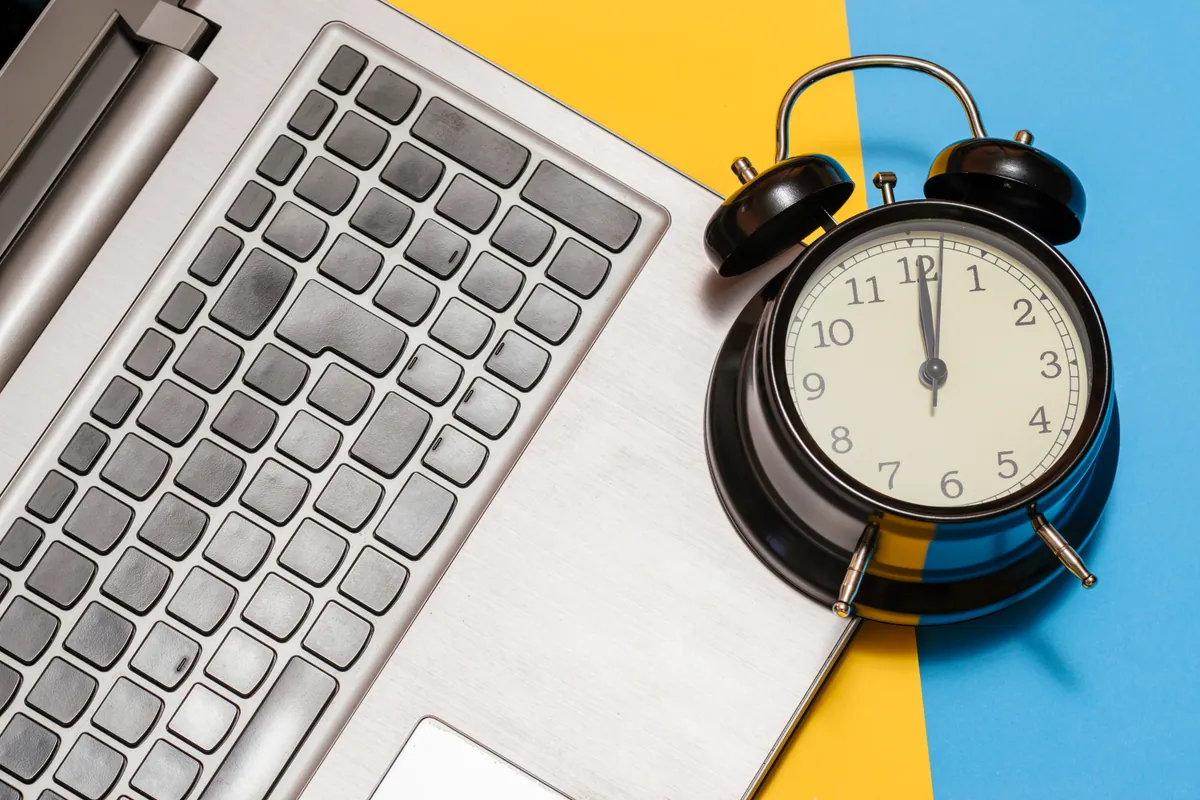
Startup is a distinct phase, and it is worth treating separately from a laptop that feels slow once you are working. When you press the power button, the machine has to initialise hardware, load the operating system from your storage drive, start dozens of background services, and then launch everything that has been told to open automatically. A delay in any one of those steps shows up as a long, frustrating wait at the desktop.
The good news is that each step is diagnosable. If you know roughly where the time is going, you can usually claw most of it back without replacing the whole machine.
Sound like your problem?
Bring it to our Putney workshop or message us a photo and we will give you a straight answer and a quote before any work starts.
Startup programmes: the usual first suspect
Over years of use, laptops quietly accumulate applications that insist on launching the moment Windows loads — cloud sync tools, chat apps, printer utilities, updaters and “helper” services you installed once and forgot. Each one adds seconds and competes for the drive and processor exactly when the machine is busiest.
On Windows, press Ctrl + Shift + Esc to open Task Manager, then click the Startup apps tab. You will see a list with a Startup impact rating of Low, Medium or High. Disable anything rated High that you do not need running from the moment you switch on — your cloud storage and chat apps can happily be opened manually. Right-click and choose Disable. This does not uninstall the programme; it simply stops it launching at boot.
On a Mac, go to System Settings > General > Login Items and remove anything you do not need starting automatically.
Be a little cautious: leave anything you do not recognise related to your antivirus, touchpad, or graphics drivers alone. If you are unsure what an entry does, it is safer to research it than to disable it blindly.
The single biggest factor: HDD versus SSD
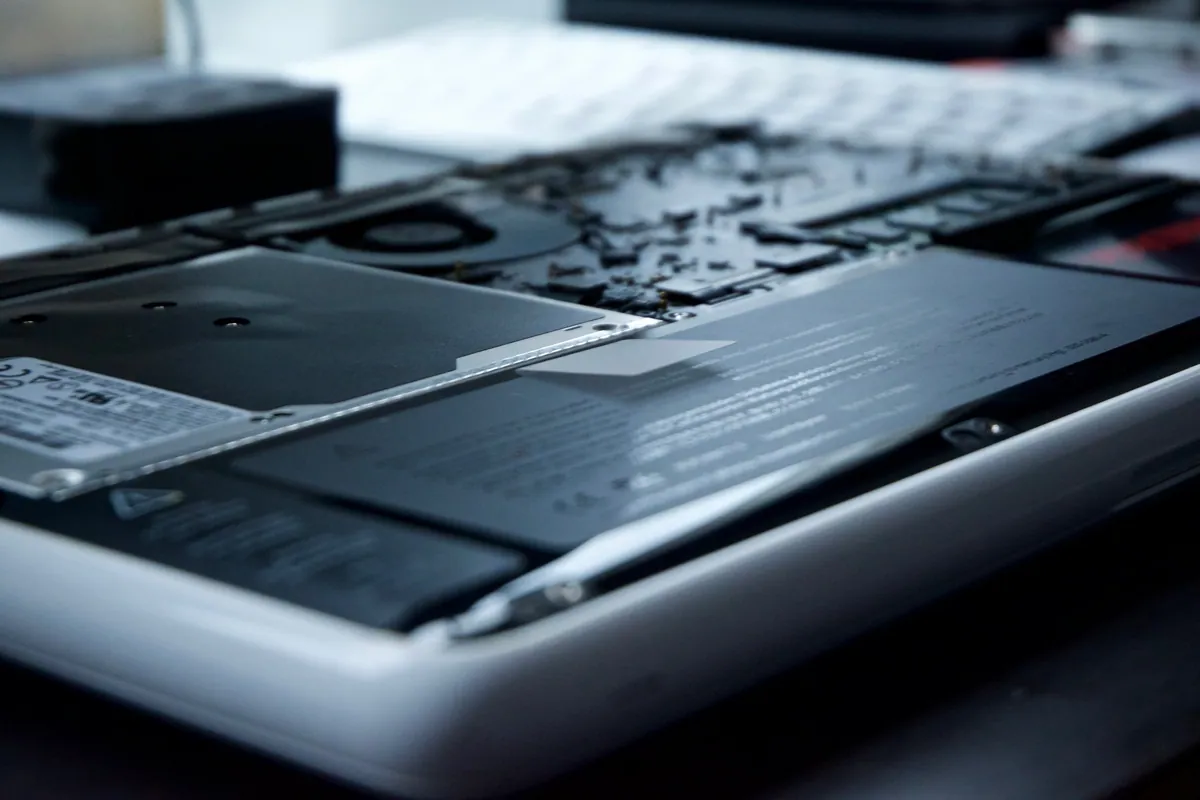
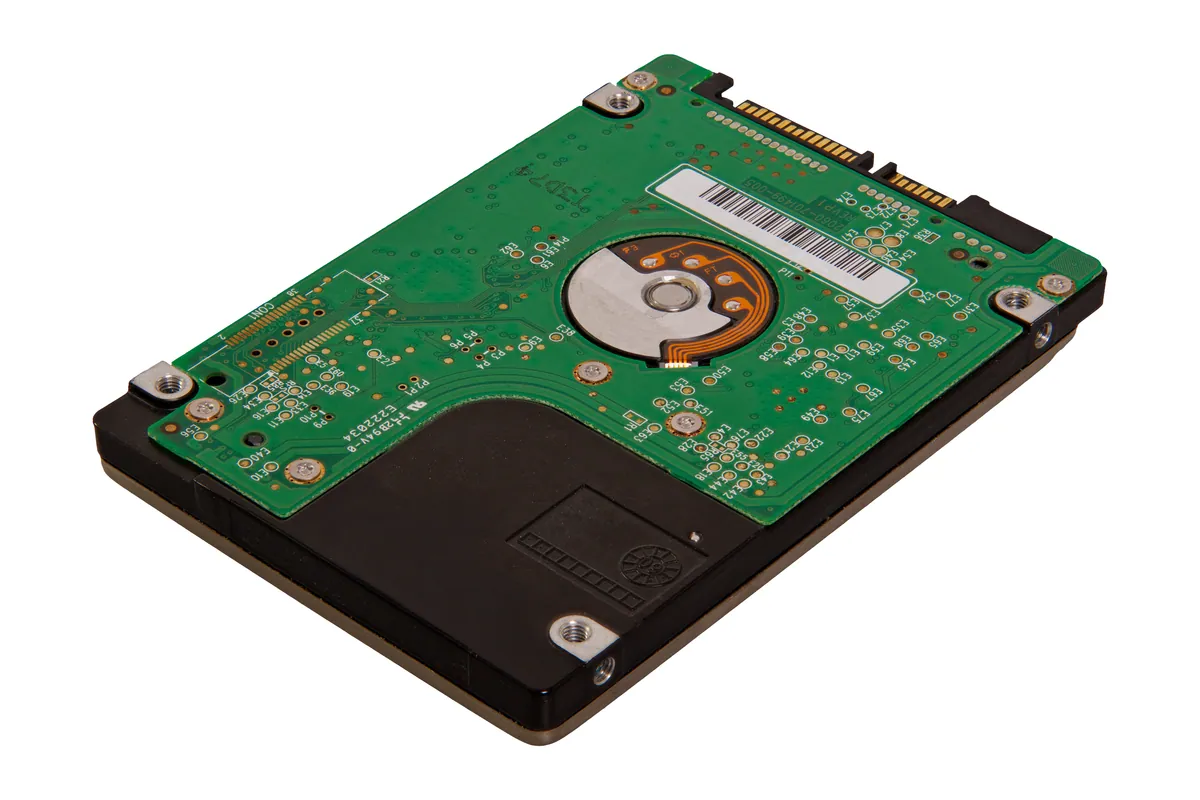
If your laptop is a few years old and still runs a traditional mechanical hard drive (an HDD), that is very often the real reason boot times have crept into the minutes. A mechanical drive relies on a spinning platter and a moving read head, and Windows has grown steadily more demanding of storage speed. It is a genuinely common fault we see in the workshop: a perfectly capable laptop crippled by a slow drive.
A solid-state drive (SSD) has no moving parts and reads data many times faster. Swapping an old HDD for an SSD is the single most transformative upgrade for boot time — machines that took two or three minutes to reach a usable desktop frequently come back to life afterwards, often booting in well under half a minute. If your laptop already has an SSD and is still slow to start, the cause lies elsewhere (read on), but for older mechanical-drive laptops this is usually the answer. Our SSD upgrade service covers the swap and moving your existing data across.
To check which you have on Windows: open Task Manager, go to the Performance tab, and look at the disk — it will be labelled SSD or HDD.
Background services and Windows updates
Even with a fast drive and a tidy startup list, background activity can stall you at the desktop. The most common culprit is Windows Update installing or finalising in the background — the machine feels unresponsive for the first few minutes after boot while it works. If your laptop is reliably slow only occasionally, an update cycle is often to blame, and letting it finish (then rebooting) clears it.
Two settings also help on Windows. First, check that Fast Startup is enabled: Control Panel > Power Options > Choose what the power buttons do > Change settings that are currently unavailable, then tick Turn on fast start-up. Second, a drive that is nearly full slows everything down — aim to keep at least 15% free space so the operating system has room to work.
When it is a sign of something deeper
Sometimes a slow boot is a symptom rather than the disease. A drive that is beginning to fail can make startup crawl before it fails outright, so failing storage is worth ruling out — and if you suspect it, back your data up now rather than later. Malware can also load at startup and drag the whole process down, and an ageing laptop that is genuinely short on memory will struggle to load everything at once.
This is exactly where a proper PC health check earns its place. Rather than guessing, we measure where the boot time is actually going, test the drive’s health, check the startup chain, and tell you honestly whether a quick tidy-up will do or whether an upgrade is the sensible move. It saves you spending money on the wrong fix.
A sensible order to try things
Work through it methodically: trim your startup programmes first, since it costs nothing; confirm whether you are on an HDD or SSD; let any pending Windows updates finish; and free up disk space. If the laptop is still slow after all that — or if it is an older mechanical-drive machine — the drive is almost certainly your bottleneck.
If you would rather not tinker, or the machine is slow enough that you suspect a failing drive, we are happy to take a look. Call us on 020 7610 0500, drop into the Putney workshop at 66 Lower Richmond Road, or send a note via the contact form and we will tell you what is worth doing before you spend a penny.