Why a Hot MacBook Matters
A warm MacBook under heavy load is normal. A MacBook that runs hot at idle, with the fans spinning up to a constant roar while you are only checking email, is not. Heat is the enemy of every component inside the chassis, and sustained high temperatures shorten the life of the battery, the storage and the logic board. Just as importantly, when a Mac gets too hot it deliberately slows itself down — a process called thermal throttling — so an overheating machine also feels sluggish. Getting on top of the cause early is worth the effort.
Below are the most common reasons we see a MacBook overheating in the Putney workshop, roughly in the order worth checking, along with what you can try yourself before booking it in.
Sound like your problem?
Bring it to our Putney workshop or message us a photo and we will give you a straight answer and a quote before any work starts.
Cause 1: A Runaway App or Background Process
By far the most frequent culprit is software, not hardware. A single misbehaving app can peg the processor at 100% indefinitely, and the fans respond exactly as designed.
Open Activity Monitor (Applications, then Utilities) and click the CPU tab. Sort by the % CPU column and watch for anything sitting stubbornly high — well above what the task should need. Common offenders include browser tabs with heavy video or ads, a stalled cloud-sync client such as OneDrive or Dropbox, photo or Spotlight indexing after a big import, and the occasional crashed helper process. If you spot one, quit that app and see whether the fans settle within a minute or two.
Two special cases worth knowing:
- After a macOS update or migration, Spotlight re-indexes your whole drive and photo libraries generate thumbnails. This can run hot for a few hours, then stops on its own. Leave it plugged in and let it finish before assuming a fault.
kernel_taskshowing high CPU is not a runaway app — it is macOS itself trying to cool the machine by crowding out other work. That points to a genuine thermal problem, covered below.
Cause 2: Blocked Vents and Dust Build-Up
MacBooks pull cool air in and push warm air out through small vents, usually along the rear hinge. Two things block that airflow. The first is simple: using the machine on a bed, sofa cushion or lap where soft material covers the intakes. A hard, flat surface fixes that instantly.
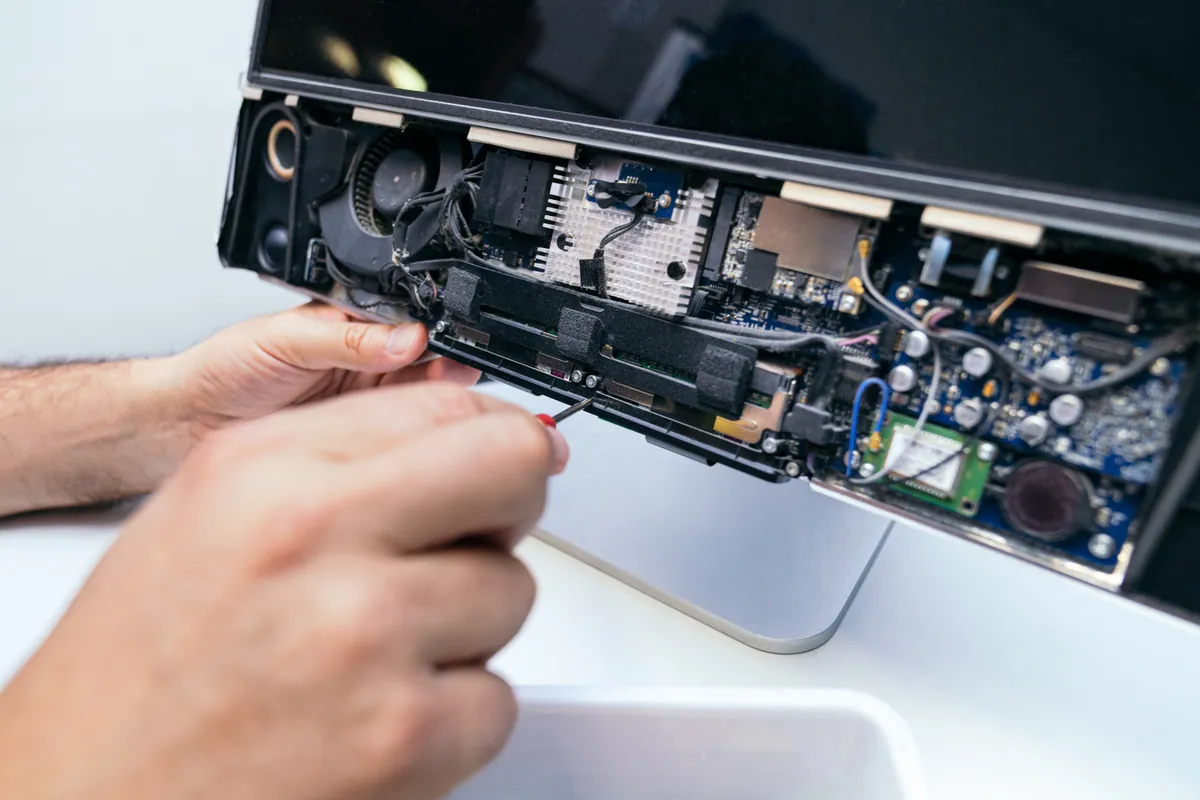
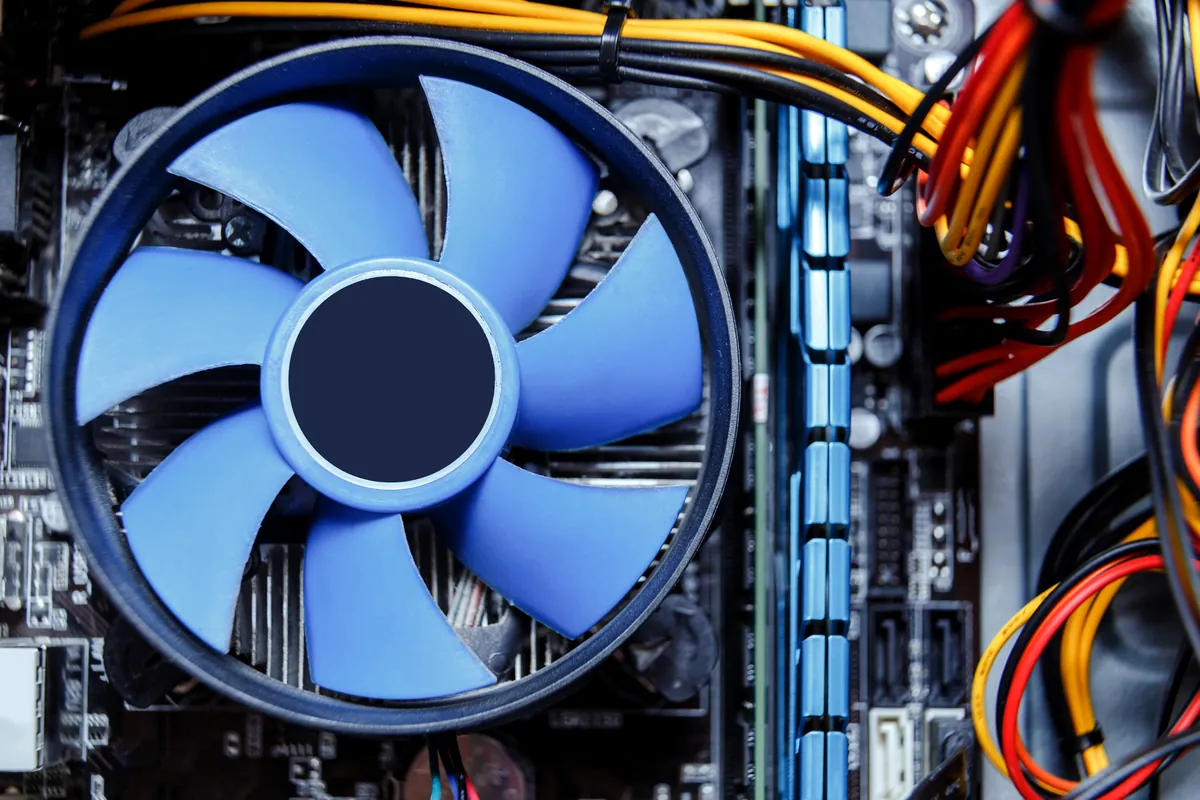
The second is dust. Over a couple of years, the internal fans and the heatsink fins clog with a felt-like layer of dust that chokes airflow, and no amount of software tidying will fix it. This is a hardware clean that means opening the case, so if your MacBook is a few years old and runs hot constantly, internal dust is a prime suspect. It is one of the more common jobs we handle during a MacBook repair.
Cause 3: Dried-Out Thermal Paste
Between the processor and its heatsink sits a thin layer of thermal paste that carries heat away from the chip. Over years of heating and cooling this paste dries out and cracks, and its ability to transfer heat drops sharply. The symptom is a machine that overheats and throttles under even moderate load, despite clean vents and no runaway apps.
Re-applying fresh paste (a “repaste”) restores proper heat transfer and can transform how a machine that had grown noisy runs. It requires disassembly and the right materials, so it is workshop work rather than a DIY job — but on an otherwise healthy Intel MacBook it is often the single most effective fix.
Cause 4: Storage and Memory Pressure
When a Mac runs low on free storage or memory, macOS works harder — swapping data to disk and thrashing the processor — which drives temperatures up. In Activity Monitor, check the Memory tab: if the Memory Pressure graph is amber or red much of the time, your Mac is starved. Closing apps helps in the moment; on Apple Silicon, where memory is fixed, keeping a lighter workload matters more.
Free storage matters too — aim to keep at least 10-15% of your drive empty so macOS has room to breathe. On older Intel MacBooks with a slow or failing drive, an SSD upgrade both frees the machine from constant disk waiting and reduces the heat that comes with it.
Quick Checklist Before You Book In
Work through these first — they resolve a surprising number of cases:
- Check Activity Monitor and quit anything holding the CPU high.
- Use the MacBook on a hard, flat surface, never a cushion or bed.
- Restart the machine — it clears stuck processes and re-runs cleanly.
- Install pending macOS and app updates, then allow indexing to finish.
- Check free storage and memory pressure; clear space if either is tight.
- Reset the SMC on Intel models (Apple Silicon does this automatically on restart).
If the fans are still roaring at idle after all of that, the cause is almost certainly physical — dust, dried paste or an ageing component — and needs opening up.
When to Bring It In
Persistent overheating that survives the checklist above is worth a proper look before it does lasting harm. A PC and Mac health check will identify whether it is dust, thermal paste, storage pressure or something on the logic board, so you are not guessing. If you would rather skip the diagnostics and get it sorted, our MacBook repair service covers internal cleaning, repasting and cooling faults, and where an ageing drive is part of the problem an SSD upgrade can help too.
Pop into the Putney workshop at 66 Lower Richmond Road, call us on 020 7610 0500, or use the contact form and we will talk you through the options. You can also browse more guides in our Support Centre.