Why laptops struggle more in summer
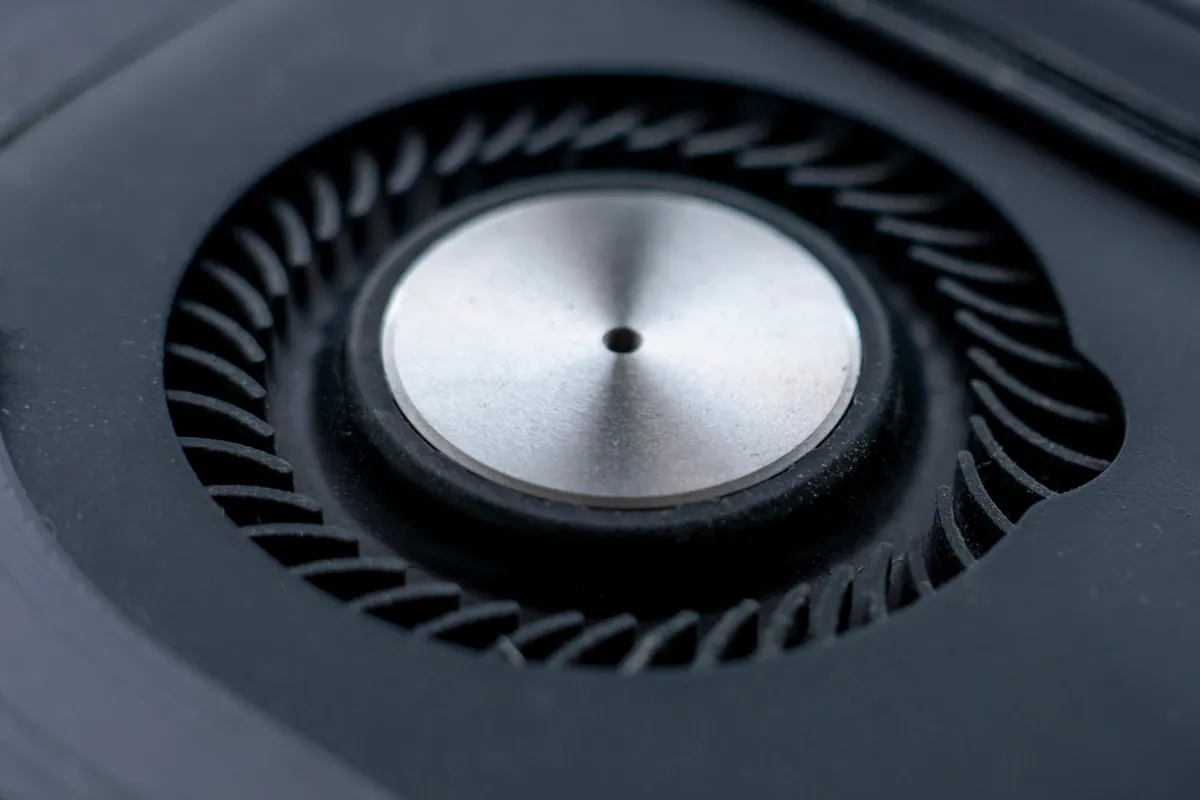
A laptop cools itself by pulling cool air in, pushing it across a hot metal heatsink, and blowing warm air out. That whole system is designed around room temperature. When your room climbs from a comfortable 20°C to a sticky 28°C, the air doing the cooling is already warm before it reaches the components, so the fans have to spin faster and work harder just to stand still.
Add a bit of trapped dust or a blocked vent and the margin disappears. The chip gets too hot, the laptop deliberately slows itself down to protect the hardware — this is called thermal throttling — and in bad cases it shuts off entirely to avoid damage. None of that means your laptop is broken. It usually means the cooling can’t keep up, and that is almost always improvable.
Sound like your problem?
Bring it to our Putney workshop or message us a photo and we will give you a straight answer and a quote before any work starts.
Sort out airflow and surfaces first
The single most common cause of summer overheating we see is the laptop working on a soft surface. Beds, sofas, cushions and laps all block the intake vents underneath the machine and smother the fans.
- Use a hard, flat surface. A desk, a table, or even a hardback book is far better than a duvet. Laptops have little rubber feet for a reason — they lift the base to let air in.
- Keep the vents clear. Find the slots on the underside and sides, and make sure nothing is covering them. On many laptops the exhaust is at the back or along the hinge; don’t push it flush against a wall.
- Give it room to breathe. Cases, sleeves and thick stickers over vents all trap heat. Take the laptop out of its bag before using it.
- Mind the sun. A laptop sitting in direct sunlight on a windowsill is being heated from the outside as well as the inside. Move it into the shade.
These cost nothing and often drop temperatures by several degrees on their own.
Do cooling pads actually help?
Sometimes — with realistic expectations. A cooling pad is a stand with built-in fans that sits under the laptop. Its biggest benefit is often simply raising the machine and guaranteeing clear airflow underneath, which any good stand does. The extra fans add a modest improvement on top.
They help most on laptops that pull air in from the base (many Windows laptops and gaming machines). They do far less for MacBooks and other designs that draw air in through the keyboard or the hinge, because the pad isn’t blowing air where the intake actually is. If you buy one, choose a model whose fans line up with your laptop’s intake vents, and treat it as a useful nudge rather than a cure for a clogged machine.
Dust is the hidden culprit
Every laptop slowly inhales dust, pet hair and pocket lint, and it collects in a felt-like mat on the heatsink fins — exactly where the hot air needs to escape. A laptop that’s two or three years old and has never been cleaned can lose a large chunk of its cooling to this alone. The tell-tale signs are fans running loud and constant, the base feeling hot, and the machine throttling during video calls or light work that never used to trouble it.
You can help from the outside with a can of compressed air: with the laptop switched off, give the vents short bursts to shift loose dust. Hold any fan still with a cocktail stick first, because spinning a fan with compressed air can damage it. This clears surface debris but won’t remove a compacted mat wedged deep in the fins — that needs the machine opened up.
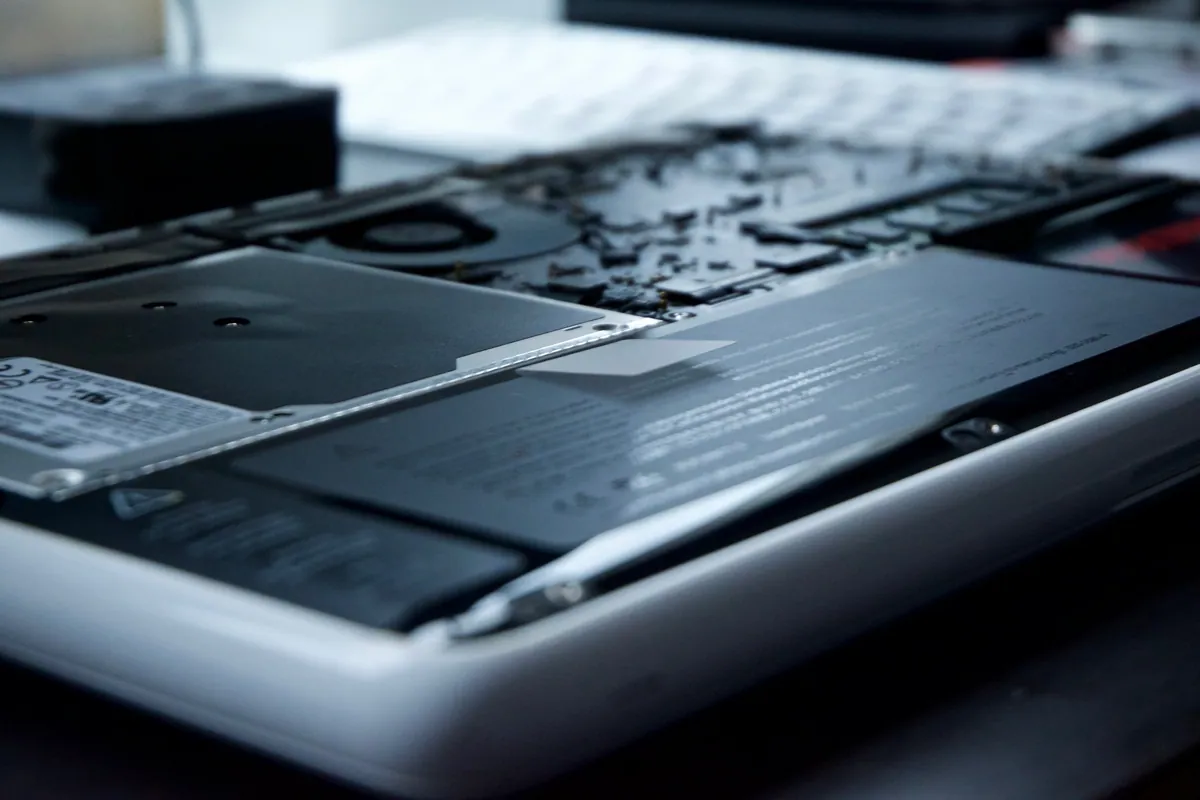
When it’s time for internal cleaning or a repaste
If you’ve cleared the vents, used a hard surface, and the laptop still throttles or shuts down in the heat, the problem is inside. Two workshop jobs fix the vast majority of these:
- Internal clean. Opening the laptop, removing the built-up dust from the heatsink and fans, and clearing the exhaust properly. This is the most common fix and often the only one needed.
- Thermal repaste. The paste between the chip and the heatsink dries out over years and stops transferring heat well. Replacing it — a “repaste” — restores proper contact. On laptops four or five years old and up, or ones that have always run hot, this makes a real difference.
Symptoms that point to internal work: sudden shutdowns under light load, throttling within minutes of starting up, a fan that’s now silent (it may have failed) or screaming constantly, or a burning-dust smell. These are also worth a proper health check, since overheating can sit alongside a failing fan or a swelling battery that needs attention in its own right. This applies to Apple machines too — a fan-cleaning or repaste is a routine part of MacBook repair, not something to fear.
A word of caution: opening a modern laptop means fragile clips, ribbon cables and, on some models, a battery you have to work around. If you’re not confident, it’s easy to crack a bezel or tear a cable and turn a cooling job into a bigger one. That’s where booking laptop repair with someone who does it daily pays for itself.
Keeping it cool for the rest of summer
Once the immediate problem is sorted, a few habits keep temperatures down: work on hard surfaces, blow the vents out every few months, and close the browser tabs and background apps you’re not using.
If your laptop is still overheating after all this — or you’d rather not open it yourself — bring it to our Putney workshop or call 020 7610 0500, and we’ll take a look. You can also reach us through the contact form to book an internal clean or thermal repaste before the next heatwave.