The one upgrade that actually feels faster
If a computer boots slowly, hangs when you open a browser, and grinds every time it does anything, the culprit is very often the hard drive rather than the processor or memory. Swapping a traditional mechanical hard disk drive (HDD) for a solid-state drive (SSD) is the change we recommend most often in the workshop, and it’s the one people come back and thank us for.
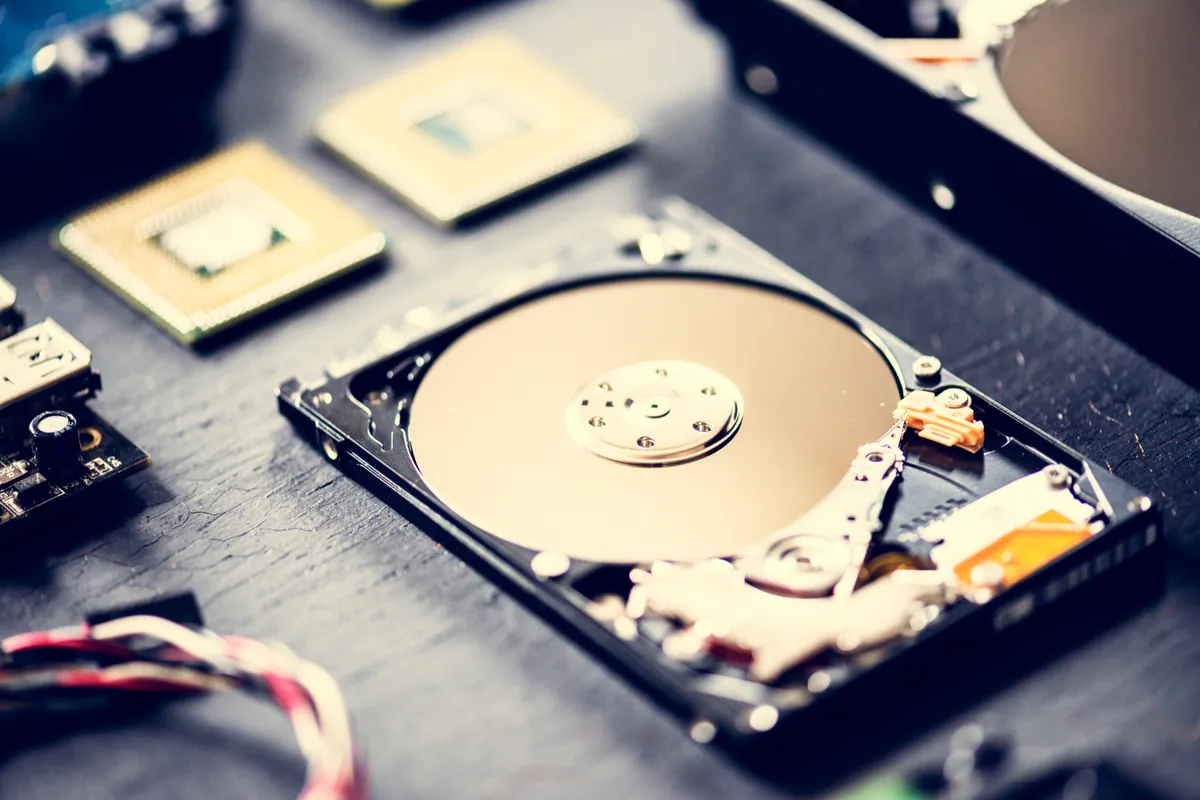
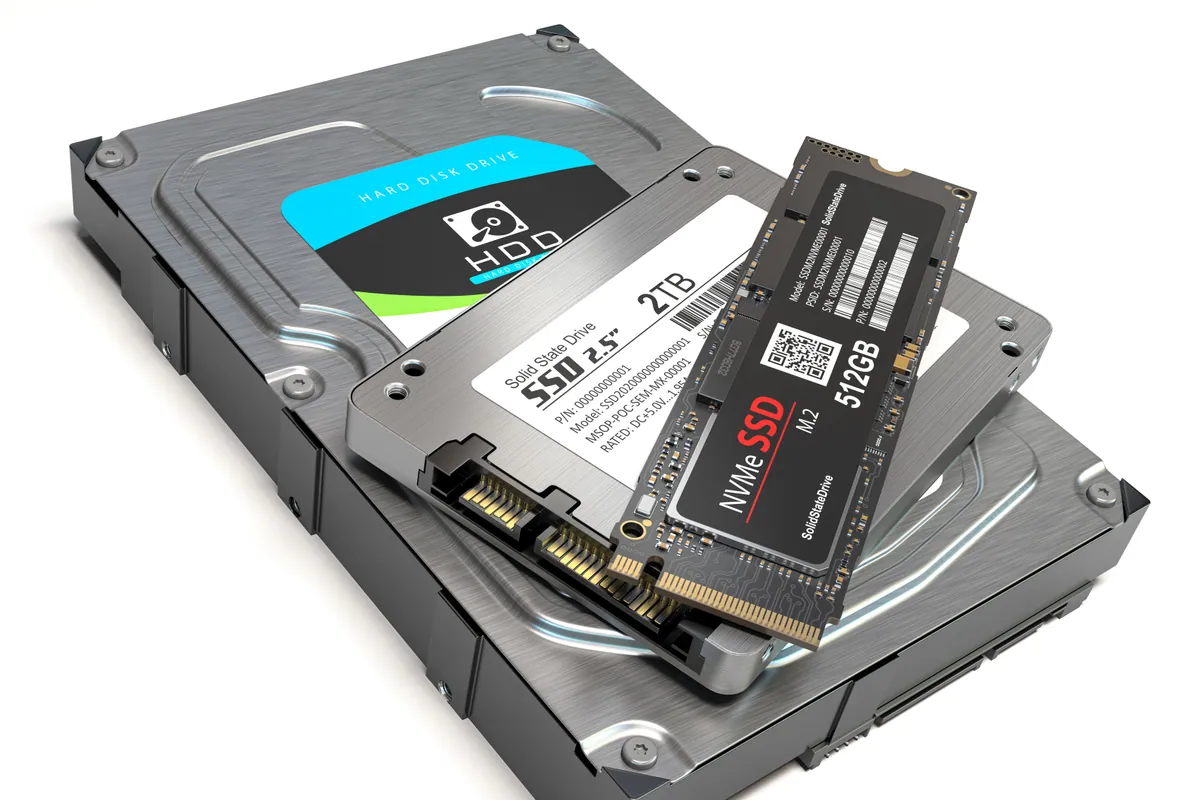
The reason is simple. A mechanical drive has spinning platters and a physical arm that moves to find your data. An SSD has no moving parts at all — it reads and writes electronically, like a large memory card. That difference isn’t marginal. It’s the gap between waiting and not waiting.
Sound like your problem?
Bring it to our Putney workshop or message us a photo and we will give you a straight answer and a quote before any work starts.
The speed difference in real numbers
A typical laptop hard drive reads data at roughly 80–120 MB per second. A modern SATA SSD manages around 500 MB per second, and an NVMe SSD (the small stick-shaped kind that plugs directly into the motherboard) can reach several thousand MB per second. Even the slowest SSD is four to five times quicker than the drive it replaces.
Where you feel that most is in the tasks that involve lots of small reads: starting Windows or macOS, launching applications, and searching files. A machine that took two or three minutes to become usable after switching on will often be ready in under twenty seconds.
What actually changes day to day
Raw numbers are one thing; here’s what people notice in practice:
- Start-up. The computer is usable almost immediately rather than sitting on the logo or spinning beachball.
- Opening programs. Browsers, Office, Photoshop and similar apps snap open instead of stalling.
- Multitasking. Switching between several open applications stops feeling like the machine is catching its breath.
- That constant grinding stops. If you can hear your laptop working, that’s the mechanical drive. An SSD is silent.
- A cooler, longer-lasting battery. SSDs draw less power and generate no friction, so laptops often run cooler and a little longer per charge.
What an SSD won’t fix: it doesn’t add processing power for video editing or gaming frame rates, and it won’t rescue a machine that’s overheating or has a failing battery. It removes the storage bottleneck — nothing more, but that’s usually the bottleneck that matters.
Which machines are worth upgrading
An SSD upgrade makes the most sense on:
- Any laptop or desktop still running a mechanical hard drive — most machines sold before roughly 2018, and plenty of budget models since.
- A computer that’s otherwise sound: decent processor, enough memory, no other faults.
- A machine you like and want to keep for another few years rather than replace.
It makes less sense if the computer already has an SSD (you won’t see the same jump from a newer, faster one), if the logic board or screen is failing, or if the machine is so old that even with an SSD it can’t run current software. If you’re not sure which camp yours falls into, a quick PC health check will tell you whether the drive is the real limitation before you spend anything.
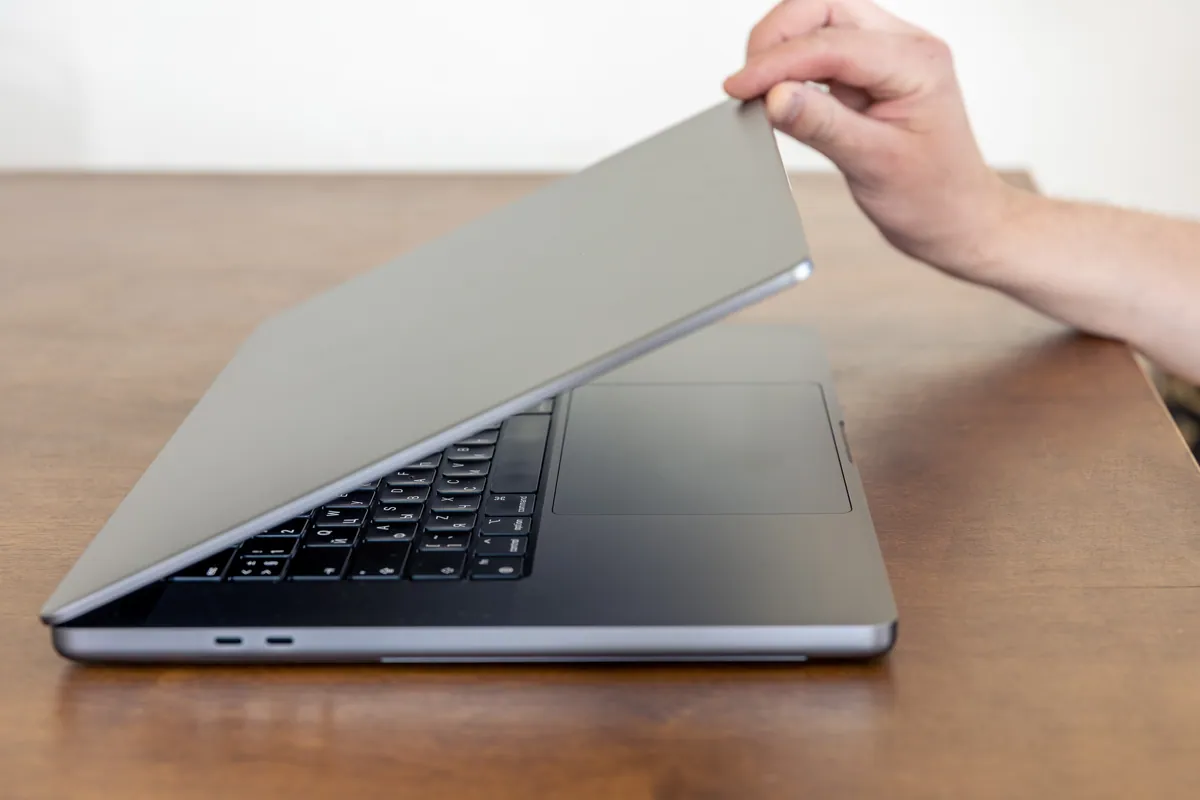
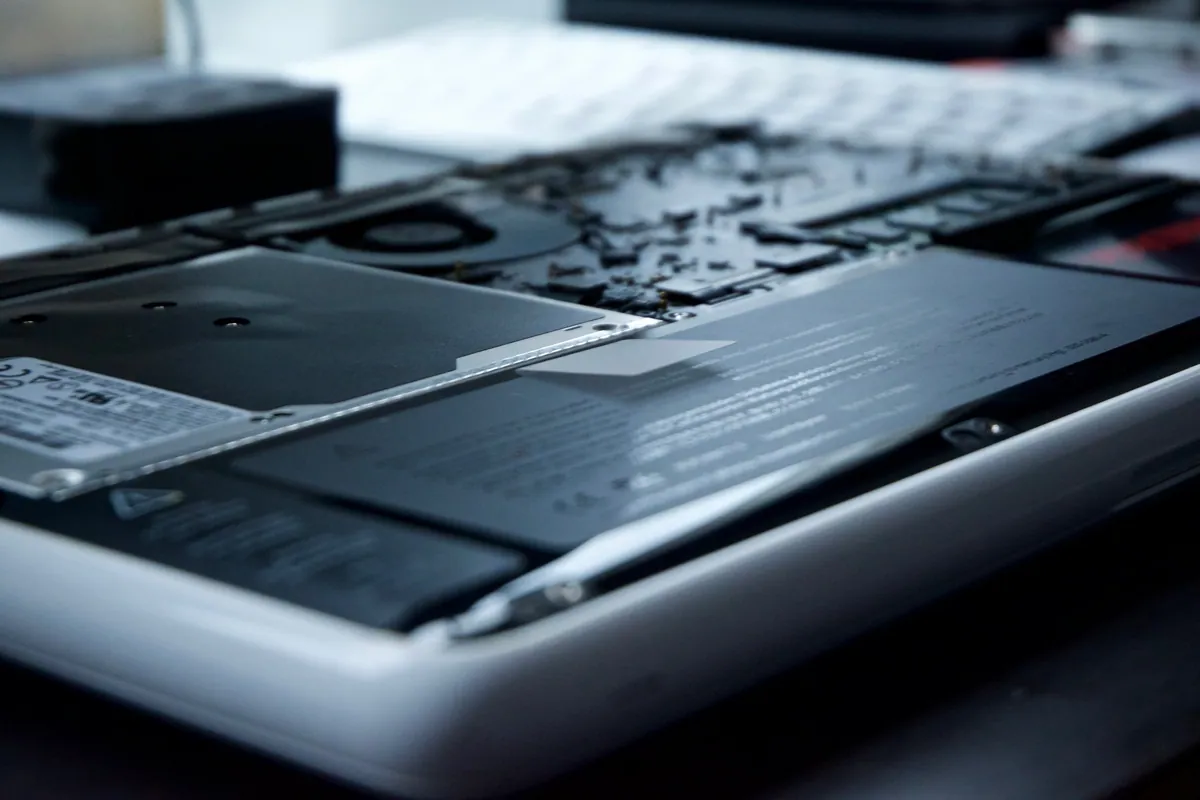
One note on Macs: most MacBooks from 2017 onwards have the SSD soldered to the board, so it can’t be swapped. Older MacBooks, iMacs and Mac minis often can be upgraded, but it’s worth confirming your exact model first.
Migration: keeping your files and set-up
The part that worries people most is losing their data — and it’s the part that needs the most care. A proper SSD upgrade isn’t just fitting the new drive; it’s moving your Windows or macOS installation, your programs and your files across so the machine starts up exactly as before, just faster. Done well, you switch on afterwards and everything is where you left it.
There are two approaches: cloning the old drive to the new one (a straight copy, ideal when the old drive is healthy), or a fresh installation with your files copied over (cleaner, and the better option if the old drive is already struggling). Which one suits you depends on the state of the existing drive.
That’s also the moment to think about backups. If your current hard drive is showing signs of failure — clicking noises, files that won’t open, freezes — don’t keep using it while you wait. A failing drive can cross from “recoverable” to “gone” quickly, and at that point it becomes a data recovery job rather than a simple upgrade. Sorting the SSD sooner rather than later avoids that risk entirely.
Talk it through with us
If your machine is slow and you’re weighing up an upgrade against replacement, we’re happy to take a look and tell you honestly whether an SSD is worth it for your particular computer. Pop into the Putney workshop at 66 Lower Richmond Road, call us on 020 7610 0500, or use the contact form and we’ll advise on the right SSD upgrade for your machine.