Start by Narrowing Down What’s Actually Broken
“USB device not recognised” is a symptom, not a diagnosis. The same message appears whether the fault is a loose port, a worn cable, a starved power supply, a corrupted driver, or a failing drive. The trick is to change one thing at a time so each test rules something in or out, rather than swapping everything at once and never knowing what fixed it.
One rule sits above all the others: if the device is a drive that holds files you care about — an external hard disk, an SSD, a memory stick — treat every step as potentially your last chance to read it. Do not format it, do not “initialise” it when Windows offers, and stop the moment you hear clicking or the drive keeps disconnecting. Those are the exact situations where the wrong click turns a recoverable problem into a lab job.
Sound like your problem?
Bring it to our Putney workshop or message us a photo and we will give you a straight answer and a quote before any work starts.
Rule Out the Port and the Cable First
These are the cheapest faults to find, so check them before anything else.
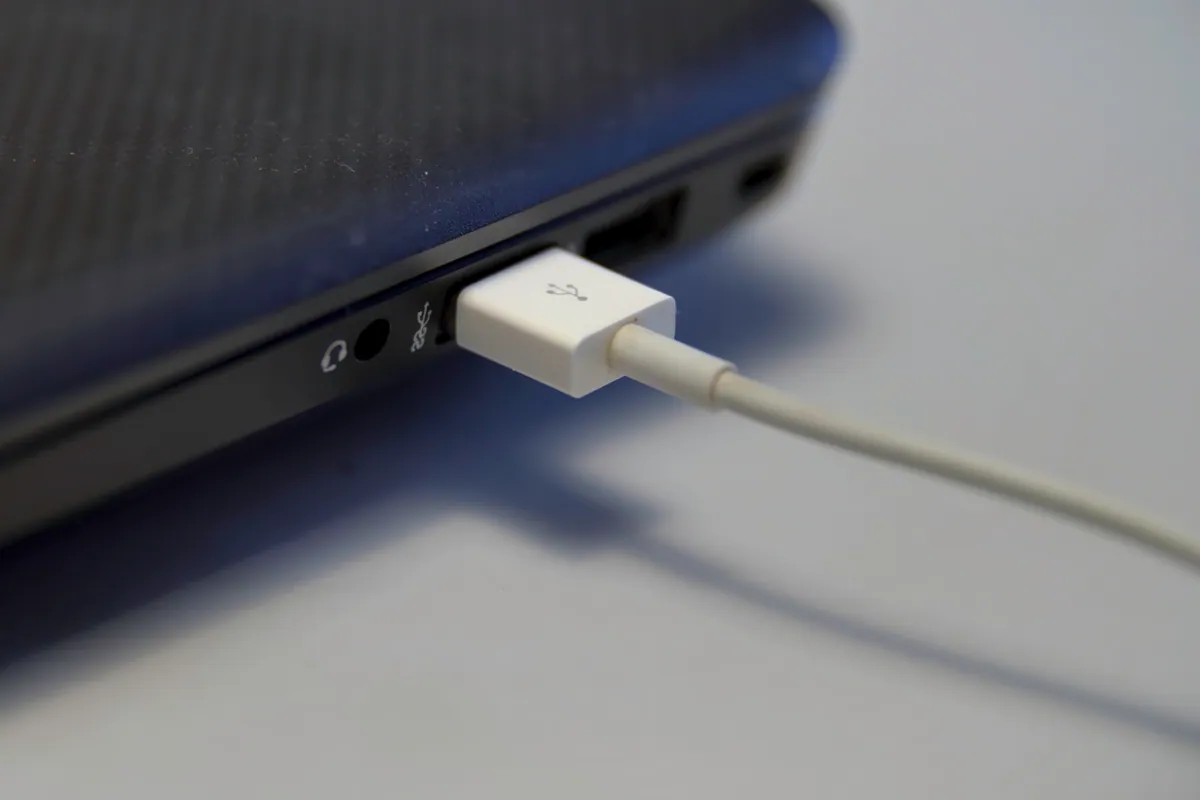
- Try a different port. Front-panel ports on desktops are often loosely wired or underpowered. Move the device straight to a port on the back, ideally one built into the motherboard.
- Skip the hub. Unpowered USB hubs and long extension leads are a frequent culprit. Plug the device directly into the computer.
- Swap the cable. Micro-USB and USB-C cables fail internally all the time, and many bundled cables are charge-only with no data lines at all. A known-good cable rules this out in seconds.
- Test on a second computer. If the device fails everywhere, the fault is likely the device. If it works elsewhere, the fault is your machine’s ports, drivers or power.
Inspect the connector too. Bent pins, lint packed into a socket, or a wobbly plug all cause intermittent recognition. A gentle clean with a wooden toothpick and a puff of compressed air fixes more “dead” ports than people expect.
Check Whether It’s a Power Problem
Portable hard drives, disc burners and some phones draw more current than a low-powered port can supply. When power is the issue, the device often half-works: it spins up, chirps, then drops off, or Windows repeats the connect-disconnect chime.
Signs to watch for:
- The device works on a desktop’s rear port but not a laptop or a hub.
- It needs its own mains adaptor and you’re relying on the USB cable alone.
- A portable drive with a Y-cable is only plugged in by one head — connect both.
On laptops, low battery and aggressive power-saving can throttle the ports. Plug into mains, and in Windows open Device Manager, expand Universal Serial Bus controllers, and for each USB Root Hub untick “Allow the computer to turn off this device to save power” under its Power Management tab.
Work Through the Windows Software Layer
If the hardware checks out, the fault is usually a driver or a software glitch.
- Restart properly. A full shutdown clears a surprising number of transient USB faults — more reliably than sleep or restart, because Windows Fast Startup can carry the fault over.
- Reseat the driver. In Device Manager, look for the device (it may appear under “Other devices” with a yellow warning, or as “Unknown USB Device”). Right-click, choose Uninstall device, then unplug and replug so Windows reinstalls it cleanly.
- Scan for hardware changes. Use the Action menu in Device Manager to force a re-detect.
- Check Windows Update. Missing chipset or USB controller drivers, especially on a fresh build or after a reinstall, leave ports half-working.
If a specific stick or drive fails on one PC but works on another, the driver stack on the first machine is the likely offender rather than the device.
Is It the Device, or Just the Data?
Here the path splits, and it matters which side you’re on.
For a keyboard, mouse, printer, webcam or dongle: if it fails on multiple computers with a good cable, it has almost certainly failed internally. These aren’t economical to repair, so replacement is usually the sensible call.
For a storage device: recognition problems are often a bridge-board or file-system fault rather than dead platters — which means the data is frequently still there. This is where restraint pays off. If a drive shows up in Device Manager or Disk Management but not in File Explorer, it may simply need a drive letter or a repair that keeps the data intact. If Windows insists the disk must be initialised or formatted before you can use it, decline — that request usually means the partition table is damaged, and agreeing can overwrite the very map that points to your files.
Never run repair tools, reformat, or repartition a drive whose contents you still need. If it’s clicking, overheating, or dropping in and out, unplug it and leave it alone — continued power-cycling is what turns a straightforward recovery into a failed one.
When to Bring It In
If you’ve swapped ports, cables and power, cleared the drivers, and the device still won’t show — or if it’s a drive carrying files you can’t lose — that’s the point to stop experimenting. Our Putney workshop can test ports and controllers as part of a wider pc repair check, sort port and board faults on a laptop repair, and handle a genuine data recovery job in a controlled way rather than risking the disk further.
Call us on 020 7610 0500, message us on WhatsApp, or use the contact form and tell us what the device does when you plug it in — that description alone often points us straight at the cause.