Hard drive failed? Don’t panic. We recover data from failed hard drives at our Putney workshop — including mechanical failures, logical corruption, and liquid damage. Get a data recovery assessment or call 020 7610 0500.
The First Rule: Stop Using the Drive
The most important thing to do when you suspect a hard drive is failing is to stop using it immediately.
This sounds counterintuitive — your instinct is to keep trying, to restart the computer, to copy files off. But every additional read or write operation on a failing drive can overwrite recoverable data or extend physical damage to areas of the drive that were previously intact.
Power down the computer as soon as you suspect a drive failure. Do not restart it to “try again”. Do not attempt to run the computer from the failing drive while you decide what to do.
Sound like your problem?
Bring it to our Putney workshop or message us a photo and we will give you a straight answer and a quote before any work starts.
How to Recognise Hard Drive Failure
Not all drive failures are obvious. Some come with clear warning signs; others fail suddenly with no advance notice.
Gradual failure signs:
- The computer has become progressively slower over weeks or months
- Files occasionally fail to open or take much longer than usual
- The computer freezes and requires a hard restart
- You hear clicking, grinding, or scraping sounds from the drive (mechanical HDDs only — SSDs are silent)
- Windows or macOS shows disk errors or asks to run a check
Sudden failure:
- The computer won’t boot — instead showing error messages like “No bootable device”, “Operating system not found”, or a flashing folder with a question mark (Mac)
- The drive is not recognised at all by the operating system
- Blue screen errors (Windows) with disk-related error codes (CRITICAL_PROCESS_DIED, UNMOUNTABLE_BOOT_VOLUME, etc.)
If your computer has been making clicking or grinding noises for days and you’ve ignored it, the drive has been telling you it’s failing. The noise from a mechanical hard drive is almost always a precursor to complete failure.
Not sure whether your drive is actually failing or just slow? Read our guide on signs your hard drive is failing before it dies completely for a more detailed breakdown of early warning signs.
Checking Drive Health on Windows
If your computer still boots and you want to confirm a drive issue before powering down:
- Open Command Prompt as administrator and run
wmic diskdrive get status— a result other than “OK” confirms a problem - Check Event Viewer (
eventvwr.msc) under Windows Logs > System — look for disk-related warnings or errors (source: “disk” or “ntfs”) - Install CrystalDiskInfo (free) on a USB drive and run it from there to read the drive’s SMART data. Key indicators: Reallocated Sectors Count, Current Pending Sector Count, and Uncorrectable Sector Count
Do not install diagnostic software onto the failing drive itself.
Checking Drive Health on Mac
- Hold Option and click the Apple menu, then select System Information > Hardware > Storage to view drive status and SMART data
- Open Disk Utility and select the drive — if it shows “Failing” under SMART Status, power down immediately
- Open Console (Applications > Utilities) and search for “disk” or “I/O error” to check for recent drive-related kernel messages
If SMART status reports anything other than “Verified” (Mac) or “OK” (Windows), treat the drive as failing and follow the steps below.
What NOT to Do
Don’t run CHKDSK or Disk Utility on a failing drive
Windows’ CHKDSK and macOS’s First Aid (Disk Utility) are repair tools. They attempt to fix filesystem errors by rewriting data on the drive. On a healthy drive, this is fine. On a physically failing drive, this can destroy recoverable data by overwriting it during the repair attempt.
If you’re running these tools because your computer is slow or having issues, that’s reasonable. If you’re running them because you suspect the drive is physically failing — unusual noises, the drive not being recognised, the computer not booting — don’t.
Don’t install data recovery software onto the failing drive
Data recovery software works by reading the drive and reconstructing file structures. Installing the software to the same failing drive you’re trying to recover data from adds writes to the drive and potentially overwrites the very data you’re trying to recover.
If you want to attempt a software recovery, install the recovery software to a separate drive (a USB stick or a second hard drive), then run it pointed at the failing drive.
Don’t freeze the hard drive
There’s an old folk remedy for failing hard drives that involves putting them in a freezer. This does not work reliably, can introduce condensation that causes additional damage, and is not recommended. Ignore this advice.
Don’t open the drive casing yourself
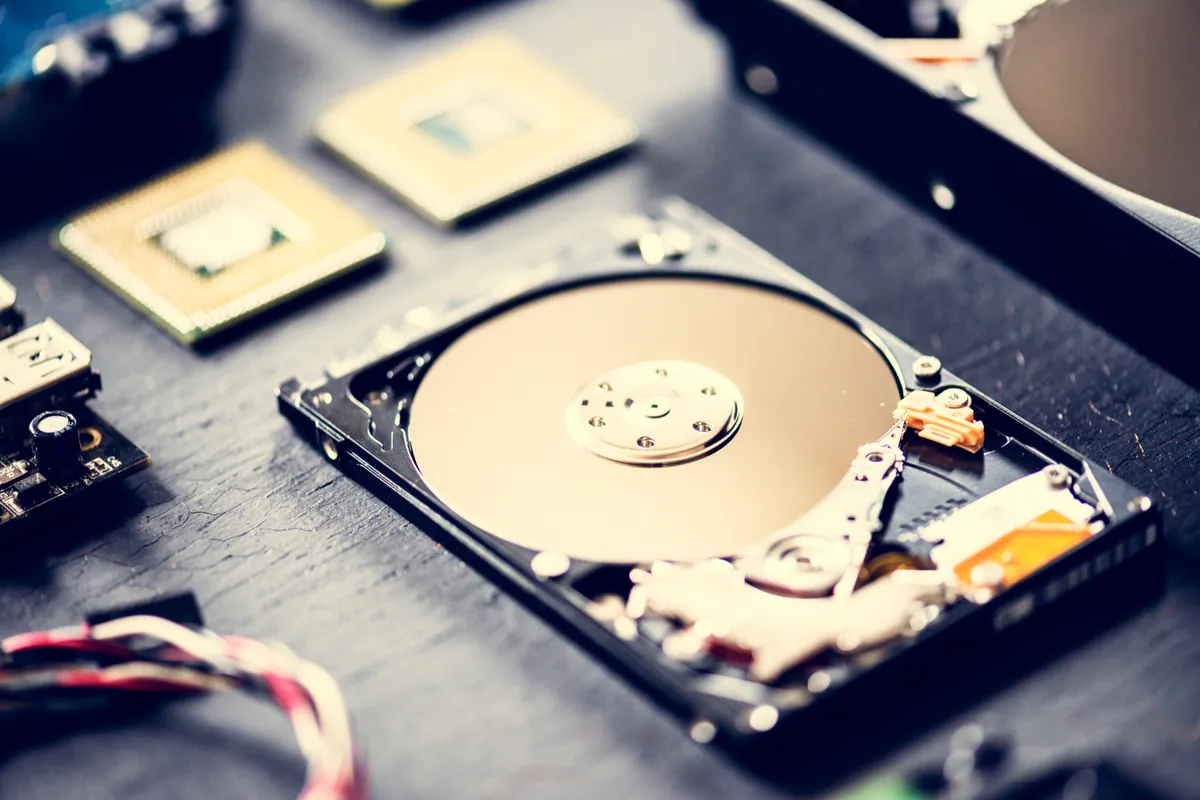
Hard drive platters are machined to tolerances tighter than a fraction of a human hair. The read heads fly nanometres above the platter surface. Opening a hard drive outside of a cleanroom introduces particles that cause the heads to crash into the platters, typically destroying any remaining chance of recovery. Do not open a hard drive yourself.
What TO Do
1. Power down immediately
As above — the moment you suspect failure, shut down the computer. If Windows or macOS won’t shut down normally, hold the power button until the machine powers off.
2. Identify what data you need
Before contacting anyone, think about what’s actually on the drive. It’s easy to panic about “everything” — but in practice, the files that matter most are often a specific subset: the work folder, the photos folder, emails.
Knowing what you need helps a recovery workshop prioritise and helps you assess whether the cost of professional recovery is proportionate to what’s at stake.
3. Check for recent backups
This is the time to find out whether your backup actually worked. Check:
- Time Machine (Mac): Is there a recent backup on an external drive or Time Capsule?
- Windows Backup / File History: Was this set up? When did it last run?
- Cloud storage (OneDrive, Google Drive, iCloud, Dropbox): Which folders were syncing? How recently?
If a full backup from last night exists, you don’t have a data loss problem — you have a hardware replacement problem, which is much simpler. If the last backup was from 18 months ago, the stakes are higher.
4. Do not attempt DIY recovery on a mechanically failing drive
Software data recovery tools (Recuva, TestDisk, R-Studio, PhotoRec) work well for accidentally deleted files or logically corrupted drives where the hardware is still functioning normally. They do not help with mechanically failing drives — a drive that’s making clicking noises, isn’t spinning up, or isn’t being recognised by the computer.
For mechanically failing drives, professional data recovery in a controlled environment is the appropriate path.
5. Contact a recovery specialist promptly
Time matters with some drive failure modes. A drive that’s in a partial failure state can progress to complete failure if left powered off for extended periods in certain conditions, or if it continues to be accessed.
A professional data recovery assessment will determine:
- Whether the drive failure is logical (filesystem or software issue) or physical (mechanical or electronic hardware fault)
- What data is recoverable and at what estimated cost
- Whether the recovery needs to be done in-house or at a specialist clean-room facility
Logical vs Physical Failure: What’s the Difference?
Logical failure: The drive hardware is physically intact, but the filesystem has become corrupted, partitions have been accidentally deleted, or the operating system files have been overwritten. Recovery success rates for logical failures are high. Cost is generally lower.
Physical failure: The drive has a hardware fault — a failed read/write head, damaged platters, seized motor, or failed controller board. Recovery requires physical intervention. Success rates vary depending on the extent of damage. Cost is higher, and for severe cases, specialist clean-room facilities are required.
Most of the drives we assess fall into one of these categories, and initial triage takes only a short time. We’ll give you a clear indication of which type of failure you’re dealing with and what we expect to recover before you commit to any cost.
What a Professional Assessment Involves
At our Putney workshop, a data recovery assessment includes:
- Visual inspection of the drive and connector
- Non-destructive imaging attempt (where feasible) to assess the extent of readable sectors
- SMART data review for mechanical drives
- Preliminary identification of logical vs physical failure
We give you a written summary of what we found and what we can recover, with a clear quote before any recovery work begins. If recovery isn’t feasible, we’ll tell you that too — we won’t take money for work that isn’t going to succeed.
Call 020 7610 0500 or contact us as soon as possible. The sooner a failing drive is assessed by a professional, the better the odds of a successful recovery.
HDD vs SSD: How Failure Differs
Not all drives fail the same way. The type of storage in your computer affects both how failure presents and what recovery options are available.
Mechanical hard drives (HDDs) fail gradually or suddenly due to worn read/write heads, seized motors, or damaged platters. Warning signs include clicking, grinding, and progressive slowness. Because data is stored magnetically on physical platters, recovery is often possible — even from severely damaged drives — using specialist cleanroom equipment to read the platters directly.
Solid-state drives (SSDs) have no moving parts, so they fail silently. There’s no clicking or grinding. Instead, an SSD might simply stop being recognised by the computer, or files may become corrupted without warning. SSD failures are typically caused by controller chip faults, worn NAND flash cells, or firmware bugs.
Recovery from SSDs is significantly harder than from HDDs for several reasons:
- TRIM — modern operating systems send TRIM commands to SSDs, which permanently erase deleted data blocks. Once TRIMmed, that data is gone
- Data distribution — SSD controllers spread data across multiple NAND chips using wear-levelling algorithms, making reconstruction complex
- Hardware encryption — many modern SSDs encrypt data by default, meaning a controller failure can lock out all data even if the NAND chips are intact
If your computer has an SSD, read our detailed guide on SSD data recovery for specific advice.
What Data Recovery Costs
Cost is often the first question people ask after a hard drive failure. The answer depends on the type and severity of the failure.
Logical recovery (corrupted filesystem, deleted partitions, accidental formatting) — these are the most straightforward recoveries. At PC Macgicians, logical recoveries start from £75. The drive hardware is intact, so recovery involves reading the drive and reconstructing the file structure.
Physical recovery (failed heads, seized motor, platter damage) — these require specialist equipment and, for severe cases, cleanroom facilities. Physical recoveries are quoted individually after assessment because the cost depends on what parts and processes are needed.
Our approach:
- Assessment first — we diagnose the failure type and give you a clear quote before any work begins
- Quoted before recovery — the assessment fee is agreed with you upfront, and the recovery itself is quoted separately once we know what has actually failed
- Written summary — you’ll know exactly what we expect to recover, how long it will take, and what it will cost before you commit
For full pricing details, see our data recovery service page or our pricing page.
Preventing Hard Drive Failure
You can’t prevent every drive failure — components wear out, and some failures are unpredictable. But you can significantly reduce the risk and minimise the impact when failure does occur.
Back up regularly. The single most effective protection against data loss is a working backup. Use Time Machine (Mac) or File History (Windows) to an external drive, and supplement with cloud storage for critical files. Test your backups periodically — a backup you’ve never restored from is a backup you’re hoping works.
Monitor SMART data. Both HDDs and SSDs report health data through the SMART (Self-Monitoring, Analysis, and Reporting Technology) system. Tools like CrystalDiskInfo (Windows) or DriveDx (Mac) can alert you to early signs of failure before the drive gives up entirely.
Replace ageing drives proactively. Mechanical hard drives have a typical lifespan of 3–5 years under normal use. If your drive is approaching that age and contains irreplaceable data, consider replacing it with an SSD upgrade before it fails. SSDs are faster, more shock-resistant, and generally more reliable than mechanical drives.
Avoid physical shocks. Laptop hard drives are particularly vulnerable to damage from drops and bumps while the drive is spinning. If you regularly travel with your laptop, an SSD upgrade eliminates this risk entirely.
Use a surge protector or UPS. Power surges and sudden power loss can damage drive electronics and cause filesystem corruption. A basic surge protector costs far less than data recovery.