Why Does My Internet Keep Disconnecting?
Few things are more frustrating than an internet connection that keeps dropping. Whether you’re working, gaming, or streaming, random disconnections can ruin your experience. Fortunately, most of these issues can be fixed with a few troubleshooting steps. Learn how to troubleshoot frequent internet dropouts, fix weak Wi-Fi signals, and stop your connection from cutting out. YouTube videos, Netflix shows, games, and downloads stuck loading again? You’re not alone. Slow Wi-Fi often appears in the middle of important meetings or when you finally want to relax. Below, we break down the most common causes and practical fixes so you can work, stream, game, and browse without interruptions.
Step 1: Start with Basic Fixes
1. Restart Your Modem and Router
A quick reboot can resolve many connection problems:
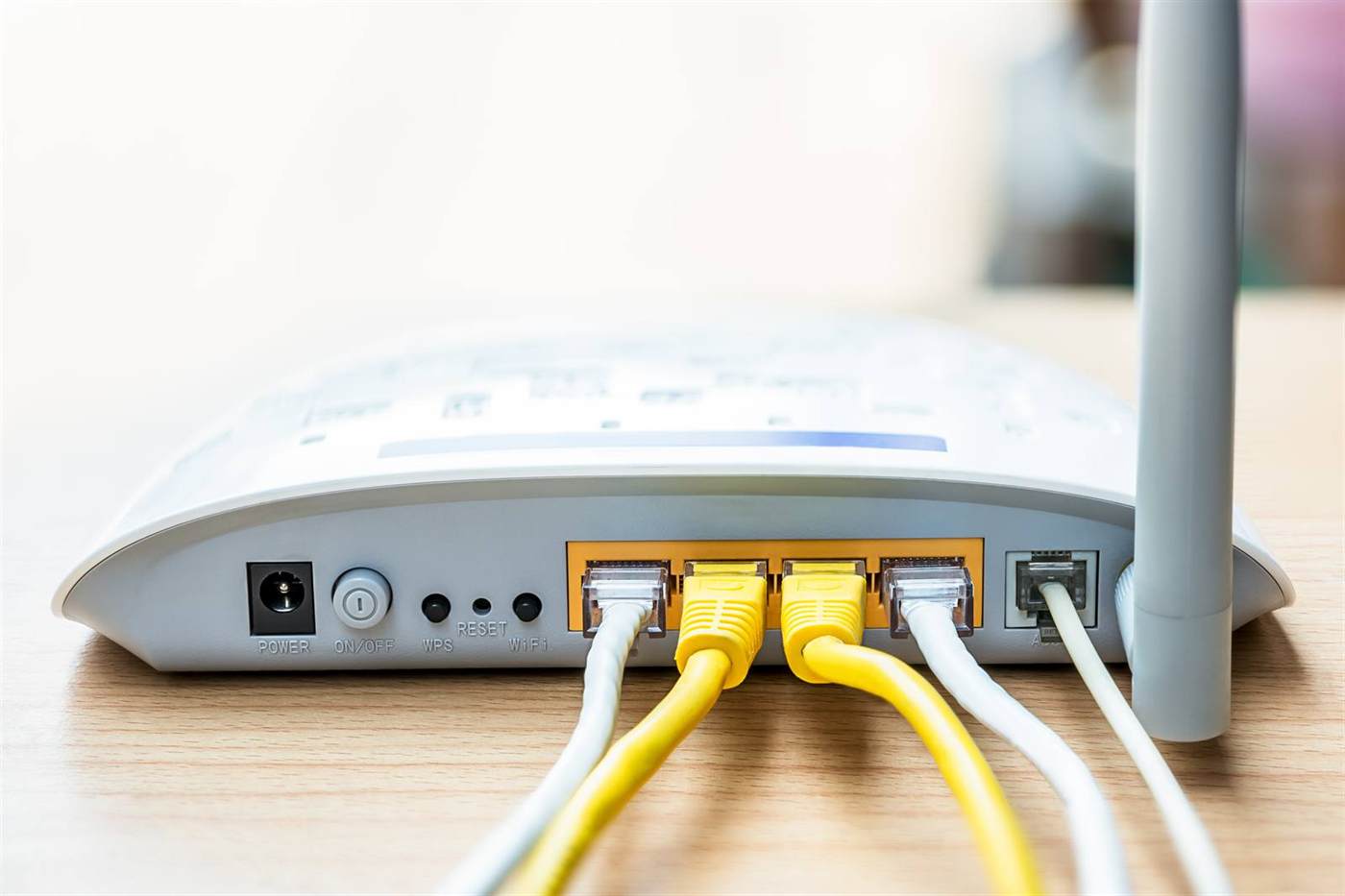
- Unplug your modem and router.
- Wait 30 seconds.
- Plug them back in and allow them to reconnect.
2. Check for ISP Outages
The issue might be on your ISP’s side:
- Visit their website or social media for updates.
- Contact their support if needed.
3. Reduce Wireless Interference
Wi-Fi signals may be disrupted by:
- Microwaves (keep your router away from the kitchen)
- Bluetooth devices (especially on 2.4 GHz)
- Cordless phones and baby monitors
- Overlapping signals from neighbouring networks
How to reduce interference:
- Move closer to your router
- Place the router in a central, open area
- Switch to a 5 GHz Wi-Fi band if available
For help with router placement or signal optimisation, check out our Wi-Fi and Network Installation Services.
4. Use a Wired Ethernet Connection
For devices like gaming consoles, smart TVs, or desktops, a wired connection offers:
- Improved stability
- Faster speeds
- No wireless interference
Step 2: Identify the Root Cause
Before you can fix the problem, you need to know what’s causing it. Whether it’s signal interference, outdated equipment, or an issue with your service provider, identifying the root cause helps you choose the right solution and avoid wasting time on guesswork.
1. One Device or All?
- If one device is disconnecting, it may have a Wi-Fi adapter issue.
- If all devices are affected, the router or ISP is likely the problem.
2. Try a Wired Connection
- If Ethernet works but Wi-Fi doesn’t, your router’s wireless settings may need adjusting.
3. Time-Based Disconnections
- Does the internet drop at the same time each day?
- It could be peak-hour congestion.
- Or possibly your ISP’s scheduled maintenance window.
Step 3: Improve Wi-Fi Stability
Improving your Wi-fi stability may seem passive at first, but it could mean improving your connection speed significantly. This could mean repositioning your router, upgrading your hardware, or reducing interference from other devices. Small changes can make a big difference in creating a more stable and reliable connection.
1. Change Your Wi-Fi Channel
If your network is crowded by neighbours’ signals:
- Log into your router (usually at 192.168.1.1)
- Go to Wireless Settings
- Change the Wi-Fi channel (for 2.4 GHz, channels 1, 6, or 11 are typically best)
2. Switch to 5 GHz Wi-Fi
- Offers faster speeds and less interference
- Use it if your router supports dual-band
Need help upgrading or configuring your router? Our Onsite IT Support in London is ready to assist.
Step 4: Adjust Device and Router Settings
Tweaking the settings on your devices and router can help optimize performance. From changing Wi-Fi channels to updating firmware or adjusting bandwidth settings, these small adjustments can enhance signal strength and reduce dropouts across your network.
1. Update Your Router’s Firmware
Outdated firmware can cause dropouts:
- Log into your router settings
- Navigate to the firmware update section
- Install any available updates
2. Check Power Settings on Laptops (Windows)
Windows may turn off the Wi-Fi adapter to save power:
- Open Device Manager
- Expand Network Adapters
- Right-click your Wi-Fi adapter, select Properties
- Go to the Power Management tab and uncheck “Allow the computer to turn off this device to save power”
Step 5: Rule Out Hardware or ISP Issues
1. Check Cables and Connectors
- Ensure Ethernet or coaxial cables are not loose or damaged
2. Upgrade Old Equipment
- Routers older than 4-5 years may need replacing
- Consider dual-band or mesh systems for modern homes
3. Contact Your ISP
If nothing works, your ISP can:
- Remotely reset your connection
- Replace faulty hardware
- Send a technician to check the line
PC Macgicians Serving Local Areas in London
We provide professional Wi-Fi installation, troubleshooting, and router setup services across Putney, Clapham, Chelsea, Fulham, Wimbledon, and nearby South West London areas.
Related Services
- Printer setup and connectivity support
- Home and small business network setup
- Book a technician or request remote support