Why does my internet keep dropping?
Intermittent dropouts are harder to pin down than a connection that is simply dead. The connection comes back on its own, nothing looks wrong by the time you check, and it is working again by the time you ring anyone about it. But “the internet keeps dropping” can mean three different faults, and each needs a different fix:
- The broadband line is dropping. Every device in the house loses the internet at the same moment, wired ones included, and the router’s internet or broadband light changes colour or goes out.
- The Wi-Fi is dropping. Devices lose their connection to the router, but anything plugged in with a cable carries on as normal.
- One device is dropping. Everything else in the house stays online while one laptop or phone keeps falling off.
Working out which one you have is most of the battle. And if your device stays connected to Wi-Fi but pages simply won’t load, that is a different fault again — see our guide to Wi-Fi connected but no internet.
Sound like your problem?
Bring it to our Putney workshop or message us a photo and we will give you a straight answer and a quote before any work starts.
Step 1: Work out which connection is failing
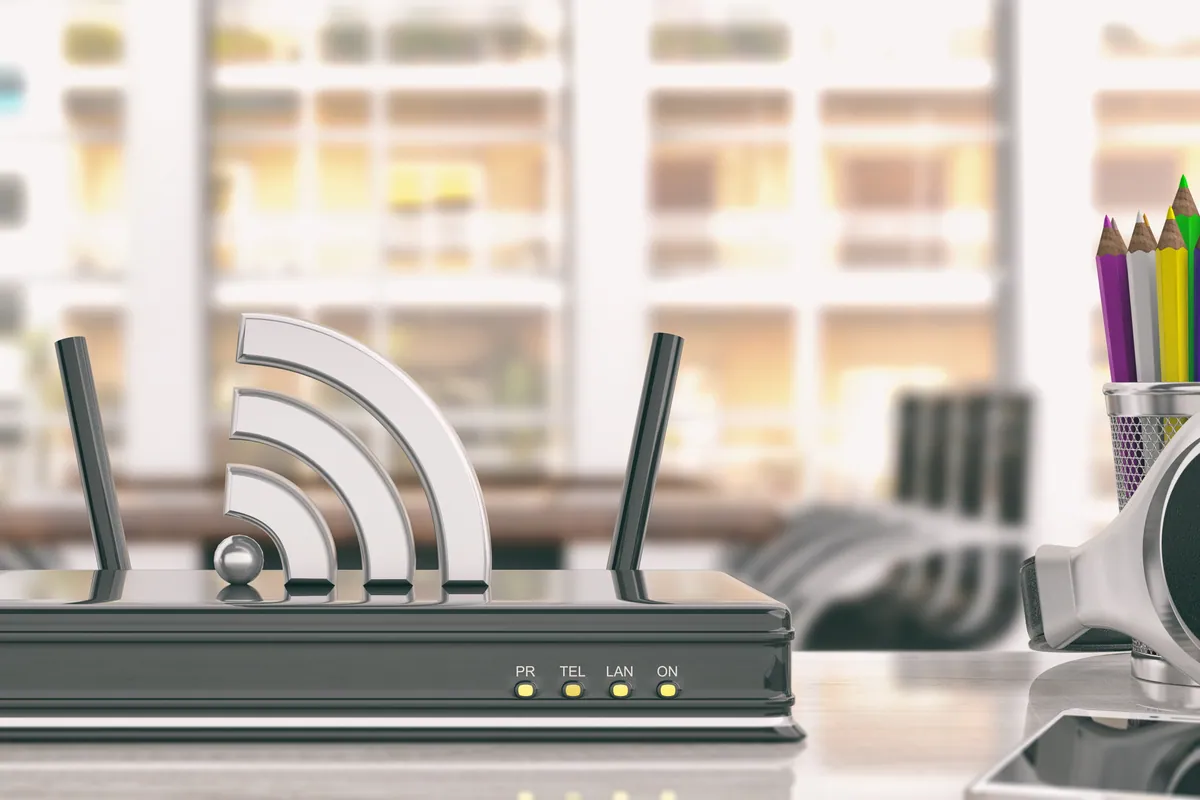
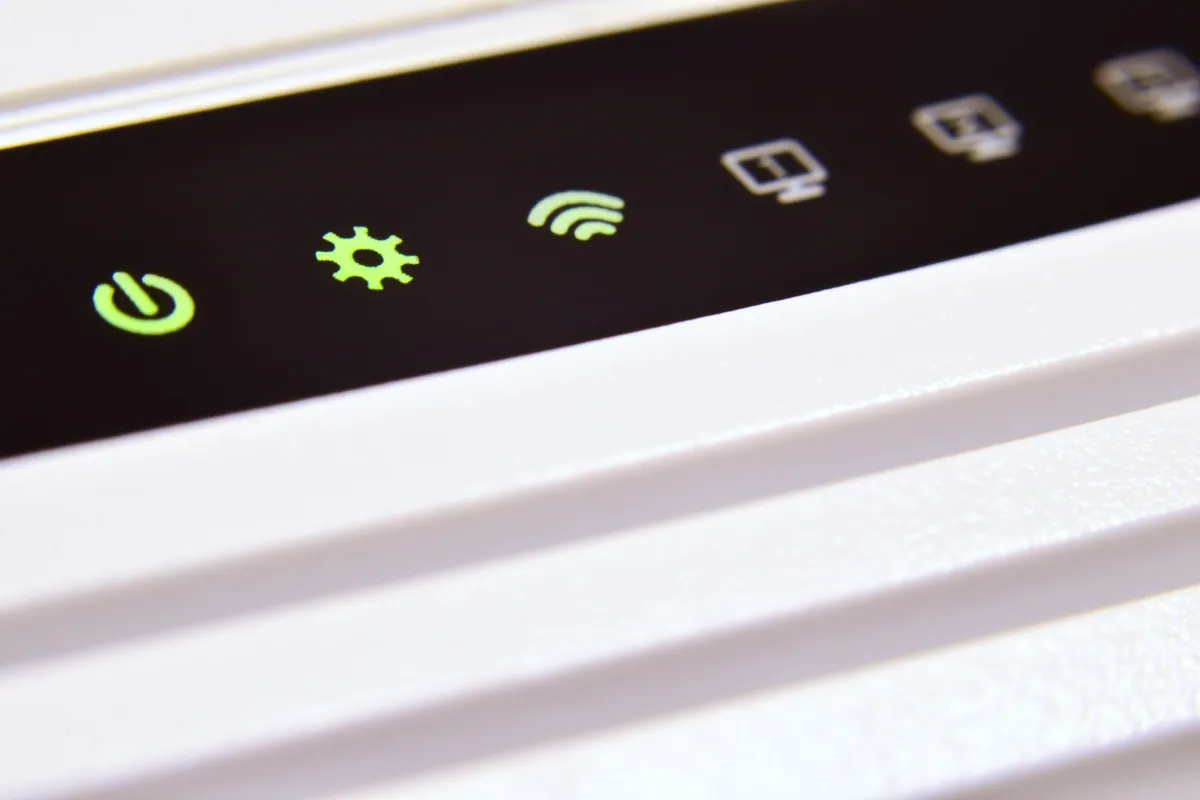
Next time it drops, look at the router before you touch anything. If its internet light has gone red, amber or out, the line into your home has dropped, and no amount of Wi-Fi tuning will help. If the light stays solid while your devices lose their connection, the line is fine and the problem is inside the house.
A cable settles it. Plug a laptop into the router with an Ethernet cable and use it that way for a day. If the wired connection stays up while the Wi-Fi devices keep dropping, it is the Wi-Fi. If the wired connection drops too, it is the line or the router.
Notice when it happens, too. Dropouts that cluster in the evening point at congestion, which we cover in why your internet is slow at night. Dropouts at random, at any hour, point at interference or a fault on the line.
Step 2: Restart properly and check for an outage
A proper restart clears a surprising number of dropouts, but the order matters:
- Power off the router, and the separate modem if you have one, at the wall.
- Wait a couple of minutes, so your provider’s equipment registers that the line has dropped.
- Power the modem on first and let its lights settle, then the router.
Then check your provider’s service-status page or app over mobile data. A local fault explains dropouts across a whole street, and there is nothing to fix at your end until it is cleared.
Step 3: If the line is dropping
When the router’s internet light goes out and wired devices drop too, the fault sits between the router and your provider.
- Check the cable into the router. The lead from the wall socket or fibre box should be firmly seated at both ends and undamaged. A loose or kinked cable causes exactly this kind of intermittent drop.
- Use the main socket. On a copper or part-fibre line, plug the router into the main phone socket rather than an extension socket elsewhere in the house; extension wiring can add noise to the line.
- Keep a log. Note the time and length of each dropout for a few days. Providers take a pattern far more seriously than “it keeps cutting out”, and it gives them something to test the line against.
- Ask your provider to test the line. They can see errors and reconnections on their side that you cannot, and they can send an engineer if the line itself is faulty.
Step 4: If the Wi-Fi is dropping
This is the most common case we see, and it is where money gets wasted, because the obvious fix — buying more hardware — often isn’t the right one.
One household we visited in Wimbledon SW19 had spent a couple of years trying: range extenders first, then a mesh system, then a new router from their provider. Video calls still dropped mid-sentence. Surveying what was on the air showed why. A dense stack of neighbouring networks sat on the same 2.4GHz channel as theirs, nearly every device in the house was connected on that congested band, and the router was tucked into a media unit beside a cordless phone base. Moving the network onto a clear channel, setting the bands up so devices capable of 5GHz actually used it, and moving the router into the open fixed it in about an hour, with no new equipment.
The same checks work in most homes:
- Change the Wi-Fi channel. Routers left on automatic often pick a poor channel and stick with it. On 2.4GHz, channels 1, 6 and 11 don’t overlap one another, so pick whichever is least crowded near you.
- Use 5GHz where you can. It carries more data and is far less crowded. If your router presents both bands as one network, devices may cling to 2.4GHz even when 5GHz is strong.
- Move the router into the open. Cupboards, media units and the space behind a TV all weaken the signal. Keep it clear of cordless phone bases, baby monitors and microwaves, which share the 2.4GHz band.
- Update the router’s firmware. Most routers can check for updates from their settings page, and some update themselves.
A useful rule of thumb from that job: if the Wi-Fi is unreliable even close to the router, or worse in the evenings, it is congestion or interference, and extra extenders or mesh nodes will only join the crowd. If it is fine near the router and bad in the same far rooms every time, it is coverage, and our guide to extending your Wi-Fi range and fixing dead spots is the one to read.
Step 5: If only one device keeps dropping
When everything else stays online, the fault is on that device:
- Update its Wi-Fi driver on a Windows laptop, or install pending updates on a Mac.
- Stop Windows switching the adapter off to save power. In Device Manager, open the wireless adapter’s properties, go to Power Management and untick the option that lets Windows turn the device off.
- Forget the network and rejoin it, so the device starts again with fresh settings.
- Check which band it is on. Some older devices only work on 2.4GHz and struggle at the edge of its range.
If a laptop keeps dropping where every other device is fine, and none of that helps, the wireless card or its aerial leads may be at fault. That is a hardware job for our laptop repair workshop in Putney.
Offices: when one router isn’t enough
In a small office the pattern is often simpler: one consumer router is trying to cover more space than it can. A two-floor office in Battersea SW11 had video calls dropping mid-meeting, and staff were falling back on mobile hotspots for important calls. A survey found a single router near the entrance, with weak signal at the back and poor signal upstairs. A business-grade router, an access point on each floor sharing one network name so devices roam between them, and separate staff and guest networks put it right.
When to call your provider, and when to call us
Call your provider when the router’s internet light drops, when wired devices lose the connection too, or when your log shows a pattern on the line. That is their equipment, and they can test it.
Call us when the line tests clean but the Wi-Fi still drops, when more hardware hasn’t helped, or when you have two routers, a mesh system or an office network that isn’t behaving. We visit homes and businesses across South West London, including Putney, Clapham, Chelsea, Fulham and Wimbledon, for Wi-Fi setup and network setup. If you’d rather not have a visit, remote IT support can often check a computer’s network settings first. Call 020 7610 0500 or use the contact form.
Related services
- Wi-Fi setup — home and business Wi-Fi, channel and band tuning, access points
- Network setup — routers, mesh systems and wired networks
- Onsite IT support — home and small-business visits across South West London
- Remote IT support — help with computer and connection settings without a visit